
1. Introduction
The OBZ Mini Wireless 2D 1D Barcode Scanner is a compact and versatile device designed for efficient barcode and QR code scanning. Its ultra-mini size and lightweight design make it ideal for portable use in various environments such as inventory, warehouses, supermarkets, express delivery, and libraries. This manual provides detailed instructions for setting up, operating, maintaining, and troubleshooting your scanner.

The OBZ Mini Wireless 2D 1D Barcode Scanner, a compact and portable device.

The scanner features an ultra-mini pocket design, measuring 90mm x 30mm x 21mm and weighing only 45g, making it highly portable. A wrist lanyard is included for convenience.
2. Setup
2.1 Charging the Battery
The scanner is equipped with an 800 mAh rechargeable lithium polymer battery. For optimal performance, charge the scanner for approximately 2.5 hours to achieve a full charge. A full charge provides up to 6 hours of continuous operation and 100 days of standby time.

Equipped with an 800mAh rechargeable battery, the scanner provides up to 6 hours of continuous scanning, 2.5 hours for a full charge, and 100 days of standby time.
2.2 Connection Modes
The scanner supports two wireless connection modes: Bluetooth and 2.4G Wireless.

This image illustrates the two wireless connection options: Bluetooth with a range of up to 50m/164ft and 2.4G wireless with a range of up to 80m/262ft, connecting to various devices like smartphones, laptops, and PCs.
Bluetooth Connection:
- Press and hold the scanner button for 8 seconds until the blue light flashes. This indicates the scanner has entered pairing mode.
- On your mobile device (smartphone, tablet, PC), open the Bluetooth settings.
- Search for available devices and select "R&B40" to pair.
- Once successfully paired, the blue light on the scanner will remain solid.
Note: Complete the pairing process within one minute. Only one device can be connected via Bluetooth at a time. If you need to connect to another Bluetooth device, first turn off Bluetooth on the original device.
2.4G Wireless Connection:
- Press and hold the scanner button for 8 seconds until the blue light flashes. This indicates the scanner has entered pairing mode.
- Insert the provided USB receiver into an available USB port on your computer or POS system.
- Once successfully paired, the blue light on the scanner will remain solid.
Note: Insert the USB receiver into the computer within one minute of the scanner entering pairing mode. Only one device can be connected via 2.4G wireless at a time. If you need to connect to another device, disconnect the USB receiver first.
2.3 Compatibility
The OBZ Mini Wireless Barcode Scanner offers broad compatibility, connecting easily to devices running various operating systems:
- Operating Systems: iOS, Android, Windows, Linux
- Compatible Devices: Laptops, PCs, POS systems, Mobile Phones, Tablets (including iPhone and iPad)

The scanner offers broad compatibility, connecting easily to devices running iOS, Android, Linux, and Windows, including laptops, PCs, POS systems, mobile phones, and tablets.
3. Operating Instructions
3.1 Scanning Capabilities
The scanner is equipped with an advanced CMOS sensor, providing high decoding accuracy for a wide range of barcodes.
- Supported 1D Barcodes: Code 128, EAN-13, ISBN, ISSN, EAN-8, UPC/EAN128, UPC-A, UPC-E, UCC, Code 11, Code 32, Code 93, Code 39, Code 39 Full ASCII, Codabar, Interleaved 2 of 5, Industrial 2 of 5, Standard 2 of 5, Matrix 2 of 5, MSI-Plessey, ITF-14, etc.
- Supported 2D Barcodes: QR Code, PDF417, MicroPDF417, DataMatrix, Aztec Code, Maxicode, DMCode, GS1, GS1 QR Code, etc.
- Scanning Medium: Capable of scanning barcodes from both paper and electronic screens.
- Advanced Decoding: Supports scanning of damaged, distorted, colored, reflective, and inverted barcodes.

The scanner features an advanced CMOS decoding chip capable of reading all types of 1D barcodes and 2D barcodes from both printed materials and electronic displays.
3.2 Scanning Modes
The scanner offers three operational scanning modes:
- Key Trigger Mode: Press the scan button to initiate a scan.
- Automatic Detection Mode: The scanner automatically detects and scans barcodes when they are presented within its scanning range.
- Continuous Mode: The scanner continuously scans for barcodes without requiring a button press.
3.3 Data Upload Modes
Choose from three data upload modes based on your operational needs:
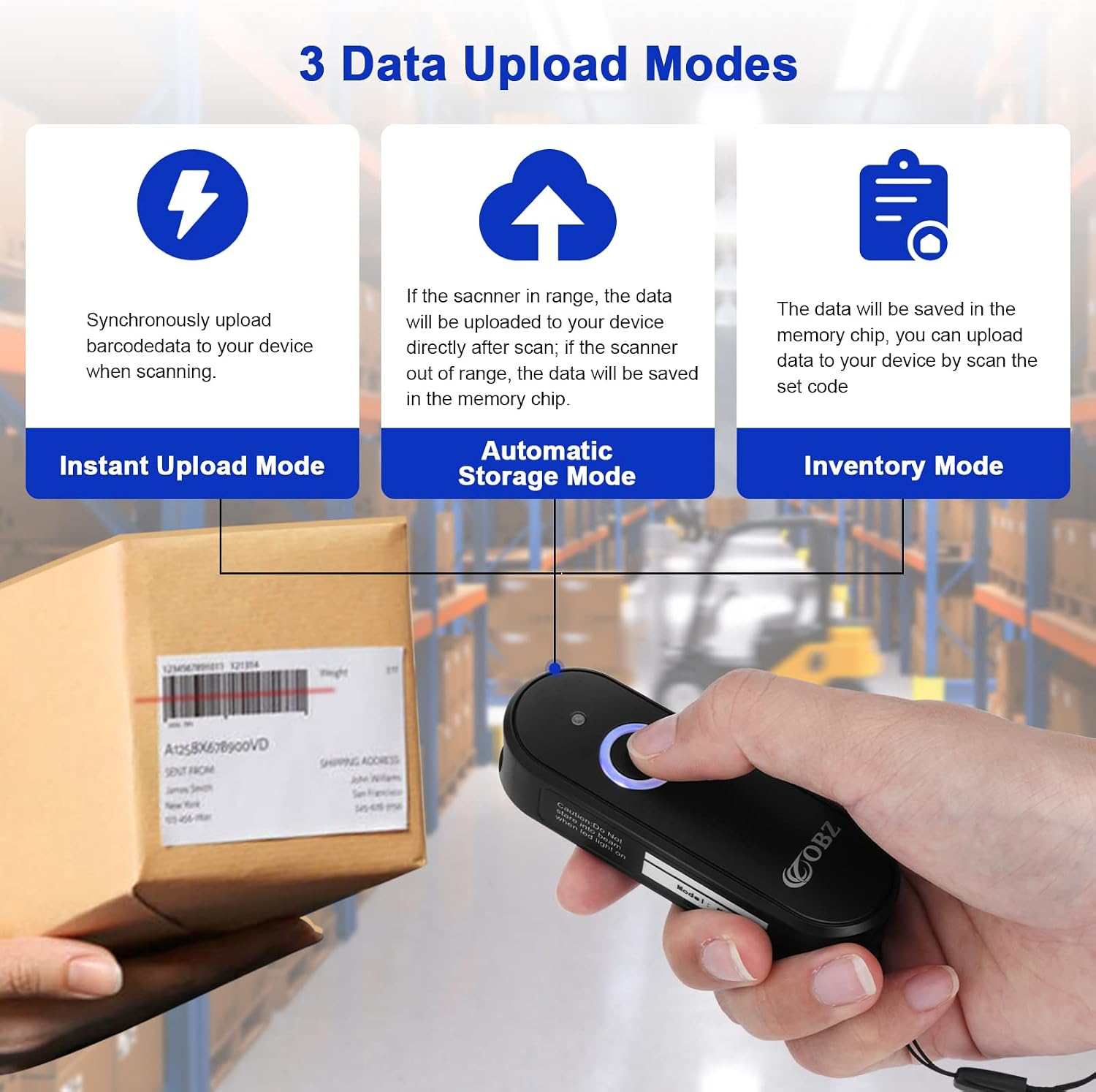
- Instant Upload Mode: Barcode data is uploaded synchronously to your connected device immediately after scanning.
- Automatic Storage Mode: Data is uploaded directly to your device after scanning if the scanner is within range. If the scanner is out of range, the data will be saved in the scanner's internal memory chip.
- Inventory Mode: This mode allows the scanner to store up to 512,000 characters of barcode data offline. You can then upload the stored data to your device when needed by scanning a specific set code (refer to the full user manual for the specific code).

The scanner supports three data upload modes: Instant Upload for real-time transmission, Automatic Storage for uploading data after scanning when in range, and Inventory Mode for storing up to 512,000 characters offline before manual upload.
4. Maintenance
4.1 Battery Management
To conserve energy and extend battery life, the barcode scanner is designed to automatically power off after 5 minutes of inactivity. This default auto-shutdown time can be adjusted or disabled according to your preferences by scanning specific configuration codes (refer to the full user manual for details).
4.2 Cleaning and Storage
- Use a soft, dry, and lint-free cloth to gently clean the scanner lens and the device body.
- Avoid using abrasive cleaners, solvents, or any liquids that could damage the scanner's components.
- Store the scanner in a cool, dry place, away from direct sunlight, extreme temperatures, and high humidity.
5. Troubleshooting
If you encounter any issues with your OBZ Mini Wireless Barcode Scanner, please refer to the following common troubleshooting steps:
5.1 Scanner Not Connecting
- Ensure the scanner is fully charged.
- Verify that the blue light is flashing, indicating the scanner is in pairing mode.
- For Bluetooth connection, confirm that "R&B40" is selected and successfully paired on your device.
- For 2.4G wireless connection, ensure the USB receiver is properly inserted and recognized by your computer.
- Remember to complete the pairing process within one minute of entering pairing mode.
- If connecting to a new device, ensure any previous connections (Bluetooth or 2.4G) are disconnected first.
5.2 Scanner Not Reading Barcodes
- Ensure the barcode is clean, clear, and not excessively damaged, distorted, or faded.
- Adjust the distance and angle of the scanner to the barcode. Try scanning from different positions.
- Verify that the barcode type you are trying to scan is supported by the device (refer to Section 3.1 Scanning Capabilities).
- Some barcode symbologies might be disabled by default. Refer to the comprehensive user manual (PDF document) for instructions on how to enable specific symbologies.
5.3 Data Not Uploading
- Check the currently selected data upload mode (Instant, Automatic Storage, or Inventory).
- In Instant Upload mode, ensure the scanner is actively connected to your device and within range.
- In Automatic Storage mode, data will upload automatically when in range, or be stored if out of range. Ensure you are back in range for automatic upload or manually retrieve stored data.
- In Inventory mode, follow the specific instructions in the full user manual to upload the stored data to your device.
- If you need to delete stored data, please consult the full user manual or contact OBZ customer support for guidance.
6. Specifications
| Feature | Specification |
|---|---|
| Model | B0C1FP4FJB |
| Dimensions (H x W x D) | 90mm x 30mm x 21mm (3.5 x 1.18 x 0.78 inches) |
| Weight | 45 Grams (1.58 ounces) |
| Connectivity Technology | Bluetooth, 2.4G Wireless, USB Cable |
| Power Source | Battery Powered (800 mAh Lithium Polymer battery, included) |
| Scanning Speed | 100 fps |
| Compatible Devices | Tablet, Laptop, PC, POS, Smartphone |
| Certifications | CE, FCC, RoHS |
7. Warranty & Support
OBZ is committed to providing high-quality products and excellent customer service. If you have any questions, concerns, or encounter any issues with your OBZ Mini Wireless 2D 1D Barcode Scanner, please do not hesitate to contact the OBZ professional and dedicated support team. They are available to assist you with product inquiries, technical support, and troubleshooting.
For further assistance, please refer to the official OBZ website or the contact information provided with your product packaging.
8. Product Overview
This image provides a detailed look at the scanner's components, including the power connection, buzzer, LED indicators for power and Bluetooth connection, the scan button, and the scan lens.

The OBZ barcode scanner is versatile and suitable for various applications, including inventory management in warehouses, express delivery services, retail operations in supermarkets, and book management in libraries or bookstores.


