
1. Introduction
Thank you for choosing the ODK Reversible L-Shaped Corner Desk. This manual provides detailed instructions for assembly, operation, maintenance, and troubleshooting to ensure you get the most out of your new desk. Designed for both work and gaming, this desk features a versatile L-shaped configuration, integrated LED lighting, and convenient power outlets with USB charging ports.

Figure 1.1: The ODK L-Shaped Corner Desk, showcasing its spacious design and integrated LED lighting.
2. Product Features
- Reversible Design: The L-shaped configuration can be assembled with the longer side on either the left or right, adapting to your space layout.
- Integrated LED Lighting: Features an LED strip with 13 lighting modes and 7 color variations to create a personalized ambiance.
- Convenient Power Hub: Equipped with 2 standard power outlets (220-250V/15A) and 2 USB charging ports (5V/2.1A) for easy device charging.
- Ample Storage: Includes multi-functional two-tier storage shelves, with adjustable height for customized organization.
- Ergonomic Monitor Stand: An ultra-long monitor stand helps improve posture and reduce neck strain.
- Durable Construction: Made with a carbon fiber top and a sturdy metal frame for long-lasting use.

Figure 2.1: Detail of the built-in power outlets, USB ports, and a visual representation of the LED lighting modes.

Figure 2.2: Illustration of the desk's reversible design and overall dimensions (150cm x 102cm x 88.7cm).

Figure 2.3: Comparison illustrating the generous legroom provided by the ODK L-shaped desk, enhancing user comfort.
3. Safety Information
- Ensure all screws and fasteners are securely tightened before use. Periodically check and re-tighten as needed.
- Do not overload the desk or shelves beyond their weight capacity.
- Keep liquids away from electrical components (outlets, USB ports, LED strip).
- Use only the provided power cord. Do not modify the electrical components.
- Assemble the desk on a soft, clean surface to prevent scratches.
- Keep small parts away from children during assembly.
4. Package Contents
Before beginning assembly, verify that all parts are present and undamaged. If any parts are missing or damaged, please contact customer support.
- Desk Top Panels (L-shaped sections, monitor stand)
- Metal Frame Components (legs, support bars)
- Storage Shelf Panels
- Integrated Power Outlet & USB Hub
- LED Light Strip
- Assembly Hardware (screws, bolts, nuts, Allen wrench)
- Power Cord
- Instruction Manual (this document)
5. Assembly Instructions
Assembly typically requires two people. Please follow the numbered steps carefully. Refer to the included diagram for part identification.
- Prepare Workspace: Clear a spacious area and lay out all components on a soft, clean surface to prevent damage.
- Assemble Frame: Connect the main metal frame components using the provided screws and Allen wrench. Do not fully tighten screws until all parts are aligned.
- Attach Desk Panels: Carefully place the L-shaped desk panels onto the assembled frame. Secure them with screws.
- Install Storage Shelves: Attach the storage shelf panels to the designated frame sections. Adjust the height of the removable shelf as desired before securing.
- Mount Monitor Stand: Secure the ultra-long monitor stand to the top of the desk panels.
- Integrate Power Hub: Insert the power outlet and USB hub into the pre-cut opening on the desk surface. Secure it if necessary.
- Attach LED Strip: Adhere the LED light strip to the underside of the monitor stand or designated area, ensuring the adhesive is firm.
- Final Tightening: Once all components are in place and aligned, fully tighten all screws and fasteners.
- Connect Power: Plug the power cord into the integrated power hub and then into a wall outlet.
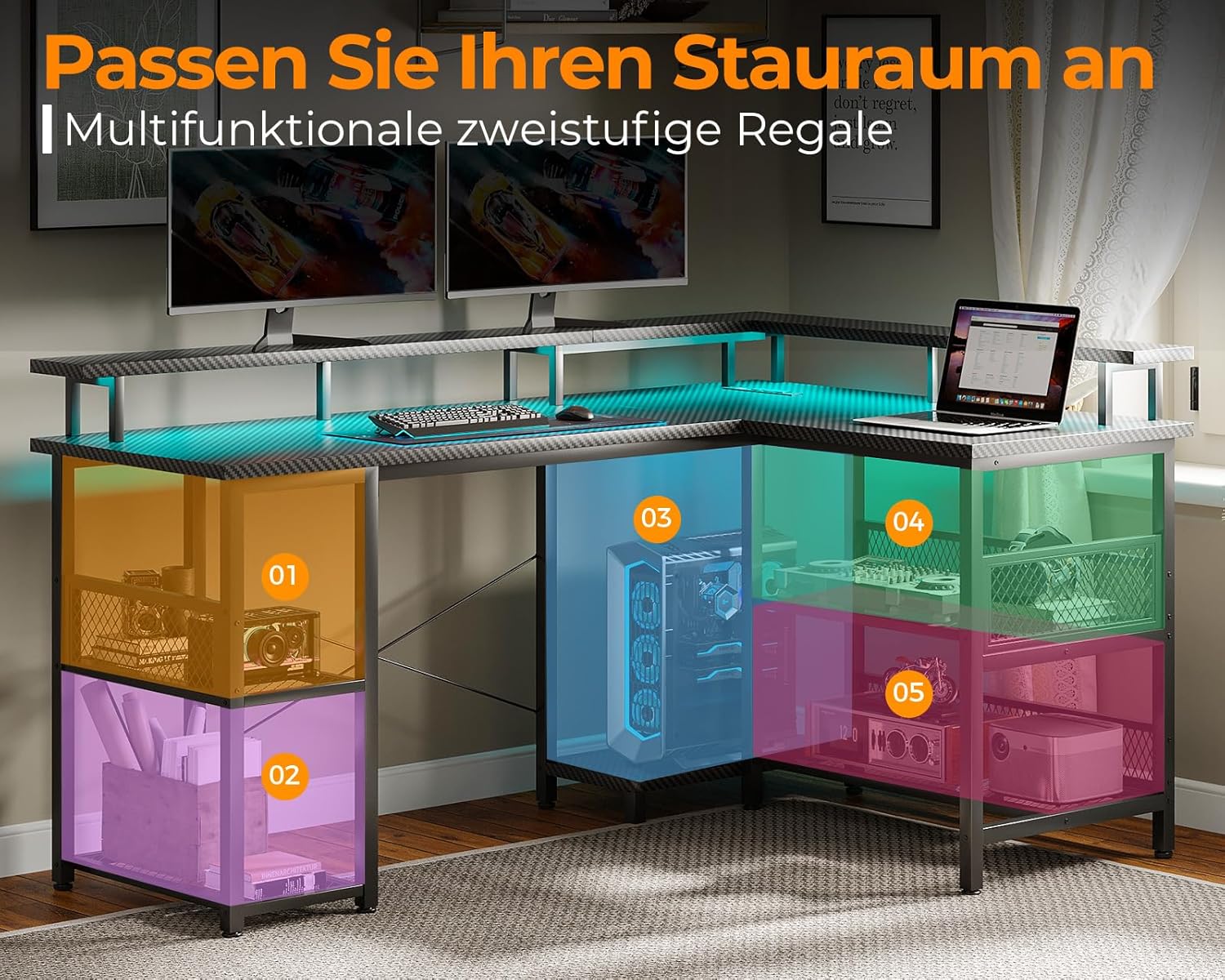
Figure 5.1: Overview of the desk's storage capabilities, highlighting various compartments for organization.
6. Operating Instructions
6.1. Using the Power Outlets and USB Ports
The integrated power hub provides convenient access to power for your devices.
- Power Outlets: Plug your electronic devices (monitors, laptops, lamps) directly into the 220-250V/15A outlets.
- USB Charging Ports: Connect your smartphones, tablets, or other USB-powered devices to the 5V/2.1A USB ports for charging.
6.2. Controlling the LED Lighting
The LED light strip is controlled via a small button or remote (if included, check package). Refer to the specific controller for detailed instructions.
- Power On/Off: Press the power button to turn the LEDs on or off.
- Change Modes: Cycle through 13 different lighting modes by pressing the mode button.
- Change Colors: Select from 7 color variations using the color selection button.
7. Maintenance and Care
- Cleaning: Wipe the desk surface and frame with a soft, damp cloth. Avoid harsh chemicals or abrasive cleaners.
- Spills: Immediately wipe up any spills to prevent damage to the carbon fiber surface or electrical components.
- Tightness Check: Periodically check all screws and fasteners to ensure they remain tight. Re-tighten if necessary to maintain stability.
- Avoid Direct Sunlight: Prolonged exposure to direct sunlight may affect the finish of the desk.
8. Troubleshooting
| Problem | Possible Cause | Solution |
|---|---|---|
| Desk is wobbly. | Loose screws or uneven floor. | Ensure all screws are tightened. Adjust leveling feet if present, or place shims under legs on uneven surfaces. |
| LED lights not working. | Not plugged in, loose connection, or faulty LED strip. | Check if the power cord is securely plugged into the wall and the desk's power hub. Ensure the LED strip's connector is firmly attached. If issues persist, contact support. |
| Power outlets/USB ports not working. | Desk not plugged in, power outage, or faulty hub. | Verify the desk's main power cord is plugged into a live wall outlet. Test the wall outlet with another device. If still not working, contact support. |
| Difficulty assembling. | Incorrect part orientation or missing steps. | Review the assembly instructions carefully, paying attention to diagrams. Ensure parts are oriented correctly. Do not fully tighten screws until all components are loosely assembled. |
9. Specifications
| Feature | Detail |
|---|---|
| Brand | ODK |
| Model Number | ZJZ-SBWJDDD |
| Color | Black Carbon Fiber |
| Dimensions (L x W x H) | 150 x 102 x 88.7 cm (59.1 x 40.2 x 34.9 inches) |
| Item Weight | 24.8 kg (54.7 lbs) |
| Material (Top) | Carbon Fiber Laminate |
| Material (Frame) | Metal |
| Power Outlets | 2 (220-250V/15A) |
| USB Charging Ports | 2 (5V/2.1A) |
| LED Lighting | 13 Modes, 7 Colors |
| Recommended Use | Gaming, Work |
10. Warranty and Support
ODK stands behind the quality of its products. For warranty information, technical support, or to inquire about replacement parts, please contact ODK customer service through the retailer where you purchased the product or visit the official ODK website.
Please have your model number (ZJZ-SBWJDDD) and purchase date ready when contacting support.


