
1. Introduction
1.1 About This Manual
This manual provides essential information for setting up, operating, maintaining, and troubleshooting your Fujitsu LIFEBOOK E546 laptop. Please read it carefully before using your device to ensure proper function and longevity.
1.2 Product Overview
The Fujitsu LIFEBOOK E546 is a business-class laptop designed for productivity and reliability. This particular unit is a refurbished model, professionally tested and renewed to function like new. It features an Intel Core i5-6200U processor, 8GB of RAM, a 256GB SSD, and a 14-inch Full HD (1920x1080) display. It comes pre-installed with Windows 10 Pro.

Image: Fujitsu LIFEBOOK E546 laptop, closed, showing the top lid with the Fujitsu logo.
2. Setup
2.1 Unpacking
Carefully remove all components from the packaging. Ensure the following items are present:
- Fujitsu LIFEBOOK E546 Laptop
- AC Adapter
- Power Cable
If any items are missing or damaged, please contact customer support immediately.
2.2 Initial Power On
Connect the AC adapter to the laptop's power input port and then to a functional power outlet. Open the laptop lid and press the power button, typically located near the keyboard. The system will guide you through the initial Windows 10 setup process, including language selection, network connection, and user account creation.

Image: Fujitsu LIFEBOOK E546 laptop open, viewed from an angle, showing the keyboard and screen. The power button is typically located near the keyboard.
3. Operation
3.1 Power Management
- To turn on: Press the power button.
- To turn off: In Windows, click the Start button, then select Power > Shut down.
- Sleep mode: Close the laptop lid or click the Start button, then select Power > Sleep.
3.2 Connecting Peripherals
The LIFEBOOK E546 offers various ports for connecting external devices:
- USB Ports: Connect USB devices such as mice, keyboards, external storage drives, or printers to the three USB-A 3.0 ports.
- Video Output: Use the VGA or DisplayPort for connecting external monitors or projectors.
- Network: Connect to a wired network using the Gigabit LAN (Gb LAN) port for stable internet access.
- Audio: Utilize the audio in/out ports for headphones, external speakers, or microphones.
- Card Reader: Insert compatible memory cards into the card reader slot for data transfer.
- Docking Station: A dedicated connector allows for integration with a compatible docking station (sold separately) for expanded connectivity.

Image: Left side view of the Fujitsu LIFEBOOK E546, showing audio jacks and USB ports.
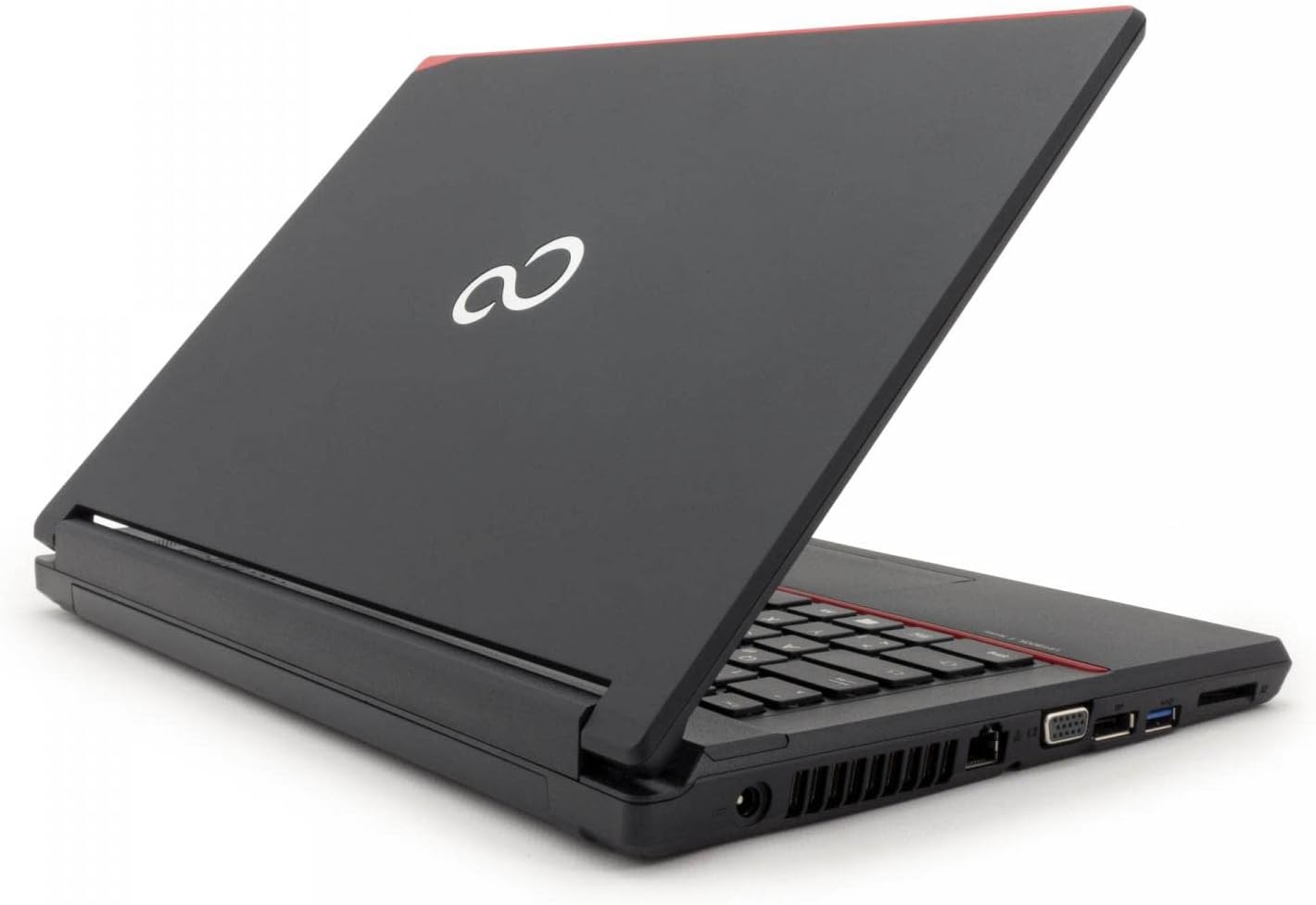
Image: Right side view of the Fujitsu LIFEBOOK E546, showing VGA, DisplayPort, LAN, and other ports.
3.3 Using the Keyboard and Touchpad
The laptop features a full-sized keyboard for comfortable typing. The integrated touchpad allows for precise cursor control and supports multi-touch gestures such as scrolling and zooming. Refer to Windows settings for touchpad customization options.
4. Maintenance
4.1 Cleaning
To maintain the appearance and functionality of your laptop:
- Use a soft, lint-free cloth, slightly dampened with water or a screen cleaner, to clean the display.
- Wipe exterior surfaces with a soft, dry cloth.
- Avoid using harsh chemicals, abrasive cleaners, or solvents, as these can damage the surfaces.
- Ensure the laptop is powered off and unplugged before cleaning.
4.2 Software Updates
Regularly update your Windows operating system and device drivers to ensure optimal performance, security, and compatibility. Windows Update can be accessed via the Settings menu.
4.3 Battery Care
To prolong the lifespan of your laptop's battery:
- Avoid exposing the laptop to extreme temperatures (very hot or very cold).
- Do not frequently fully discharge the battery. It is generally better to keep the charge between 20% and 80%.
- If storing the laptop for an extended period, ensure the battery is charged to approximately 50%.
5. Troubleshooting
5.1 Common Issues and Solutions
- Laptop does not power on:
- Check power connection: Ensure the AC adapter is securely connected to the laptop and a working power outlet.
- Battery charge: If running on battery, ensure it is sufficiently charged.
- Screen is blank or no display:
- Check brightness settings: Increase screen brightness using the function keys.
- External monitor test: Connect an external monitor to the laptop to verify if the issue is with the laptop's internal display or the graphics output.
- Slow performance:
- Close unnecessary applications: Reduce the number of programs running simultaneously.
- Check for background processes: Use Task Manager (Ctrl+Shift+Esc) to identify and close resource-intensive background processes.
- Ensure sufficient free space: Verify that your 256GB SSD has adequate free space for optimal operation.
- Peripheral not recognized:
- Reconnect the device: Unplug and re-plug the peripheral.
- Try a different port: Test the device in another USB or relevant port.
- Update or reinstall drivers: Ensure the latest drivers for the peripheral are installed.
For more complex issues or persistent problems, refer to the official Fujitsu support website or contact their technical support for further assistance.
6. Specifications
| Feature | Detail |
|---|---|
| Model | Fujitsu LIFEBOOK E546 |
| Processor | Intel Core i5-6200U (6th Generation) |
| RAM | 8 GB |
| Storage | 256 GB SSD |
| Display | 14 inches, 1920 x 1080 pixels (Full HD) |
| Operating System | Windows 10 Pro |
| Graphics | Intel HD Graphics 520 |
| Weight | 1.9 Kilograms |
| Ports | 3x USB-A 3.0, Gb LAN, VGA, DisplayPort, Audio in/out, Card Reader, Docking Station connector |
| Human Interface Input | Microphone |
| Battery Composition | Lithium-ion |
*Note: Specifications may vary slightly based on specific configuration or regional models.
7. Warranty and Support
7.1 Warranty Information
This Fujitsu LIFEBOOK E546 comes with a 1-year warranty. Please retain your proof of purchase for any warranty claims. The warranty covers manufacturing defects and ensures the product functions as described. It does not cover damage caused by misuse, accidents, unauthorized modifications, or normal wear and tear.
7.2 Technical Support
For technical assistance, troubleshooting beyond this manual, or service requests, please visit the official Fujitsu support website or contact their customer service department. A "Recovery" shortcut is pre-installed on the desktop for system recovery options, which can help resolve software issues.


