
1. Introduction
Thank you for purchasing the PONER SAUND H69 Projector. This device is designed to provide a high-quality visual experience with its 1080P Full HD resolution and 500 ANSI lumens brightness. Equipped with advanced features like WiFi, Bluetooth 5.2, electric focus, auto keystone correction, and a versatile 360° adjustable stand, this projector offers flexibility and ease of use for various entertainment and presentation needs. Please read this manual carefully before operating the projector to ensure proper use and optimal performance.
2. Safety Information
- Do not look directly into the projector lens when the lamp is on.
- Ensure proper ventilation around the projector to prevent overheating. Do not block ventilation openings.
- Use only the power adapter supplied with the projector.
- Do not expose the projector to rain, moisture, or extreme temperatures.
- Avoid placing the projector on unstable surfaces.
- Do not attempt to disassemble or repair the projector yourself. Contact qualified service personnel for assistance.
- Keep the projector away from water and other liquids.
3. Package Contents
Please check that all items are present and in good condition:
- PONER SAUND H69 Projector
- Power Adapter
- Remote Control (batteries not included)
- AV Cable
- User Manual
4. Product Overview
Familiarize yourself with the components and ports of your PONER SAUND H69 Projector.
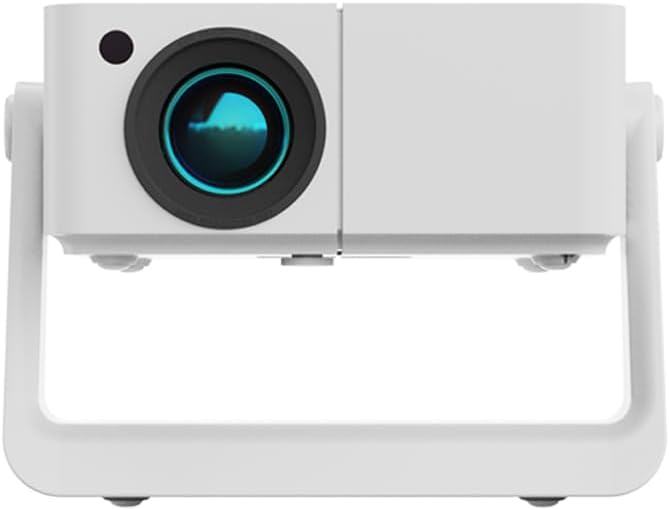
Figure 4.1: Front view of the PONER SAUND H69 Projector, showing the lens and sensor.

Figure 4.2: Rear and side view of the projector, highlighting the Headset jack, USB port, IR receiver, HDMI port, Power input, and Power button with F+/- controls.
Ports and Controls:
- Lens: Projects the image.
- IR Receiver: For remote control signals.
- Headset Jack: 3.5mm audio output for headphones or external speakers.
- USB Port: For connecting USB storage devices.
- HDMI Port: For connecting HDMI-enabled devices like laptops, gaming consoles, or TV sticks.
- Power Input: Connects to the power adapter.
- Power Button: Turns the projector on/off.
- F+/- Buttons: Adjust focus manually if needed.
5. Setup
5.1 Initial Power-On
- Connect the power adapter to the projector's power input port and then to a power outlet.
- Press the Power button on the projector or the remote control to turn on the device.
- The projector will display the startup screen.
5.2 Placement and Adjustment
The H69 projector features a built-in 360° adjustable stand, auto keystone correction, and electric focus for flexible setup.

Figure 5.1: The projector's built-in stand allows for 360° rotation, enabling projection onto ceilings, walls, or floors.
- Positioning: Place the projector on a stable surface. Utilize the 360° stand to adjust the projection angle as needed, allowing for projection on walls, ceilings, or floors.
- Auto Keystone Correction: The projector automatically corrects trapezoidal distortion, ensuring a rectangular image even when projected at an angle.
- Electric Focus: The projector features electric focus for precise image clarity. This can be adjusted via the remote control or the F+/- buttons on the projector.

Figure 5.2: Visual representation of auto keystone correction and electric focus adjusting the projected image.
5.3 Connectivity
The H69 projector offers multiple connectivity options:
- WiFi: Connect to your wireless network for online streaming and screen mirroring. Navigate to the 'Settings' menu on the projector's interface to configure WiFi.
- Bluetooth 5.2: Pair with external Bluetooth speakers or headphones for enhanced audio. Access Bluetooth settings from the projector's main menu.
- HDMI: Connect laptops, gaming consoles (e.g., PlayStation), TV boxes, or other HDMI-enabled devices using an HDMI cable.
- USB: Insert a USB flash drive to play media files directly.
- AV: Use the included AV cable to connect older devices.
6. Operating Instructions
6.1 Basic Operation
- Power On/Off: Press the Power button on the projector or remote.
- Navigation: Use the arrow keys and OK button on the remote control to navigate the projector's Android interface.
- Input Source Selection: Select the desired input source (HDMI, USB, WiFi, etc.) from the main menu.
6.2 Connecting External Devices
The projector supports various external devices for versatile entertainment.

Figure 6.1: The projector's Android system provides access to various streaming applications for endless entertainment.
- Smartphones/Tablets: Connect via WiFi for screen mirroring (e.g., AirPlay for iOS, Miracast for Android). Ensure both devices are on the same WiFi network.
- Laptops/PCs: Connect via HDMI for a direct display output.
- Gaming Consoles: Connect via HDMI for an immersive gaming experience.
- USB Drives: Insert a USB drive into the USB port. The projector's media player will allow you to browse and play supported video, audio, and image files.
6.3 Image and Audio Adjustment
- Focus: The projector features electric focus. Use the remote control or the F+/- buttons on the projector to achieve a sharp image.
- Keystone Correction: The projector has automatic keystone correction. If manual adjustment is needed, it can typically be found in the 'Settings' menu.
- Zoom: Adjust the image size (50%-100% zoom) through the projector's settings without moving the unit.
- Volume: Adjust audio volume using the remote control.
7. Maintenance
7.1 Cleaning
- Lens: Use a soft, lint-free cloth specifically designed for optical lenses. Do not use abrasive cleaners or cloths.
- Projector Body: Wipe the surface with a soft, dry cloth. For stubborn marks, slightly dampen the cloth with water.
- Ventilation Openings: Periodically clean the ventilation openings with a soft brush or compressed air to ensure proper airflow and prevent overheating.
7.2 Storage
When not in use for extended periods, store the projector in a cool, dry place, away from direct sunlight and excessive dust. It is recommended to use the original packaging or a protective case.
8. Troubleshooting
If you encounter issues with your projector, please refer to the following common problems and solutions:
| Problem | Possible Cause | Solution |
|---|---|---|
| No image displayed | Power not connected; Incorrect input source; Lens cap on. | Ensure power is connected and unit is on; Select correct input source (HDMI, USB, etc.); Remove lens cap. |
| Image is blurry | Out of focus; Projector too far/close to screen. | Use electric focus (remote or F+/- buttons) to adjust; Ensure projector is within optimal projection distance. |
| Image is distorted (trapezoid shape) | Projector not perpendicular to screen. | Auto keystone correction should adjust automatically. If not, check settings for manual keystone adjustment. |
| No sound | Volume too low; Incorrect audio output; External device audio issue. | Increase volume; Check audio output settings on projector; Ensure external device audio is working. |
| Cannot connect to WiFi/Bluetooth | Incorrect password; Out of range; Interference. | Verify WiFi password; Move projector closer to router; Reduce interference from other devices. For iPhone connectivity issues, ensure both devices support the same mirroring protocol and are on the same network. |
| Remote control not working | Batteries dead/incorrectly inserted; IR receiver blocked. | Replace batteries; Ensure correct polarity; Clear any obstructions between remote and projector's IR receiver. |
If the problem persists after trying these solutions, please contact customer support.
9. Specifications
Key technical specifications for the PONER SAUND H69 Projector:
| Feature | Specification |
|---|---|
| Brand | PONER SAUND |
| Model Number | H69 |
| Display Resolution | Native 1920 x 1080 (Full HD) |
| Brightness | 500 ANSI Lumens |
| Connectivity Technology | HDMI, USB, WiFi (5G+2.4G WiFi6), Bluetooth 5.2 |
| Special Features | 360° Stand, Auto Keystone Correction, Built-in Stand, Electric Focus |
| Recommended Uses | Home Cinema, Business Presentations, Outdoor Movie |
| Color | White |
| Item Weight | 1.76 pounds |
| Product Dimensions | 6.5 x 6 x 6 inches |
10. Warranty and Support
Your PONER SAUND H69 Projector comes with a standard manufacturer's warranty. For specific warranty terms and conditions, please refer to the warranty card included in your package or visit the official PONER SAUND website.
For technical support, troubleshooting assistance, or service inquiries, please contact PONER SAUND customer support through the contact information provided on the product packaging or the official brand website. Please have your model number (H69) and purchase details ready when contacting support.
Online Resources:
- Visit the PONER SAUND Store on Amazon for product information and updates.