
ieGeek ZY-C1
ieGeek Solar Security Camera User Manual
Model: ZY-C1
Brand: ieGeek
1. Introduction
This manual provides comprehensive instructions for the setup, operation, maintenance, and troubleshooting of your ieGeek Solar Security Camera. Designed for outdoor home surveillance, this 2K WiFi battery camera features a solar panel for continuous power, color night vision, motion detection, two-way talk, and compatibility with Alexa.

Image: The ieGeek Solar Security Camera, a black bullet-style camera with an attached solar panel, mounted on a wall bracket.
2. What's Included
Please verify that all components are present in your package:
- ieGeek Solar Security Camera
- Solar Panel
- Mounting Bracket and Screws
- USB Charging Cable
- User Manual (this document)
3. Setup Guide
Follow these steps to set up your ieGeek Solar Security Camera:
3.1 Initial Charging and App Download
Before installation, ensure the camera battery is fully charged using the provided USB cable. Download the "ieGeek Cam" or "Cloudedge" app from your smartphone's app store (Google Play Store for Android or Apple App Store for iOS).

Image: A smartphone and smartwatch showing the ieGeek Cam app interface, demonstrating smart connection capabilities.
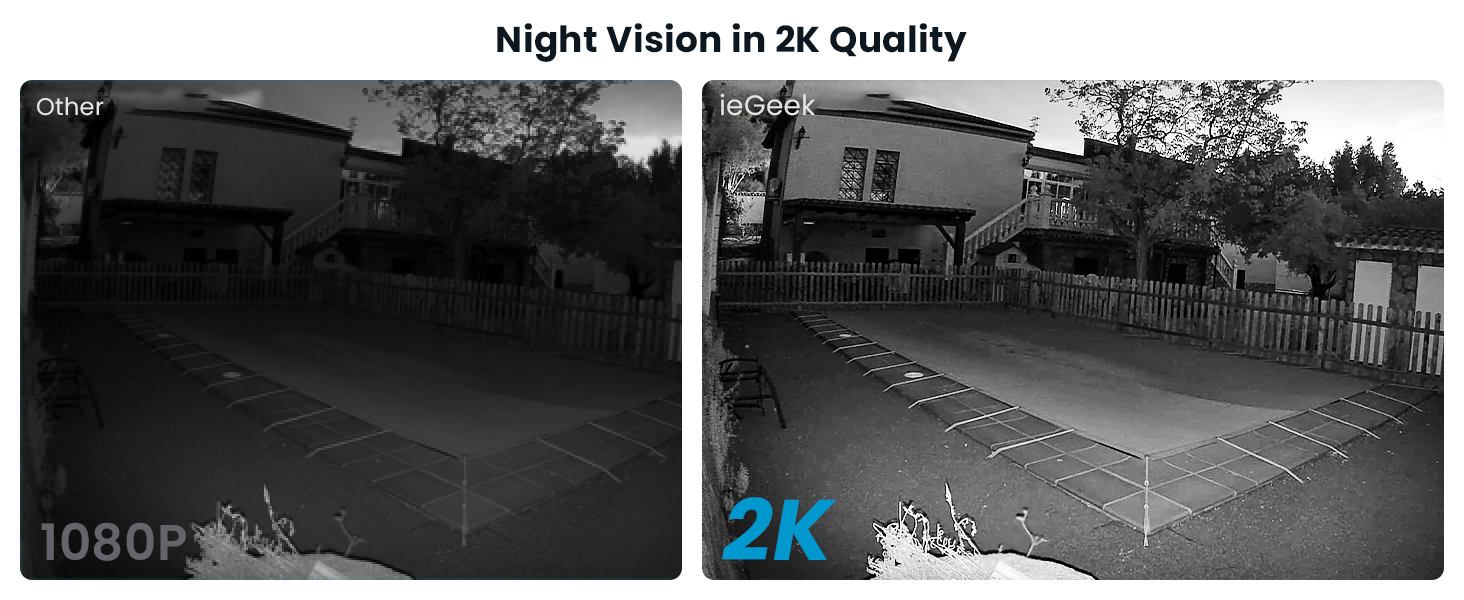
Image: A visual guide illustrating the three simple steps to get started: downloading the app, connecting to 2.4GHz WiFi, and viewing live footage.
3.2 Connecting to Wi-Fi
Open the app and follow the on-screen instructions to add your camera. Ensure your Wi-Fi network is 2.4GHz, as the camera does not support 5GHz networks. The app will guide you through pairing the camera with your home Wi-Fi.
3.3 Mounting the Camera and Solar Panel
Choose a suitable outdoor location for mounting. The camera is 100% wire-free and powered by the solar panel, eliminating the need for manual charging. Mount the solar panel in a location that receives ample direct sunlight throughout the day for optimal charging.

Image: The ieGeek camera and its solar panel mounted on an exterior wall, highlighting its wire-free design.

Image: The ieGeek camera and solar panel installed on a wooden surface, emphasizing its solar-powered capability.
Image: A triptych showing a person installing the camera, a smartphone connecting to the camera, and a live view of a protected area, illustrating quick installation and continuous protection.
4. Operating Instructions
4.1 Live View and Recording
Access the live feed of your camera through the ieGeek Cam app. The camera records in 2K resolution, providing clear and detailed images. You can manually record video or capture screenshots from the live view.

Image: A split image comparing the superior clarity of 2K image quality on the left to 1080P on the right, showing finer details in the 2K view.

Image: A side-by-side comparison demonstrating the enhanced clarity of 2K crystal clear picture quality versus 1080P, showing a swimming pool area.

Image: A smartphone screen showing live camera footage of a person and a dog in a yard, illustrating remote viewing capabilities from anywhere.
4.2 Night Vision
The camera features color night vision, allowing you to see brighter and clearer images up to 33 feet in low-light conditions. This provides enhanced visibility compared to traditional black and white night vision.

Image: A night scene demonstrating the camera's color night vision, showing a dog playing with a toy, with a clear indication of 33ft long distance visibility.

Image: A side-by-side comparison illustrating the improved clarity of 2K night vision quality compared to 1080P, showing a swimming pool area at night.
4.3 Motion Detection and Alerts
The camera utilizes PIR motion detection to identify movement. When motion is detected, you will receive instant alerts on your connected device (smartphone, smartwatch, tablet). The camera can also activate a siren and spotlight alarm to deter intruders.
- AI Recognition: Advanced AI algorithms help reduce false alerts by distinguishing between humans, pets, vehicles, and packages.
- Customizable Motion Zones: Define specific areas within the camera's view where you want motion detection to be active, minimizing unnecessary alerts.
- Scheduled Alerts: Set specific time periods for when you wish to receive motion alerts, such as during nighttime hours.

Image: A night scene depicting the camera's PIR motion detection activating a siren and spotlight, with a "Get out!" message, and an overlay indicating "3S Instant Alerts."

Image: A smartphone screen displaying the ieGeek Cam app with a list of motion detection events, categorized by AI recognition for human, pet, vehicle, and package identification.

Image: A scene demonstrating AI recognition capabilities, highlighting detected human, pet, package, and vehicle objects with yellow boxes.

Image: An aerial view of a property with overlaid colored zones, illustrating the ability to customize motion detection areas for precise monitoring.

Image: A security camera detecting a person in a hoodie near a garage door, with a siren and spotlight activated, and a notification showing an alarm message.

Image: A smartphone screen showing the app interface for setting specific time periods for motion alerts, with examples for daytime and nighttime schedules.
4.4 Two-Way Audio
The built-in microphone and speaker allow for two-way communication. You can speak to visitors or deter unwanted guests directly through the camera using the app.

Image: A person interacting with a delivery driver through the camera's two-way audio feature, making communication easier in real-time.

Image: A delivery person at a front door, with speech bubbles illustrating the two-way audio communication feature of the camera, allowing interaction with visitors.
4.5 Storage Options
The camera supports local storage via a Micro SD card (up to 128GB, not included). Additionally, a free 6-second loop cloud storage option is available for recorded events.

Image: The ieGeek Cloud logo, representing cloud storage services.

Image: A close-up of the camera showing the Micro SD card slot, indicating local storage capability.
5. Maintenance
To ensure optimal performance and longevity of your ieGeek Solar Security Camera:
- Regular Cleaning: Periodically wipe the camera lens and solar panel with a soft, damp cloth to remove dust and debris. Avoid abrasive cleaners.
- Solar Panel Placement: Ensure the solar panel remains free from obstructions (e.g., leaves, snow) that could block sunlight and hinder charging efficiency.
- Weather Resistance: The camera is IP65 weatherproof, designed to withstand various outdoor conditions, including rain and temperatures ranging from -4°F to 122°F.

Image: The ieGeek camera shown in rainy conditions, with icons indicating its ability to withstand burning sun, operate in temperatures from -4°F to 122°F, and its IP65 waterproof rating.
6. Troubleshooting
If you encounter issues with your ieGeek Solar Security Camera, please refer to the following common solutions:
- Camera Offline:
- Check your Wi-Fi connection and ensure the camera is within range of your 2.4GHz router.
- Verify the camera battery is charged.
- Restart the camera and your Wi-Fi router.
- Motion Detection Not Working:
- Ensure motion detection is enabled in the app settings.
- Adjust the motion sensitivity.
- Check if motion detection zones are correctly configured.
- Poor Image Quality:
- Clean the camera lens.
- Ensure adequate lighting, especially for color night vision.
- Check your Wi-Fi signal strength, as a weak signal can affect streaming quality.
- Battery Not Charging:
- Ensure the solar panel is clean and receiving direct sunlight.
- Check the connection between the solar panel and the camera.
- Verify the USB charging cable is properly connected if charging directly.
For more detailed troubleshooting or persistent issues, please contact ieGeek customer support.
7. Specifications
| Feature | Detail |
|---|---|
| Brand | ieGeek |
| Model Number | ZY-C1 |
| Connectivity Technology | Wireless (Wi-Fi) |
| Power Source | Battery Powered, Solar |
| Video Capture Resolution | 2K |
| Special Feature | Motion Sensor, Night Vision (Color) |
| Indoor/Outdoor Usage | Outdoor |
| Mounting Type | Wall Mount |
| International Protection Rating | IP65 |
| Item Dimensions (L x W x H) | 2.05 x 3.39 x 1.89 inches |
| Item Weight | 1.15 pounds |
| UPC | 734931272983 |
8. Warranty and Support
ieGeek is committed to providing high-quality products and excellent customer service.
- Warranty: 2-Years Quality Guarantee.
- Returns: 90-Days Free Return Policy.
- Quality Issues: Replacement available for quality-related issues.
Contact Information:
For any inquiries or support, please reach out to us:
- Phone: +1(202)656-9955
- Working Hours: Monday - Friday, 9:00 am - 6:00 pm (ET)
- Email Support: service@iegeek.com

Image: A graphic detailing ieGeek's after-sales service, including phone number, working hours, and email support.
Image: A graphic outlining ieGeek's after-sales warranty, including 24/7 professional support, a 30-day free returns policy, and a 2-year quality guarantee.
Related documentsZY-C1


Ask a question about this manual
Ask about setup, troubleshooting, compatibility, parts, safety, or missing instructions. Manuals+ will review the question and use this page’s manual context to help answer it.