
Blackview Tab 12 Pro
Blackview Tab 12 Pro Android Tablet User Manual
Model: Tab 12 Pro
Introduction
This manual provides detailed instructions for the Blackview Tab 12 Pro Android Tablet. It covers essential information regarding setup, operation, maintenance, and troubleshooting to ensure optimal performance and user experience. Please read this manual thoroughly before using your device.
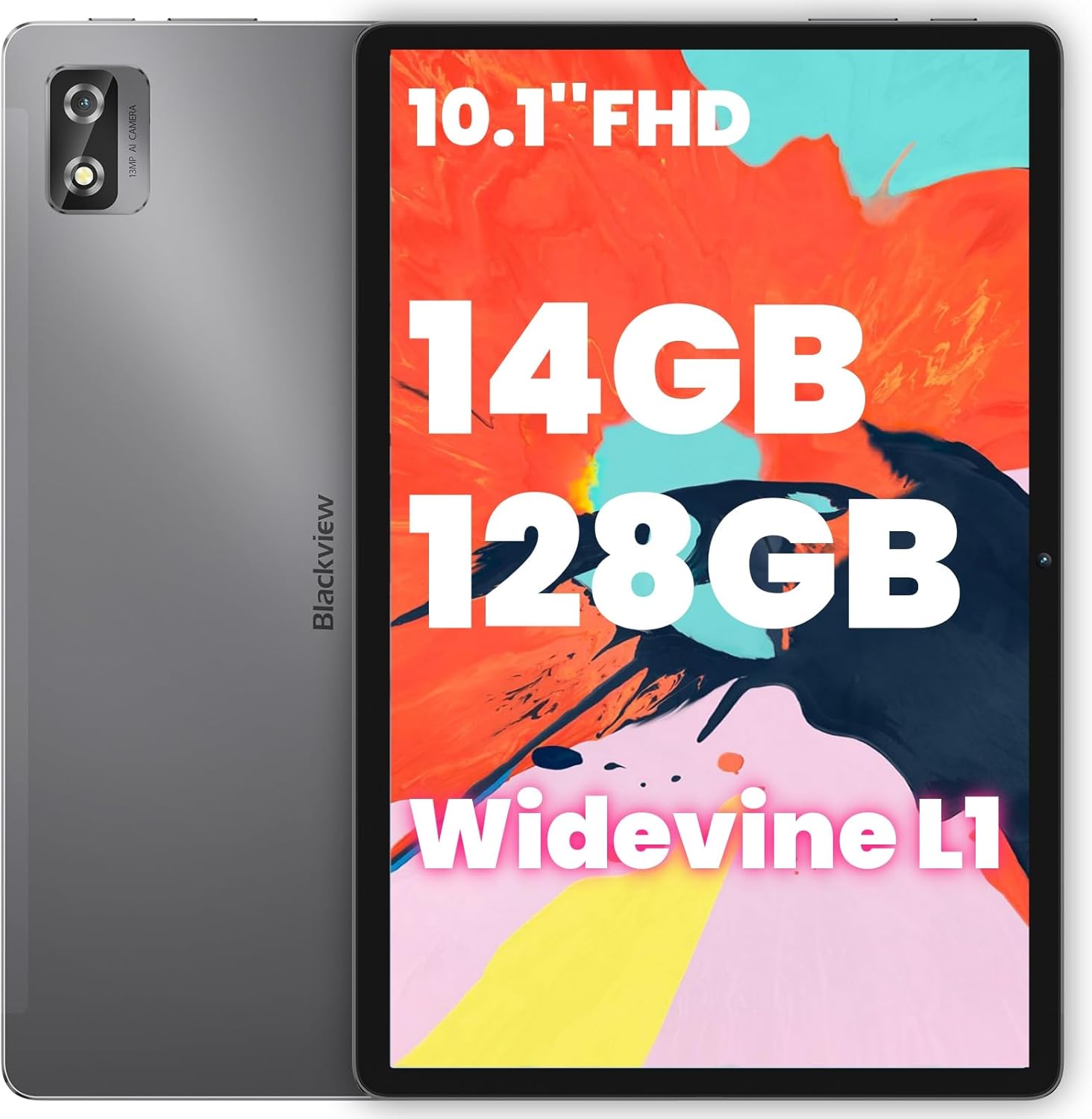
Image: Front and back view of the Blackview Tab 12 Pro tablet, highlighting its sleek design and camera module.
1. Setup
1.1 Unboxing and Package Contents
Upon opening the package, verify that all items are present:
- Blackview Tab 12 Pro Tablet
- Protective Case
- Tempered Membrane (Screen Protector)
- USB Type-C Cable
- Power Adapter
- User Manual (this document)
1.2 Initial Charging
Before first use, fully charge the tablet. Connect the USB Type-C cable to the tablet's charging port and the power adapter to a wall outlet. The battery indicator on the screen will show charging progress.
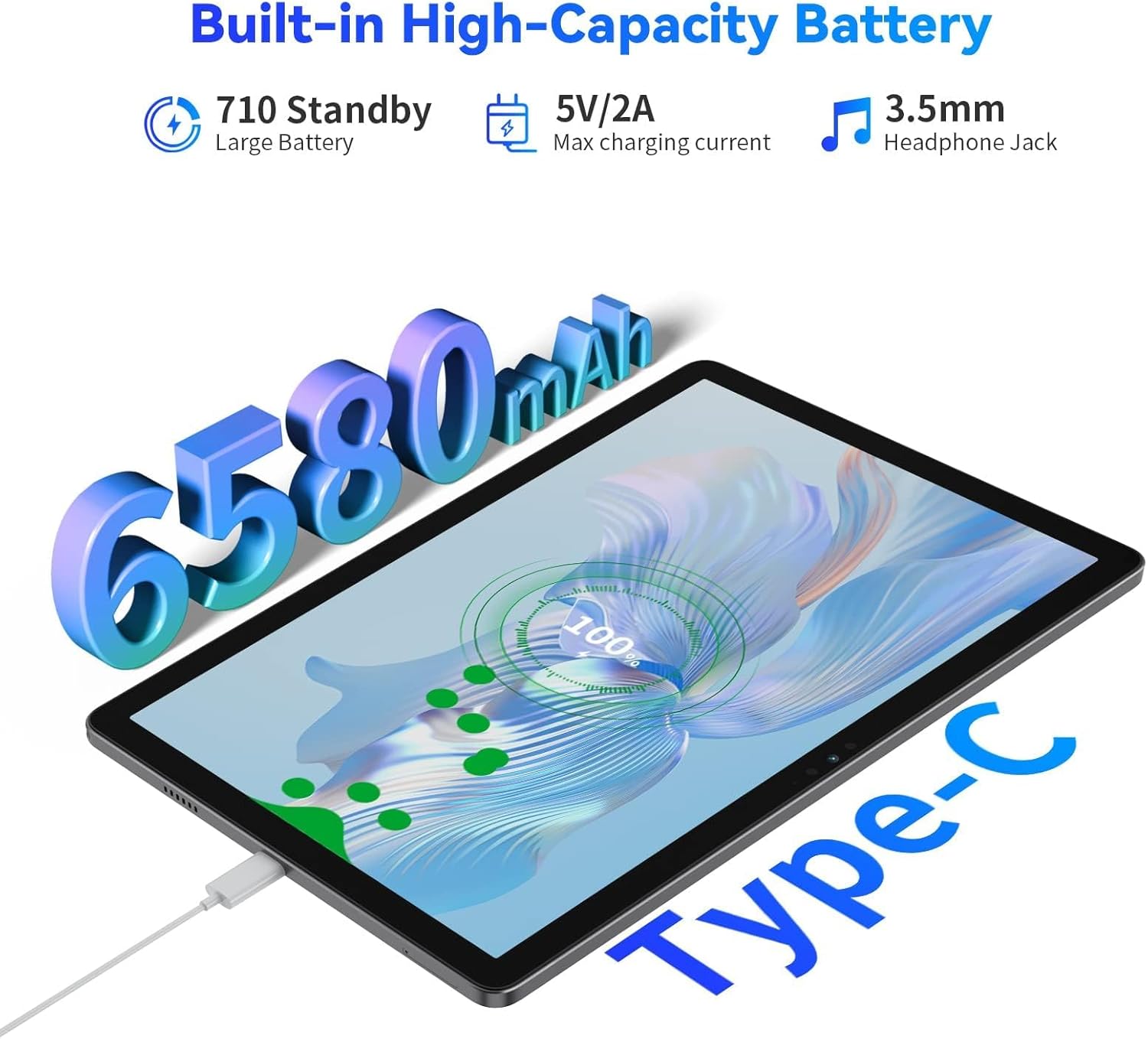
Image: Illustration of the Blackview Tab 12 Pro being charged via its Type-C port, highlighting the 6580mAh battery capacity.
1.3 Power On/Off
- To Power On: Press and hold the Power Button (located on the side) until the Blackview logo appears.
- To Power Off: Press and hold the Power Button until the power options menu appears, then select 'Power off'.
- To Restart: From the power options menu, select 'Restart'.
1.4 Initial Device Setup
Upon first power-on, the tablet will guide you through the initial setup process:
- Select your preferred language.
- Connect to a Wi-Fi network.
- Sign in with your Google account or create a new one. This is necessary to access the Google Play Store and other Google services.
- Review and accept the terms and conditions.
- Set up screen lock (PIN, pattern, or password) for security.
1.5 Inserting a MicroSD Card
The Blackview Tab 12 Pro supports storage expansion up to 1TB via a MicroSD card. Locate the SIM/SD card tray on the side of the tablet. Use the provided SIM ejector tool to open the tray. Carefully place the MicroSD card into the designated slot and reinsert the tray.

Image: A diagram illustrating the location of the power button, volume buttons, speakers, Type-C port, and dual TF card slot on the Blackview Tab 12 Pro.
2. Operating Instructions
2.1 Basic Navigation
The Blackview Tab 12 Pro operates on Android 12 with the Doke OS_P 3.0 user interface. Navigation is primarily touch-based:
- Tap: Select an item or open an app.
- Swipe: Scroll through pages, menus, or switch between home screens.
- Pinch-to-Zoom: Enlarge or shrink content on the screen.
- Long Press: Access contextual menus or move app icons.

Image: Various views of the Blackview Tab 12 Pro displaying Android 12 and Doke OS_P 3.0 features like privacy protection, GMS Google Play, split screen, screen record, parental controls, and PC Mode.
2.2 Display and Visual Experience
The tablet features a 10.1-inch FHD+ IPS display with a resolution of 1920 x 1200 pixels, providing clear and vibrant visuals for media consumption and document editing.
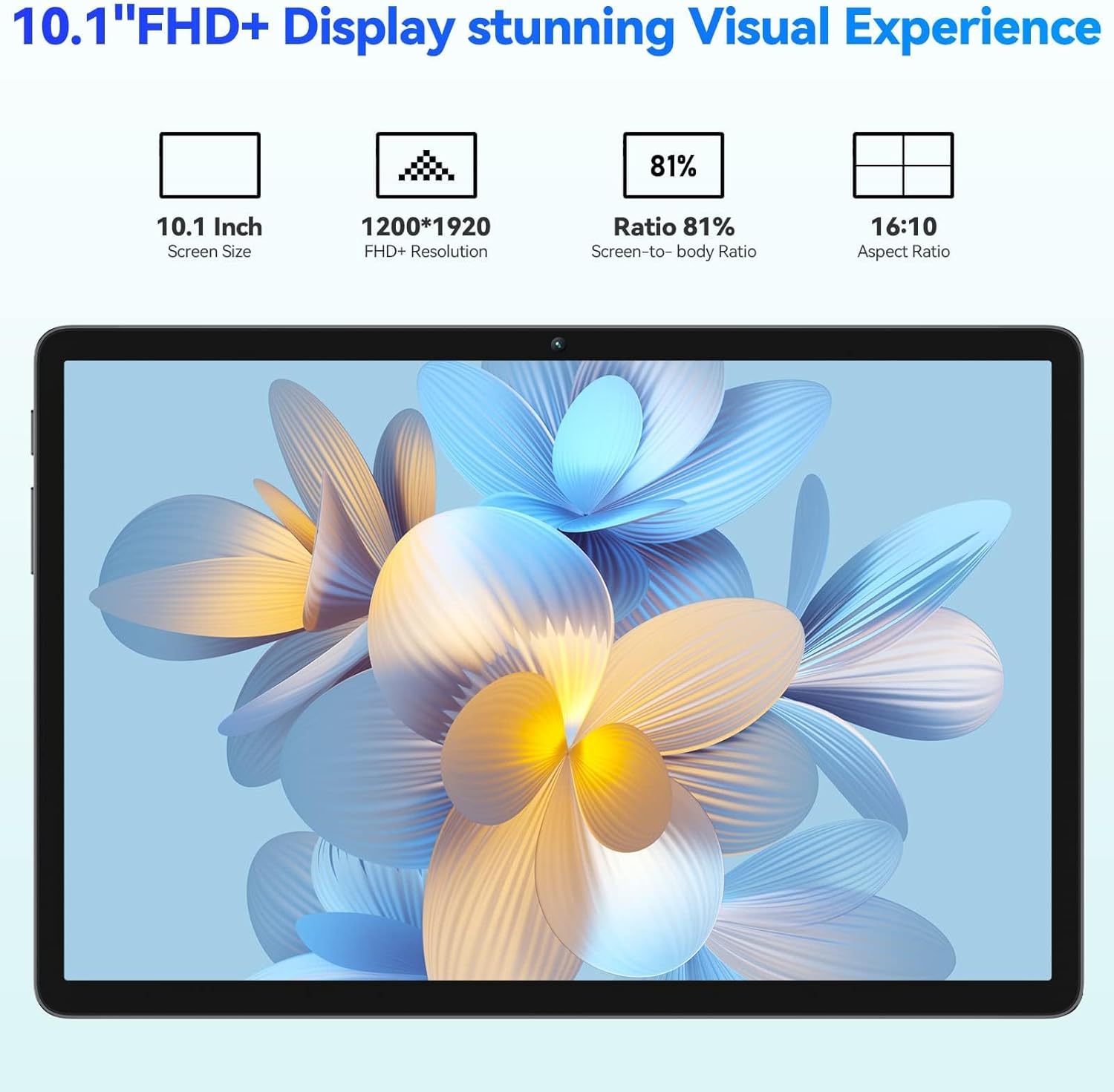
Image: The Blackview Tab 12 Pro displaying a vibrant image, emphasizing its 10.1-inch FHD+ display, 1200*1920 resolution, 81% screen-to-body ratio, and 16:10 aspect ratio.
2.3 Performance and Storage
Equipped with an Octa-Core processor and 14GB RAM (8GB actual + 6GB virtual), the Tab 12 Pro offers smooth multitasking. It comes with 128GB of internal storage, expandable up to 1TB with a MicroSD card.

Image: Visual representation of the Blackview Tab 12 Pro's performance capabilities, showing various apps and highlighting its 14(8+6)GB RAM, 128GB ROM, and 1TB TF card support.
2.4 Camera Usage
The tablet features a 13MP rear camera and a 5MP front camera for capturing photos and videos.
- Open the Camera app from the home screen or app drawer.
- Switch between front and rear cameras using the camera icon.
- Tap the shutter button to take a photo or start/stop video recording.

Image: Collage showing the Blackview Tab 12 Pro's 13MP rear camera and 5MP front camera, with example photos of people.
2.5 Audio and Connectivity
The Tab 12 Pro is equipped with Dual Smart Box speakers for an immersive audio experience. It supports 5G Wi-Fi and Bluetooth 5.0 for stable wireless connections.
- Wi-Fi: Connect to wireless networks via Settings > Network & internet > Wi-Fi.
- Bluetooth: Pair with Bluetooth devices like headphones or speakers via Settings > Connected devices > Bluetooth.
- 3.5mm Headphone Jack: For wired audio connections.
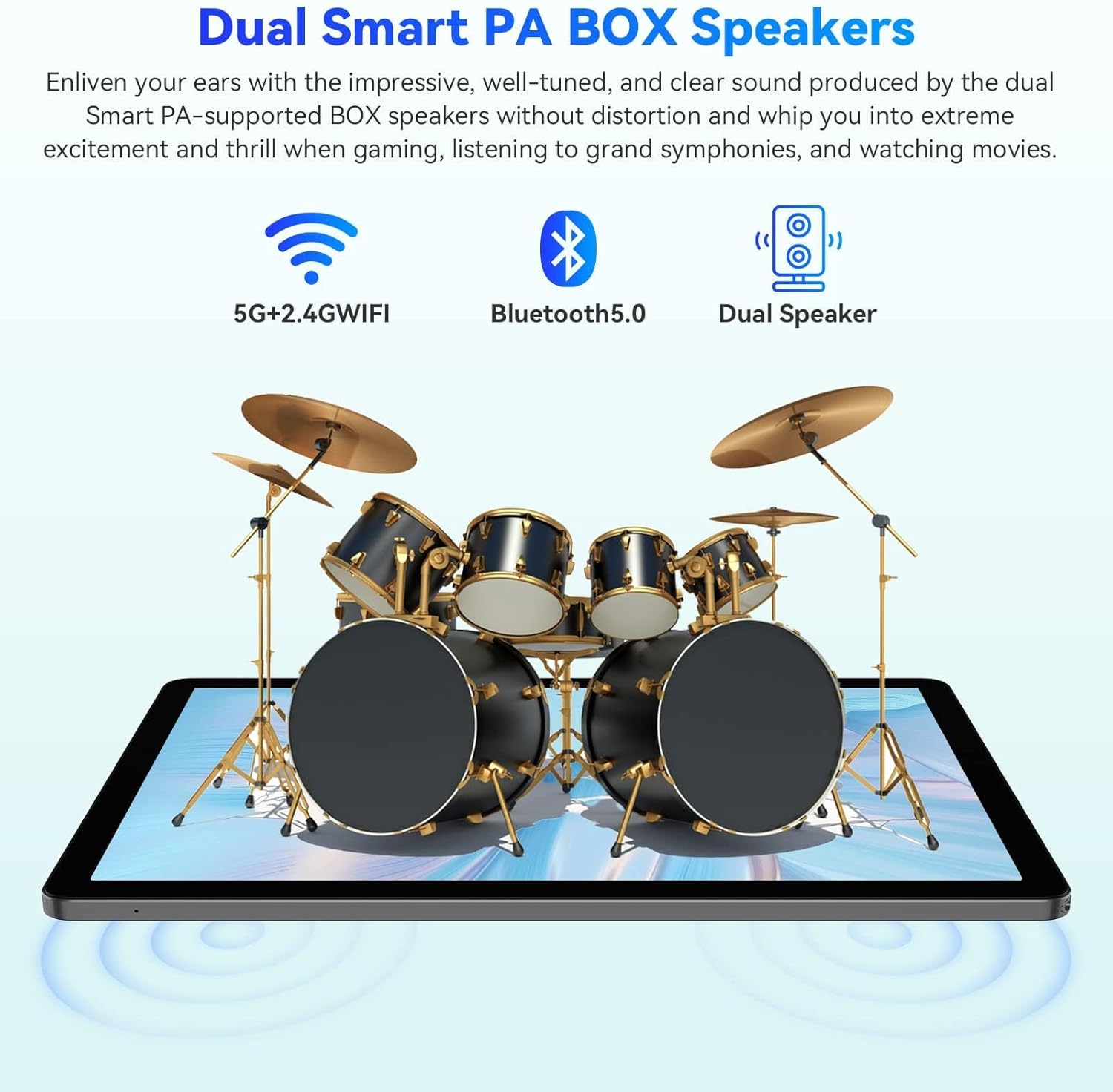
Image: The Blackview Tab 12 Pro with an illustration of drums, emphasizing its Dual Smart PA BOX Speakers, 5G+2.4G WiFi, and Bluetooth 5.0 capabilities.
2.6 Special Features (Doke OS_P 3.0)
- PC Mode: Transform your tablet into a PC-like interface for enhanced productivity. Access this mode from the quick settings panel.
- Smart Floating Windows: Allows multiple apps to run in resizable floating windows.
- Split Screen View: Run two applications side-by-side for efficient multitasking.
- Versatile Desktop: Customize your home screen layout and widgets for quick access to information.
- Cast Screen: Share your tablet's display to a larger screen, such as a smart TV, for presentations or entertainment. Access this feature from the quick settings panel.

Image: A person using the Blackview Tab 12 Pro in PC Mode with an external keyboard, demonstrating its multitasking capabilities.

Image: The Blackview Tab 12 Pro displaying content that is simultaneously cast to a larger television screen, illustrating the 'Cast Screen' feature.
2.7 App Installation (GMS Certified)
The Blackview Tab 12 Pro is GMS (Google Mobile Services) certified, allowing full access to the Google Play Store. You can download and install a wide variety of applications, including Netflix, YouTube, Facebook, and Twitter.
- Open the 'Play Store' app.
- Search for your desired application.
- Tap 'Install' to download and set up the app.
3. Maintenance
3.1 Cleaning Your Tablet
To clean the tablet, use a soft, lint-free cloth. For stubborn smudges, slightly dampen the cloth with water or a screen-safe cleaner. Avoid using harsh chemicals, abrasive materials, or excessive moisture.
3.2 Battery Care
The tablet has a 6580mAh battery. To prolong battery life:
- Avoid extreme temperatures.
- Do not leave the tablet charging for extended periods after it's full.
- For long-term storage, charge the battery to about 50% and power off the device.

Image: Infographic showing the estimated battery life of the Blackview Tab 12 Pro for various activities like gaming, video playback, web browsing, music, and calling.
3.3 Software Updates
Regularly check for system updates to ensure your tablet has the latest features, security patches, and performance improvements. Go to Settings > System > System update.
4. Troubleshooting
If you encounter issues with your Blackview Tab 12 Pro, refer to the following common solutions:
| Problem | Possible Solution |
|---|---|
| Tablet does not power on | Ensure the battery is charged. Connect to the charger for at least 30 minutes. If still unresponsive, perform a forced restart by holding the power button for 10-15 seconds. |
| Wi-Fi connectivity issues | Restart the tablet and your Wi-Fi router. Go to Wi-Fi settings and 'forget' the network, then reconnect. Ensure the MAC address randomizer is turned off for trusted networks (Settings > Network & internet > Internet > Gear icon next to Wi-Fi network > Privacy > Use device MAC). |
| Apps crashing or freezing | Close and reopen the app. Clear the app's cache (Settings > Apps > [App Name] > Storage & cache > Clear cache). If the issue persists, uninstall and reinstall the app. |
| Slow performance | Close unnecessary background apps. Clear cached data. Ensure sufficient storage space is available. Restart the tablet regularly. |
| Screen unresponsive | Restart the tablet. If the issue persists, contact customer support. |
4.1 Factory Reset
If problems persist, a factory reset may be necessary. This will erase all data on your tablet, so back up important files first. Go to Settings > System > Reset options > Erase all data (factory reset).
5. Specifications
| Feature | Specification |
|---|---|
| Model Name | Tab 12 Pro |
| Operating System | Android 12 (with Doke OS_P 3.0) |
| Processor | Octa-Core (up to 2.0GHz) |
| RAM | 14GB (8GB actual + 6GB virtual) |
| Internal Storage | 128GB |
| Expandable Storage | Up to 1TB via MicroSD card |
| Screen Size | 10.1 Inches |
| Screen Resolution | 1920 x 1200 pixels (FHD+ IPS) |
| Rear Camera | 13 MP |
| Front Camera | 5 MP |
| Battery Capacity | 6580mAh |
| Wireless Connectivity | 5G Wi-Fi (802.11ac), Bluetooth 5.0 |
| Audio | Dual Smart Box Speakers, 3.5mm Headphone Jack |
| Dimensions (LxWxH) | 9.37 x 6.2 x 0.29 inches |
| Item Weight | 15.2 ounces |
6. Warranty and Support
The Blackview Tab 12 Pro comes with a standard manufacturer's warranty. For specific warranty terms and conditions, please refer to the warranty card included in your product packaging or visit the official Blackview website. For technical support, troubleshooting assistance beyond this manual, or warranty claims, please contact Blackview customer service through their official support channels.
You can find more information and support resources by visiting the Blackview Store on Amazon.
Ask a question about this manual
Ask about setup, troubleshooting, compatibility, parts, safety, or missing instructions. Manuals+ will review the question and use this page’s manual context to help answer it.