1. Product Overview
This manual provides instructions for the podofo 8 CORE 6G+128G Car Stereo Radio, designed specifically for Honda Civic models from 2006 to 2011. This head unit features a 10.1-inch IPS touch screen, Android 13 operating system, wireless CarPlay and Android Auto, GPS navigation, Wi-Fi, Bluetooth, 32-band DSP audio, and supports steering wheel controls and an HD rear camera.

Image: Overview of the podofo car stereo highlighting compatibility with Honda Civic 2006-2011 and its core specifications (8 Core, 6GB RAM, 128GB ROM).
Key Features:
- Applicable Models: Honda Civic 2006-2011.
- Operating System: Android 13.0 with 8 Core CPU, 6GB RAM, and 128GB ROM.
- Display: 10.1-inch IPS touch screen with 1280x720P resolution, supporting split screen and multiple UI themes.
- Connectivity: Wireless and wired CarPlay / Android Auto, built-in WiFi, Bluetooth 5.0, Dual USB ports.
- Audio: 32-band DSP for precise sound adjustments and improved clarity.
- Navigation: GPS navigation with support for online and offline maps.
- Additional Features: Steering Wheel Control (SWC), Mirroring Link, FM RDS radio, subwoofer output, Dual Mic, HD Rear Camera (included).
2. Setup and Installation
The podofo car stereo is designed for plug-and-play installation with the provided wiring harness. Ensure your vehicle is compatible before proceeding with installation.
2.1 Compatibility Check
This unit is compatible with Honda Civic models from 2006 to 2011 that have a standard factory radio system. It is not compatible with original car radio systems featuring built-in navigation or a large screen (high configuration models).
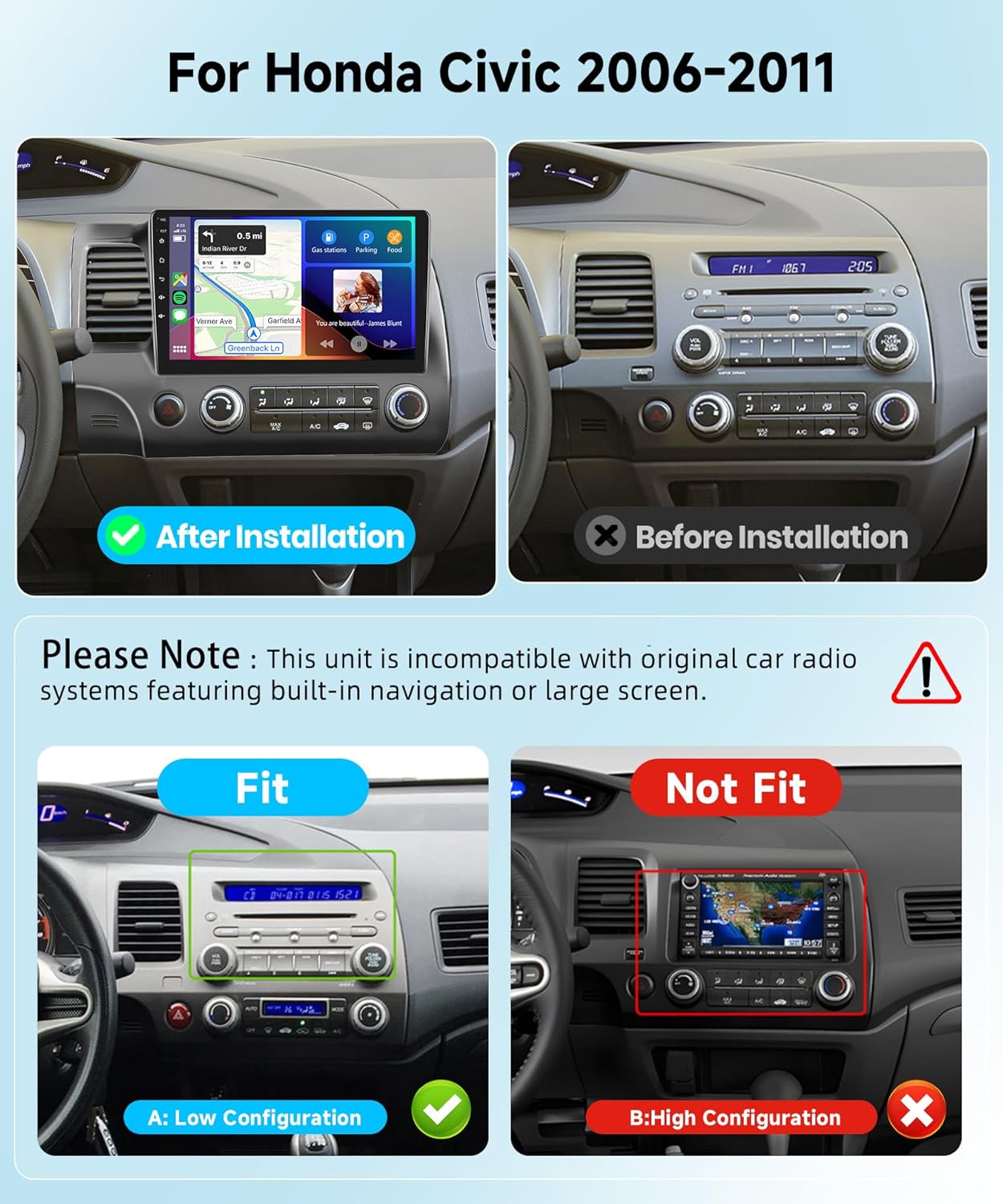
Image: Visual guide illustrating compatible (low configuration) and incompatible (high configuration with built-in navigation) Honda Civic dashboards.
2.2 Package Contents
Verify that all components are present in the package:
- Android Car Stereo Head Unit
- Power Cable
- RCA Input/Output Cables
- Reversing Camera Input Cable
- USB Cables (Dual)
- GPS Antenna
- Radio Antenna
- External Microphone
- HD Backup Camera
- User Manual (this document)
- Installation Tool (if included)

Image: Detailed diagram of the package list, showing the main unit and all included accessories and cables.
2.3 Basic Installation Steps (General Guide)
- Disconnect Battery: Before starting, disconnect the negative terminal of your vehicle's battery to prevent electrical shorts.
- Remove Factory Radio: Carefully remove the existing factory radio and trim panels. Refer to a vehicle-specific guide or professional assistance if unsure.
- Connect Wiring Harness: Connect the provided plug-and-play wiring harness to your vehicle's factory harness.
- Connect Peripherals:
- GPS Antenna: Mount the GPS antenna in a location with a clear view of the sky (e.g., dashboard, under windshield).
- External Microphone: Connect the external microphone for improved call quality.
- USB Cables: Route the USB cables to a convenient location (e.g., glove compartment).
- Radio Antenna: Connect the vehicle's radio antenna.
- Backup Camera Wiring:
Connect the HD backup camera as follows:
- Connect the video RCA cable from the camera to the "Reversing Camera Input" on the head unit.
- Connect the camera's power cable (red wire) to the vehicle's reverse light positive (+) wire.
- Connect the camera's ground cable (black wire) to a suitable ground point (GND).
- Locate the "BACK" or "REVERSE" trigger cable on the head unit's wiring harness. Connect this cable to the vehicle's reverse light positive (+) wire. (If this cable is already tied with the power harness, no separate connection is needed).

Image: Wiring diagram for the HD backup camera, detailing connections for power, ground, and the reverse trigger signal.
- Test Connections: Before fully reassembling the dashboard, reconnect the battery and test all functions of the stereo (power, audio, touch screen, CarPlay/Android Auto, GPS, camera).
- Secure Head Unit: Mount the head unit securely into the dashboard opening.
- Reassemble Dashboard: Reinstall all trim panels and secure them.
Note: For detailed vehicle-specific installation instructions, it is recommended to consult a professional installer or search for installation videos specific to your Honda Civic model year.
3. Operating Instructions
This section covers the primary functions and operations of your podofo car stereo.
3.1 Power On/Off and Basic Interface
- The unit powers on automatically with the vehicle's ignition.
- The 10.1-inch IPS touch screen provides access to all functions. Navigate through apps and settings by tapping and swiping.
- Multiple UI themes are available for customization.

Image: Illustration of the IPS HD screen technology, highlighting its 178° viewing angle, 1280x720 resolution, 2.5D screen, touch functionality, and split-screen capability.
3.2 Wireless CarPlay & Android Auto
Connect your smartphone wirelessly or via USB to access CarPlay (for iOS devices) or Android Auto (for Android devices). This allows you to use phone apps like navigation, music, and calls directly on the stereo's screen.
- Ensure Bluetooth is enabled on your phone and the car stereo.
- Pair your phone with the car stereo via Bluetooth.
- Follow the on-screen prompts to initiate CarPlay or Android Auto.
- For wired connection, simply connect your phone via a USB cable to the designated USB port.

Image: Visual representation of wired and wireless CarPlay and Android Auto functionality, showing phone integration with the car stereo.
3.3 GPS Navigation & Wi-Fi
The unit supports GPS navigation with pre-installed maps or downloadable apps. Connect to Wi-Fi to access online maps, stream content, and download applications from the app store.
- To use online navigation, connect the stereo to a Wi-Fi hotspot (e.g., from your phone).
- Offline maps can be downloaded and used without an internet connection.

Image: Display of GPS navigation with online and offline map capabilities, alongside Wi-Fi connectivity for app downloads and internet access.
3.4 Bluetooth Functions
Bluetooth 5.0 enables hands-free calling and wireless audio streaming from your smartphone.
- Pairing: Go to the Bluetooth settings on the stereo and your phone, search for available devices, and select the stereo to pair.
- Hands-Free Calling: Make and receive calls directly from the stereo interface.
- Bluetooth Music: Stream audio from your phone's music library or streaming apps.

Image: Depiction of Bluetooth 5.0 for hands-free calling and music streaming, and the FM/RDS radio interface.
3.5 FM/RDS Radio
Access local radio stations with the built-in FM/RDS tuner. RDS (Radio Data System) displays station information where available.
- Scan for stations automatically or manually.
- Save your favorite stations as presets.
3.6 Steering Wheel Control (SWC)
The unit supports your vehicle's existing steering wheel controls, allowing you to manage audio, calls, and modes without taking your hands off the wheel. Configuration may be required in the stereo's settings menu.

Image: Illustration of the steering wheel control learning interface, showing how to map vehicle buttons to stereo functions.
3.7 DSP Audio Adjustment
The 32-band Digital Sound Processor (DSP) allows for detailed audio customization. Adjust equalizer settings, balance, fader, and subwoofer output to optimize sound quality for your vehicle's acoustics.

Image: Screenshot of the 32-band equalizer and DSP settings interface, demonstrating sound customization options.
3.8 Split Screen & UI Themes
Utilize the split-screen function to run two applications simultaneously (e.g., navigation and music player). Customize the user interface with various themes available in the settings.

Image: Example of the split-screen feature, showing navigation and media player running concurrently.

Image: Collage displaying 59 different UI themes available for personalizing the car stereo interface.
3.9 Voice Control
Use voice commands to control various functions, such as playing music, navigating, making calls, and opening applications. This feature enhances driving safety by minimizing manual interaction with the screen.

Image: Illustration of the voice control assistant, showing example commands like playing music, making calls, and opening apps.
3.10 Mirror Link
Mirror Link allows you to display your smartphone's screen directly onto the car stereo. This feature supports both Android and iOS devices, typically connecting via Bluetooth or USB cable.

Image: Depiction of Mirror Link, showing a smartphone screen mirrored onto the car stereo display.
3.11 HD Rear Camera
The included HD night vision rearview camera provides a 170-degree ultra-wide viewing angle. When the vehicle is shifted into reverse, the stereo automatically displays the camera feed, assisting with parking and maneuvering.

Image: Composite image showing Bluetooth, FM/RDS radio, DVR function, and the AHD 1080P reverse camera view with parking guidelines.
3.12 Official Product Video
Video: Official product overview demonstrating various features and functionalities of the podofo car stereo.
4. Maintenance
To ensure the longevity and optimal performance of your car stereo, follow these general maintenance guidelines:
- Screen Cleaning: Use a soft, lint-free cloth to gently wipe the touch screen. Avoid abrasive cleaners or harsh chemicals that could damage the display.
- Software Updates: Periodically check for available software updates through the system settings or the manufacturer's website. Updates can improve performance, add features, and fix bugs.
- Environmental Conditions: Avoid exposing the unit to extreme temperatures, direct sunlight for prolonged periods, or excessive moisture.
- Cable Connections: Ensure all cables are securely connected. Loose connections can lead to intermittent issues.
- System Reset: If the unit becomes unresponsive, a soft reset (usually a small reset button or a combination of buttons) may resolve the issue. Refer to the device settings for specific reset options.
5. Troubleshooting
This section addresses common issues you might encounter. For persistent problems, refer to the support section.
5.1 Power and Battery Drain Issues
- Unit Not Powering On: Check all power connections and the vehicle's fuse box for blown fuses. Ensure the battery is properly connected.
- Battery Drain: If the car battery drains when the vehicle is off, the stereo might not be entering sleep mode correctly.
- Workaround: Access the factory settings (password: 8888) and then engineering test (password: 26959910). Set the radio to "direct shutdown" instead of sleep. Note that this will increase boot time (approx. 2 minutes).
- Ensure your vehicle's battery has sufficient amp-hours (at least 500 AH is recommended).
5.2 Display and Touch Screen Issues
- Unresponsive Touch Screen: Perform a soft reset. If the issue persists, ensure the screen is clean and free of debris.
- Screen Stuck on Settings Page: Try a system reset. If the issue persists, contact technical support.
5.3 Audio and Sound Quality
- No Sound/Distorted Sound: Check speaker wiring connections. Verify DSP settings and equalizer adjustments. Ensure volume is not muted.
- Radio Volume Issues: If volume at level 1 is too loud, adjust the system's audio settings or consider a software update if available.
5.4 Camera and Connectivity
- Backup Camera Not Working:
- Verify all camera wiring connections, especially the reverse trigger cable (labeled "BACK" or "REVERSE") and power/ground.
- Ensure the camera is receiving power when the vehicle is in reverse.
- Check if there are camera settings within the stereo's menu that need activation.
- CarPlay/Android Auto Connection Issues:
- Ensure Bluetooth is on and paired.
- Try connecting with a different USB cable if using a wired connection.
- Restart both the phone and the car stereo.
6. Specifications
| Feature | Specification |
|---|---|
| Model | B0BYYNK1LT |
| Operating System | Android 13 |
| CPU | 8 Core |
| RAM | 6GB |
| ROM (Internal Storage) | 128GB |
| Screen Size | 10.1 Inches |
| Display Type | IPS Touchscreen |
| Resolution | 1280 x 720P |
| Connectivity | Bluetooth 5.0, USB, Wi-Fi, 4G (via external dongle, if supported) |
| Special Features | Wireless/Wired CarPlay, Wireless/Wired Android Auto, GPS Navigation, 32-Band DSP, Steering Wheel Control, Mirror Link, FM RDS Radio, HD Backup Camera |
| Audio Output Mode | Stereo |
| Included Components | Android Car Stereo, External Microphone, GPS Antenna, HD Backup Camera |
| Item Weight | 4.75 pounds |
| Package Dimensions | 15.86 x 12.05 x 7.8 inches |
7. Warranty and Support
7.1 Warranty Information
The podofo car stereo comes with a 2-Year Warranty. This warranty covers manufacturing defects and ensures product reliability. For specific terms and conditions, please refer to the warranty card included in your package or contact podofo customer support.

Image: Information graphic highlighting availability in over 100 countries, a 2-year warranty, and 24/7 expert customer support.
7.2 Technical Support
Podofo offers professional technical support for any concerns regarding installation, operation, or troubleshooting. You can reach out to the support team directly via Amazon or through the contact information provided with your product.
To contact support via Amazon:
- Go to the product page on Amazon.
- Find the "Sold by Podofo US" section.
- Click on "Podofo US" to view seller information.
- Click "Ask a question" to send a message to the support team.

Image: Step-by-step guide on how to contact Podofo technical support through the Amazon platform.
When contacting support, please provide your product model (B0BYYNK1LT), vehicle model and year, and a detailed description of the issue.


