
VIOFO WM1
VIOFO WM1 Dash Cam User Manual
Model: WM1
1. Introduction
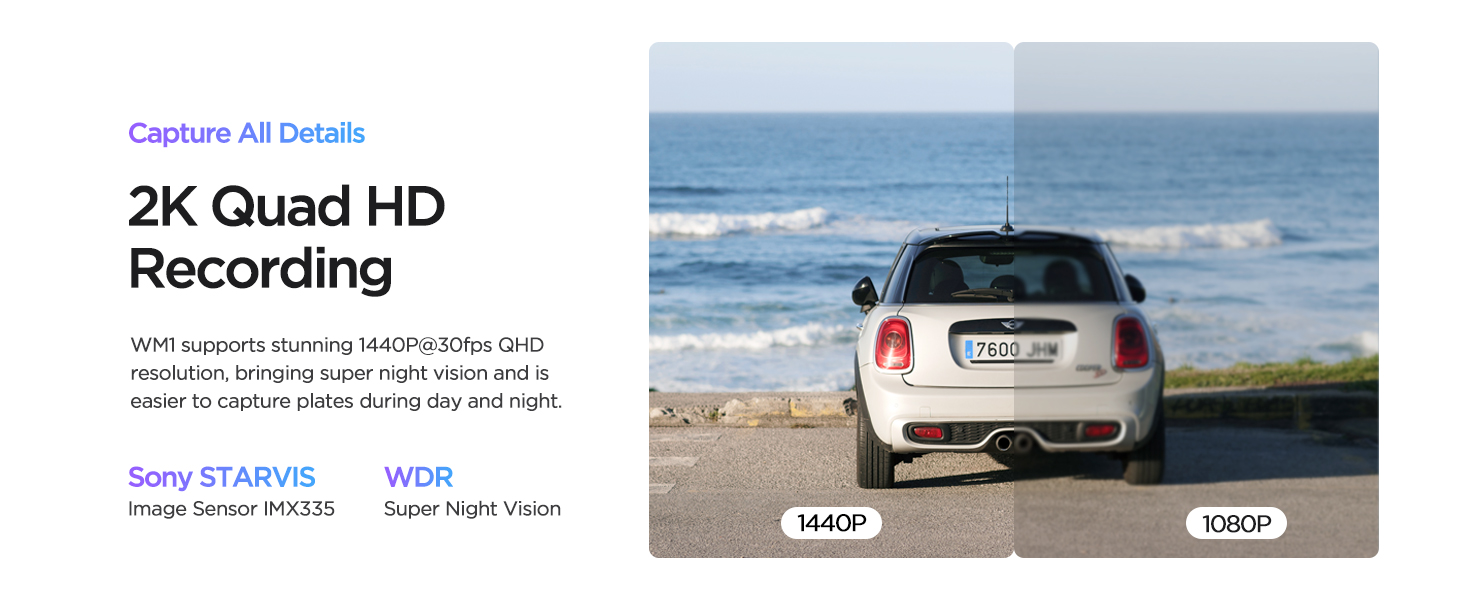
The VIOFO WM1 Dash Cam is a compact and powerful 2K 1440P smart dash camera designed to capture crucial moments on the road. Featuring a Sony STARVIS IMX335 image sensor, built-in Wi-Fi, GPS, and advanced parking modes, it provides reliable and high-quality video recording for your vehicle. This manual provides detailed instructions for setup, operation, and maintenance to ensure optimal performance of your device.
Official product video showcasing the VIOFO WM1 2K Smart Dash Camera's features and capabilities.

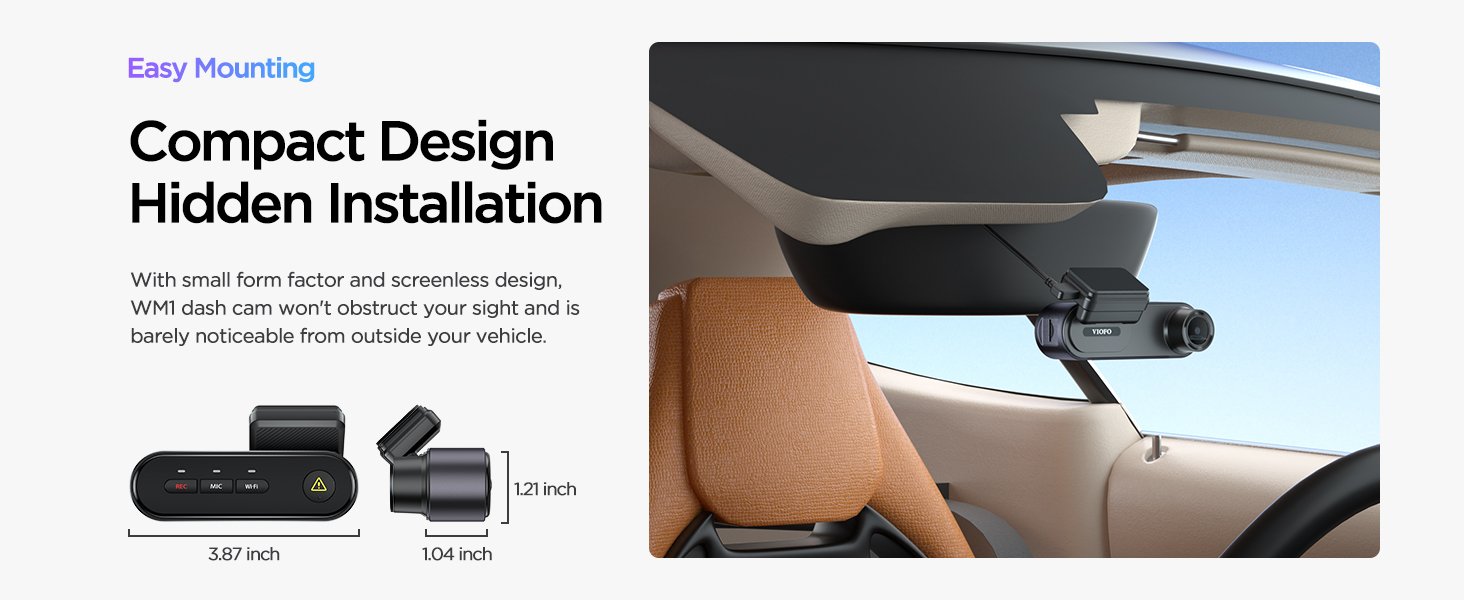
The VIOFO WM1 is designed to be smaller, simpler, and stealthier, offering a discreet installation in your vehicle.
2. What's in the Box
Upon unboxing your VIOFO WM1 Dash Cam, please ensure all the following items are present:
- 1* WM1 Dash Cam with GPS module and sticker
- 1* Adapter with Type-C cable
- 1* Type-C USB Cable
- 1* 3M Stickers
- 2* Static (Windshield) Stickers
- 1* Trim Removal Tool

A visual representation of all items included in the VIOFO WM1 Dash Cam package.
3. Setup
3.1 How to Insert the Memory Card
Before using your dash cam, you must insert a microSD card (not included). Ensure the camera is turned off. Hold the memory card in the correct orientation and slide it into the card slot until you hear a click.
Visual guide on how to properly insert the memory card into the VIOFO WM1 Dash Cam.
3.2 Installation Using the Static Sticker
For optimal performance and discreet placement, install the dash cam on your windshield behind the rear-view mirror. Ensure the installation surface is clean. Peel the red protective film off the static sticker, attach it to the windscreen, and press firmly to remove any bubbles. Then, peel the green protective film off the static sticker. Remove the protection films off the camera lens and sticky pad. Finally, attach the camera to the sticker, pressing hard for a few seconds to ensure it is attached firmly. Power up the camera by connecting the car charger.

The compact design allows for concealed installation, enhancing driving visibility.
Step-by-step instructions for installing the dash cam using the static sticker on the windshield.

The 60-degree rotatable mount and USB-C charging cable offer maximum versatility for various car models and mounting positions.
4. Operating
4.1 Button Operations
The VIOFO WM1 features intuitive buttons for easy control:
- Start/Stop Recording: Short press the REC button to stop recording. Press again to restart recording.
- Enable/Disable Audio Recording: Audio recording is on by default. Short press the MIC button to disable it, and press again to enable it.
- Turn On/Off Wi-Fi: Long press the Wi-Fi button to turn on the Wi-Fi. When turning on/off Wi-Fi, the recording will be interrupted for a few seconds and restart after that. Long press the Wi-Fi button again to turn off the Wi-Fi.
- Lock the Video: Short press the "!" button to lock the video file. The camera emits beep sounds while the three LED lights flash 3 times simultaneously.
- Power On/Off the Camera: Long press the REC button to power off the camera. Long press the REC button to power on the camera.
Demonstration of various button operations on the VIOFO WM1 Dash Cam.
4.2 Connecting to Wi-Fi & App Control
The VIOFO WM1 features built-in Wi-Fi for seamless connection to the VIOFO app on your smartphone. Scan the QR code in the manual or on the product packaging to download the VIOFO app from the App Store or Google Play. Long press the Wi-Fi button on the dash cam to turn on the Wi-Fi. Use your phone to connect to the WM1 Wi-Fi (Wi-Fi name: VIOFO_WM1_xxxx, default password: 12345678). Once connected, the Wi-Fi LED light will show solid blue. Open the VIOFO app and choose "Connect your camera" to see the live view, adjust settings, and check files.

Monitor live footage and review recordings directly from your smartphone using the VIOFO app.
Detailed steps on how to connect the VIOFO WM1 Dash Cam to your smartphone via Wi-Fi.
4.3 Bluetooth Pairing
To pair the camera with an optional Bluetooth remote control (ASIN: B07GF9CF2X), stop recording first. Then, hold both the Wi-Fi and "!" buttons simultaneously to enter Bluetooth pairing mode. Press the video lock button on the remote control for 3 seconds to pair it with the camera. The LED indicator on the remote will turn blue if successfully paired. Choose a suitable location on your dashboard to stick the remote control. Tap the Bluetooth remote to lock the video file.
Instructions for pairing the dash cam with an optional Bluetooth remote control.
4.4 Voice Notification
The WM1 features an intelligent spoken English voice notification function that alerts you to changes in settings and recording status, such as "Video protected" or "Wi-Fi connected". This allows you to track the status of the dash camera easily without taking your eyes off the road.
Voice notifications keep you informed about the camera's status, ensuring you stay focused on driving.
4.5 Parking Modes
The WM1 offers three excellent parking modes for 24/7 protection (Optional VIOFO HK4 Acc Hardwire Kit for WM1: B09MRVP2PX is needed for parking modes):
- Auto Event Detection: Automatically starts recording when events are detected.
- Buffered Parking Mode: Records 5 seconds before and 30 seconds after an event when a moving object is detected.
- Time Lapse Recording & Low Bitrate Recording: Helps save SD card memory by recording at a lower frame rate or bitrate.

Choose from three advanced parking modes to protect your vehicle while parked.
4.6 Emergency Lock
The WM1 provides quick emergency lock features to protect video files from being overwritten, crucial for insurance claims and traffic disputes:
- Automatic Lock: G-sensor automatically locks footage upon impact.
- One-Click Lock: Press the dedicated emergency button on the dash cam.
- One-Press Lock: Use the optional Bluetooth remote control.

Secure important video footage instantly with multiple emergency lock options.
4.7 GPS Tracking
The built-in GPS module accurately logs the current speed and GPS location. This data can be embedded in the video and displayed using compatible viewers during playback, providing a comprehensive record of your journey.

Track your route, speed, and location data with the integrated GPS module.
5. Maintenance
5.1 Format the Memory Card
Regularly formatting your memory card is crucial for maintaining optimal performance and preventing data corruption. To format the memory card, stop recording first. Then, long press the "!" button. The camera will emit beep sounds and the three LED lights will flash simultaneously, indicating the format is successful. After formatting, you need to start recording manually.
Instructions on how to format the memory card directly from the dash cam.
5.2 Reset the Camera
If you encounter issues or wish to restore the camera to its factory default settings, you can perform a reset. Stop recording first. Then, hold both the MIC and "!" buttons simultaneously to reset the camera to default settings. The three LED lights will flash 3 times simultaneously while the camera emits a beep sound. Then the camera will restart automatically.
Guide on how to reset the VIOFO WM1 Dash Cam to its default factory settings.
5.3 Super Capacitor
The VIOFO WM1 is equipped with a powerful super capacitor instead of a traditional battery. This ensures a longer lifespan and excellent performance in extreme temperatures, from -10°C (14°F) to 65°C (149°F), making it ideal for both hot summers and cold winters.
The super capacitor ensures reliable operation across a wide range of temperatures.
5.4 Memory Card Recommendation
Dashcams require a memory card that can withstand heavy writing cycles. A high-endurance card, designed especially for heavy use and write-intensive applications, is extremely critical for dash cam recording. Cheap cards are the main cause of most unexplainable recording issues, have poor performance in non-stop writing endurance, and are less likely to withstand harsh conditions. VIOFO industrial high endurance microSD cards, optimized for dashcam recording, give greater assurances around compatibility and long-life durability, greatly elevating your dashcam owner experience. Different options are available: 64GB, 128GB, 256GB.

For best performance and longevity, VIOFO recommends using their industrial-grade high endurance microSD cards.
6. Troubleshooting
If you encounter any issues with your VIOFO WM1 Dash Cam, please refer to the following common troubleshooting tips:
- Camera not powering on: Ensure the car charger is properly connected and the vehicle's power outlet is functioning. Check the USB-C cable for damage.
- Recording issues (e.g., stops recording, corrupted files): Format the memory card regularly (see Section 5.1). Ensure you are using a high-endurance microSD card from a reputable brand (see Section 5.4).
- Wi-Fi connection problems: Make sure Wi-Fi is enabled on the dash cam (long press Wi-Fi button). Verify you are connecting to the correct Wi-Fi network (VIOFO_WM1_xxxx) and using the default password (12345678). Try restarting both the dash cam and your phone.
- Voice notifications not working: Check the settings in the VIOFO app to ensure voice notifications are enabled and the volume is not muted.
- G-sensor too sensitive/not sensitive enough: Adjust the G-sensor sensitivity settings via the VIOFO app.
- Bluetooth remote not pairing: Ensure the dash cam is in Bluetooth pairing mode (see Section 4.3). Make sure the remote's battery is not depleted.
- GPS not tracking: Ensure the GPS module is properly connected and the vehicle has a clear view of the sky. Check GPS settings in the VIOFO app.
For further assistance, please contact VIOFO customer support.
7. Specifications
| Feature | Specification |
|---|---|
| Product Dimensions | 1.04 x 3.87 x 1.21 inches |
| Item Weight | 10.8 ounces |
| Video Capture Resolution | 1440p (2K Quad HD) |
| Image Sensor | Sony STARVIS IMX335 |
| Field Of View | 135 Degrees |
| Connectivity Technology | Wi-Fi |
| GPS | Built-in GPS |
| Special Features | Loop Recording, Built-In Speaker, G-Sensor, Night Vision, Built-In GPS, Voice Notification, 3 Parking Modes |
| Power Source | Super Capacitor |
| Mounting Type | Adhesive Mount |
| Control Method | App |
Related documentsWM1


Ask a question about this manual
Ask about setup, troubleshooting, compatibility, parts, safety, or missing instructions. Manuals+ will review the question and use this page’s manual context to help answer it.