
Introduction
Welcome to your new ANTELA Smart Plug. This manual provides comprehensive instructions for the setup, operation, maintenance, and troubleshooting of your device. Please read this manual carefully before use to ensure optimal performance and safety.
Safety Information
Observe the following safety precautions to prevent damage to the device or injury to yourself:
- For indoor use only.
- Do not exceed the maximum load of 16A / 3680W.
- Keep the device away from water, moisture, and high temperatures.
- Do not attempt to disassemble or repair the device yourself.
- Ensure the plug is fully inserted into the wall socket.
- This smart plug features child protection shrapnel and is made from fire-retardant materials for enhanced safety.

Product Overview
The ANTELA Smart Plug is designed to make your home smarter and more energy-efficient. It offers a compact design and a range of features for convenient control of your electronic devices.

Setup Guide
1. Download the App
Search for and download the "Smart Life" or "Tuya Smart" application from your mobile device's app store (available on iOS and Android).
2. Connect to Wi-Fi
Ensure your home Wi-Fi network is operating on the 2.4 GHz frequency band. The smart plug does not support 5 GHz Wi-Fi networks. Make sure your mobile device is connected to the 2.4 GHz Wi-Fi network during the setup process.

3. Pairing the Smart Plug
- Plug the ANTELA Smart Plug into a standard wall socket.
- Open the Smart Life or Tuya Smart app and register/log in.
- Press and hold the LED switch button on the smart plug for 5 to 10 seconds until the LED light begins to flash rapidly. This indicates it is in pairing mode.
- In the app, tap the "+" icon to add a new device. Select "Electrical Outlet" or "Smart Plug" from the device list.
- Follow the on-screen instructions in the app to connect the smart plug to your 2.4 GHz Wi-Fi network.
- Once successfully paired, the LED indicator will stop flashing and remain solid. You can now rename your smart plug for easier identification.

Operating Instructions
Remote Control via App
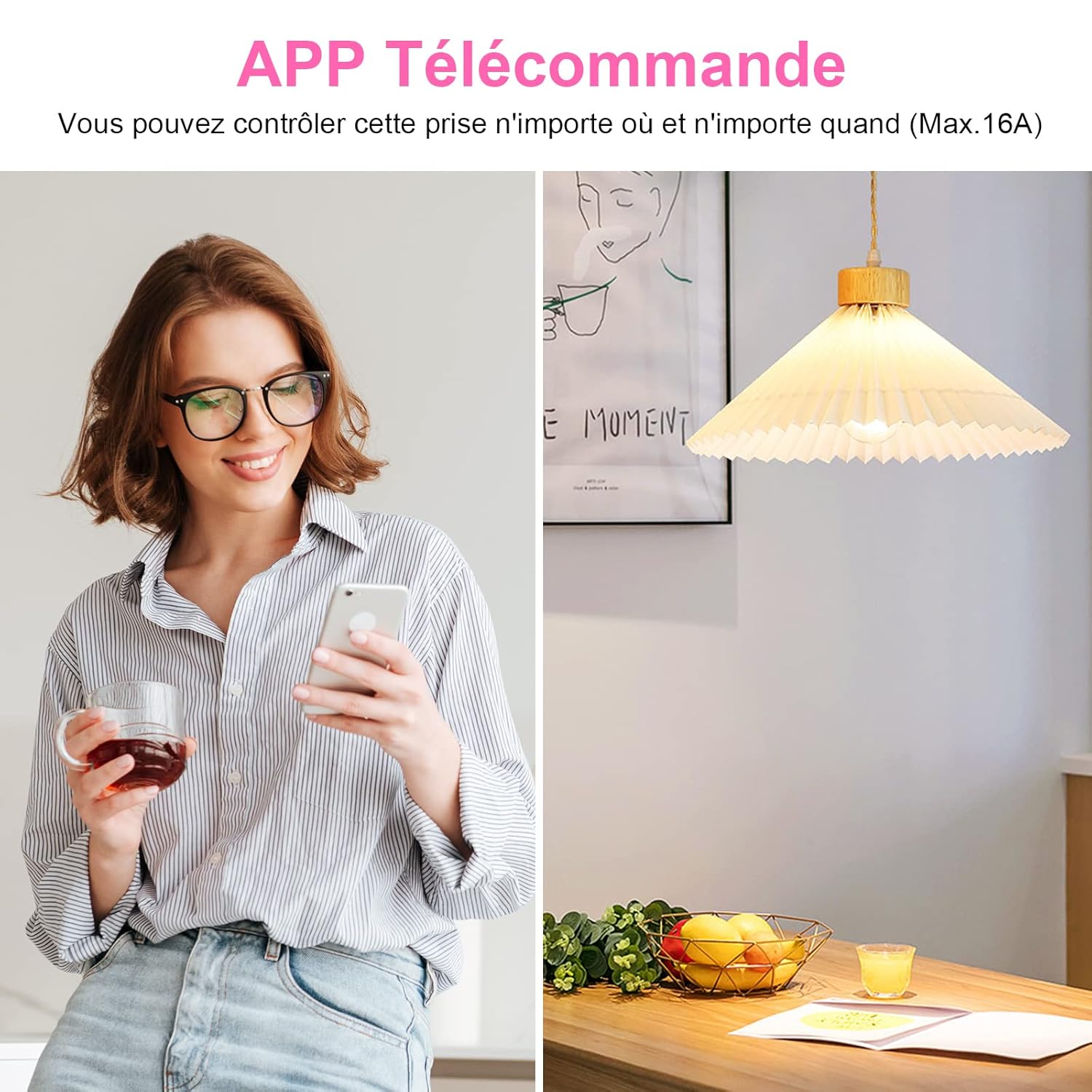
Control your connected devices from anywhere using the Smart Life or Tuya Smart app on your smartphone. You can turn devices on or off, check their status, and manage settings remotely.
Voice Control
The ANTELA Smart Plug is compatible with popular voice assistants like Amazon Alexa and Google Assistant. Link your Smart Life/Tuya Smart account to your preferred voice assistant to enable hands-free control.
Example Voice Commands:
- "Alexa, turn on the living room light."
- "Hey Google, turn off the coffee maker."
- "Alexa, set the fan to 50%." (If device supports dimming/speed control)


Scheduling and Timer Functions
Automate your devices by setting schedules and timers through the app. You can program devices to turn on or off at specific times, or use the countdown timer for temporary control.
- Schedule: Set daily or weekly schedules for lights, coffee makers, or other appliances.
- Timer: Use the countdown timer to automatically turn off a device after a set period.

Energy Monitoring
The ANTELA Smart Plug features energy consumption monitoring, allowing you to track the electricity usage of connected appliances. This data can help you identify energy-intensive devices and optimize your usage to save energy and costs.
- View real-time power consumption.
- Access historical data for daily, monthly, and yearly energy usage.

Maintenance
To ensure the longevity and proper functioning of your ANTELA Smart Plug, follow these maintenance guidelines:
- Cleaning: Gently wipe the surface of the smart plug with a dry, soft cloth. Do not use liquid cleaners or abrasive materials.
- Environment: Keep the smart plug in a dry environment and avoid exposure to direct sunlight, extreme temperatures, or corrosive substances.
- Storage: If not in use for an extended period, unplug the device and store it in a cool, dry place.
Troubleshooting
If you encounter issues with your ANTELA Smart Plug, refer to the following troubleshooting steps:
Plug not connecting to Wi-Fi
- Check Wi-Fi Band: Ensure your router is broadcasting a 2.4 GHz Wi-Fi signal and your phone is connected to it during setup. The plug does not support 5 GHz Wi-Fi.
- Signal Strength: Make sure the smart plug is within range of your Wi-Fi router.
- Reset Plug: Press and hold the button on the plug for 5-10 seconds until the LED flashes rapidly, then try pairing again.
- Restart Router: Power cycle your Wi-Fi router and try connecting again.
App not responding or device offline
- Check Internet Connection: Verify that your smartphone has an active internet connection.
- Restart App: Close and reopen the Smart Life or Tuya Smart app.
- Update App: Ensure your app is updated to the latest version.
- Check Plug Status: Physically check if the smart plug is powered on and its LED indicator is solid.
Voice control issues
- Account Linking: Confirm that your Smart Life/Tuya Smart account is correctly linked to your Alexa or Google Assistant app.
- Device Discovery: Ask your voice assistant to discover new devices.
- Correct Commands: Use the exact device names you set in the app when giving voice commands.
- Internet Connection: Ensure both your voice assistant device and smart plug have stable internet connections.
Specifications
| Feature | Specification |
|---|---|
| Model Number | F2s203-NF |
| Manufacturer | ANTELA |
| Product Dimensions (L x W x H) | 12.5 x 6.5 x 8.5 cm |
| Weight | 190 grams |
| Color | White |
| Material | Fire-retardant materials |
| Voltage | 240 Volts |
| Max Power | 3680 Watts |
| Max Current | 16 Amperes |
| Wi-Fi Standard | 2.4 GHz (IEEE 802.11 b/g/n) |
| App Compatibility | Smart Life / Tuya Smart |
| Voice Assistant Compatibility | Amazon Alexa, Google Assistant |
| Certifications | CE, RoHS, WEEE |
| Switch Type | Push-button |
| Electrical Plug Type | Wall mount (Type E) |
Warranty and Support
Warranty Information
For specific warranty details, please refer to the retailer where you purchased the ANTELA Smart Plug or consult the official ANTELA website. Keep your proof of purchase for warranty claims.
Customer Support
If you require further assistance or have questions not covered in this manual, please contact ANTELA customer support through their official website or the contact information provided with your product packaging.