
TCL 50S451
TCL 50-Inch Series 4 Class 4K Smart Roku TV User Manual
Model: 50S451
Introduction
This user manual provides essential information for the setup, operation, maintenance, and troubleshooting of your TCL 50-Inch Series 4 Class 4K Smart Roku TV (Model: 50S451). Please read this manual thoroughly before operating your television to ensure proper use and to maximize your viewing experience.
Important Safety Information
Always follow basic safety precautions when using this product to reduce the risk of fire, electric shock, and injury to persons. Keep this manual for future reference.
- Do not block ventilation openings.
- Do not install near any heat sources.
- Protect the power cord from being walked on or pinched.
- Only use attachments/accessories specified by the manufacturer.
- Refer all servicing to qualified service personnel.
What's in the Box
Upon unpacking your TCL 50-Inch Series 4 Class 4K Smart Roku TV, ensure all listed components are present:
- TCL 50-Inch Series 4 Class 4K Smart Roku TV
- TV Stand (2 pieces)
- Remote Control (with batteries)
- Power Cord
- Quick Start Guide
- Screws for TV Stand

Image: Front view of the TCL 50-Inch Series 4 Class 4K Smart Roku TV. The screen displays vibrant flowers, highlighting the display quality. The TV is black with a slim bezel and two V-shaped stands at the bottom corners.
Setup
1. Attaching the TV Stand
To attach the stand to your TV, follow these steps:
- Carefully place the TV face-down on a soft, clean surface to prevent screen damage.
- Align each stand piece with the corresponding screw holes on the bottom of the TV.
- Secure each stand piece using the provided screws. Ensure they are tightened firmly.

Image: Front view of the TCL 50-Inch Series 4 Class 4K Smart Roku TV with its two V-shaped stands securely attached. The screen shows a vibrant floral image, indicating the TV is ready for use.
2. Connecting Power and Devices
Connect the power cord to the TV and then to a wall outlet. Connect your external devices (e.g., cable box, gaming console, Blu-ray player) to the appropriate input ports on the TV.
- HDMI Inputs: For high-definition video and audio. The TV features multiple HDMI ports.
- USB Port: For connecting USB devices (e.g., flash drives for media playback).
- Antenna/Cable Input: For connecting an antenna or cable TV.
- Ethernet Port: For a wired internet connection.

Image: Side profile of the TCL 50-Inch Series 4 Class 4K Smart Roku TV, highlighting the various input ports located on the side panel. These include HDMI, USB, and other connectivity options for external devices.
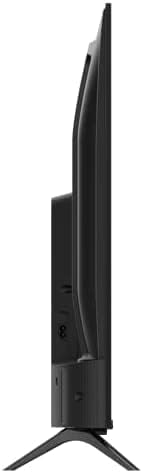
Image: Another side view of the TCL 50-Inch Series 4 Class 4K Smart Roku TV, emphasizing its slim design and the arrangement of additional ports on the side, providing easy access for connections.
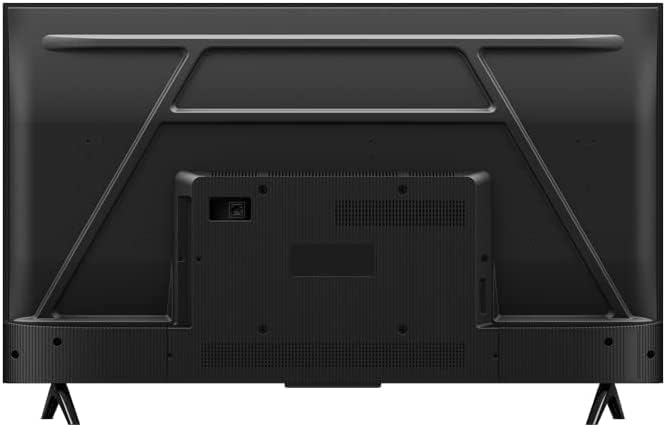
Image: Rear view of the TCL 50-Inch Series 4 Class 4K Smart Roku TV, displaying the back panel design, including ventilation grilles and potential VESA mounting points for wall installation. The power input and other rear-facing ports are visible.
3. Initial Power On and Roku Setup
Once connected, power on your TV. The Roku guided setup will appear on screen. Follow the prompts to:
- Select your language.
- Connect to your wireless network (Wi-Fi) or use a wired Ethernet connection.
- Activate your Roku account (or create a new one).
- Add streaming channels.
For more detailed information on Roku setup, visit the official Roku support website.
Operating Your TCL Roku TV
Remote Control Functions
The included remote control provides access to all TV functions. Key buttons include:
- Power: Turns the TV on or off.
- Home: Returns to the Roku Home screen.
- Directional Pad (D-Pad): Navigates menus and selects items.
- OK/Select: Confirms selections.
- Back: Returns to the previous screen.
- Volume Up/Down: Adjusts audio volume.
- Mute: Silences the TV audio.
- Instant Replay: Jumps back a few seconds in video playback.
- Star (*): Accesses options for the selected item.
- Dedicated Channel Buttons: Quick access to popular streaming services.
Smart TV Features (Roku OS)
Your TCL Roku TV offers a wide range of smart features:
- Streaming Channels: Access thousands of free and paid streaming channels, including Netflix, Disney+, YouTube, and more.
- Voice Control: Compatible with Alexa and Google Assistant. Use voice commands to turn on the TV, change channels, control volume, and search for content.
- Mobile App: Download the free Roku mobile app for iOS and Android devices to use your smartphone as a remote, search with your voice, and cast content.
- AirPlay: Stream videos, photos, and music directly from your Apple devices to the TV.
- Live TV: Connect an antenna to watch over-the-air broadcast channels.
Picture and Sound Settings
Access picture and sound settings through the Roku menu to customize your viewing experience. Press the Star (*) button on your remote while watching content to quickly access common settings.
- Picture Modes: Choose from various presets like Movie, Normal, Vivid, or customize your own.
- Sound Modes: Select from Standard, Music, Movie, or customize equalizer settings.
- HDR (High Dynamic Range): The TV supports HDR content for enhanced contrast and color when available.
Maintenance
Proper maintenance ensures the longevity and optimal performance of your TV.
Cleaning the Screen
- Turn off the TV and unplug the power cord.
- Gently wipe the screen with a soft, dry microfiber cloth.
- For stubborn marks, lightly dampen the cloth with water or a specialized screen cleaner (never spray directly onto the screen).
- Avoid using harsh chemicals, abrasives, or alcohol-based cleaners.
Cleaning the TV Body
- Use a soft, dry cloth to wipe dust from the TV's frame and back panel.
- Ensure ventilation openings are free from dust and obstructions.
Software Updates
Your Roku TV automatically checks for and installs software updates when connected to the internet. Ensure your TV remains connected to the internet for the latest features and security patches.
Troubleshooting
If you encounter issues with your TV, refer to the following common solutions:
| Problem | Possible Cause | Solution |
|---|---|---|
| No power | Power cord disconnected; outlet not working. | Ensure power cord is securely plugged into TV and wall outlet. Test outlet with another device. |
| No picture, but sound is present | Incorrect input selected; device not powered on. | Press the Input button on your remote to cycle through inputs. Check if the connected device is powered on. |
| Poor picture quality | Low-resolution source; incorrect picture settings. | Ensure you are watching high-definition content. Adjust picture settings (e.g., brightness, contrast, sharpness) in the TV menu. |
| No sound | Volume muted or too low; external audio system issue. | Unmute the TV or increase volume. Check connections to external audio systems. |
| Remote control not working | Dead batteries; obstruction; remote out of range. | Replace batteries. Remove any obstructions between remote and TV. Ensure you are within operating range. |
| Wi-Fi connection issues | Incorrect password; router issues; signal interference. | Verify Wi-Fi password. Restart your router. Move TV closer to router or use a wired connection. |
If the problem persists after trying these solutions, please contact TCL customer support or refer to the online support resources.
Specifications
| Feature | Detail |
|---|---|
| Brand | TCL |
| Model Number | 50S451 |
| Screen Size | 50 Inches (127 cm visible diagonal) |
| Display Technology | LED |
| Resolution | 4K Ultra HD (2160p) |
| Refresh Rate | 60 Hz |
| Special Features | Smart Roku TV, HDR, Compatible with Alexa and Google Assistant, AirPlay |
| Connectivity Technology | Wi-Fi, HDMI, USB, Ethernet |
| Aspect Ratio | 16:9 |
| Product Dimensions (with stand) | 44" W x 27" H x 9" D (approx.) |
| Item Weight | 26.8 pounds (approx.) |
| Color | Black |
Warranty and Support
This product is sold as a "Renewed" item. Please refer to the specific warranty terms provided by the seller or Amazon Renewed program at the time of purchase. Typically, Amazon Renewed products come with a 90-day refund/replacement policy.
For technical support, troubleshooting assistance beyond this manual, or warranty claims, please contact:
- TCL Customer Support: Visit the official TCL support website for contact information and online resources.
- Amazon Renewed Support: For issues related to the renewed product warranty or returns, contact Amazon customer service.
Always have your TV model number (50S451) and serial number ready when contacting support.
Related documents50S451


Ask a question about this manual
Ask about setup, troubleshooting, compatibility, parts, safety, or missing instructions. Manuals+ will review the question and use this page’s manual context to help answer it.