
Introduction
Thank you for choosing the Cosmic Byte ARES Wireless Controller. This manual provides essential information for setting up, operating, maintaining, and troubleshooting your new controller. Please read this manual carefully before use to ensure optimal performance and longevity of your device.
The Cosmic Byte ARES Wireless Controller is designed for PC gaming, offering a reliable wireless connection, ergonomic design, and responsive controls for an enhanced gaming experience. It features pressure-sensitive analog triggers, LED-backlit buttons, and supports both Xinput and D Input modes.
Setup Guide
1. Package Contents
- Cosmic Byte ARES Wireless Controller
- USB Wireless Dongle
- USB Charging Cable
- User Manual
2. Charging the Controller
Before initial use, fully charge the controller. Connect the supplied USB charging cable to the USB port on the top of the controller and plug the other end into a powered USB port (e.g., PC, USB wall adapter). The LED indicator on the controller will show charging status and turn off or change color when fully charged.

Top view of the Cosmic Byte ARES Wireless Controller showing the USB port for charging and connection, along with the V LED and ABXY button backlighting.
3. Connecting to PC
- Insert the USB wireless dongle into an available USB port on your PC.
- Turn on the Cosmic Byte ARES Wireless Controller by pressing the central 'Home' button.
- The controller will automatically pair with the dongle. The LED indicator on the controller will stabilize once connected.
- Your PC should automatically detect and install the necessary drivers. If not, refer to the troubleshooting section.
The controller offers a wireless range of 8-10 meters, providing flexibility during gameplay.

The Cosmic Byte ARES Wireless Controller highlighting its reliable wireless connection and 700mAh battery, providing up to 12 hours of continuous gaming.
Operating Instructions
1. Basic Controls
The controller features standard gamepad buttons and joysticks:
- Left Analog Stick: Movement and navigation.
- Right Analog Stick: Camera control and aiming.
- D-Pad: Directional input, menu navigation.
- ABXY Buttons: Action buttons, typically for jumping, interacting, attacking, etc. These buttons are LED-backlit.
- Shoulder Buttons (L1/R1): Quick actions.
- Triggers (L2/R2): Pressure-sensitive analog triggers for precise input, such as acceleration or shooting.
- START/BACK Buttons: Menu access, map, inventory, etc.
- Home Button: Powers on/off the controller, accesses system menus.
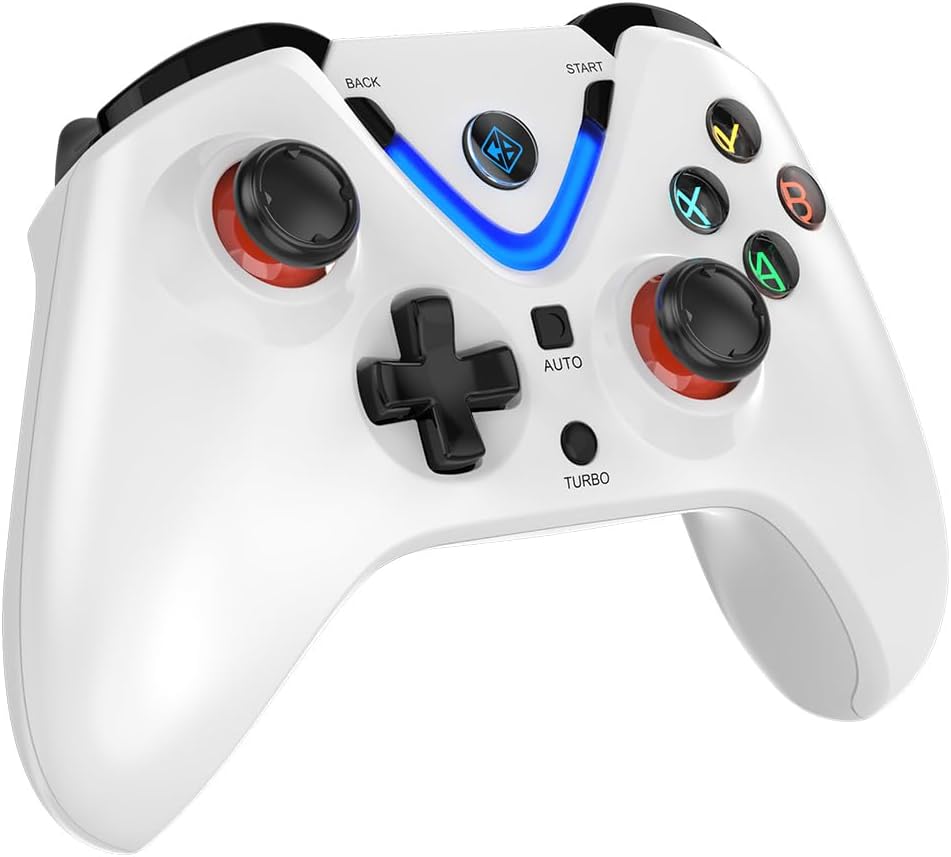
Front view of the Cosmic Byte ARES Wireless Controller, showcasing the button layout, joysticks, D-pad, and central LED indicator.
2. Special Features
- Xinput and D Input Support: The controller automatically detects and supports both Xinput and D Input modes, ensuring compatibility with a wide range of PC games.
- Vibration Feedback: Experience immersive gameplay with the built-in vibration feature, providing tactile feedback for in-game events.
- Turbo Function: The 'TURBO' button allows for rapid, repeated input of a selected action button. To activate, press and hold the 'TURBO' button, then press the desired action button (e.g., A, B, X, Y). To deactivate, repeat the process.
- Auto Function: The 'AUTO' button enables continuous, automatic input of a selected action button without holding it down. To activate, press and hold the 'AUTO' button, then press the desired action button. To deactivate, repeat the process.
- Hall Effect Triggers: The controller is equipped with Hall Effect Triggers, providing precise and durable input for enhanced control.
- Ergonomic Design: The controller features ergonomic, rubberized textured sticks for improved grip and comfort during extended gaming sessions.
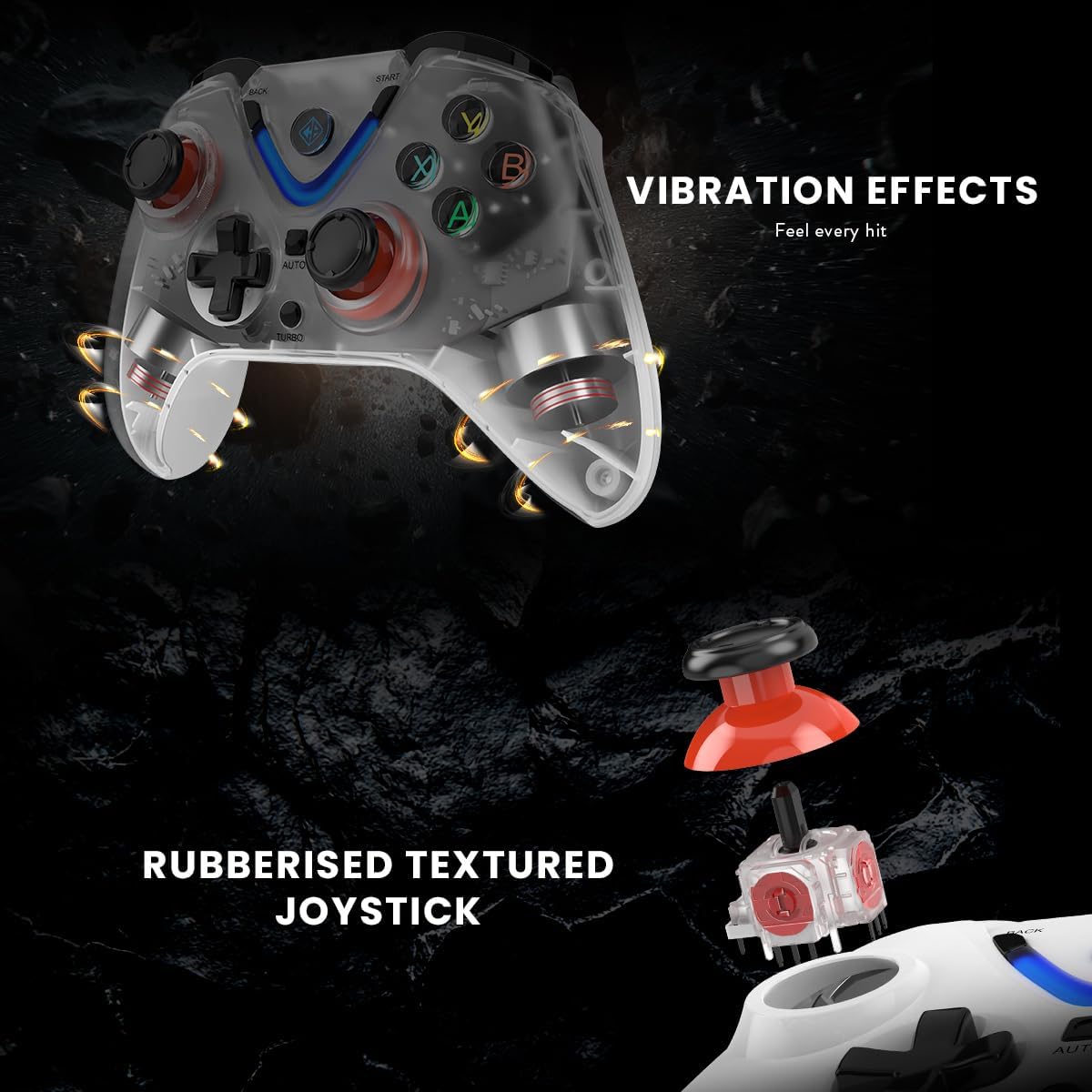
Illustration of the Cosmic Byte ARES Wireless Controller's vibration feedback feature and the design of its rubberized textured joysticks for enhanced grip.

Detail of the Cosmic Byte ARES Wireless Controller's Turbo and Auto function buttons, alongside an illustration of its Hall Effect Triggers for precise input.
Maintenance
1. Cleaning
To clean your controller, use a soft, dry cloth. For stubborn dirt, slightly dampen the cloth with water. Do not use harsh chemicals, solvents, or abrasive cleaners, as these can damage the controller's surface and internal components.
2. Battery Care
- Avoid exposing the controller to extreme temperatures (hot or cold).
- Do not leave the controller uncharged for extended periods. Charge it periodically if not in use.
- Do not attempt to replace the internal battery yourself. Contact support if battery issues arise.
Troubleshooting
1. Controller Not Connecting
- Ensure the USB wireless dongle is securely plugged into a working USB port on your PC.
- Make sure the controller is powered on and has sufficient battery charge.
- Try plugging the dongle into a different USB port on your PC.
- Restart your PC and try connecting again.
- If the issue persists, try re-pairing the controller by pressing the reset button (if available, usually a small pinhole on the back) on the controller and then the pairing button on the dongle (if applicable).
2. Buttons/Joysticks Unresponsive
- Check if the controller is properly connected to your PC.
- Ensure the game you are playing supports gamepad input.
- Test the controller with another game or a gamepad testing tool on your PC to rule out game-specific issues.
- Restart the controller and your PC.
3. Battery Not Charging
- Verify that the USB charging cable is correctly connected to both the controller and a powered USB port.
- Try using a different USB charging cable or a different USB port/power adapter.
- Ensure the charging port on the controller is free of debris.
Specifications
| Feature | Detail |
|---|---|
| Model Number | ARES Wireless White |
| Connectivity | Wireless (USB Dongle) |
| Wireless Range | 8-10 meters |
| Battery | 1 Lithium-polymer (included), 700mAh |
| Battery Life | Up to 12 hours of continuous gaming |
| Compatibility | PC (Xinput & D Input) |
| Product Dimensions (L x W x H) | 6 x 10 x 4 cm |
| Weight | 200 grams |
| Outer Material | Plastic and paper |
| Water Resistance Level | Water-resistant |
| Manufacturer | Cosmic Byte |
Warranty Information
The Cosmic Byte ARES Wireless Controller comes with a standard manufacturer's warranty. Please refer to the warranty card included in your product packaging or visit the official Cosmic Byte website for detailed warranty terms and conditions. Keep your purchase receipt as proof of purchase for any warranty claims.
Customer Support
For technical assistance, troubleshooting not covered in this manual, or warranty inquiries, please contact Cosmic Byte customer support. Contact details can typically be found on the official Cosmic Byte website or on the product packaging.


