
TMEZON MZ-IP-V726TW+MZ-VDP-NE203/EUR
TMEZON WiFi IP Video Intercom System User Manual
Model: MZ-IP-V726TW+MZ-VDP-NE203/EUR
1. Introduction
This manual provides detailed instructions for the installation, operation, and maintenance of your TMEZON WiFi IP Video Intercom System. Please read this manual thoroughly before using the product to ensure proper functionality and safety.
2. Product Overview
The TMEZON WiFi IP Video Intercom System offers advanced security and convenience for your home or office. It features a 7-inch HD touch screen monitor, a 1080P outdoor doorbell camera with night vision, and multiple unlocking methods including app remote control, IC card swipe, and monitor unlock.

Figure 2.1: TMEZON WiFi IP Video Intercom System components including the indoor monitor, outdoor doorbell unit, and RFID key fobs.
2.1 Key Features
- APP Remote Control: Connect the monitor to 2.4G WiFi to receive notifications, view, hear, and speak to visitors, and remotely unlock your door from anywhere via your smartphone.
- 7" LCD Touch Screen Monitor: High-definition 1080P display for clear visuals and intuitive operation.
- 1080P Mini Doorbell Camera: Features a 148° wide-angle lens and built-in infrared sensor for clear night vision. IP65 waterproof rating for outdoor installation.
- 3-in-1 Unlocking Methods: Unlock via IC card swipe, mobile APP, or directly from the indoor monitor. Includes 8 RFID key fobs.
- Automatic Snapshot/Recording: Automatically captures snapshots or video recordings when visitors press the doorbell, saving to a Micro SD card (up to 128GB, not included).
- Multi-Device Connection: Supports connection of up to 6 IP monitors and 2 doorbell units, with two-way communication and call transfer between monitors.
2.2 Product Dimensions

Figure 2.2: Detailed dimensions of the indoor monitor and outdoor doorbell unit.
3. Setup and Installation
Proper installation is crucial for optimal performance. It is recommended to consult a qualified electrician for complex wiring.
3.1 Wiring Diagram (2-Wire Connection)
The system utilizes a simple 2-wire connection for easy installation, eliminating the need for complex video distributors.

Figure 3.1: Simplified 2-wire connection for the indoor monitor and outdoor doorbell.
- Ensure all power is disconnected before wiring.
- Connect the two main wires from the outdoor doorbell unit to the corresponding terminals on the indoor monitor.
- Connect the power supply to the indoor monitor.
- Mount the indoor monitor and outdoor doorbell unit securely using the provided wall mounts.
3.2 Wi-Fi and App Setup
To enable remote access and notifications, connect your indoor monitor to your home's 2.4G Wi-Fi network and set up the mobile application.

Figure 3.2: Remote access and control via the Tuya Smart App.
- Power on the indoor monitor.
- Navigate to the Wi-Fi settings on the monitor and connect to your 2.4G Wi-Fi network.
- Download the "Tuya Smart" app from the App Store (iOS) or Google Play Store (Android).
- Register or log in to your Tuya Smart account.
- Follow the in-app instructions to add your TMEZON intercom system. This typically involves scanning a QR code displayed on the monitor or manually adding the device.
4. Operating Instructions
4.1 Answering Calls and Two-Way Audio
When a visitor presses the doorbell button, the indoor monitor will ring, and your paired smartphone will receive an APP notification.
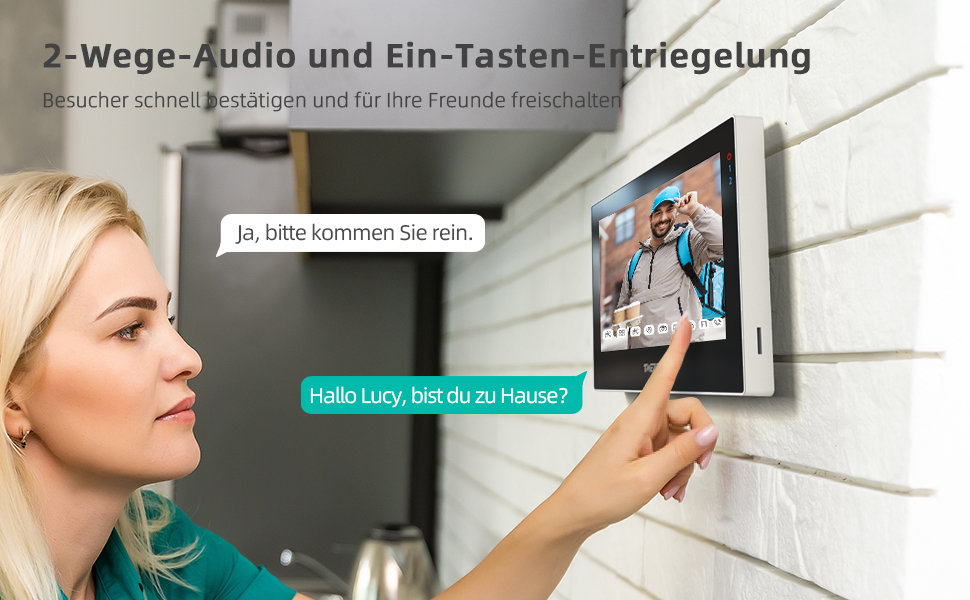
Figure 4.1: Two-way audio communication via the indoor monitor.
- On the Monitor: Tap the "Answer" icon on the touch screen to initiate two-way audio communication with the visitor.
- On the App: Open the Tuya Smart app, tap the notification, and select "Answer" to speak with the visitor remotely.
4.2 Unlocking the Door
The system supports three convenient methods for unlocking your door.

Figure 4.2: Unlocking the door using an RFID key fob.
- IC Card Swipe: Present one of the provided RFID key fobs to the card reader area on the outdoor doorbell unit. The door will unlock.
- Via APP: During a call or live view in the Tuya Smart app, tap the "Unlock" icon.
- From Monitor: During a call or live view on the indoor monitor, tap the "Unlock" icon on the touch screen.
4.3 Snapshot and Video Recording
The system can automatically capture images or record video when the doorbell is pressed, storing them on a Micro SD card (not included).
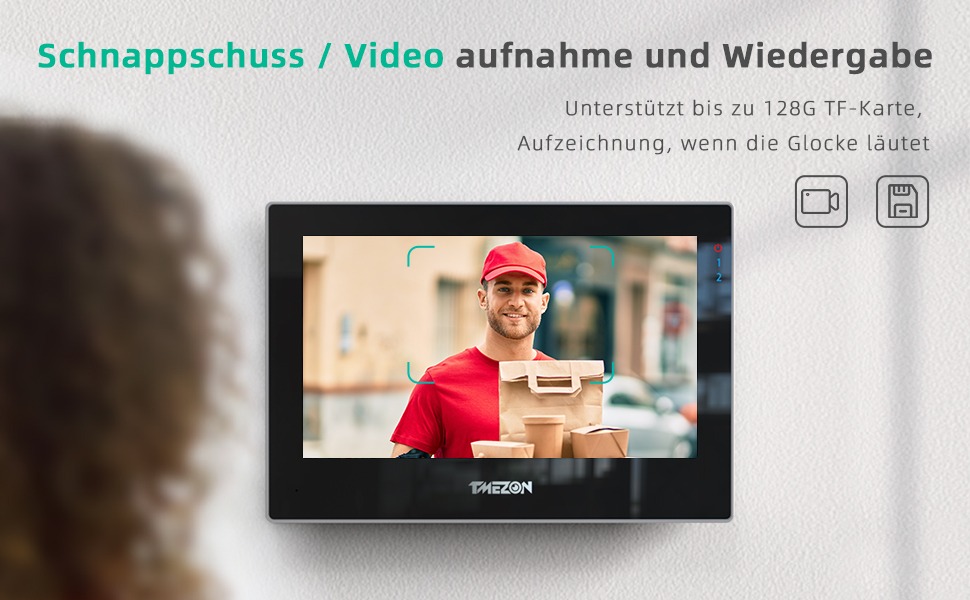
Figure 4.3: Automatic snapshot and video recording feature.
- Insert a Micro SD card (up to 128GB) into the designated slot on the indoor monitor.
- Configure recording settings (snapshot or video) in the monitor's menu.
- Review recordings and snapshots anytime via the monitor or the Tuya Smart app.
4.4 Multi-Device Interconnection
The system supports connecting multiple indoor monitors and outdoor doorbell units for comprehensive coverage.
- Up to 6 indoor IP monitors can be connected.
- Up to 2 outdoor doorbell units can be connected.
- Enables two-way communication between different indoor monitors.
- Supports call transfer between all connected indoor monitors.
5. Maintenance
Regular maintenance ensures the longevity and optimal performance of your intercom system.
- Cleaning: Use a soft, dry cloth to clean the monitor screen and doorbell camera lens. Avoid abrasive cleaners or solvents.
- Software Updates: Periodically check for firmware updates via the Tuya Smart app or TMEZON's official website to ensure your system has the latest features and security patches.
- SD Card Management: Regularly back up important recordings from the Micro SD card and format it periodically to maintain performance.
- Outdoor Unit Inspection: Inspect the outdoor doorbell unit for any debris, spiderwebs, or physical damage that might obstruct the camera or microphone.
6. Troubleshooting
If you encounter issues with your TMEZON intercom system, refer to the following common problems and solutions.
| Problem | Possible Cause | Solution |
|---|---|---|
| No image on monitor/app. | Loose wiring, power issue, camera obstruction. | Check all wiring connections. Ensure power supply is connected. Clear any obstructions from the camera lens. |
| No audio during communication. | Microphone/speaker issues, volume too low. | Check volume settings on monitor and app. Ensure microphone/speaker are not blocked. |
| App notifications not received. | Wi-Fi disconnected, app permissions, phone settings. | Verify monitor's Wi-Fi connection. Check app notification permissions on your smartphone. Ensure phone is not in Do Not Disturb mode. |
| Door not unlocking. | Wiring to lock incorrect, RFID card not registered, lock malfunction. | Verify wiring to the electronic lock. Ensure RFID card is correctly registered. Test the lock independently. |
| Poor night vision. | Infrared sensor obstructed, dirty lens. | Clean the camera lens. Ensure nothing is blocking the infrared LEDs on the doorbell unit. |
If the problem persists after trying these solutions, please contact TMEZON customer support.
7. Specifications
| Feature | Specification |
|---|---|
| Brand | TMEZON |
| Model Number | MZ-IP-V726TW+MZ-VDP-NE203/EUR |
| Effective Video Resolution | 1080 Pixels |
| Material | Metal |
| Power | 1 Watts |
| Item Dimensions (L x W x H) | 25 x 25 x 25 millimeters (Product: 2.54 x 2.54 x 2.54 cm) |
| Product Weight | 1.46 kilograms |
| Connectivity Technology | Wireless (Wi-Fi) |
| Power Source | Electric Cable |
| Mounting Type | Wall Mount |
| Video Recording Resolution | 1080p |
| Color | 1 family (refers to system configuration) |
| Number of Channels | 4 |
| Recommended Uses | Night Vision |
8. Warranty and Support
TMEZON products are designed for reliability and performance. For specific warranty details, please refer to the warranty card included with your product or visit the official TMEZON website.
For technical support, troubleshooting assistance, or inquiries about spare parts, please contact TMEZON customer service through their official website or the contact information provided in your product packaging.
Related documentsMZ-IP-V726TW+MZ-VDP-NE203/EUR


Ask a question about this manual
Ask about setup, troubleshooting, compatibility, parts, safety, or missing instructions. Manuals+ will review the question and use this page’s manual context to help answer it.