
Keychron Q2P-N3
Keychron Q2 Pro QMK/VIA Wireless Custom Mechanical Keyboard User Manual
Model: Q2P-N3
1. Introduction
The Keychron Q2 Pro is a highly customizable 65% layout mechanical keyboard designed for enthusiasts and professionals. It features a full aluminum body, QMK/VIA support for extensive customization, and versatile wireless and wired connectivity options. This manual provides detailed instructions for setting up, operating, maintaining, and troubleshooting your Keychron Q2 Pro keyboard.

Image 1.1: The Keychron Q2 Pro mechanical keyboard, showcasing its compact 65% layout, integrated knob, and the included K Pro Brown switches.
2. Package Contents
Please verify that all items listed below are included in your package:
- 1x Fully Assembled Keyboard (including Aluminum Case, PCB, PC Plate, Sound Absorbing Foam, Case Foam, 14x Gaskets (10 Installed and 4 in the Box), 4 sets x Stabilizers, 1 set x Keycaps (Double-Shot KSA PBT), 1 set x Switches)
- 1x Type-C to Type-C cable
- 1x Type-A to Type-C adapter
- 1x Double-shot PBT keycaps (pre-installed)
- 1x Screw-in PCB stabs (pre-installed)
- 1x Switch Puller
- 1x Keycap Puller
- 1x Screwdriver
- 1x Hex Key

Image 2.1: Visual representation of the Keychron Q2 Pro keyboard and its complete set of accessories and tools included in the package.
3. Setup
3.1 Initial Connection
The Keychron Q2 Pro supports both wireless (Bluetooth 5.1) and wired (USB Type-C) connections. Ensure the keyboard is charged before initial wireless use. Connect the provided Type-C cable to the keyboard and your computer for wired mode or charging.
3.2 Switching Between Modes
Locate the mode switch on the back or side of the keyboard. Toggle it to select between wired and wireless (Bluetooth) modes. For wireless mode, the keyboard can connect to up to 3 devices, allowing seamless switching between your laptop, phone, and tablet.

Image 3.1: The Keychron Q2 Pro keyboard, illustrating its wireless functionality and sleek design.
3.3 Operating System Compatibility
The Q2 Pro is fully compatible with Mac, Windows, and Linux operating systems. Use the dedicated OS switch on the keyboard to select the appropriate layout for your system. This ensures correct key mapping and functionality.
Image 3.2: A close-up of the Keychron Q2 Pro, highlighting the physical switch for Mac/Windows compatibility and the durable KSA double-shot PBT keycaps.
4. Operating the Keyboard
4.1 QMK & VIA Customization
The Q2 Pro supports QMK and VIA firmware, allowing you to remap any key, create custom macro commands, shortcuts, or key combinations. The aluminum rotary encoder (knob) can also be customized for various functions like zooming, adjusting brightness, volume, or backlight hue.

Image 4.1: The VIA software interface, demonstrating the intuitive graphical user interface for remapping keys and customizing layers on the Keychron Q2 Pro.

Image 4.2: The VIA logo, representing the powerful open-source software used for keyboard customization.
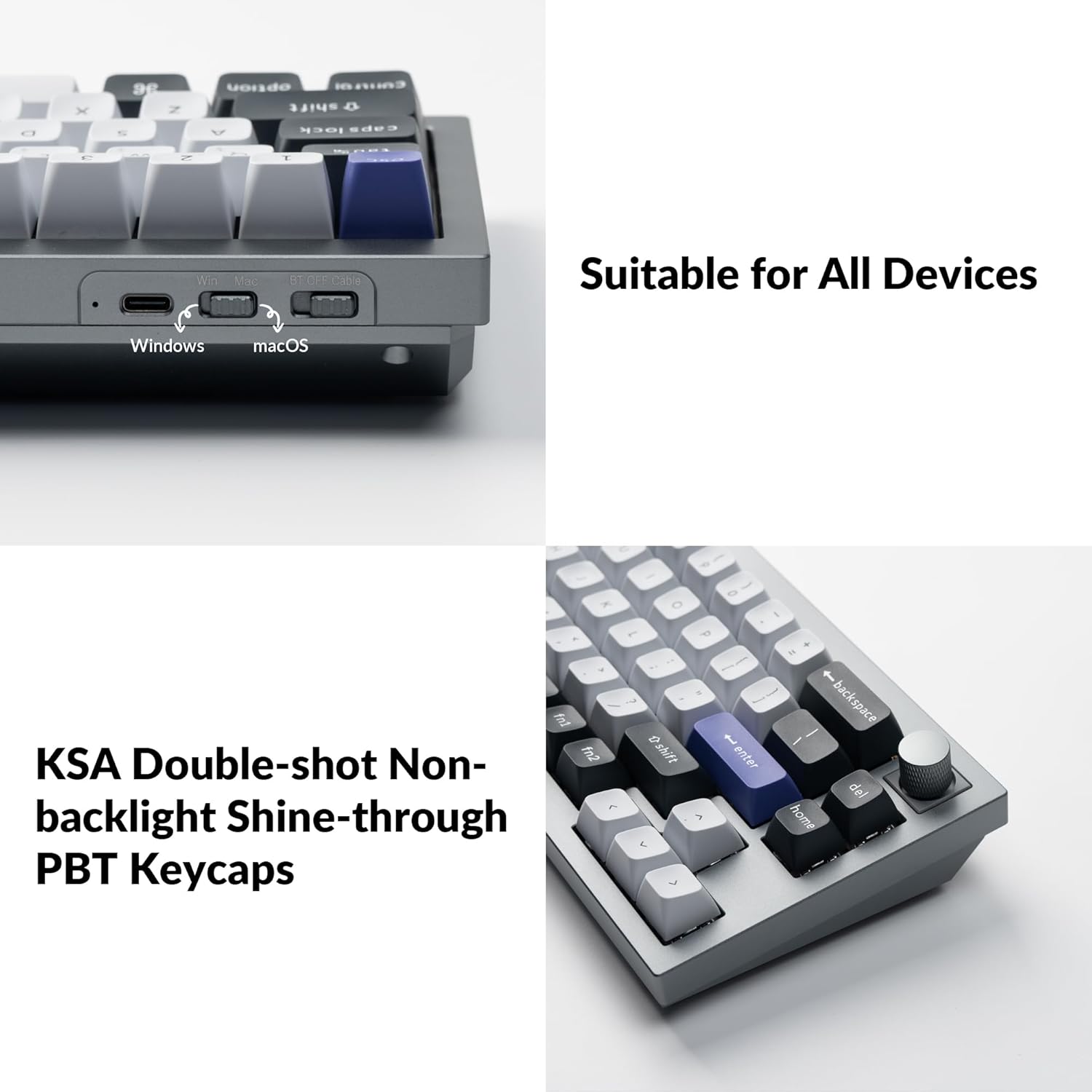
Image 4.3: A detailed view of the programmable rotary knob, highlighting its textured surface and integration into the keyboard design.
4.2 Hot-Swappable Switches
The Q2 Pro features hot-swappable switch sockets, allowing you to easily change switches without soldering. This provides flexibility to customize your typing feel with different switch types (3-pin and 5-pin MX style mechanical switches are supported).

Image 4.4: A close-up view of the hot-swappable switch sockets, demonstrating the ease of changing switches without soldering.
Keychron K Pro Switch Features
| Switch Type | Operating Force | Pre-travel | Travel Distance | Behavior | Pre-lubed | Sound Level | Suitable for |
|---|---|---|---|---|---|---|---|
| Red | 45 ±10 gf | 2 ±0.4 mm | 4 ±0.4 mm | Linear | Yes | Quiet | Office/gaming |
| Brown | 50 ±10 gf | 2 ±0.4 mm | 4 ±0.4 mm | Tactile | Yes | Gentle | Midway Office/gaming |
| Banana | 57 ±8 gf | 2.2 ±0.4 mm | 3.3 ±0.2 mm | Tactile (Similar to Panda switches) | Yes | Gentle | Office/gaming |

Image 4.5: A detailed table outlining the specifications and characteristics of Keychron K Pro Red, Brown, and Banana switches.
4.3 RGB Backlight
The Q2 Pro features south-facing RGB backlighting with 22 types of pre-set lighting effects. You can fine-tune the RGB hue, saturation, brightness, effect speed, and modes directly on the keyboard or through QMK/VIA software for advanced customization.

Image 4.6: The Keychron Q2 Pro keyboard illuminated with its customizable RGB backlighting, showcasing the south-facing LED design.
4.4 Enhanced Typing Experience
The Q2 Pro incorporates a double-gasket design with silicone pads between the top and bottom cases to significantly reduce sound resonance and noise from impacted metals. It also features PCB-mounted screw-in stabilizers for less wobbliness on larger keys, contributing to a smoother and more stable typing experience.

Image 4.7: A cross-section diagram explaining the innovative double-gasket design, which enhances typing feel and acoustics by isolating the plate from the case.

Image 4.8: A set of PCB-mounted screw-in stabilizers, designed to provide stability and reduce wobble for larger keys like the spacebar and shift keys.
5. Maintenance
5.1 Cleaning the Keyboard
To clean your Keychron Q2 Pro, first disconnect it from power. Use a soft, lint-free cloth slightly dampened with water or a mild cleaning solution to wipe down the keycaps and case. For deeper cleaning, use the provided keycap puller to remove keycaps and a brush or compressed air to clear debris from between switches.
5.2 Disassembly and Assembly
The Q2 Pro is designed for easy disassembly and assembly, facilitating modifications and maintenance. Refer to the exploded view diagram for component identification and order of assembly/disassembly.

Image 5.1: An exploded view diagram illustrating all the individual components of the Keychron Q2 Pro keyboard, from keycaps to the bottom case, for easy understanding of its structure.
6. Troubleshooting
6.1 Connectivity Issues
- Bluetooth Not Connecting: Ensure the keyboard is in Bluetooth mode and fully charged. Remove the keyboard from your device's Bluetooth list and attempt to re-pair.
- Wired Mode Not Working: Check the USB-C cable connection at both ends. Try a different USB port or cable. Ensure the keyboard is switched to wired mode.
6.2 Key Not Responding
- Single Key: If a single key is not responding, it might be a faulty switch. Since the keyboard is hot-swappable, try replacing the switch with a spare one.
- Multiple Keys: Ensure the keyboard firmware is up to date. Perform a factory reset if necessary (refer to Keychron's official support for reset procedures).
6.3 RGB Backlight Issues
- Lights Off/Dim: Check brightness settings on the keyboard. Ensure the keyboard is not in a low-power mode.
- Inconsistent Lighting: Update firmware or reset RGB settings via QMK/VIA software.
7. Specifications
| Feature | Detail |
|---|---|
| Brand | Keychron |
| Model Number | Q2P-N3 |
| Connectivity | Bluetooth 5.1, USB Type-C |
| Layout | 65% (68 keys) with Rotary Knob |
| Body Material | Full Aluminum (6063) |
| Switches | Hot-swappable K Pro Brown Switches (pre-installed) |
| Keycaps | KSA Double-Shot PBT Keycaps |
| Backlight | South-Facing RGB (22 types) |
| MCU | ARM Cortex-M4 32-bit STM32L432 (128K Flash) |
| Polling Rate (Wired) | 1000 Hz |
| Polling Rate (Wireless) | 90 Hz |
| Operating System | Mac, Windows, Linux |
| Item Weight | 4.73 pounds |
| Product Dimensions | 12.89 x 4.76 x 1.33 inches |
| Power Source | Battery Powered (1 Lithium Polymer battery included) |
8. Warranty and Support
Keychron products typically come with a limited warranty. For specific warranty terms and conditions, please refer to the official Keychron website or contact their customer support directly.
8.1 Additional Resources
- Official Keychron Website: www.keychron.com
- User Guide (PDF): Download User Guide
- User Manual (PDF): Download User Manual
Related documentsQ2P-N3


Ask a question about this manual
Ask about setup, troubleshooting, compatibility, parts, safety, or missing instructions. Manuals+ will review the question and use this page’s manual context to help answer it.