
GreenLaw GreenLaw Keyboard Case for iPad Air 11-inch (M3/M2) 2025/2024 & Air 4th/5th Gen & iPad Pro 11 inch (1st/2nd/3rd/4th Gen)
GreenLaw Keyboard Case User Manual for iPad Air 11-inch & iPad Pro 11-inch (Blush Pink)
1. Introduction
This manual provides detailed instructions for the setup, operation, and maintenance of your GreenLaw Keyboard Case. Designed for seamless integration with compatible iPad models, this case enhances your tablet experience with a smart touchpad, 7-color backlit keyboard, and durable, stain-resistant protection.
2. Compatibility
The GreenLaw Keyboard Case is compatible with the following iPad models:
- iPad Air 11-inch (M3) 2025
- iPad Air 11-inch (M2) 2024
- iPad Air 5th Generation 10.9 inch 2022 (Models: A2588/A2589/A2591)
- iPad Air 4th Generation 10.9 inch 2020 (Models: A2072/A2316/A2324/A2325)
- iPad Pro 11 inch 4th Generation 2022 (Models: A2759/A2435/A2761/A2762)
- iPad Pro 11 inch 3rd Generation 2021 (Models: A2377/A2459/A2301/A2460)
- iPad Pro 11 inch 2nd Generation 2020 (Models: A2228/A2068/A2230/A2231)
- iPad Pro 11 inch 1st Generation 2018 (Models: A1980/A2013/A1934)
NOTE: This case is NOT compatible with iPad Pro 11 Inch M4 (2024).

3. Setup
3.1 Charging the Keyboard
Before initial use, fully charge the keyboard using the provided USB-C cable. Connect the cable to the charging port on the side of the keyboard and to a compatible USB power source.

3.2 Pairing the Keyboard via Bluetooth
- Ensure the keyboard is charged and powered on.
- On your iPad, go to Settings > Bluetooth and turn Bluetooth on.
- Press the FN + C keys simultaneously on the keyboard to enter pairing mode. The Bluetooth indicator light on the keyboard will begin to blink.
- On your iPad, select "GreenLaw Keyboard" (or similar name) from the list of available devices.
- Once connected, the Bluetooth indicator light on the keyboard will stop blinking.
The keyboard supports dual Bluetooth connectivity, allowing connection to two devices simultaneously. To switch between devices, press FN + Q for device 1 or FN + W for device 2.

3.3 Inserting the iPad into the Case
Gently align your iPad with the case's protective shell, ensuring the camera cutout and ports match. Press firmly around the edges to secure the iPad in place.

4. Operating the Keyboard Case
4.1 Adjustable Backlight
The keyboard features a 7-color backlight with 3 adjustable brightness levels. This allows for comfortable typing in various lighting conditions and adds a personalized touch.
- Press the light bulb icon key to cycle through the 7 colors.
- Press FN + light bulb icon key to adjust the brightness levels (Low, Mid, High).


4.2 Smart Touchpad
The integrated touchpad supports multi-functional gestures, providing a laptop-like experience for navigation and control. It features anti-touch technology for precise input.
- Single Finger Tap: Click/Select.
- Two-Finger Scroll: Scroll up/down or left/right.
- Two-Finger Pinch: Zoom in/out.
- Three-Finger Swipe Up: Open App Switcher.
- Three-Finger Swipe Left/Right: Switch between open applications.


4.3 Upper Pencil Slot
The case includes a dedicated slot at the top for your Apple Pencil, allowing for convenient storage and charging while keeping it secure with your iPad.

4.4 Detachable Keyboard and Multiple Viewing Angles
The keyboard is magnetically detachable from the case, offering flexibility for various usage scenarios. The case itself provides multiple viewing angles (110°, 120°, 130°) for optimal comfort whether typing, watching, or drawing.


5. Maintenance
5.1 Cleaning the Stain-Resistant Case
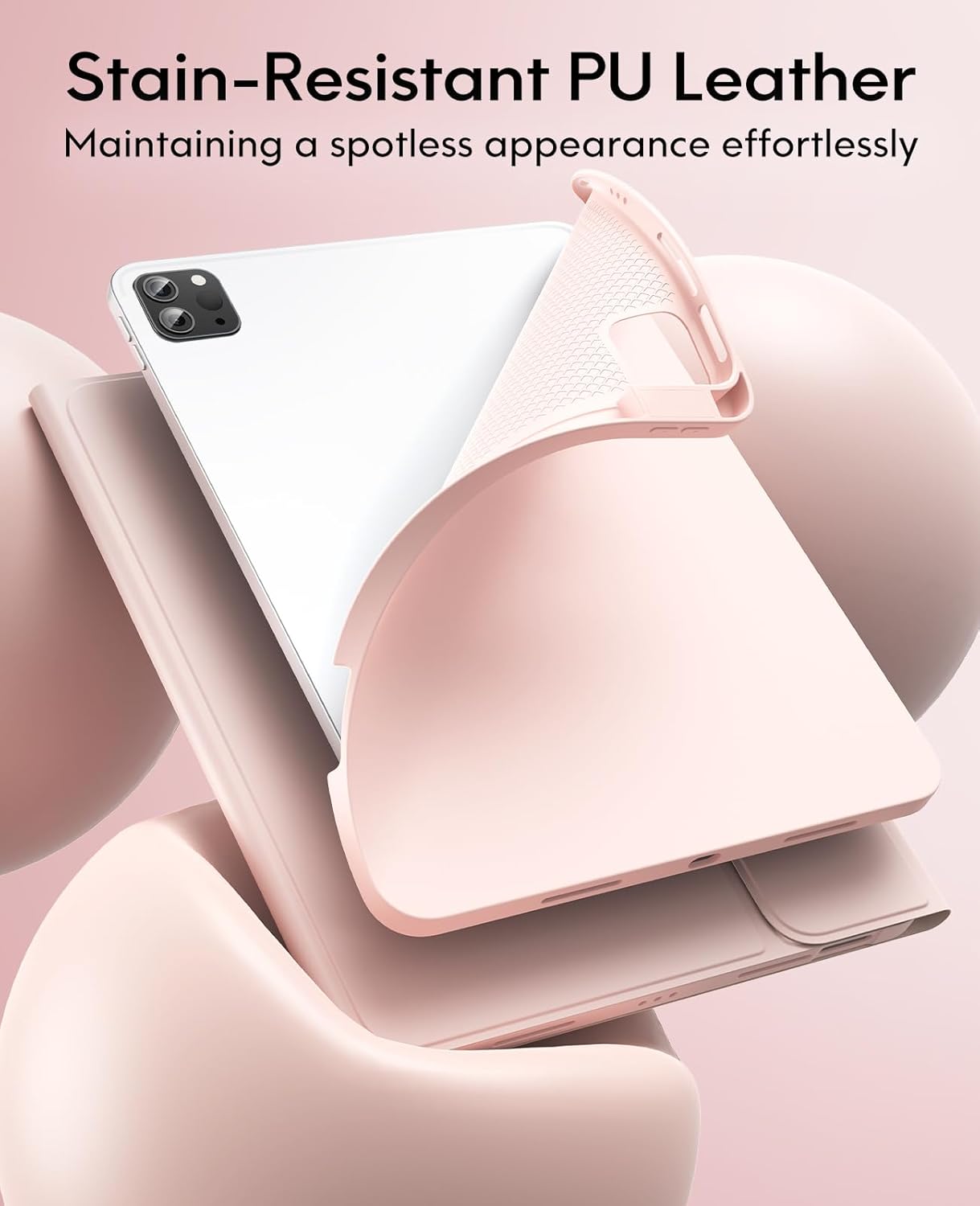
The GreenLaw Keyboard Case is made with specially treated dirt-proof leather, designed to resist stains from common contaminants like paint, coffee, juice, and oil. To clean:
- For liquid spills, gently blot the surface with a clean, dry cloth or paper towel within 5 minutes.
- For tougher stains, use a slightly damp cloth with mild soap and gently wipe the affected area.
- Avoid using harsh chemicals or abrasive cleaners, as these may damage the material.
- Ensure the case is completely dry before reattaching the keyboard or closing the case.

Video 5.1: Demonstration of the SKIN/semiSi-tech Cover's stain resistance and ease of cleaning.
6. Troubleshooting
- Keyboard not connecting: Ensure Bluetooth is enabled on your iPad and the keyboard is in pairing mode (FN + C). Check if the keyboard battery is charged.
- Touchpad not responding: Verify the keyboard is connected via Bluetooth. Restart both the iPad and the keyboard.
- Backlight not working: Ensure the keyboard is powered on. Press the light bulb icon key to activate and cycle through colors. Use FN + light bulb icon key to adjust brightness.
- Keys not typing correctly: Check the iPad's language and keyboard settings. Ensure the keyboard is fully charged.
- iPad not fitting securely: Double-check your iPad model against the compatibility list. Ensure the iPad is aligned correctly with the case's cutouts.
7. Specifications
| Brand | GreenLaw |
| Compatible Devices | iPad Air 11-inch (M3/M2) 2025/2024, iPad Pro 11" 4th/3rd/2nd/1st Gen. (Not for Pro 11" M4 2024) |
| Connectivity Technology | Bluetooth |
| Keyboard Description | Wireless |
| Special Features | Backlit, Trackpad |
| Color | Blush Pink (Keyboard backlighting color support: RGB) |
| Material | Polyurethane Leather, Thermoplastic Polyurethane (TPU) |
| Item Weight | 1.81 pounds |
| Package Dimensions | 10.59 x 8.58 x 1.26 inches |
| Batteries | 1 Lithium Polymer battery required (included) |
8. Warranty and Support
For warranty information, technical support, or any inquiries regarding your GreenLaw Keyboard Case, please refer to the official GreenLaw website or contact customer service through your purchase platform. Keep your proof of purchase for warranty claims.
Visit the official GreenLaw Store: GreenLaw Store on Amazon
Ask a question about this manual
Ask about setup, troubleshooting, compatibility, parts, safety, or missing instructions. Manuals+ will review the question and use this page’s manual context to help answer it.