
Dilwe Dilwe2p57fn3gtz-11
Dilwe French AZERTY Bluetooth Keyboard User Manual
Model: Dilwe2p57fn3gtz-11
Brand: Dilwe
1. Introduction
Thank you for choosing the Dilwe French AZERTY Bluetooth Keyboard. This slim, portable keyboard is designed for seamless connectivity with smartphones, tablets, laptops, and desktop computers, offering a comfortable and efficient typing experience. Its brushed metal texture provides a premium feel and non-slip surface. Please read this manual carefully to understand the product's features, setup, and operation.
2. Key Features
- Brushed Metal Texture: The keyboard panel features a non-slip design, providing a high-end tactile experience.
- Wide Applicability: Compatible with various devices including smartphones, tablets, laptops, and desktop computers via Bluetooth.
- Portable and Ultra-Thin: Designed for convenience, making it ideal for travel, business trips, or daily use.
- Multifunctional Design: Lightweight with quiet keys, offering waterproof and dustproof properties. Features a scissor-switch mechanism for fast typing and a good tactile feel.
- 10-inch Widened and Enlarged Layout: Provides more keys and wider keycaps compared to standard 7-inch keyboards, enhancing the user experience.
3. Specifications
| Feature | Detail |
|---|---|
| Product Material | ABS, Metal |
| Bluetooth Version | 3.0 (Standard MICR Interface) |
| Effective Range | Within 10 Meters |
| Modulation Method | GFSK |
| Working Voltage | 1.8 to 3.6V |
| Working Current | Standby Current: 0.3~0.5mA |
| Sleep Current | Charging Current: ≥200mA |
| Standby Time | >30 Days |
| Continuous Working Time | 44 Hours |
| Built-in Battery Capacity | 110mAh Lithium Battery |
| Key Force | 80±10g |
| Key Life | 5 Million Clicks |
| Working Temperature | -10 to 55℃ |
| Package Dimensions | 10 x 7.01 x 0.51 inches |
| Item Weight | 7.8 ounces |
4. Package Contents
Please check the package for the following items:
- 1 x Dilwe French AZERTY Bluetooth Keyboard
- 1 x Charging Cable
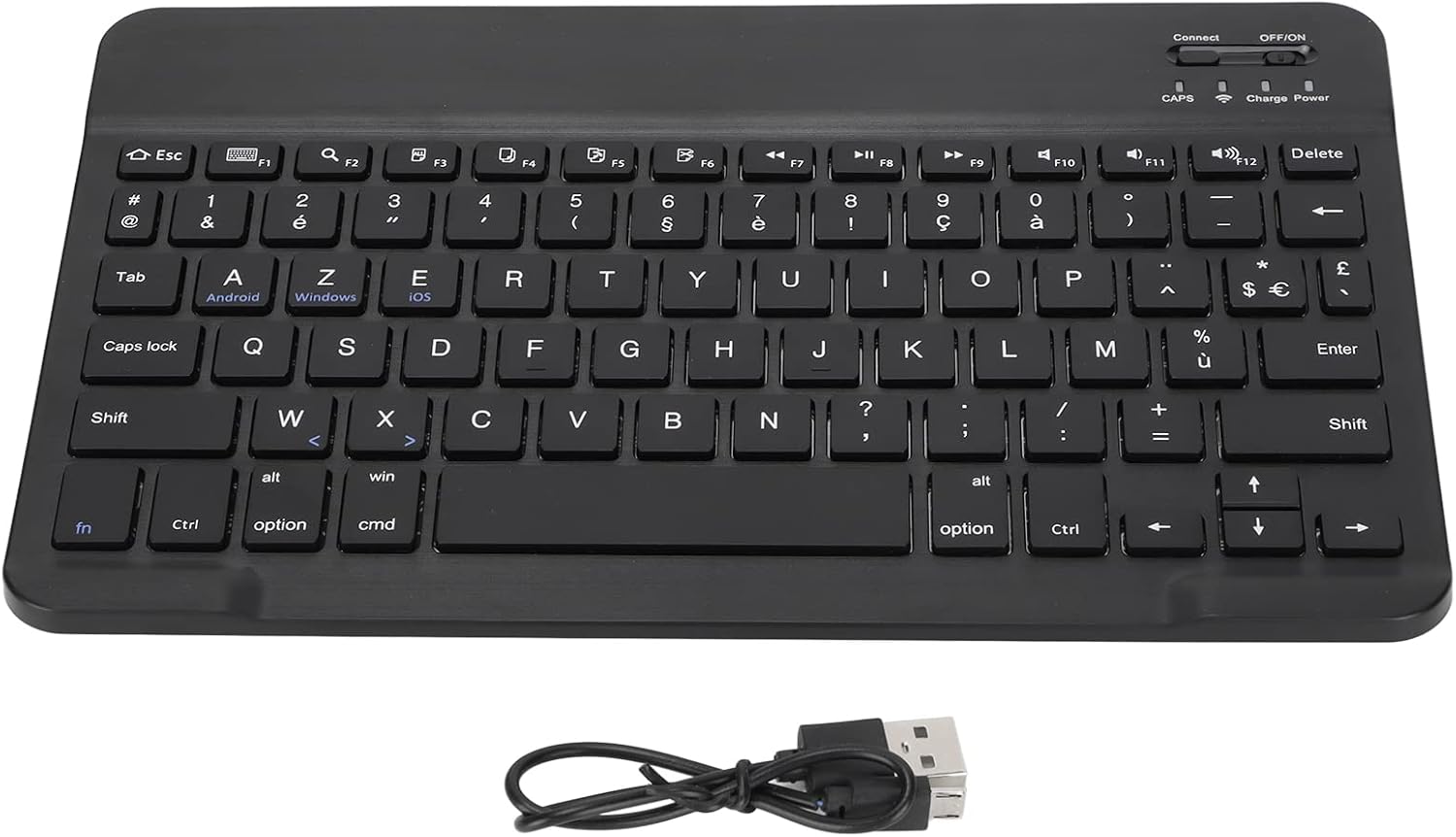
Image: The Dilwe Bluetooth Keyboard shown alongside its included charging cable.
5. Setup Guide
Follow these steps to connect your Dilwe Bluetooth Keyboard to your device:
- Power On the Keyboard: Locate the ON/OFF switch on the top right side of the keyboard. Slide the switch to the "ON" position.
- Activate Bluetooth Pairing: Short press the "Connect" button, usually located near the ON/OFF switch. The Bluetooth indicator light (often blue) will start blinking, indicating the keyboard is in pairing mode.
- Enable Bluetooth on Your Device: On your mobile phone, tablet, or computer, go to the Bluetooth settings.
- Pair the Keyboard: In your device's Bluetooth settings, search for available devices. You should see "Bluetooth Keyboard" or a similar name appear in the list. Select it to initiate the pairing process.
- Confirm Connection: Once paired, the Bluetooth indicator light on the keyboard will stop blinking and remain solid (or turn off, depending on the model). Your device should also confirm a successful connection. The keyboard is now ready for use.

Image: A detailed view of the 'Connect' button and 'OFF/ON' switch on the top right of the keyboard, essential for initiating Bluetooth pairing.

Image: The Dilwe Bluetooth Keyboard positioned with a tablet and a smartphone, illustrating its compatibility with various mobile devices.
6. Operating Instructions
Once connected, the Dilwe Bluetooth Keyboard functions like a standard keyboard. Here are some general operating tips:
- Typing: Simply begin typing. The keyboard will transmit input to your connected device.
- Function Keys (F1-F12): Many function keys have secondary multimedia or system control functions (e.g., volume, playback, screen lock). These often require pressing the Fn key simultaneously with the desired function key. Refer to your device's operating system for specific key mappings.
- Operating System Specific Keys: The keyboard includes keys labeled for Android, Windows, and iOS. These keys may provide specific shortcuts or functions depending on the operating system of your connected device.
- Power Saving: The keyboard is designed with power-saving features, including a sleep mode after a period of inactivity. Press any key to wake it up.

Image: A full top-down view of the Dilwe French AZERTY Bluetooth Keyboard, showcasing its layout and key functions.

Image: A close-up view of the keyboard's keys, highlighting the French AZERTY layout and keycap details.
7. Maintenance
To ensure the longevity and optimal performance of your Dilwe Bluetooth Keyboard, follow these maintenance guidelines:
- Cleaning: Use a soft, dry, lint-free cloth to wipe the keyboard surface. For stubborn dirt, slightly dampen the cloth with water or a mild, non-abrasive cleaner. Avoid excessive moisture.
- Dust Removal: Use compressed air to remove dust and debris from between the keys.
- Storage: When not in use for extended periods, store the keyboard in a cool, dry place away from direct sunlight and extreme temperatures.
- Avoid Liquids: Although the keyboard has some water-resistant properties, avoid spilling liquids directly onto it. If a spill occurs, power off the keyboard immediately and allow it to dry completely before reuse.
- Charging: Charge the keyboard using the provided charging cable. Avoid using unapproved chargers, which may damage the battery.
8. Troubleshooting
If you encounter issues with your Dilwe Bluetooth Keyboard, try the following troubleshooting steps:
| Problem | Possible Cause / Solution |
|---|---|
| Keyboard does not connect via Bluetooth. |
|
| Keys are not responding or typing incorrectly. |
|
| Keyboard frequently disconnects. |
|
| Battery drains quickly. |
|
9. Warranty and Support
Dilwe products are manufactured with high-quality standards. For warranty information, technical support, or service inquiries, please refer to the warranty card included with your purchase or visit the official Dilwe website. You may also contact the seller directly through the platform where you purchased the product for assistance.
For more information, visit the Dilwe Store on Amazon.
Ask a question about this manual
Ask about setup, troubleshooting, compatibility, parts, safety, or missing instructions. Manuals+ will review the question and use this page’s manual context to help answer it.