1. Product Overview
The Roborock Q Revo is an advanced robot vacuum and mop designed to provide comprehensive floor cleaning. It features a multifunctional dock for automated maintenance, powerful suction, and intelligent navigation capabilities.
- Multifunctional Dock: Offers Auto Mop Washing, Hot Air Drying, Auto Tank Refilling, and Self-Emptying for up to 7 weeks of hands-free cleaning.
- Dual Spinning Mops: Operate at 200 RPM with consistent downward pressure to effectively remove stains.
- Auto Mop Lifting: Mops automatically lift by 7mm when vacuuming carpets or returning to the dock, preventing streaks.
- 5500Pa Extreme Suction: Delivers strong suction power to capture dust, dirt, and pet hair from various floor types.
- Reactive Tech Obstacle Avoidance: Detects and avoids potential hazards for a smooth cleaning experience.
- PreciSense LiDAR Navigation: Creates precise 3D maps for efficient cleaning routes and customization.

Figure 1: Roborock Q Revo Robot Vacuum and Mop with its multifunctional dock.
2. Setup
2.1 Unboxing and Placement
Carefully remove all components from the packaging. Place the multifunctional dock on a hard, level surface against a wall, ensuring there is adequate clear space around it for the robot to maneuver (at least 0.5m on both sides and 1.5m in front).
2.2 Power Connection
Connect the power cable to the dock and plug it into a wall outlet. Ensure the dock is powered on.
2.3 Initial Charging
Place the robot vacuum onto the charging contacts of the dock. The robot will begin charging automatically. For first-time use, it is recommended to fully charge the robot before operation.
2.4 App Connection
- Download the Roborock App from your mobile device's app store.
- Open the app and follow the on-screen instructions to add your Roborock Q Revo. This typically involves connecting to the robot's temporary Wi-Fi network and then connecting it to your home Wi-Fi.
- Once connected, the app will guide you through initial mapping of your home.

Figure 2: The multifunctional dock, central to the Roborock Q Revo's automated features.
3. Operating the Roborock Q Revo
3.1 Starting a Clean
You can start a cleaning cycle in several ways:
- Via Roborock App: Use the app to initiate a full clean, select specific rooms, or set up custom cleaning routines and schedules.
- On-Device Button: Press the power button on the robot to start a full clean. Press again to pause.
- Voice Control: The Roborock Q Revo is compatible with Amazon Alexa, Google Home, and Siri Shortcuts. Use voice commands like "Alexa, tell Roborock clean my kitchen."
3.2 Cleaning Modes and Features
The robot offers various cleaning modes and intelligent features:
- Vacuuming: The 5500Pa suction power effectively picks up dust, dirt, and pet hair. The all-rubber brush minimizes hair tangles.
- Mopping: Dual spinning mops provide thorough wet cleaning. You can adjust water flow levels via the app.
- Auto Mop Lifting: When the robot detects carpet, the mops automatically lift by 7mm to prevent wetting the carpet while vacuuming.
- Reactive Tech Obstacle Avoidance: The robot uses advanced sensors to detect and navigate around obstacles, reducing the need for pre-cleaning.
- PreciSense LiDAR Navigation & 3D Mapping: The robot creates accurate maps of your home, allowing for efficient navigation and personalized cleaning zones, including "No-Go Zones" and "No-Mop Zones." It supports multi-level mapping for homes with multiple floors.

Figure 3: The dual spinning mops effectively remove stains from hard floors.

Figure 4: The robot's mops automatically lift when transitioning to carpets.
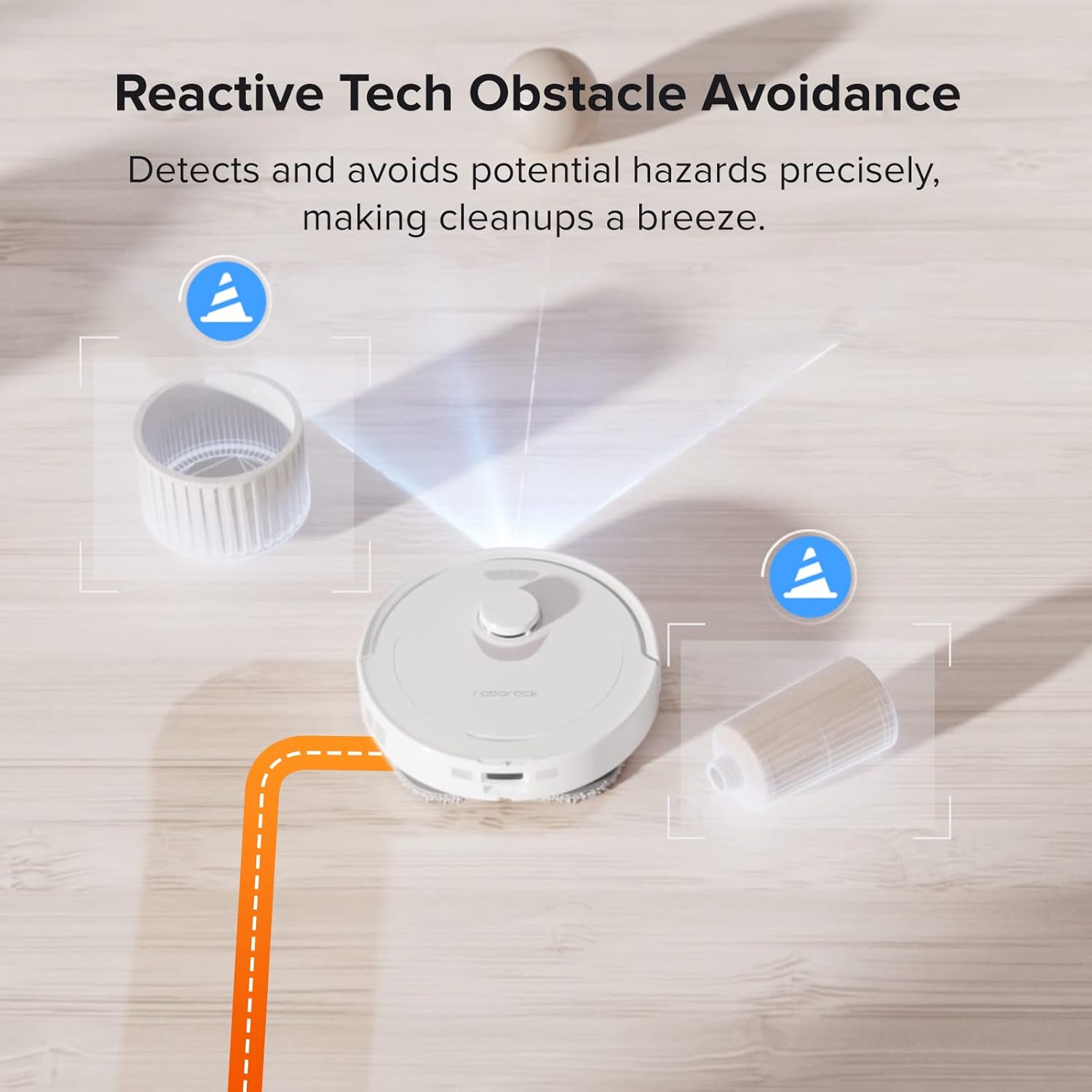
Figure 5: The robot detects and avoids obstacles with precision.
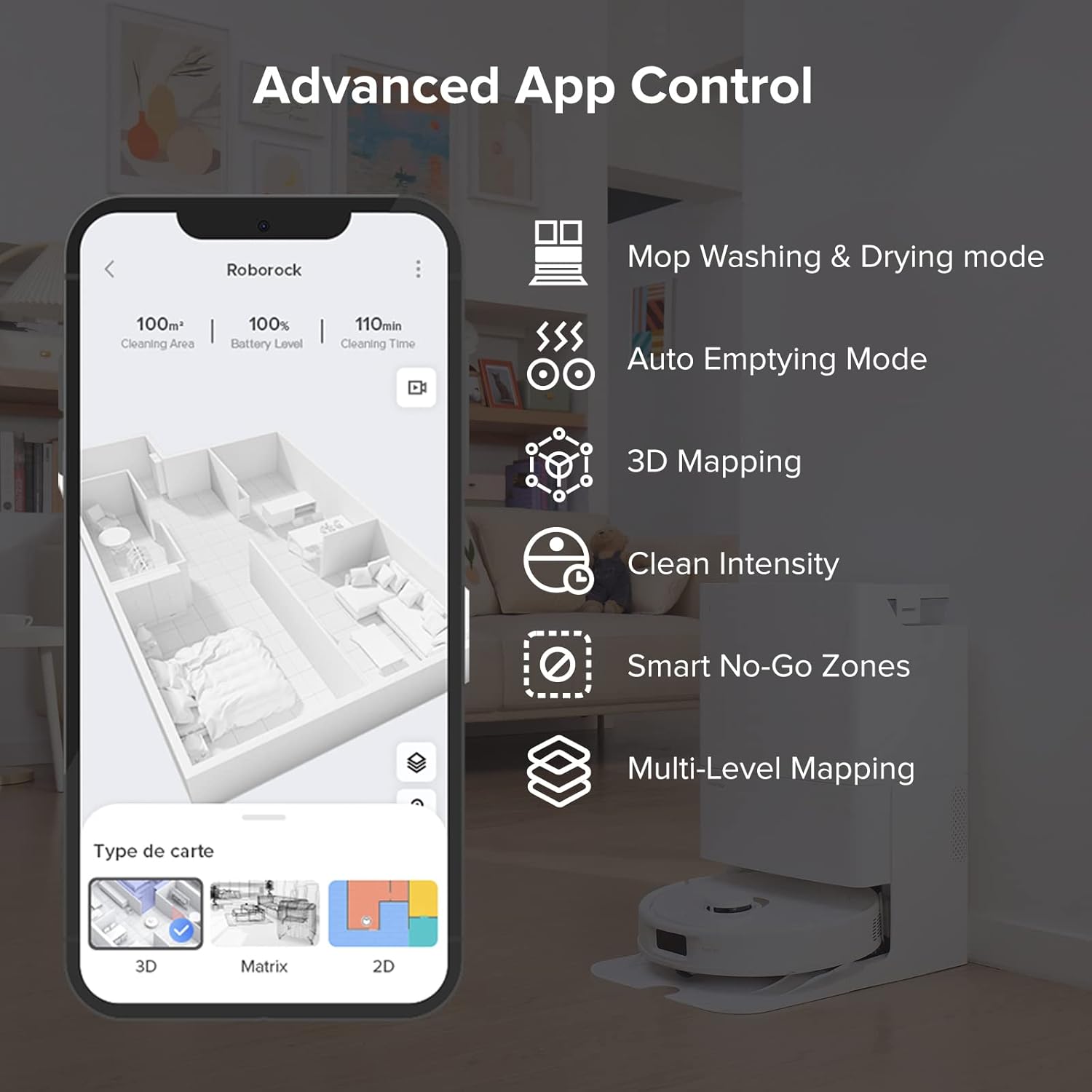
Figure 6: The Roborock app provides comprehensive control and mapping features.
3.3 Official Product Video
Video 1: Roborock Q Revo - It's the simple things. This video demonstrates the ease of use and key features of the Roborock Q Revo robot vacuum and mop.
4. Maintenance
Regular maintenance ensures optimal performance of your Roborock Q Revo. The multifunctional dock significantly reduces manual cleaning tasks.
4.1 Multifunctional Dock Maintenance
- Auto Mop Washing: The dock automatically washes the robot's mops during and after cleaning cycles.
- Hot Air Drying: After washing, the mops are dried with hot air to prevent mold and odors.
- Self-Emptying: The robot's dustbin is automatically emptied into a 2.7L dust bag in the dock, providing up to 7 weeks of hands-free dust disposal.
- Self-Refilling: The robot's water tank is automatically refilled from the dock's 5L clean water tank, extending mopping range.
- Detachable Dock Base: The base of the dock is easily detachable for convenient and thorough cleaning of the mop washing area.

Figure 7: The dock automatically washes the robot's mops.

Figure 8: Hot air drying prevents odors and keeps mops fresh.

Figure 9: The dock automatically empties the robot's dustbin.

Figure 10: The dock automatically refills the robot's water tank.

Figure 11: The detachable dock base allows for easy cleaning of the washing area.
4.2 Robot Component Cleaning
- Main Brush: Periodically remove and clean the main brush to remove tangled hair and debris. The all-rubber brush design helps minimize tangles.
- Filter: The filter is washable. Clean it regularly to maintain suction performance. Ensure it is completely dry before re-inserting.
- Sensors: Wipe the robot's sensors with a soft, dry cloth to ensure accurate navigation and obstacle avoidance.
5. Troubleshooting
| Problem | Possible Cause | Solution |
|---|---|---|
| Reduced emptying performance or unusual noise during emptying. | Main brush or main brush cover not properly installed. Filter, air duct, suction inlet, air inlet, dustbin, or dust bag is blocked. | Check and correct installation of the main brush/cover. Clean to remove blockages from the filter, air duct, suction inlet, air inlet, dustbin, or replace the dust bag. |
| Robot does not auto-empty after returning to dock. | Auto-emptying function not triggered if robot returns without cleaning. Robot is in Do Not Disturb (DND) mode. | Ensure the robot completes a cleaning cycle. Adjust cleaning or DND duration in the Roborock App, or start emptying manually via the app. |
| Robot gets stuck or avoids certain areas. | Obstacles in the path (cables, loose strands of carpet). "No-Go Zones" or "No-Mop Zones" configured. | Clear the area of small obstacles. Check and adjust "No-Go Zones" or "No-Mop Zones" in the app. Consider using furniture risers or carpet stickers for problematic areas. |
| Mop pads leave streaks or are not cleaning effectively. | Mop pads are dirty or worn. Insufficient water flow. | Ensure mop pads are clean and properly attached. Replace worn mop pads. Adjust water flow levels in the app. |
6. Specifications
| Feature | Detail |
|---|---|
| Brand | roborock |
| Model Name | Roborock Q Revo |
| Color | White |
| Product Dimensions | 19.2"L x 13.4"W x 22"H |
| Included Components | Multifunctional Dock (1), Mop Cloth (2), Power Cable (1), Robot Vacuum (1), User Manual (1) |
| Filter Type | Washable |
| Battery Life | 180 minutes |
| Voltage | 120 Volts |
| Capacity (Water Tank) | 5 Liters |
| Power Source | Battery Powered |
| Compatible Devices | Smartphones, Amazon Echo, Google Home |
| Form Factor | Robotic |
| Item Weight | 27.3 pounds |
| Manufacturer | roborock |
| First Available Date | February 15, 2023 |
7. Warranty and Support
For detailed warranty information and technical support, please refer to the official Roborock website or contact Roborock customer service directly.
An electronic version of the user manual is available for download: Download User Manual (PDF)
For further assistance, you may contact the seller: Roborock Technology Co. Ltd.


