
Kestrel 5400
Kestrel 5400 Heat Stress Monitoring System User Manual
Model: Kestrel 5400
Introduction
The Kestrel 5400 Heat Stress Monitoring System is designed to provide accurate and reliable environmental data for preventing heat-related injuries and ensuring regulatory compliance in various work environments. This manual provides detailed instructions for setting up, operating, and maintaining your system.

Image: Kestrel 5400 Heat Stress Monitoring System showing the Kestrel 5400 device and the remote monitoring tablet displaying environmental data.
Setup Guide
1. Unboxing and Initial Device Preparation
This section guides you through unboxing your Kestrel Heat Stress Monitoring System and preparing the Kestrel 5400 device for use.
Video: Kestrel Heat Stress Monitoring System - Unboxing. This video demonstrates the unboxing process and identifies the components included in the system.
Components Overview:
- Kestrel 5400 WBGT Tracker: The primary environmental monitoring device.
- Remote Monitoring Tablet: A wall-mounted display for real-time data.
- Carry Case: For safe storage and transport of the Kestrel 5400.
- Wind Vane Mount: Optional accessory for outdoor wind direction measurement.
- AC Adapter: For powering the Kestrel 5400.
- Wall Mount Hardware: For permanent installation of the Kestrel 5400 and tablet.
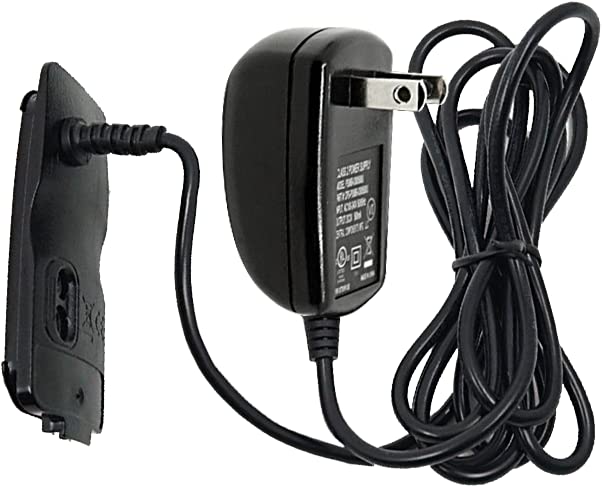
Image: The AC adapter used to power the Kestrel 5400 device.
2. Getting Started with Kestrel 5400
Follow these steps to prepare your Kestrel 5400 for continuous indoor monitoring.
Video: Kestrel Heat Stress Monitoring System - Getting Started. This video provides initial setup instructions for the Kestrel 5400 device.
- Attach AC Adapter: Slide the battery door latch, open the door, and replace it with the battery door attached to the AC adapter. Ensure it clicks fully into place.
- Impeller Cover: Open or remove the impeller cover to allow for air velocity measurements. If removed, store it safely.
- Power On: Plug the Kestrel 5400 into an outlet. Long press the power button to turn it on.
- Access Options Menu: Press the gear button to enter the options menu.
- Bluetooth Setting: Ensure Bluetooth is set to "On".
- Auto Shutdown: Scroll to "Display" and press the center select button. Then, scroll to "Auto Shutdown" and choose "Off". This ensures the device remains on unless manually powered off.
- Return to Dashboard: Hit the gear button until you return to the main dashboard.
- Set WBGT Type: Scroll to the WBGT current measurement screen and press the enter/select button. Set the "Type" to "Indoor" for indoor monitoring.
Your Kestrel 5400 is now ready for continuous indoor monitoring.
3. Remote Monitoring Tablet and AmbientWeather.net (AWN) Setup
This section details how to set up your remote monitoring tablet and connect it to AmbientWeather.net for remote data viewing.
Video: Kestrel Heat Stress Monitoring System - AWN Setup. This video guides you through setting up the remote monitoring tablet and connecting to AmbientWeather.net.
- Power On Tablet: Plug in and power on the remote monitoring tablet.
- Connect to Wi-Fi: Go to "Settings" > "Network & Internet" and establish an internet connection via Wi-Fi.
- Download Kestrel LiNK App: Return to the main screen, swipe up, and select the Google Play Store app. Set up or log into a Google account. Search for and download the "Kestrel LiNK" app (blue and white icon).
- Connect Kestrel 5400 to Tablet: Open the Kestrel LiNK app. Read through the tutorial. Hit "Refresh" to find available Bluetooth pairing devices. Select your Kestrel 5400. You may need to accept prompts to allow Bluetooth access.
- Check Firmware Updates: In the Kestrel LiNK app, go to "Devices" > "Settings" for your Kestrel 5400. Click "Check for Firmware Updates". Update if a new firmware is available.
- Enable Continuous Monitoring: In the Kestrel LiNK app, go to "Options" > "App Preferences". Ensure "Device Power Saving" is "Off" and "Continuous Monitor" is "On".
- Send Data to AmbientWeather.net: In the Kestrel LiNK app, go to "Devices" > "Settings" for your Kestrel 5400. Select "Manage Device Data". Slide the toggle to "On" for "Send Data to AmbientWeather.net". Note your MAC address displayed here, as you will need it for the AWN website.
- Set up AmbientWeather.net Account: Using a computer or another internet-connected device, go to ambientweather.net. Click "Login" in the top right corner. Log in or create a new account.
- Add Device to AWN: Once logged in, select "Devices" in the top left. Click the "+" icon to add a new device. Enter the MAC address from the Kestrel LiNK app. Enter a name for your Kestrel device and its location. Change your time zone if necessary. You can choose to make your location and device data private by unchecking the box under the "Community" heading. Click "Create" to finish setup.
- View Dashboard: Go to "View Dashboard" to see your Kestrel measurements data.
Note: It may take up to 5 minutes for data to start reporting on AmbientWeather.net. The Kestrel LiNK app must be running in the foreground on the remote monitoring tablet to continuously transmit data to AmbientWeather.net.

Image: Rear view of the remote monitoring tablet, highlighting its various connectivity ports.
4. Mounting the Kestrel 5400 and Tablet
Proper mounting ensures accurate readings and optimal system performance.

Image: The wall mount bracket designed for securing the Kestrel 5400 device.
Kestrel 5400 Mounting:
- Location: Monitor actual working conditions to determine potential mounting locations. Install the Kestrel 5400 Heat Stress Tracker in the vicinity of the work area.
- Height: Mount the device at least 3 feet off the ground and no higher than 7 feet to match the conditions of the people being monitored.
- Orientation: Ensure the Kestrel is oriented into the main source of wind or airflow in the environment.
- Accessibility: Pick a spot you can easily access, as you may need to adjust settings on the unit.
- Installation: Use provided anchors for installation onto drywall without studs. You can also mount the Kestrel 5400 using VHB (Very High Bondage) tape. Connect the included K5 series clip to the wall mount and mount to your desired location.
Remote Monitoring Tablet Mounting:
- Location: Ensure the tablet is mounted in a location where it can successfully connect to the Kestrel unit via Bluetooth (within 100 feet line of sight, reduced by obstructions) and receives good Wi-Fi signal strength for cloud-based tracking.
- Orientation: It is recommended to mount the tablet in portrait orientation, as the Kestrel LiNK app is optimized for this view.
- Installation: Use provided anchors for drywall mounting without studs. First, mount your tablet holder to the wall. Add the VESA mount to your tablet and slide it over the wall mount.

Image: The Kestrel 5400 device securely mounted on a wall, positioned beside the remote monitoring tablet, both actively displaying environmental data.
Operating Instructions
1. Kestrel 5400 Device Operation
- Navigate Measurements: Use the up and down arrows to scroll through the measurement screens on your Kestrel 5400.
- Set WBGT Alerts: On the WBGT measurement screen, press the select button. You can set preloaded or custom alerts for WBGT. To receive light or buzzer alerts when WBGT is above a zone threshold, scroll to and select "Alerts" in the WBGT settings menu. Here, you can set light and buzzer alerts individually. Selecting a zone for light or buzzer will cause the alert to activate when conditions match the threshold for the selected zone.
Video: Kestrel Heat Stress Monitoring System - Overview. This video provides an overview of the Kestrel 5400's features and app functionalities.
2. Kestrel LiNK App Operation
The Kestrel LiNK app provides comprehensive monitoring and data management features.
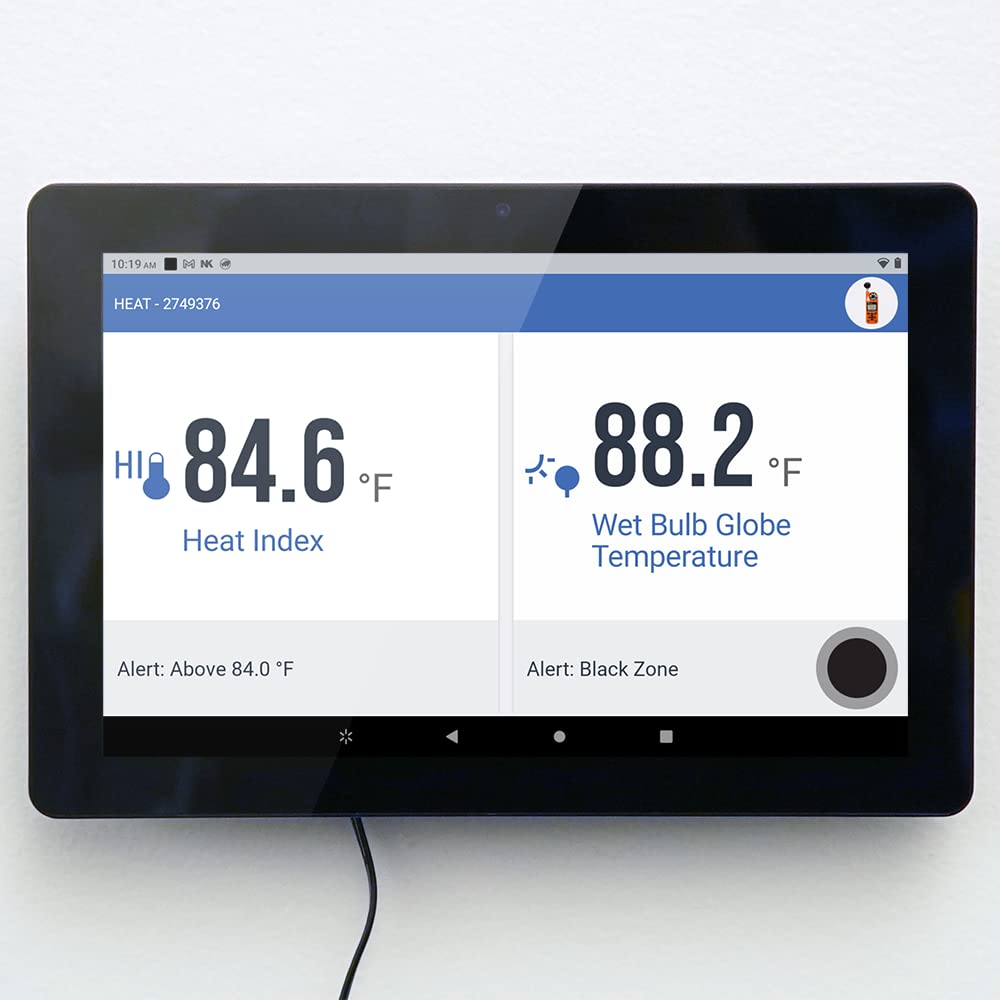
Image: The remote monitoring tablet showing real-time Heat Index and Wet Bulb Globe Temperature data.
- Change Device Name/Color: In the "Devices" section, tap "Settings" for your Kestrel device. Tap "Edit" in the top right corner. Enter a new name in the text field. You can also change the color by swiping left or right on the Kestrel picture. Tap "Save".
- Set Up Live Dashboard: Tap "Dashboard" for the Kestrel device you want to set up. Tap the "Edit" button. Tap the radio boxes on the left of your screen to add or remove measurements you want to view on the live dashboard. Tap "Save". Tap the full screen icon to display live measurements in full screen mode. Full screen mode also supports landscape layout. Select the back button on your device to exit full screen.
- Multi-Device Dashboard: If connecting more than one Kestrel device, switch to the multi-device dashboard. Tap "Multi-Device" and use the plus/edit icons to make changes. Use the edit icon to select measurements you want removed from the multi-device dashboard or change the viewing order. Use the plus icon to select measurements to add and which device to provide chosen measurements. You can also view in full screen mode from the multi-device dashboard.
- Capture Snapshots: Ensure you are in your device dashboard and tap "Capture". Tap "View" to check your snapshot. Select which measurements you would like to export, or select "Dashboard measurements only" to just select the measurements currently displayed on your dashboard. Then tap "Save". Tap the share icon to export the file as a CSV or PDF.
- Record Sessions: Go to your device dashboard and tap "Start Recording". Once you've finished recording, a prompt will appear. Tap "View" to see your session. Use the "Measurements" tab to select which measurements you want to view and export, or toggle "Dashboard measurements only". Tap "Save". Use the "Stats" tab to view the min, average, and max of your session. Tap the chart icon to see a graph visual of a measurement in your session. Here, you can select the data point icon to see the recorded data points in bullet point format.
- Edit Session Details: You can use the "Details" tab to edit the session name and identify data of your session. You can change the name, add a description, enter notes, and even add photos. Once you save your changes, you can tap the share icon to export the data in CSV or PDF format.
- Set Up Alerts: It is important to set up which alerts you would like to receive from your unit. OSHA area offices shall assess the potential for heat-related illnesses, injuries, and deaths where heat-related hazards may exist in indoor work areas or at outdoor work areas on heat priority days when the heat index is expected to be 80°F or higher. To set up an alert, go to "Device Settings" for the device you want alerts from, then tap "Manage Alerts". Tap "Add Alerts". Tap the device measurement for which you want an alert (e.g., Heat Index). For "Threshold", enter 80°F. Make sure "Direction" is "Above" so the alert triggers when the Heat Index is greater than 80°F. Toggle switches to turn on email and/or text message alerts. Enter your email and mobile number. Hit "Save" in the top right corner to save your new alert. Do the same for each device you would like to set alerts for.

Image: The remote monitoring tablet showing a graphical representation of environmental data trends.
Maintenance
- Cleaning: Regularly clean the Kestrel 5400 and the remote monitoring tablet with a soft, damp cloth. Avoid abrasive cleaners or solvents.
- Impeller: Ensure the impeller is free from debris for accurate air velocity readings.
- Battery: The Kestrel 5400 uses 1 AA battery (included). Replace as needed.
- Firmware Updates: Periodically check for firmware updates via the Kestrel LiNK app to ensure optimal performance and access to the latest features.
Troubleshooting
- Connectivity Issues: If the Kestrel 5400 is not connecting to the tablet, ensure Bluetooth is enabled on both devices and they are within range (100 feet line of sight, reduced by obstructions). Try restarting both devices.
- Data Not Reporting to AWN: Verify that the Kestrel LiNK app is running in the foreground on the remote monitoring tablet and that the tablet has a stable Wi-Fi connection. Check the "Send Data to AmbientWeather.net" setting in the app.
- Inaccurate Readings: Ensure the Kestrel 5400 is mounted correctly, at the recommended height, and oriented towards the main airflow. Allow 8-15 minutes for the unit to acclimate to new environments before taking readings.
- Device Inoperable: Disconnecting or loss of AC power will render the device inoperable. Ensure continuous power supply.
Specifications
| Feature | Value |
|---|---|
| Package Dimensions | 16.5 x 12.5 x 5.75 inches; 5.75 Pounds |
| Batteries | 1 AA batteries required. (included) |
| Date First Available | February 13, 2023 |
| Manufacturer | NK Kestrel |
| Brand | Kestrel |
| Recommended Uses For Product | Laboratory, Warehouse, Indoor |
| Specific Uses For Product | Heat Index |
| Power Source | Battery Powered |
| Special Feature | Large Display |
| Connectivity Technology | Bluetooth |
| Number of Batteries | 1 AA batteries required. (included) |
| Style | Modern |
| Color | gray |
| Temperature Accuracy | 1 °C |
Warranty Information
For detailed warranty information, please refer to the official Kestrel Instruments website or contact customer support. Protection plans are available for extended coverage.
- 2-Year Protection Plan
- 3-Year Protection Plan
Support
For further assistance, technical support, or to access additional resources, please visit the Kestrel Instruments website or contact their customer service department.
Manufacturer: NK Kestrel
Brand Store: Visit the Kestrel Store on Amazon
Related documents5400


Ask a question about this manual
Ask about setup, troubleshooting, compatibility, parts, safety, or missing instructions. Manuals+ will review the question and use this page’s manual context to help answer it.