
Introduction
Thank you for choosing the ODK L-Shaped Gaming Desk. This manual provides essential information for the safe assembly, operation, and maintenance of your new desk. Please read these instructions carefully before assembly and retain them for future reference.

Image: The ODK L-Shaped Gaming Desk, showcasing its design with LED lighting and space for multiple monitors.
Safety Information
Attention: Ensure the furniture is securely fixed before use to prevent any risk of tipping. Always follow assembly instructions precisely. Do not overload the desk or monitor stand. Keep electrical components away from liquids. Use only the provided power adapter for the LED lights and power outlets.
Package Contents
Before beginning assembly, verify that all parts listed below are present and undamaged. If any parts are missing or damaged, contact customer support.
- Desk panels (L-shaped main surface, monitor stand)
- Metal frame components (legs, support bars)
- Assembly hardware (screws, bolts, Allen wrench)
- LED light strip with controller
- Integrated power strip with 2 AC outlets and 2 USB ports
- Power cord (200cm)
- Cup holder
- Headphone hooks (x2)
- Adjustable feet
- Instruction manual
Setup and Assembly Instructions
Assembly is designed to be straightforward. Follow these steps carefully for a stable and secure setup. It is recommended to assemble the desk with two people.
- Unpack and Identify Parts: Lay out all components on a clean, soft surface to prevent scratches. Identify each part using the provided parts list and diagrams.
- Assemble the Frame: Attach the metal legs to the main support bars using the provided screws and Allen wrench. Ensure all connections are tight.
- Attach Desk Panels: Secure the L-shaped desk panels to the assembled metal frame. Pay attention to the orientation of each panel.
- Install Monitor Stand: Mount the monitor stand to the designated area on the desk surface. This stand helps maintain an ergonomic posture by elevating your screen.
- Install Accessories: Attach the cup holder and headphone hooks to the desired locations on the desk frame.
- Install LED Lighting: Adhere the LED light strip to the underside of the monitor stand or desk edge as desired. Connect the LED controller and power cable.
- Install Power Strip: Secure the integrated power strip into its designated slot on the desk. Connect its power cord.
- Adjust Leveling Feet: Once the desk is in its final position, adjust the leveling feet at the bottom of each leg to ensure stability on uneven floors.
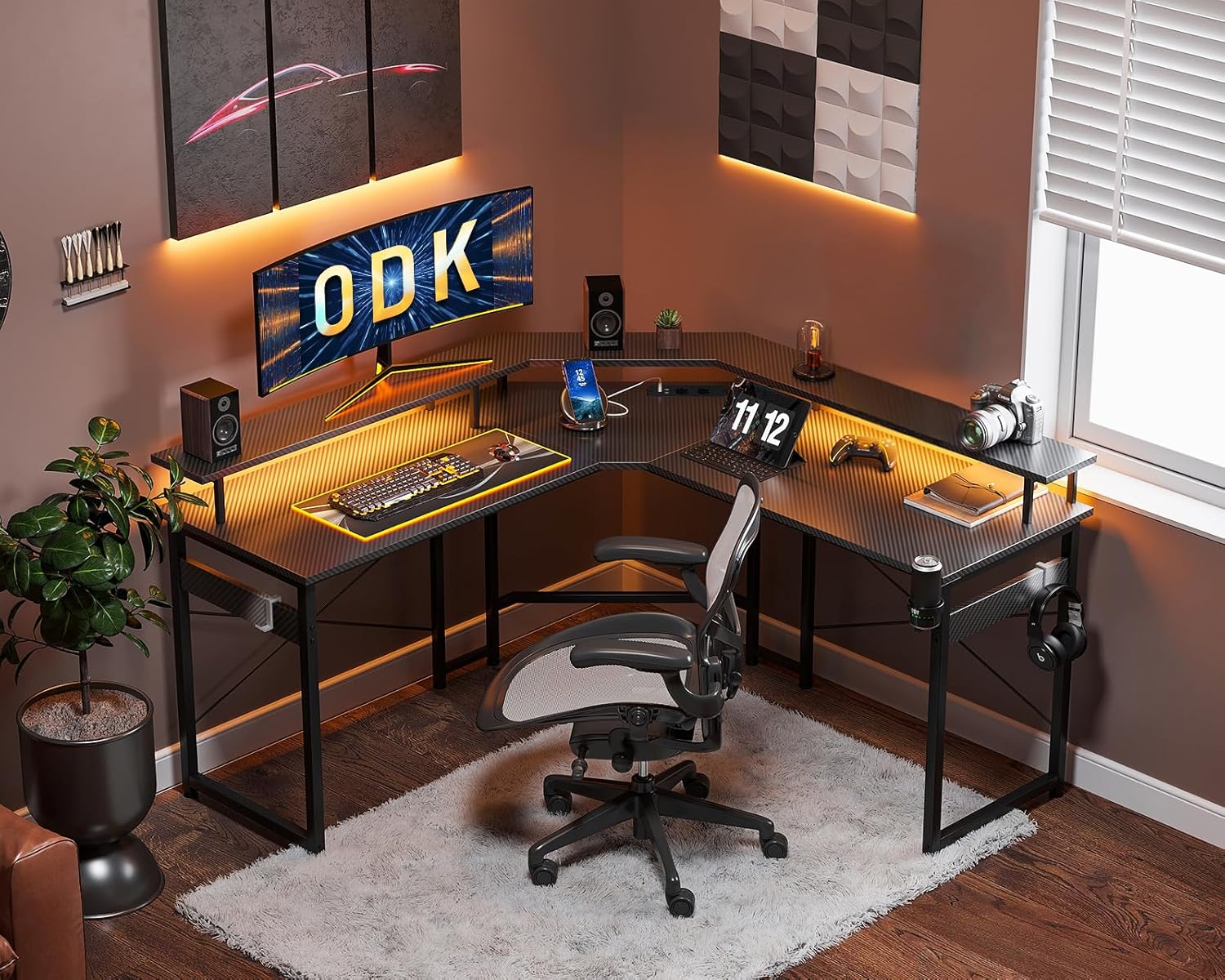
Image: An illustration of the ODK L-Shaped Gaming Desk during the assembly process, highlighting the frame and desk panels.
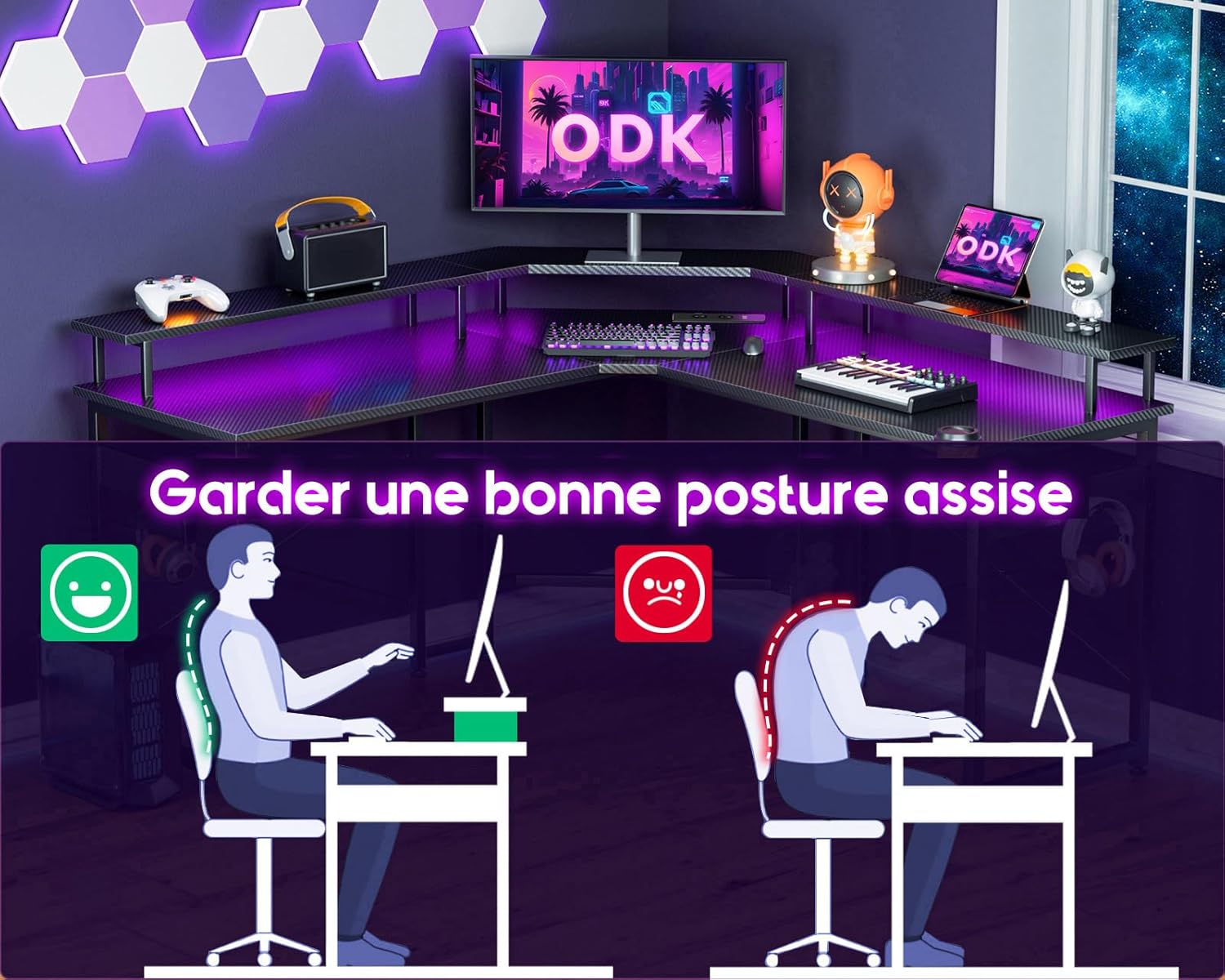
Image: A diagram illustrating correct and incorrect ergonomic sitting postures, emphasizing the benefit of the monitor stand for maintaining a healthy back and neck alignment.

Image: A close-up view of the headphone hook attachment point on the desk frame.

Image: A close-up view of the cup holder attachment, designed for convenient beverage access.

Image: A detailed view of the adjustable leveling foot at the base of a desk leg, used for stability on uneven surfaces.
Operating Instructions
LED Lighting System
The integrated LED lighting system offers customizable ambiance for your gaming or work setup.
- Power On/Off: Press the power button on the LED controller to turn the lights on or off.
- Color Selection: Use the 'C' button to cycle through 7 different static colors.
- Mode Selection: Use the 'M' button to switch between 13 dynamic lighting modes.
- Brightness Adjustment: Use the up/down arrows to adjust the brightness level (8 levels available).

Image: The ODK Gaming Desk with its LED lighting system active, showing various color options illuminating the workspace.

Image: A close-up of the LED light controller, showing buttons for power, color, mode, and brightness adjustment.
Integrated Power Outlets and USB Ports
The desk includes a built-in power strip for convenient access to power for your devices.
- AC Outlets: Two standard AC outlets (220-250V/15A) are provided for powering monitors, computers, or other peripherals.
- USB Ports: Two USB ports (5V/2.1A) are available for charging mobile devices, headphones, or other USB-powered accessories.
- Usage: Plug the desk's main power cord into a wall outlet. Then, connect your devices to the integrated outlets and USB ports.
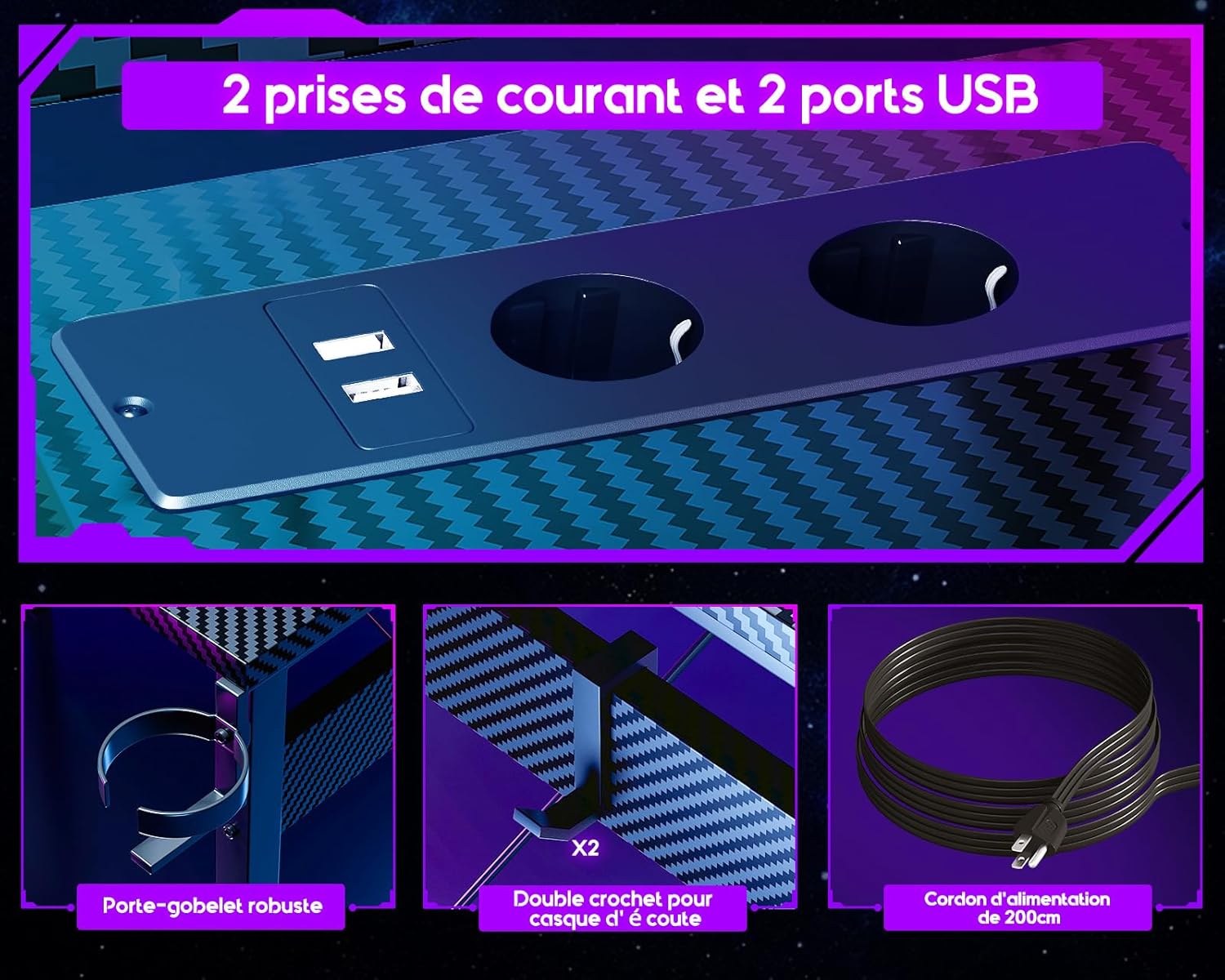
Image: A detailed view of the integrated power strip on the ODK Gaming Desk, featuring two AC power outlets and two USB charging ports.

Image: A close-up of the power strip, indicating its specifications for AC outlets (220-250V/15A) and USB ports (5V/2.1A).
Maintenance
Regular maintenance will help prolong the life and appearance of your ODK Gaming Desk.
- Cleaning: Wipe the desk surface with a soft, damp cloth. Avoid abrasive cleaners or harsh chemicals that could damage the carbon fiber finish.
- Dusting: Regularly dust the desk and LED strips to maintain optimal light output and prevent dust buildup.
- Tighten Fasteners: Periodically check and tighten all screws and bolts to ensure the desk remains stable.
- Cable Management: Organize cables to prevent tangles and reduce strain on connections.
Troubleshooting
| Problem | Possible Cause | Solution |
|---|---|---|
| LED lights not turning on. | Power cable disconnected; LED controller faulty; LED strip damaged. | Ensure all cables are securely connected. Check if the main power cord is plugged into a working outlet. If issues persist, contact customer support. |
| LED lights flickering or malfunctioning. | Loose connection; power supply issue; controller malfunction. | Check all connections. Try plugging the LED power supply into a different outlet. If the problem continues, the controller or strip may be faulty; contact support. |
| Power outlets/USB ports not working. | Desk's main power cord unplugged; circuit breaker tripped; internal wiring issue. | Verify the desk's main power cord is securely plugged into a live wall outlet. Check your home's circuit breaker. Do not attempt to repair internal wiring; contact customer support. |
| Desk is wobbly. | Loose fasteners; uneven floor. | Tighten all assembly screws and bolts. Adjust the leveling feet at the bottom of each leg to stabilize the desk on uneven surfaces. |
Specifications
| Feature | Detail |
|---|---|
| Model Number | ZJZ-QTMDCZ |
| Dimensions (L x W x H) | 129 x 129 x 89 cm (50.8 x 50.8 x 35 inches) |
| Weight | 21 Kilograms (46.3 lbs) |
| Material | Wood (panels), Metal (frame), Carbon Fiber (top finish) |
| Color | Black/Transparent |
| LED Lighting | 7 colors, 13 dynamic modes, 8 brightness levels |
| Power Outlets | 2 x AC (220-250V/15A) |
| USB Ports | 2 x USB (5V/2.1A) |
| Special Features | Ergonomic monitor stand, Cup holder, Headphone hooks, Adjustable leveling feet |
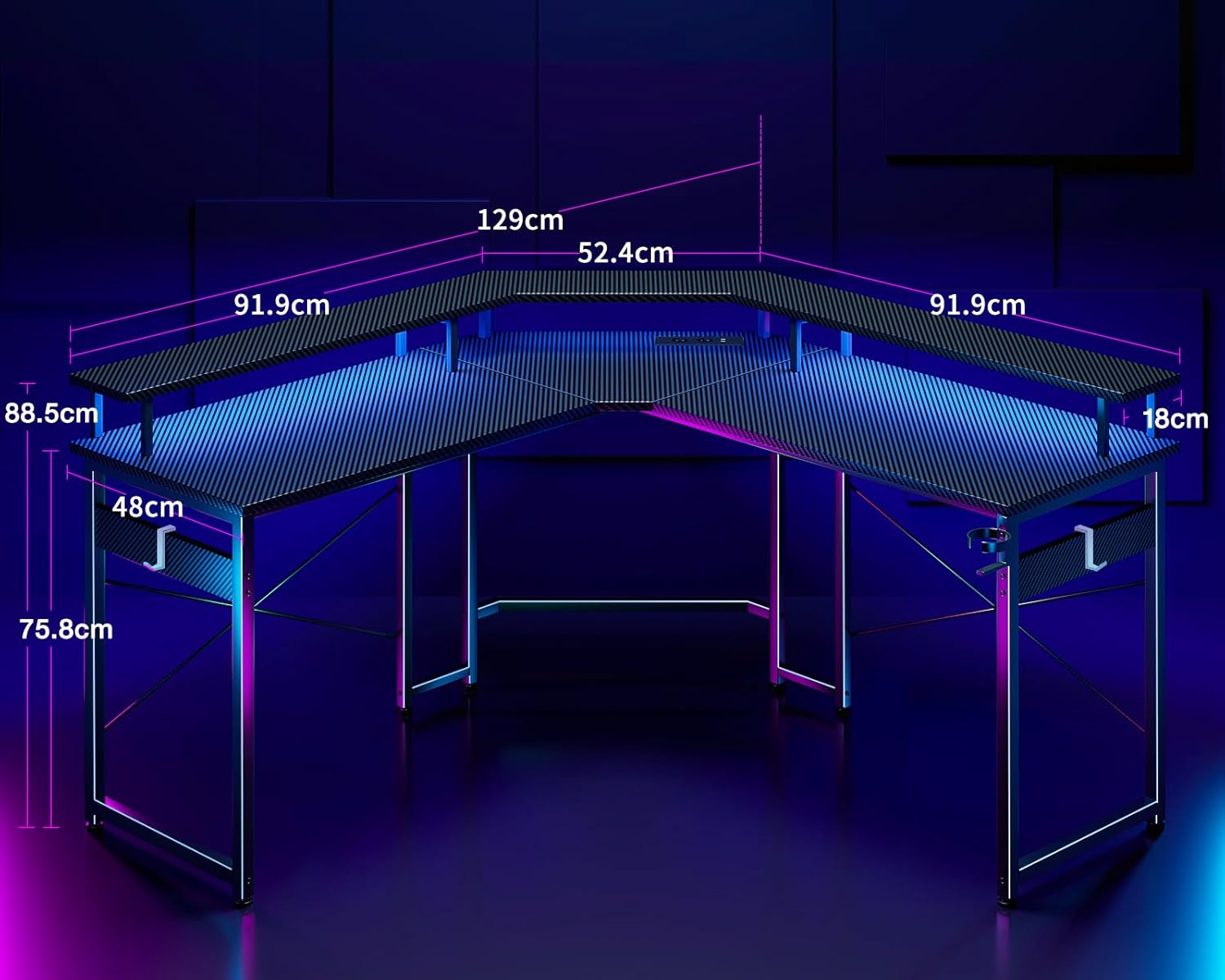
Image: A technical diagram illustrating the precise dimensions of the ODK L-Shaped Gaming Desk, including length, width, and height measurements.
Warranty and Support
ODK products are manufactured to high-quality standards. For warranty information or technical support, please refer to the contact details provided at the point of purchase or visit the official ODK website. Please have your model number (ZJZ-QTMDCZ) and purchase date ready when contacting support.


