
1. Introduction
This manual provides detailed instructions for the assembly, operation, maintenance, and troubleshooting of your ODK Gaming Corner Desk. This desk is designed to enhance your gaming or work setup with integrated LED lighting, convenient power outlets, and USB ports. Please read this manual thoroughly before beginning assembly or operation to ensure proper use and longevity of your product.

Image 1.1: ODK Gaming Corner Desk in a typical setup with dual monitors and LED lighting.
2. Setup and Assembly
The ODK Gaming Corner Desk is designed for straightforward assembly. Follow the included graphical instructions carefully. It is recommended to assemble the desk with two people to ensure stability and ease of handling. Ensure all components are present before starting.
2.1 Unpacking and Component Check
- Carefully unpack all parts from the packaging.
- Verify that all components listed in the assembly guide are present and undamaged.
- Keep small parts, such as screws and connectors, organized to prevent loss.
2.2 Assembly Steps
- Begin by assembling the main frame structure according to the provided diagrams.
- Attach the desktop panels, ensuring they are securely fastened.
- Install the monitor stand onto the designated area.
- Mount the power strip with integrated outlets and USB ports.
- Attach accessories such as the cup holder and headphone hooks.
- Connect the LED lighting strips and controller.

Image 2.1: Desk dimensions for planning your space. Overall dimensions are 129 x 129 x 89 cm.

Image 2.2: Adjustable feet ensure stability on uneven floors.
Ensure all screws are tightened, but do not overtighten to avoid damaging the material. The desk features a stable construction designed for demanding use.
3. Operation
3.1 LED Lighting System
The integrated LED lighting system offers customizable ambiance for your gaming or work environment. Use the included controller to manage the lighting.
- Colors: Choose from 10 different colors to match your mood or setup.
- Modes: Select from 10 dynamic lighting modes for various effects.
- Brightness: Adjust the intensity with 8 levels of brightness control.
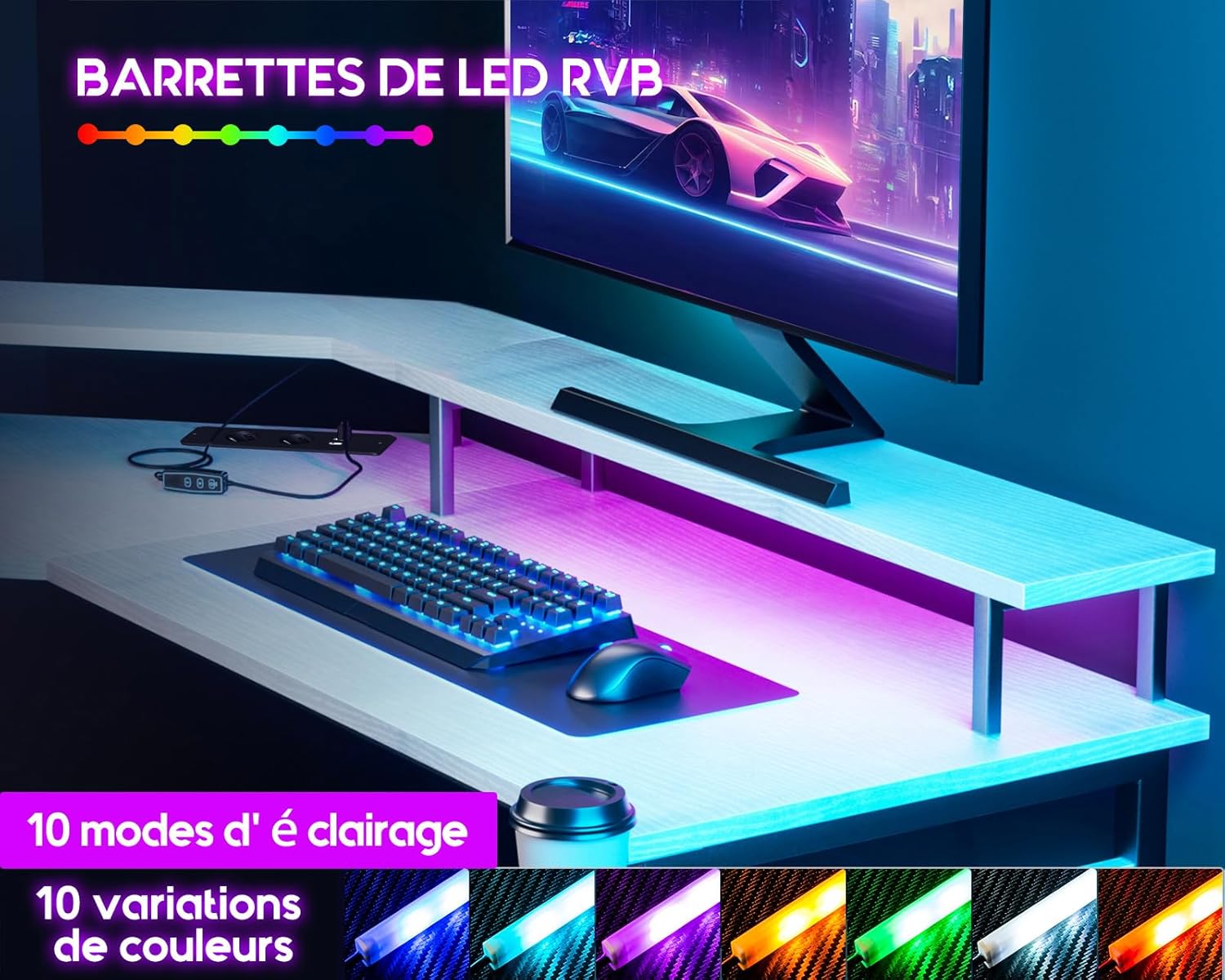
Image 3.1: Detail of the LED lighting strip.

Image 3.2: LED controller for adjusting colors, modes, and brightness.
3.2 Integrated Power Outlets and USB Ports
The desk is equipped with 2 power outlets and 2 USB ports for convenient power access for your devices.
- Power Outlets: 220-250V/15A. Use for monitors, PCs, or other peripherals.
- USB Ports: 5V/2.1A. Ideal for charging mobile devices, headphones, or powering USB accessories.
- Ensure the desk's power cord is securely plugged into a wall outlet before use.

Image 3.3: Integrated power outlets and USB ports for device connectivity.
3.3 Monitor Stand for Ergonomics
The stable monitor stand elevates your screen to an optimal eye-level position, promoting an ergonomic posture and helping to prevent neck and back strain during extended use.
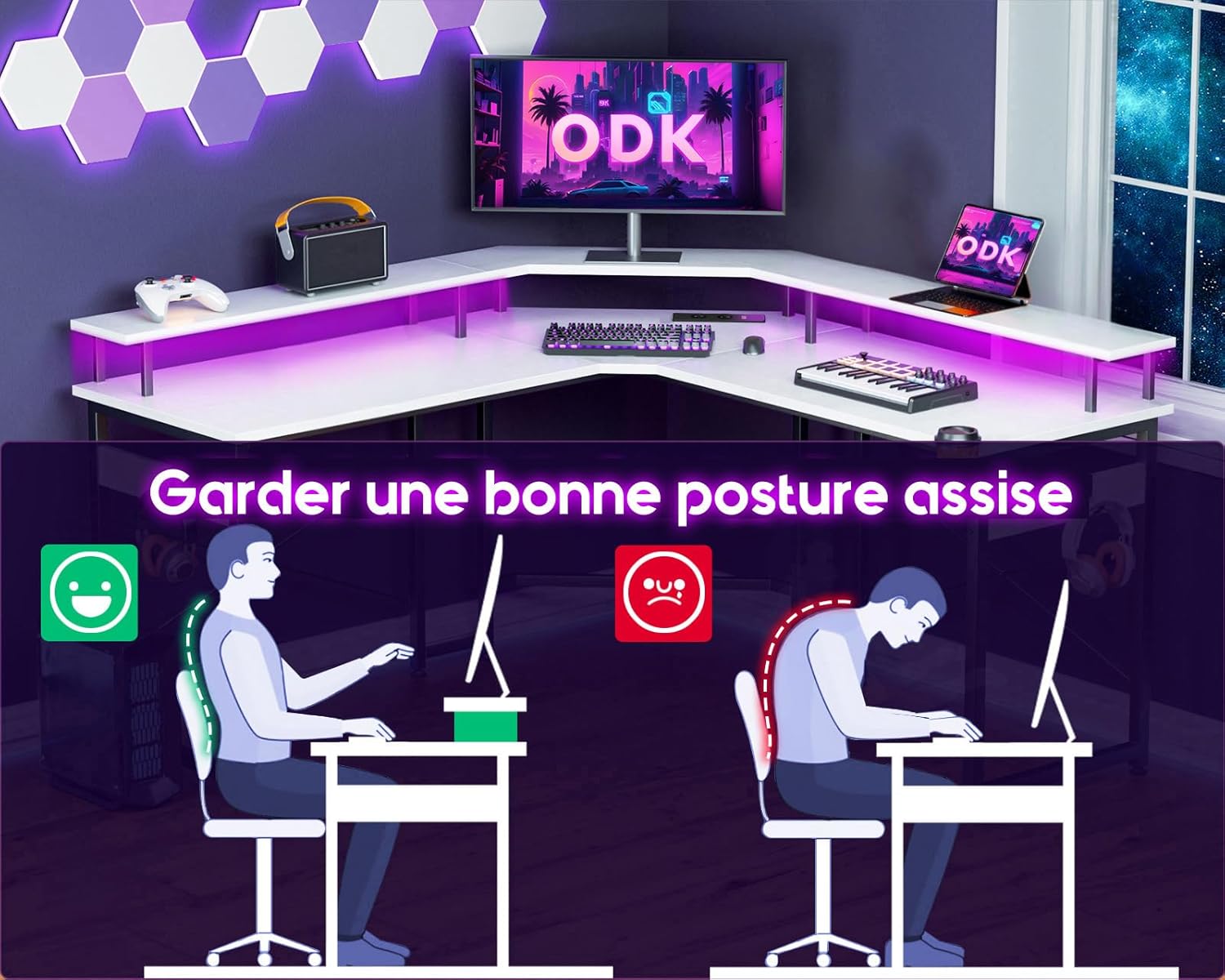
Image 3.4: Proper ergonomic posture facilitated by the monitor stand.
4. Maintenance
To ensure the longevity and appearance of your ODK Gaming Corner Desk, follow these simple maintenance guidelines:
- Cleaning: Wipe the desk surface regularly with a soft, damp cloth. Avoid abrasive cleaners or harsh chemicals that may damage the finish. For stubborn marks, a mild soap solution can be used, followed by drying with a clean cloth.
- Spills: Immediately clean up any spills to prevent staining or damage to the wood material.
- LEDs: The LED strips are designed for durability. If dust accumulates, gently wipe them with a dry, soft cloth. Do not use liquids directly on the LED strips or electrical components.
- Connections: Periodically check all screws and connections to ensure they remain tight. Retighten if necessary.
- Weight Distribution: Avoid placing excessively heavy items on one section of the desk to maintain structural integrity.
5. Troubleshooting
If you encounter any issues with your ODK Gaming Corner Desk, refer to the following common troubleshooting steps:
5.1 LED Lights Not Working
- Check Power: Ensure the desk's main power cord is securely plugged into a functional wall outlet.
- Controller Connection: Verify that the LED controller is properly connected to the LED strips and the power source.
- Controller Functionality: Test the controller by pressing the power button. If the controller is unresponsive, check its battery (if applicable) or connection.
5.2 Power Outlets/USB Ports Not Functioning
- Main Power: Confirm the desk's main power cord is plugged in and the wall outlet is active.
- Device Check: Test the device you are trying to power or charge with another outlet or USB port to rule out device issues.
- Overload: Avoid overloading the outlets. If too many high-power devices are connected, it might trip a circuit breaker (if integrated).
5.3 Desk Instability
- Tighten Screws: Recheck all assembly screws and tighten any that are loose.
- Adjustable Feet: Use the adjustable feet at the bottom of the desk legs to level the desk on uneven surfaces.
- Even Load: Ensure weight is distributed evenly across the desk surface.
6. Specifications
Image 6.1: Detailed dimensions of the ODK Gaming Corner Desk.
| Feature | Detail |
|---|---|
| Brand | ODK |
| Model Number | ZJZ-QTMDCZ |
| Color | White |
| Product Dimensions (L x W x H) | 129 x 129 x 89 cm |
| Item Weight | 21 Kilograms |
| Material | Alloy Steel, Wood (Top Material) |
| Special Features | Integrated USB Port, LED Lighting, Monitor Stand, Power Outlets |
| Power Outlets | 2 (220-250V/15A) |
| USB Ports | 2 (5V/2.1A) |
| LED Lighting | 10 Colors, 10 Dynamic Modes, 8 Brightness Levels |
| Desk Design | Computer Desk, L-Shape |
7. Warranty & Support
7.1 Warranty Information
Specific warranty details for the ODK Gaming Corner Desk may vary by region and retailer. Please refer to your purchase documentation or contact the retailer where you purchased the product for precise warranty terms and conditions. Generally, products are covered against manufacturing defects for a specified period from the date of purchase.
7.2 Customer Support
For any questions, assistance with assembly, or troubleshooting not covered in this manual, please contact ODK customer support or the retailer from whom you purchased the desk. Have your model number (ZJZ-QTMDCZ) and purchase information ready when contacting support.
Contact information can typically be found on the ODK official website or on your product packaging.


