
iClever BK10
iClever Bluetooth Keyboard Instruction Manual
Model: BK10
Brand: iClever
Introduction
Thank you for choosing the iClever Bluetooth Keyboard. This ultra-thin, multi-device wireless keyboard is designed for enhanced productivity and comfort across various operating systems. It features Bluetooth 5.1 connectivity, a long-lasting rechargeable battery, and an ergonomic design to support extended use. This manual provides detailed instructions for setting up, operating, maintaining, and troubleshooting your keyboard.

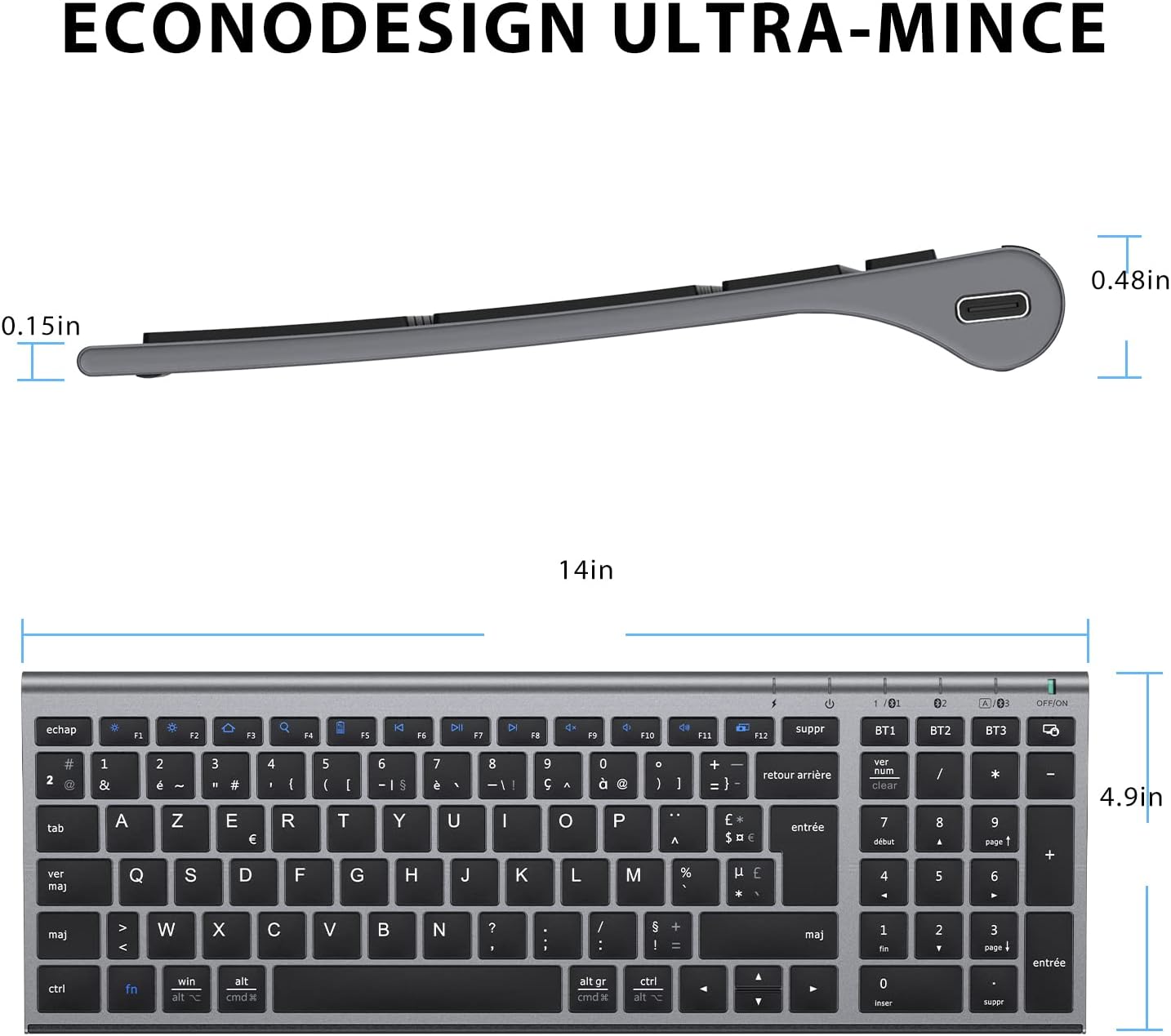
The iClever Bluetooth Keyboard, model BK10, featuring a full QWERTY layout with a numeric keypad and dedicated function keys. Its sleek, grey design is both functional and aesthetically pleasing.
Setup and Connectivity
1. Initial Charging
Before first use, fully charge your iClever Bluetooth Keyboard. Connect the provided USB-C cable to the keyboard's charging port and the other end to a USB power source. The charging indicator light will show the charging status.
The keyboard's USB-C charging port, located on the side, allows for convenient recharging of the internal battery. A full charge provides up to 90 hours of continuous typing.
2. Bluetooth Pairing
- Turn on the keyboard using the ON/OFF switch.
- Press and hold one of the Bluetooth channel keys (BT1, BT2, or BT3) for 3-5 seconds until the corresponding indicator light flashes rapidly. This indicates the keyboard is in pairing mode.
- On your device (computer, tablet, smartphone), enable Bluetooth and search for new devices.
- Select "iClever Keyboard" or a similar name from the list of available devices.
- Follow any on-screen prompts to complete the pairing process. The indicator light will stop flashing and remain solid once connected.
3. Multi-Device Switching
The iClever keyboard supports connection with up to three devices simultaneously. Once paired, you can switch between them by simply pressing the BT1, BT2, or BT3 key corresponding to the desired device. The keyboard automatically recognizes the operating system of the connected device (Windows, macOS, iOS, Android) and adjusts key functions accordingly.

Illustration of the iClever keyboard connecting to multiple devices (iPad, MacBook, iPhone) via different Bluetooth channels (BT1, BT2, BT3). The image also highlights the automatic key mapping for Windows/Android (Win/Alt) and Mac/iPad (Alt/Cmd) systems.
Operating Instructions
Key Features and Functions
- Low-Profile Scissor-Switch Keys: The keyboard features low-profile keys with a scissor-switch mechanism, providing a comfortable, responsive, and quiet typing experience (less than 50 dB).
- Ergonomic Design: Integrated stands provide an optimal typing angle, reducing wrist strain during prolonged use.
- Automatic System Recognition: The keyboard intelligently detects the operating system of your connected device (Windows, macOS, iOS, Android) and automatically adjusts key functions for seamless compatibility.
- Power Saving Mode: To conserve battery life, the keyboard enters sleep mode after 30 minutes of inactivity. Press any key to wake it up.

A close-up view of the iClever keyboard's low-profile keys and the underlying scissor-switch mechanism, illustrating how they provide a silent and comfortable typing experience.
Maintenance
Cleaning
The keyboard features a matte finish and is designed to be spill-resistant. To clean, gently wipe the surface with a soft, damp cloth. Avoid using harsh chemicals or abrasive materials that could damage the finish. Ensure the keyboard is powered off before cleaning.
Battery Care
To maximize battery lifespan, avoid fully discharging the keyboard frequently. Recharge the battery when the low battery indicator appears. Store the keyboard in a cool, dry place when not in use for extended periods.
Troubleshooting
| Problem | Possible Cause | Solution |
|---|---|---|
| Keyboard not connecting via Bluetooth. | Keyboard not in pairing mode; device Bluetooth off; out of range; low battery. | Ensure keyboard is in pairing mode (flashing BT light). Check device Bluetooth settings. Move keyboard closer to device. Recharge keyboard battery. |
| Keys repeating or sticking. | Software glitch; debris under key; connectivity issue. | Turn keyboard off and on. Re-pair the keyboard. Gently clean around the affected key. Ensure no other strong wireless signals are interfering. |
| Keyboard not responding. | Low battery; keyboard is off; connection lost. | Charge the keyboard. Ensure the keyboard is switched ON. Re-establish Bluetooth connection. |
| Incorrect key mapping (e.g., @ and " swapped). | Operating system language/layout mismatch. | Ensure your device's keyboard language settings match the AZERTY layout of the iClever keyboard. |
Specifications
| Feature | Detail |
|---|---|
| Brand | iClever |
| Model Number | BK10 |
| Color | Black |
| Operating System Compatibility | Chrome OS, Windows 10, macOS, iPadOS, Android |
| Keyboard Description | Low-profile scissor switch (< 50 dB), 100 keys |
| Power Source | Battery Powered (USB-C rechargeable 280 mAh) |
| Connectivity Technology | Bluetooth (10 m range), 3-device switching |
| Hand Orientation | Ambidextrous |
| Compatible Devices | Smartphone, Laptop, PC, Tablet |
| Dimensions (L x W x H) | 36.6 x 12.5 x 1.8 centimeters |
| Special Features | Split keyboard design, Silent typing (< 50 dB), USB-C 280 mAh battery (~45 days), Battery LED, 30 min sleep mode, Multi-device, Rechargeable |

Detailed diagram showing the ultra-thin profile and overall dimensions of the iClever Bluetooth Keyboard, highlighting its compact and portable design.
What's in the Box
- iClever Bluetooth Keyboard (Model BK10)
- USB-C Charging Cable
- User Manual (this document)
Warranty and Support
iClever products are designed for reliability and performance. For information regarding warranty coverage, technical support, or to access additional resources, please visit the official iClever website or contact their customer service directly. Keep your purchase receipt for warranty claims.
You can find more information and products from iClever at their official store: iClever Amazon Store
Related documentsBK10


Ask a question about this manual
Ask about setup, troubleshooting, compatibility, parts, safety, or missing instructions. Manuals+ will review the question and use this page’s manual context to help answer it.