
1. Product Overview
The ProtoArc K100 is a full-size, ultra-slim backlit wireless keyboard designed for efficient and comfortable typing. It features a 2.4G wireless connection, silent scissor-switch keys, and is rechargeable via USB-C. The keyboard supports both Windows and Mac operating systems, offering a seamless experience across different devices.
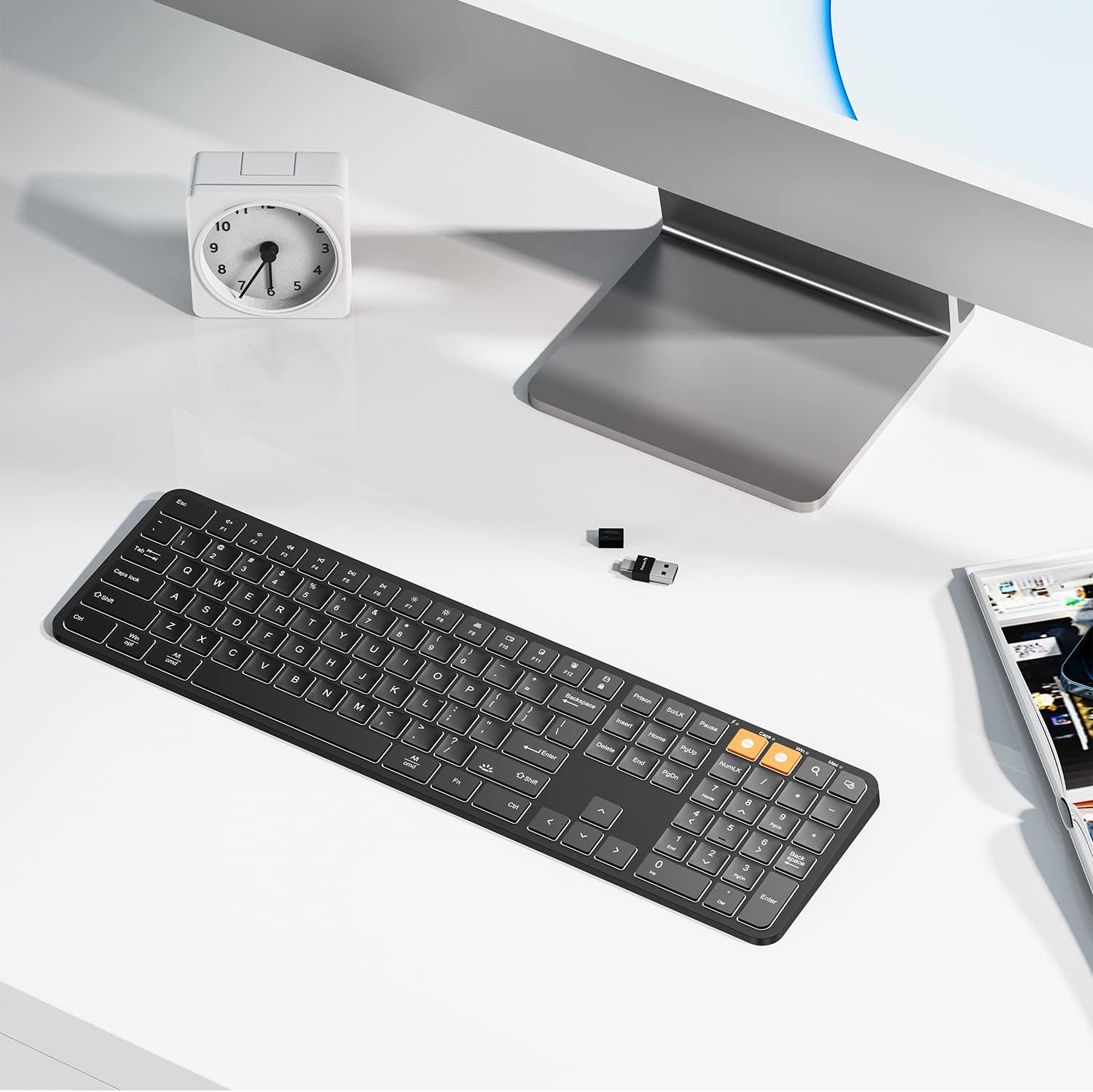
Image 1.1: The ProtoArc K100 keyboard on a clean desk, showcasing its full-size layout and slim design. A small USB receiver is visible next to it.
Video 1.1: An official product video demonstrating the key features and design of the ProtoArc K100 Backlit Wireless Keyboard, including its full-size layout, ultra-slim profile, scissor-switch keys, and USB connectivity.
2. Package Contents
Please check the package for the following items:
- ProtoArc K100 Backlit Wireless Keyboard
- 2-in-1 USB/Type-C Receiver
- USB-C Charging Cable
- User Manual

Image 2.1: Contents of the ProtoArc K100 package, including the keyboard, USB charging cable, and the 2-in-1 USB receiver.
3. Setup Instructions
3.1 Connecting the Keyboard
- Locate the 2-in-1 USB/Type-C receiver. It may be stored in a compartment on the keyboard.
- Plug the USB-A or USB-C end of the receiver into an available port on your computer.
- Turn on the keyboard using the ON/OFF switch, usually located on the side or back of the keyboard.
- The keyboard should automatically connect to your computer. No additional drivers are typically required.

Image 3.1: The ProtoArc K100 keyboard wirelessly connected to a laptop via its 2-in-1 USB receiver, demonstrating the plug-and-play setup.
3.2 Charging the Keyboard
The ProtoArc K100 keyboard is equipped with a rechargeable battery. When the battery is low, the indicator light may flash or the backlight may dim. To charge:
- Connect the provided USB-C charging cable to the charging port on the keyboard.
- Plug the other end of the USB-C cable into a USB power source (e.g., computer USB port, wall adapter).
- The charging indicator light will illuminate during charging and typically turn off or change color when fully charged.
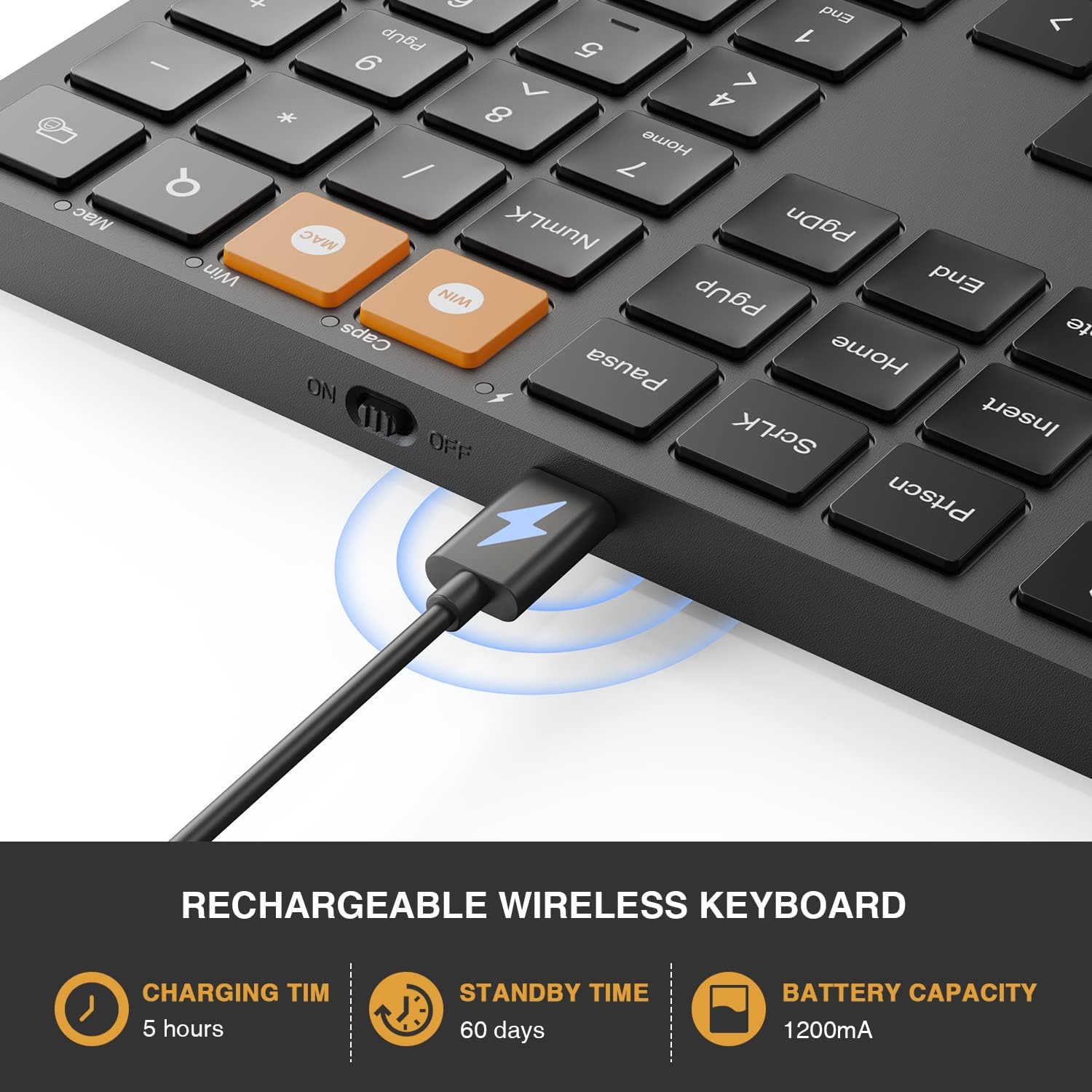
Image 3.2: A close-up view of the ProtoArc K100 keyboard's USB-C port with the charging cable connected, indicating the recharging process.
4. Operating Instructions
4.1 Power On/Off
To power on or off the keyboard, use the physical switch located on the side or back of the device. Ensure the keyboard is powered on for wireless functionality.
4.2 Switching Operating Systems (Windows/Mac)
The ProtoArc K100 keyboard is designed to be compatible with both Windows and Mac operating systems. To switch between modes:
- Press the dedicated Win key (for Windows) or Mac key (for macOS) located on the numeric keypad.
- The keyboard layout will adjust to match the selected operating system, ensuring correct function key behavior and key mapping.

Image 4.1: A close-up of the keyboard highlighting the orange 'Win' and 'Mac' keys, used for switching between Windows and macOS layouts.

Image 4.2: Visual representation of the keyboard's dual-system compatibility, showing icons for Windows, macOS, and 2.4G wireless connectivity.
4.3 Adjusting Backlight
The keyboard features an adjustable white backlight with multiple brightness levels. To control the backlight:
- To turn the backlight on/off or adjust brightness, press the Fn key simultaneously with the Shift key that has the backlight icon (usually located near the right Shift key).
- Repeatedly pressing this combination will cycle through different brightness levels (Off, Low, Mid, High).

Image 4.3: The keyboard demonstrating its adjustable illumination feature, with indicators for Off, Low, Mid, and High brightness settings.

Image 4.4: A visual guide illustrating the 'Fn + Shift' key combination required to turn on, turn off, and adjust the brightness of the white backlight.
4.4 Using Shortcut Keys
The keyboard includes 12 shortcut keys (F1-F12) that provide quick access to various functions such as media control, volume adjustment, and more. These functions are typically accessed by pressing the Fn key in combination with the desired F-key.
4.5 Silent Typing
The ProtoArc K100 utilizes scissor-switch keys, designed to provide a quiet typing experience. This feature minimizes typing noise, making it suitable for quiet environments.

Image 4.5: A close-up of the keyboard keys, illustrating the quiet click and typing experience provided by the scissor-switch mechanism.
5. Maintenance
5.1 Battery Care
- To prolong battery life, avoid fully discharging the keyboard frequently.
- Charge the keyboard when the low battery indicator appears.
- If storing the keyboard for an extended period, charge it to approximately 50% and store in a cool, dry place.
5.2 Cleaning
- Turn off the keyboard before cleaning.
- Use a soft, lint-free cloth slightly dampened with water or a mild cleaning solution to wipe the surface.
- Avoid using harsh chemicals or abrasive materials.
- Use compressed air to remove dust and debris from between the keys.
6. Troubleshooting
6.1 Keyboard Not Responding
- Check Power: Ensure the keyboard is turned on and has sufficient battery charge. Recharge if necessary.
- Check Receiver: Verify the 2-in-1 USB receiver is securely plugged into a working USB port on your computer. Try a different USB port.
- Re-pair: If the connection is lost, try unplugging and re-plugging the USB receiver. Power cycle the keyboard (turn off, then on).
- Interference: Move the keyboard closer to the receiver and away from other wireless devices that might cause interference.
- System Compatibility: Ensure the keyboard is set to the correct operating system mode (Windows or Mac) using the dedicated keys.
6.2 Backlight Not Working or Flickering
- Adjust Brightness: Press Fn + Shift (with backlight icon) to cycle through brightness levels and ensure it's not set to 'Off'.
- Battery Level: Low battery can cause the backlight to dim or turn off. Charge the keyboard fully.
- Power Cycle: Turn the keyboard off and then on again to reset the backlight function.
7. Specifications
| Feature | Detail |
|---|---|
| Model Number | K100 |
| Connectivity Technology | 2.4G Wireless (USB/Type-C Receiver) |
| Special Features | Backlit, Rechargeable, Silent Keys, Dual System (Windows/Mac) |
| Switch Type | Scissor-switch |
| Power Source | Battery Powered (1200mAh) |
| Charging Time | Approximately 5 hours |
| Standby Time | Approximately 60 days |
| Keyboard Layout | QWERTY, Full Size (109 keys) |
| Material | Plastic |
| Item Weight | 1.85 pounds |
| Package Dimensions | 17.4 x 5.67 x 1.8 inches |

Image 7.1: A diagram illustrating the physical dimensions of the ProtoArc K100 keyboard, including length, width, and thickness.
8. Warranty and Support
For warranty information and technical support, please refer to the documentation included with your product or visit the official ProtoArc website. Contact information for customer service is typically provided in the product packaging or on the manufacturer's website.


