
1. Introduction
This manual provides essential information for the safe and effective operation of your ESOXOFFORE Kids Instant Print Camera. Please read this manual thoroughly before using the product and retain it for future reference. This digital camera is designed for children aged 3-12, offering instant printing capabilities, 1080P video recording, and various creative features.

Image 1.1: Front view of the ESOXOFFORE Kids Instant Print Camera, highlighting its compact design and screen interface.
2. What's in the Box
Verify that all the following items are included in your package:
- 1 x ESOXOFFORE Kids Instant Print Camera (Blue)
- 3 x Print Paper Rolls
- 1 x Lanyard
- 1 x User Manual
- 1 x 32GB SD Card
- 1 x USB Type-C Charging Cable

Image 2.1: All components included with the camera, demonstrating the complete package contents.
3. Product Features
The ESOXOFFORE Kids Instant Print Camera offers a range of features designed for an engaging user experience:
- Instant Print Function: Print black and white photos directly from the camera in approximately one second.
- High-Resolution Video: Record videos in 1080P quality.
- Digital Zoom: Features up to 16X digital zoom for capturing distant subjects.
- Creative Filters & Stickers: Includes 15 scene filters and 16 sticker options to enhance photos.
- Time-Lapse Photography: Set a 3-second time-lapse for delayed shots.
- Continuous Shooting: Capture multiple photos in quick succession.
- Built-in Games: Enjoy 4 pre-installed puzzle games.
- MP3 Playback: Supports MP3 audio playback.
- Type-C Charging: Fast and convenient charging via a Type-C port.
- Durable Design: Constructed with high-quality soft plastic and a shockproof shell for enhanced protection.
- 2.4-inch Screen: A clear display for viewing photos and videos.
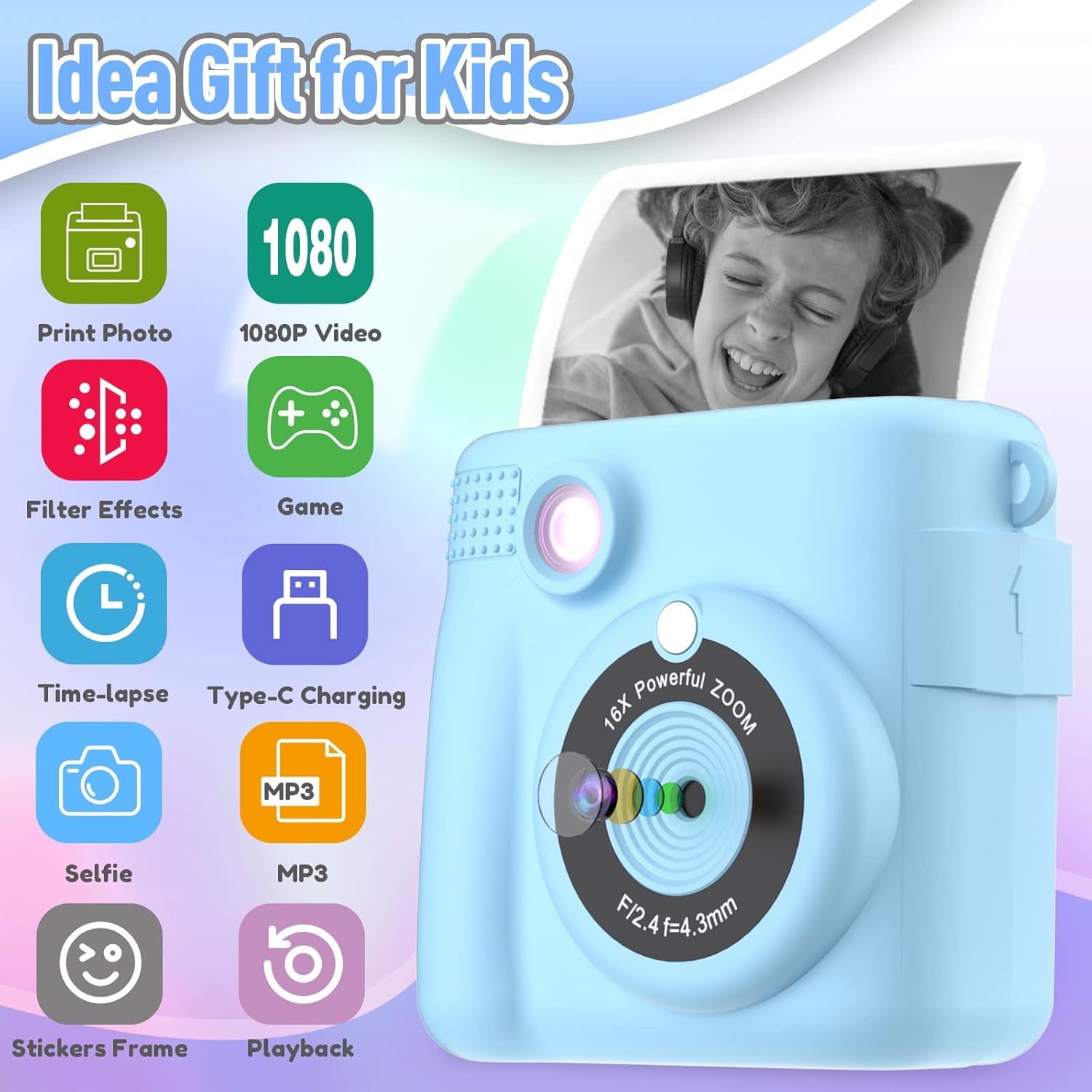
Image 3.1: Visual representation of the camera's key functionalities.
4. Setup
4.1 Charging the Camera
Before first use, fully charge the camera. Connect the provided USB Type-C cable to the camera's charging port and a compatible USB power adapter (not included). The charging indicator will show the charging status. A full charge typically provides 2-3 hours of continuous use.
4.2 Installing the SD Card
The camera comes with a 32GB SD card for storing color photos and videos. Locate the SD card slot, usually on the side or bottom of the camera. Insert the SD card with the metal contacts facing the correct direction until it clicks into place.
4.3 Installing Print Paper
Follow these steps to install the thermal print paper:
- Gently push up the part with the lens to open the paper slot.
- Insert a new roll of thermal printing paper into the slot. Ensure the paper feeds out from the top of the roll, facing towards the printing mechanism.
- Close the camera body securely until it clicks.

Image 4.1: Correct paper installation. Ensure the paper direction is accurate for proper printing.
5. Operating Instructions
5.1 Power On/Off
Press and hold the power button (usually marked with a power symbol) to turn the camera on or off.
5.2 Taking Photos
In photo mode, frame your shot using the screen. Press the shutter button (often a large, central button) to capture an image. The camera will instantly print a black and white version, while a color version is saved to the SD card.
5.3 Video Recording
Switch to video mode using the mode button. Press the shutter button to start recording and press it again to stop. Videos are saved to the SD card.

Image 5.1: The camera supports 1080P video recording and features digital zoom.
5.4 Digital Zoom
Use the zoom buttons (often marked with '+' and '-') to adjust the 16X digital zoom level before taking a photo or recording a video.
5.5 Applying Filters and Stickers
Navigate through the camera's menu to access the 15 scene filters and 16 sticker frames. Select your desired effect before capturing a photo.

Image 5.2: Examples of creative stickers and frames available for photos.
5.6 Time-Lapse Function
Activate the time-lapse feature (e.g., 3-second delay) from the settings menu to allow time to pose before the photo is taken.

Image 5.3: The time-lapse feature allows for delayed photo capture.
5.7 Playing Games
Access the games menu to select and play from the 4 pre-installed puzzle games.

Image 5.4: The camera includes four engaging puzzle games.
5.8 Printing Options
The camera offers different print density modes (Low, Medium, High) which can be adjusted in the settings for desired print quality.

Image 5.5: Adjusting print density for optimal results.
6. Maintenance
6.1 Cleaning the Camera
Use a soft, dry cloth to clean the camera body. For the lens, use a specialized lens cleaning cloth. Avoid using liquid cleaners or abrasive materials.
6.2 Storing the Camera
Store the camera in a cool, dry place away from direct sunlight and extreme temperatures. Remove the SD card if the camera will not be used for an extended period.
6.3 Print Paper Care
Use only thermal print paper compatible with this camera. Store paper rolls in a dry place. The included paper is BPA-free and non-toxic.

Image 6.1: The camera uses safe and cost-effective thermal printing paper.
7. Troubleshooting
If you encounter issues with your camera, refer to the following common problems and solutions:
- Camera Not Turning On: Ensure the battery is charged. Connect the camera to a power source using the Type-C cable.
- No Image on Print: Check if the print paper is installed correctly (refer to Section 4.3). Ensure the paper is thermal paper and not inserted backward.
- Blurry Prints: Ensure the lens is clean. Check print density settings (Section 5.8) and adjust to 'High' if needed.
- "Overheat" Error: If printing many photos consecutively, the camera may temporarily overheat. Allow it to cool down for a few minutes before resuming printing.
- SD Card Error: Ensure the SD card is properly inserted. Try reformatting the SD card (this will erase all data, so back up important files first).
- Camera Freezes: Press and hold the power button for 10 seconds to force a restart.
8. Specifications
| Feature | Detail |
|---|---|
| Model Number | ABS-681 |
| Brand | ESOXOFFORE |
| Package Dimensions | 7.76 x 4.61 x 2.46 inches |
| Item Weight | 1.13 ounces (0.07 Pounds) |
| Batteries | 1 LR44 battery (included) |
| Special Feature | Travel |
| Film Format Type | Instant (Thermal Print) |
| Film Color | Black and White (for prints) |
| Compatible Devices | Camera |
| Viewfinder Magnification | 1x |
| Video Resolution | 1080P |
| Digital Zoom | 16X |
| Screen Size | 2.4 inches |
9. Warranty and Support
This product is covered by a standard manufacturer's warranty. For specific warranty details, please refer to the warranty card included in your package or contact ESOXOFFORE customer support. For technical assistance or further inquiries, please visit the official ESOXOFFORE website or contact their customer service department.
10. Important Safety Information
- This product contains small parts and is not suitable for children under 3 years old without adult supervision.
- Do not expose the camera to water or extreme moisture.
- Avoid dropping the camera or subjecting it to strong impacts.
- Use only the provided charging cable and compatible power adapters.
- Do not attempt to disassemble or repair the camera yourself.
11. Product Videos
No official product videos from the seller were available for embedding based on the provided data.