Introduction
Thank you for choosing the Green Lion Magic Keyboard. This user manual provides detailed instructions on how to set up, operate, maintain, and troubleshoot your new keyboard. Designed for seamless integration with your iPad 10.9/10th Gen. 2022, this keyboard features a high-sensitivity touchpad, adjustable backlight, and dual-language support (Arabic/English) for enhanced productivity and convenience.

Image: The Green Lion Magic Keyboard connected to an iPad, demonstrating the integrated touchpad functionality.
Setup
- Initial Charging: Before first use, fully charge the keyboard using the provided USB-C cable. Connect the cable to the Type-C charging port on the keyboard and a compatible power source. The charging port is located on the side of the keyboard.

Image: Close-up view of the Green Lion Magic Keyboard highlighting the Type-C charging port.
- Attaching Your iPad: Open the keyboard case. The iPad attaches magnetically to the designated area on the case. Ensure proper alignment for a secure connection. The strong magnetic hold keeps your iPad firmly in place.
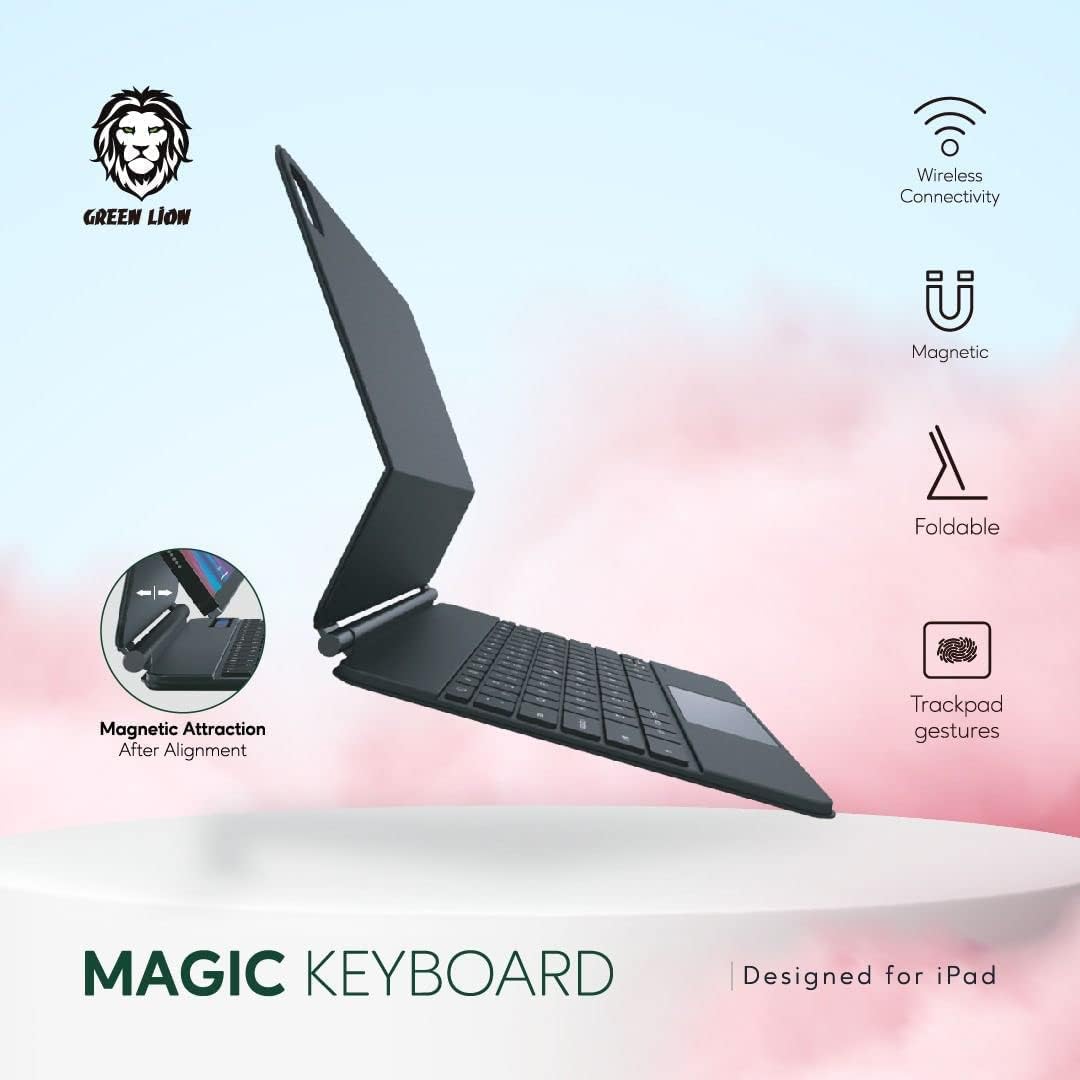
Image: Diagram illustrating the magnetic attraction mechanism for attaching the iPad to the keyboard case.
- Bluetooth Pairing:
- Turn on the keyboard by pressing the power button.
- On your iPad, go to Settings > Bluetooth.
- Ensure Bluetooth is enabled.
- The keyboard will appear as "Green Lion Keyboard" or similar in the "Other Devices" list. Tap on it to pair.
- Once paired, the keyboard's indicator light will confirm the connection.
Operating Instructions
Keyboard Functions
- Typing: Use the full QWERTY layout for comfortable and efficient typing.
- Special Keys: The top row includes function keys for quick access to iPad features such as volume control, media playback, and screen brightness.
- Language Switching: To switch between Arabic and English input, use the dedicated language key or the standard iPad language switching shortcut (e.g., Globe icon or Ctrl+Space).
Touchpad Gestures
The integrated high-sensitivity touchpad allows for precise navigation and multitasking. Common gestures include:
- Single Finger Tap: Left-click.
- Two Finger Tap: Right-click (context menu).
- Two Finger Scroll: Scroll up/down or left/right.
- Pinch to Zoom: Zoom in/out on content.
- Refer to your iPad's settings for additional touchpad gesture customization.
Adjustable Backlight
The keyboard features an adjustable backlight for comfortable use in various lighting conditions. Use the dedicated backlight key (often an icon resembling a light bulb) to cycle through brightness levels or turn the backlight on/off.

Image: Visual representation of the keyboard's features, including the backlight function icon.
Viewing Angles and Portability
The keyboard case allows for multiple viewing angles, including a 360-degree rotation feature, enabling you to work from any visual angle. Its foldable and portable design makes it ideal for travel and on-the-go use.

Image: The Green Lion Magic Keyboard showcasing its 360-degree rotation capability for flexible viewing angles.

Image: Side profile of the Green Lion Magic Keyboard with an iPad, illustrating its stable upright viewing position.
Maintenance
- Cleaning: Use a soft, lint-free cloth to wipe the keyboard and touchpad. For stubborn marks, slightly dampen the cloth with water or a mild, non-abrasive cleaner. Avoid excessive moisture.
- Battery Care: To prolong battery life, avoid fully discharging the battery frequently. Charge the keyboard regularly, especially if it will be stored for an extended period.
- Storage: When not in use, keep the keyboard in a cool, dry place, away from direct sunlight and extreme temperatures.
Troubleshooting
| Problem | Solution |
|---|---|
| Keyboard not connecting via Bluetooth. |
|
| Backlight is not working or adjustable. |
|
| Touchpad is unresponsive or erratic. |
|
| Backspace key functions as delete (deletes from right). |
|
| iPad does not hold securely to the keyboard (weak magnet). |
|
Specifications
- Model Number: GNMGKEY10GBK
- Brand: Green Lion
- Compatibility: Compatible with iPad 10.9/10th Gen. 2022
- Connectivity: Bluetooth
- Battery Capacity: 500mAh Lithium Ion (rechargeable)
- Charging Port: Type-C
- Product Dimensions: 28 x 15 x 3 cm
- Item Weight: 500 g
- Features: Dual-language (Arabic/English) keyboard, High-sensitivity touchpad, Adjustable backlight, Foldable & Portable design, Strong magnetic hold, Pencil holder.
Warranty and Support
Your Green Lion Magic Keyboard comes with a 12+12 months warranty, ensuring peace of mind. For any product inquiries, technical support, or warranty claims, please contact Green Lion customer support through their official channels or the retailer where you purchased the product.
Visit the Green Lion Store on Amazon for more information and support resources.


