
Introduction
This instruction manual provides detailed guidance for the installation, operation, and maintenance of your Yale Assure Lever Wi-Fi Touchscreen Smart Lever Lock, Model YRL226-WF1-0BP. This smart lock offers key-free entry through a responsive touchscreen keypad, Wi-Fi connectivity for remote access management, and compatibility with popular voice assistants. It is designed for doors with a single bore hole and includes features such as automatic unlocking upon approach and automatic relocking. Please read this manual thoroughly before installation and use to ensure proper functionality and security.
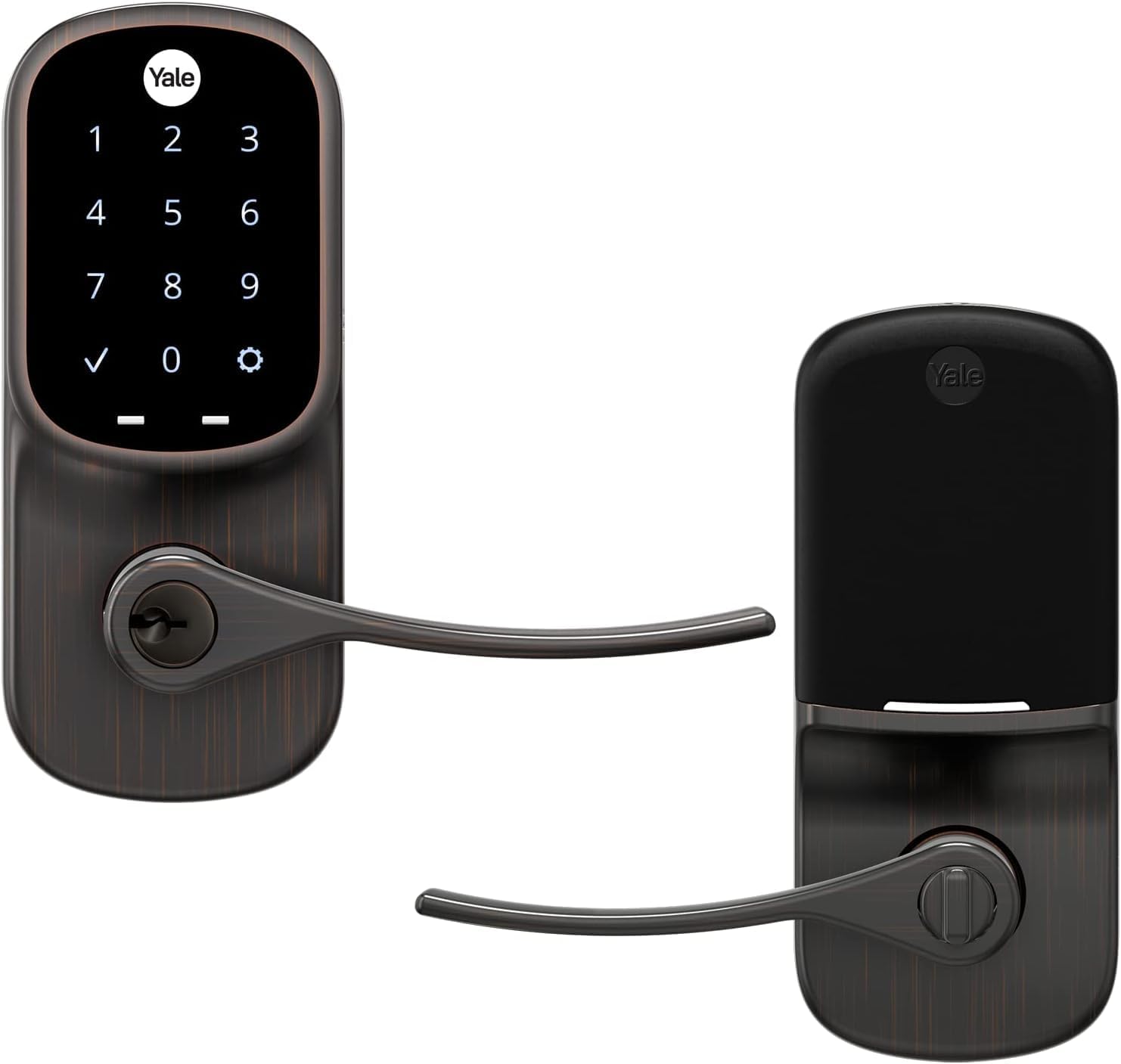
Figure 1: Yale Assure Lever Wi-Fi Touchscreen Smart Lever Lock (Model YRL226-WF1-0BP)
Setup and Installation
The Yale Assure Lever is designed for straightforward installation on doors with a single bore hole (no deadbolt). A Phillips head screwdriver is the only tool required.
Pre-Installation Checks
- Door Compatibility: Ensure your door has a single bore hole (no deadbolt).
- Door Thickness: The door thickness must be between 1-3/8 inches and 1-3/4 inches.
- Bore Hole Dimensions: The cross bore hole must be 2-1/8 inches in diameter. The edge bore hole must be 1 inch in diameter.
- Backset: The latch is adjustable for backsets of 2-3/8 inches or 2-3/4 inches.
- Existing Hardware: Remove any existing door hardware before beginning installation.
Installation Steps
- Prepare the Door: Ensure the door is prepped according to the specifications listed above.
- Install the Latch:
- Determine the correct orientation for the latchbolt curve based on your door's strike plate.
- Adjust the latch for the correct backset (2-3/8" or 2-3/4") if needed.
- Slide the latch into the door's edge bore hole, ensuring the horizontal rectangular hole is centered in the cross bore hole.
- Secure the latch with the two wood screws provided. Do not overtighten.
- Install the Exterior Keypad:
- Check the orientation of the tailpiece; the arrow should face upward, and the tailpiece should be vertical.
- Position the exterior keypad flush on the outside of the door.
- Guide the cable under the latch and through the cross bore hole to the interior side.
- Install the Interior Mounting Bracket:
- Guide the cable through the hole in the mounting bracket.
- Ensure the mounting bracket is flush with the door and straight.
- Secure with the two long through-bolts. Do not overtighten.
- Connect the Interior Lever:
- Remove the battery cover using the included battery cover key.
- Attach the cable from the exterior keypad to the adapter on the interior side of the lock. Ensure the cable's ridges are facing outwards and it is securely fastened.
- Seat the cable under the cable hook on the interior side of the lock.
- Ensure the thumb turn is in the horizontal position.
- Mount the interior side of the lock onto the mounting plate, being careful not to pinch the cable. Hook the bottom first, then push the top into place until it clicks.
- Insert the two small black screws into the battery compartment holes and tighten.
- Install Key-Free Cylinder and Levers:
- Insert the key-free cylinder into the opening on the keypad side. The bar on the cylinder should face the opposite direction from the latch.
- Install the interior and exterior levers by snapping them into place. Push in the spring clips using the battery key or a screwdriver as you slide the levers.
- Test Operation: Test the lever latchbolt by rotating the lever from both the interior and exterior sides of the door.
Visual Installation Guide
Video 1: Official Yale Assure Lever Installation Guide. This video demonstrates the step-by-step process for installing the smart lever lock, including preparing the door, installing the latch, exterior keypad, interior mounting bracket, and connecting the interior lever.

Figure 2: Installation of the interior components of the Yale Assure Lever.
Operating Instructions
Unlocking the Door
- Using the Touchscreen Keypad:
- Wake the keypad by touching the Yale logo or any number.
- Enter your 4-8 digit entry code.
- Press the checkmark (✓) to confirm. The lock will unlock.
- Using the Yale Access App:
- Open the Yale Access App on your smartphone.
- Select your lock and tap the unlock icon.
- The lock can also be configured for Auto-Unlock, which unlocks the door automatically as you approach with your phone.
- Using Voice Assistants:
- If integrated with Amazon Alexa, Hey Google, or Siri, use voice commands to unlock the door. (e.g., "Alexa, unlock the front door").
Locking the Door
- Using the Touchscreen Keypad:
- Simply touch the Yale logo on the keypad. The lock will engage.
- Using the Yale Access App:
- Open the Yale Access App and tap the lock icon.
- The lock can be configured for Auto-Relock, which automatically locks the door after a set period once it's closed.
- Using Voice Assistants:
- Use voice commands to lock the door (e.g., "Hey Google, lock the front door").

Figure 3: Unlocking the Yale Assure Lever using the touchscreen keypad.

Figure 4: Remote access and status monitoring via the Yale Access App.
Maintenance
- Battery Replacement: The lock requires 4 AA alkaline batteries. Replace all batteries simultaneously when the low battery indicator appears or when prompted by the Yale Access App or voice assistant. Use the battery cover key to remove the cover.
- Cleaning: Clean the touchscreen and exterior surfaces with a soft, damp cloth. Avoid abrasive cleaners or solvents that may damage the finish.
- Lubrication: Periodically lubricate the latch mechanism with a silicone-based lubricant to ensure smooth operation. Do not use oil-based lubricants.
- Firmware Updates: Ensure your Yale Access App is up-to-date to receive notifications for firmware updates for your lock. Regular updates enhance security and functionality.
Troubleshooting
- Lock Not Responding:
- Check battery levels and replace if necessary.
- Ensure the cable connection between the exterior and interior units is secure.
- Keypad Not Lighting Up:
- Tap the Yale logo or any number to wake the keypad.
- Verify batteries are correctly installed and have sufficient charge.
- Auto-Unlock/Auto-Relock Issues:
- Check your phone's location services and Bluetooth settings for the Yale Access App.
- Ensure the door sensor is correctly aligned and functioning.
- Verify settings within the Yale Access App.
- Remote Access Problems:
- Confirm your home Wi-Fi network is active and the lock is connected.
- Check the status of your Yale Smart Module within the app.
- Incorrect Code Entry:
- Ensure you are entering the correct 4-8 digit code followed by the checkmark (✓).
- If multiple incorrect attempts are made, the lock may temporarily disable the keypad for security.
For further assistance, refer to the full product manual or contact Yale customer support.
Specifications
| Feature | Detail |
|---|---|
| Brand | Yale |
| Model Name | Yale Assure Lever |
| Item Model Number | YRL226-WF1-0BP |
| Lock Type | App, Keypad, Touchscreen, Wi-Fi |
| Special Feature | Wi-Fi Built In, No Hubs |
| Connectivity Protocol | Wi-Fi |
| Controller Type | Amazon Alexa, Siri |
| Color | Bronze |
| Finish Type | Oil Rubbed |
| Material | Rubber, Bronze |
| Product Dimensions | 1.38 x 2.75 x 6.06 inches |
| Item Weight | 4.67 pounds |
| Batteries | 4 AA batteries required (included) |
| Recommended Uses | Home |
Warranty Information
The Yale Assure Lever (Model YRL226-WF1-0BP) comes with a Lifetime Limited Warranty on Finish and Mechanical components. Electronic components are covered by a One Year Warranty. For detailed terms and conditions, please refer to the official Yale warranty documentation included with your product or visit the Yale website.
Support and Contact
Should you require further assistance with your Yale Assure Lever, please contact Yale customer support.
- Online Support: Visit the official Yale website for FAQs, troubleshooting guides, and product registration.
- Phone Support: Refer to the contact information provided in your product packaging for regional support numbers.
- Yale Access App: The app often provides in-app support and resources.
When contacting support, please have your product model number (YRL226-WF1-0BP) and purchase information readily available.


