
Introduction
This manual provides detailed instructions for the setup, operation, and maintenance of your AVerMedia ER330 EzRecorder 330 Capture Card. Please read this manual thoroughly before using the device to ensure proper functionality and to maximize your user experience.
Package Contents
Please verify that all items listed below are included in your package. If any items are missing or damaged, please contact your retailer.
- AVerMedia ER330 EzRecorder 330 Capture Card
- Accessories (as specified by manufacturer)
Product Overview
The AVerMedia ER330 EzRecorder 330 is a standalone capture card designed for recording video content without the need for a PC. It supports various video inputs and outputs, offering flexible recording options.
Device Layout
Familiarize yourself with the ports and indicators on your EzRecorder 330.
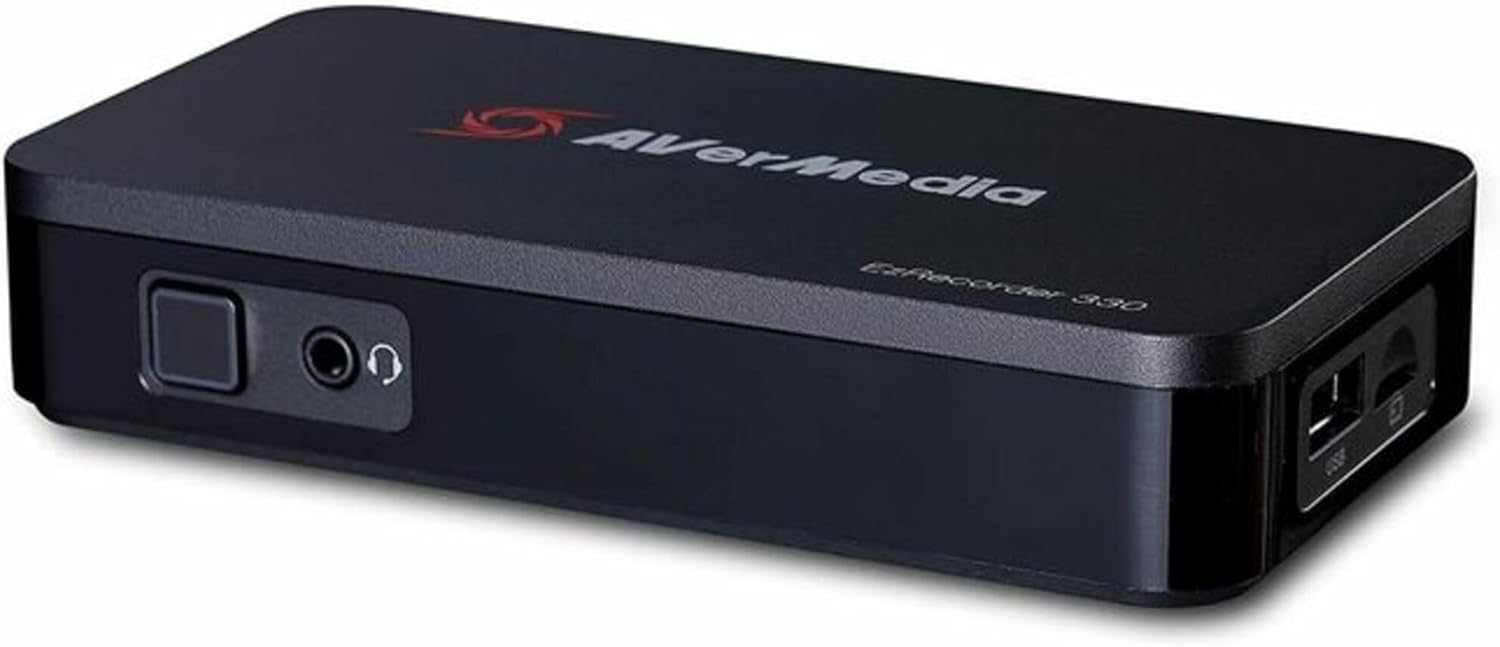
Image: The AVerMedia ER330 EzRecorder 330, a compact black rectangular device. The front panel features a square button, a 3.5mm audio input jack, and a 3.5mm headphone jack. The right side of the device shows two USB ports, one standard USB-A and one micro-USB, along with a microSD card slot.
Key Features
- Standalone operation, no PC required for recording.
- Multiple storage options: microSD card, External USB 2.0 HDD, NAS.
- Versatile video input: HDMI/Composite.
- HDMI video output.
- Comprehensive audio input: HDMI, RCA L/R, 3.5 mm Headset.
- Max Pass-Through Resolution: 4Kp60.
- Max Recording Resolution: 1080p60.
- Supports various input resolutions including 2160p, 1080p, 1080i, 720p, 576p, 576i, 480p, 480i.
- Records in MPEG 4 (H.264 AAC) or H.265 AAC format.
- Ethernet connectivity (10 BaseT/100 BaseT).
Setup
Connecting the Device
- Connect your video source (e.g., game console, set-top box) to the HDMI Input or Composite Input port on the EzRecorder 330.
- Connect the EzRecorder 330's HDMI Output port to your display device (e.g., TV, monitor) using an HDMI cable.
- For audio input from a headset, connect your headset to the 3.5 mm Headset jack. For RCA L/R audio, connect to the respective ports.
- Insert a microSD card or connect an external USB 2.0 HDD to the appropriate port for storage. Ensure the storage device is formatted correctly (e.g., FAT32, exFAT, NTFS).
- Connect the power adapter to the EzRecorder 330 and plug it into a power outlet.
- (Optional) For network storage (NAS) or firmware updates, connect an Ethernet cable to the Ethernet port.
Initial Power On
Once all connections are secure, power on the EzRecorder 330. The device will typically display a boot screen on your connected display. Follow any on-screen prompts for initial setup, such as language selection or time zone settings.
Operating Instructions
Recording Video
To begin recording, ensure your video source is active and displayed on your monitor via the EzRecorder 330.
- Press the Record Button on the device or the remote control (if included) to start recording.
- The recording indicator light will illuminate, typically red, to confirm recording is in progress.
- Press the Record Button again to stop recording. The recorded file will be saved to your designated storage device.
Playback
To play back recorded content:
- Navigate to the playback menu on your EzRecorder 330 (refer to on-screen interface).
- Select the desired video file from your storage device.
- Use the navigation controls to play, pause, fast forward, or rewind the video.
System Settings
Access the system settings menu to configure various options such as:
- Video Settings: Adjust resolution, frame rate, and video quality.
- Audio Settings: Configure audio input levels and output formats.
- Storage Management: Format storage devices, view remaining space.
- Network Settings: Configure Ethernet connection for NAS or updates.
- Firmware Update: Check for and install new firmware versions.
Maintenance
Cleaning
Gently wipe the device with a soft, dry cloth. Do not use liquid cleaners or abrasive materials, as they may damage the surface or internal components.
Storage
When not in use for extended periods, store the EzRecorder 330 in a cool, dry place away from direct sunlight and extreme temperatures.
Firmware Updates
Periodically check the AVerMedia official website for firmware updates. Keeping your device's firmware up-to-date ensures optimal performance, bug fixes, and new features. Follow the instructions provided with the firmware update carefully.
Troubleshooting
| Problem | Possible Cause | Solution |
|---|---|---|
| No signal on display. | Incorrect cable connection; Source device not powered on; Incorrect input selected on display. | Check all HDMI/Composite cable connections. Ensure source device is powered on. Select the correct HDMI input on your TV/monitor. |
| Recording fails or stops unexpectedly. | Storage device full or incompatible format; HDCP protection on source. | Check available space on your microSD card/HDD. Ensure storage device is formatted correctly (FAT32, exFAT, NTFS). Note that the EzRecorder 330 cannot record content protected by HDCP (High-bandwidth Digital Content Protection). |
| No audio in recording or playback. | Audio cables not connected; Audio settings incorrect. | Verify audio cable connections (HDMI, RCA, 3.5mm). Check audio input/output settings in the device menu. |
| Device unresponsive. | Temporary software glitch. | Disconnect the power adapter, wait 10 seconds, then reconnect it to restart the device. |
If the problem persists after attempting these solutions, please contact AVerMedia customer support.
Specifications
| Feature | Detail |
|---|---|
| Interface | Standalone |
| Storage | microSD card, External USB 2.0 HDD, NAS |
| Video Input | HDMI/Composite |
| Video Output | HDMI |
| Audio Input | HDMI, RCA L/R, 3.5 mm Headset |
| Audio Output | HDMI |
| Max Pass-Through Resolution | 4Kp60 |
| Max Recording Resolution | 1080p60 |
| Supported Input Resolutions | 2160p, 1080p, 1080i, 720p, 576p, 576i, 480p, 480i |
| Record Format | MPEG 4 H.264 AAC or H.265 AAC |
| Net Connection | Ethernet 10 BaseT/100 BaseT |
| Dimensions (W x D x H) | 135 x 71.2 x 28 mm (5.31 x 2.80 x 1.10 inches) |
| Weight | 1.5 lbs (0.68 kg) |
| Hardware Interface | USB |
| Platform Compatibility | PlayStation, Xbox (for capture) |
Warranty and Support
For warranty information, please refer to the warranty card included with your product or visit the official AVerMedia website.
For technical support, frequently asked questions, and driver downloads, please visit the AVerMedia support page at www.avermedia.com/support.
You may also contact AVerMedia customer service directly for assistance.


