Introduction
Welcome to your Hama Bluetooth Mouse Canosa V2. This manual provides detailed instructions for the setup, operation, maintenance, and troubleshooting of your new wireless mouse. Please read this manual carefully to ensure proper use and to maximize the lifespan of your device.
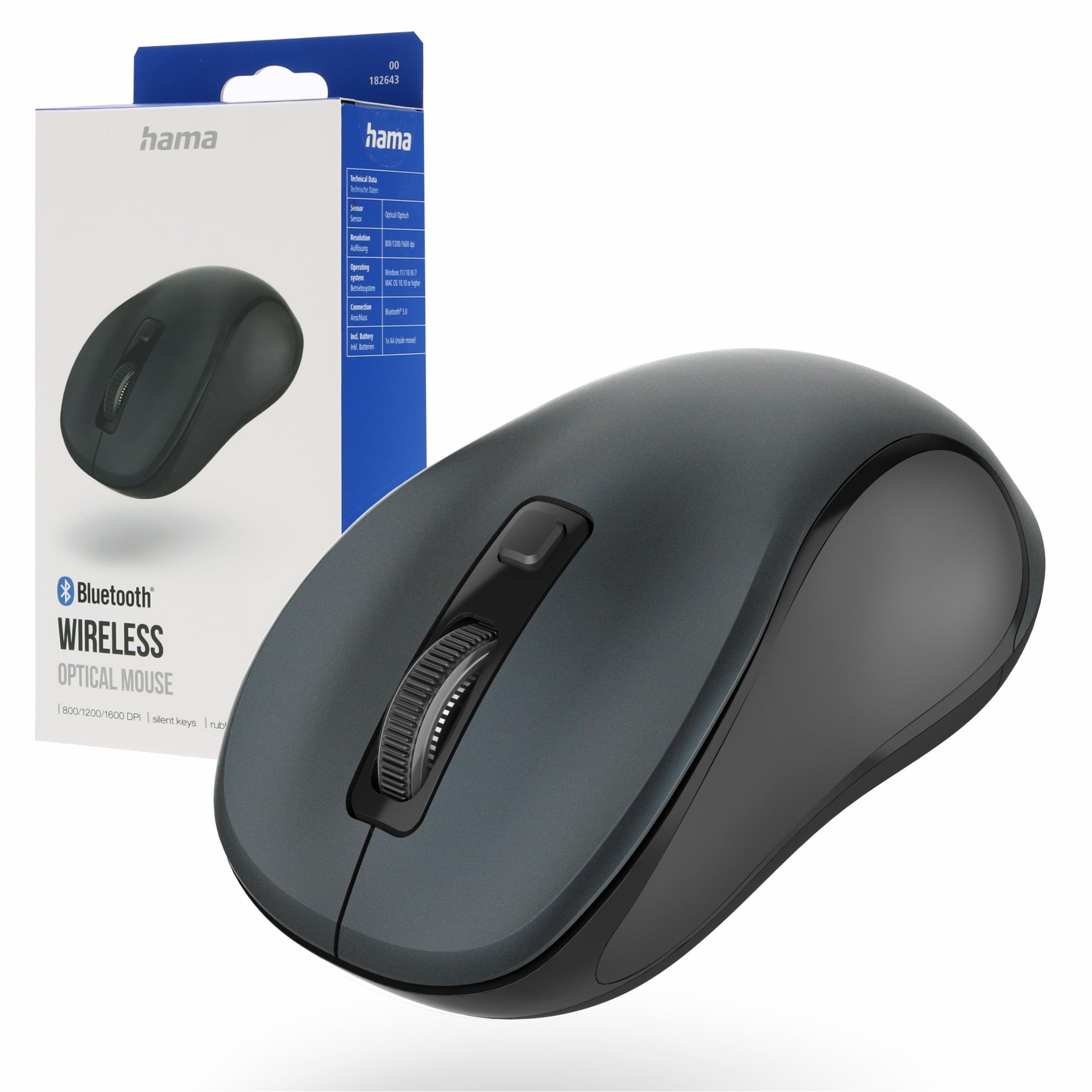
Image: Hama Bluetooth Mouse Canosa V2, showcasing its compact design and anthracite finish.
Package Contents
Please check the package contents upon unpacking to ensure all items are present:
- 1 x Hama Bluetooth Mouse Canosa V2
- 1 x AA Mignon Battery
- 1 x User Manual
Setup
1. Inserting the Battery
Locate the battery compartment on the underside of the mouse. Gently slide open the cover. Insert the provided AA Mignon battery, ensuring that the positive (+) and negative (-) terminals align correctly with the markings inside the compartment. Close the battery cover securely.

Image: The underside of the mouse with the battery compartment open, illustrating correct battery insertion.
2. Pairing via Bluetooth
- Ensure the mouse is switched on using the ON/OFF switch located on its underside.
- On your computer, laptop, or tablet, navigate to the Bluetooth settings.
- Enable Bluetooth and initiate a search for new devices.
- Select "Hama Canosa V2" from the list of available devices.
- Follow any on-screen prompts to complete the pairing process. The mouse should now be connected and ready for use.

Image: A visual representation of a device's Bluetooth settings menu, showing the Hama Canosa V2 ready for pairing.
Operation
1. Power On/Off
To power the mouse on or off, use the dedicated ON/OFF switch located on the underside. Switching the mouse off when not in use helps conserve battery life.
2. Basic Functions
The Hama Canosa V2 mouse features standard left-click and right-click buttons, along with a scroll wheel for navigation. The silent keys are designed to provide a quiet working environment, minimizing click noise.
3. DPI Adjustment
The mouse allows for on-the-fly DPI (Dots Per Inch) adjustment. Press the DPI button, typically located near the scroll wheel, to cycle through different sensitivity settings. This feature enables you to adjust the cursor speed to your preference or task requirements.

Image: Top view of the mouse, indicating the positions of the left-click, right-click, scroll wheel, and DPI button.
Maintenance
Proper maintenance ensures the longevity and optimal performance of your mouse:
- Cleaning: Regularly clean the mouse with a soft, dry, lint-free cloth. Avoid using harsh chemicals, abrasive cleaners, or solvents, as these can damage the surface.
- Sensor Care: Keep the optical sensor on the underside of the mouse clean and free from dust or debris for accurate tracking.
- Battery Replacement: Replace the AA battery when the mouse's performance degrades, or it stops responding. Always dispose of used batteries responsibly according to local regulations.
Troubleshooting
Mouse not responding:
- Ensure the mouse is switched on using the ON/OFF switch.
- Check if the AA battery is correctly inserted and has sufficient charge. Replace the battery if necessary.
- Verify the Bluetooth connection on your computer or device. Try re-pairing the mouse if the connection is lost.
- Move the mouse closer to your device to rule out range-related issues.
Cursor movement is erratic or inaccurate:
- Clean the optical sensor on the underside of the mouse to remove any dust or debris.
- Ensure you are using the mouse on a suitable surface. Avoid highly reflective, transparent, or uneven surfaces that can interfere with optical tracking.
Bluetooth pairing fails:
- Ensure no other Bluetooth devices are actively interfering with the pairing process.
- Restart your computer or device and attempt the pairing process again.
- Check that your device's Bluetooth drivers are up to date.
Specifications
| Brand | Hama |
| Model Name | Canosa V2 |
| Connectivity Technology | Bluetooth |
| Special Features | Wireless, Silent Keys, Rubberized Sides |
| Movement Detection Technology | Optical |
| Number of Buttons | 3 |
| Battery Type | 1 x AA Mignon (included) |
| Compatible Operating Systems | Mac OS X 10.0 Cheetah, Windows 7, Windows 8, Windows 10, Windows 11 |
| Compatible Devices | Laptop, MacBook, Notebook, Personal Computer, Tablet |
| Color | Anthracite |
| Model Number | 00182643 |
| Country of Origin | China |
Warranty and Support
Hama products are covered by a manufacturer's warranty. For specific warranty terms and conditions, including duration and coverage details, please refer to the warranty card included with your product packaging or visit the official Hama website.
For technical support, troubleshooting assistance beyond this manual, or service inquiries, please contact Hama customer service. Contact information can typically be found on the product packaging or through the official Hama website.
Official Hama Website: https://www.hama.com


