
Introduction
Thank you for choosing the DELUX GM905 Ergonomic Wireless Keyboard. This manual provides detailed instructions for setting up, operating, and maintaining your keyboard to ensure optimal performance and comfort. Please read this manual thoroughly before using the product.

Product Features
- Ergonomic Split and Curved Design: Engineered to promote a natural arm and wrist posture, reducing strain and discomfort during extended typing sessions.
- Multi-Device Connectivity: Supports 2.4G wireless (via USB receiver) and Bluetooth 5.0 (BT1 + BT2 channels), allowing connection to up to three devices simultaneously with easy switching.
- Integrated Padded Wrist Rest: Features a skin-friendly synthetic leather wrist rest to provide comfortable support for your palms and wrists.
- Full-Size Layout with Multimedia Keys: Includes a standard 112-key layout with a number pad, 12 FN function keys, and dedicated multimedia controls for enhanced productivity.
- Adjustable Front and Palm Supports: Equipped with four adjustable kickstands to customize the keyboard angle for both seated and standing postures.
- Wide System Compatibility: Compatible with Microsoft Windows (7/8/10/11), Mac OS 10.12 or higher, and Android 4.3 or higher.


Package Contents
Please check the package contents upon unboxing:
- DELUX GM905 Ergonomic Wireless Keyboard
- 2.4G USB Receiver
- USB Cable
- User Manual (this document)
Setup
1. Install Batteries
The keyboard requires two AAA batteries (not included). Locate the battery compartment on the underside of the keyboard. Open the cover, insert two AAA batteries according to the polarity indicators, and close the cover.
2. Connect to Your Device
The DELUX GM905 keyboard offers three connection modes: 2.4G Wireless and two Bluetooth 5.0 channels (BT1, BT2).
2.1. 2.4G Wireless Connection
- Locate the 2.4G USB receiver, usually stored in a compartment on the keyboard or included in the package.
- Plug the USB receiver into an available USB port on your computer.
- On the keyboard, press the 2.4G key to switch to 2.4G wireless mode. The indicator light will illuminate.
- Your computer should automatically detect and install the keyboard.
2.2. Bluetooth Connection (BT1 / BT2)
- On the keyboard, press and hold either the BT1 or BT2 key for 3-5 seconds until the corresponding indicator light flashes rapidly. This indicates pairing mode.
- On your device (computer, tablet, smartphone), go to Bluetooth settings and enable Bluetooth.
- Search for new devices. You should see "DELUX GM905" or a similar name appear in the list.
- Select the keyboard to pair. The indicator light on the keyboard will stop flashing and remain solid once connected.
- Repeat these steps for the other Bluetooth channel (BT2 or BT1) to connect a second device.


3. Adjust Keyboard Angle
The keyboard features adjustable kickstands at the front and palm rest area. You can adjust these to find the most comfortable typing angle for your seated or standing posture. Experiment with different angles to reduce wrist and arm strain.

Operating Instructions
Switching Between Devices
Once multiple devices are paired, you can switch between them by simply pressing the corresponding connection key: 2.4G, BT1, or BT2. The keyboard will connect to the selected device almost instantly.
Using Function (FN) Keys
The keyboard features 12 FN function keys (F1-F12) with secondary multimedia functions. To activate the secondary function, hold down the Fn key (located near the left Ctrl key) and then press the desired F-key.
Common FN key combinations include:
- Fn + F1: Cut
- Fn + F2: Copy
- Fn + F3: Paste
- Fn + F4: Search
- Fn + F5: Previous Track
- Fn + F6: Play/Pause
- Fn + F7: Next Track
- Fn + F8: Mute
- Fn + F9: Volume Down
- Fn + F10: Volume Up
- Fn + F11: Lock Screen
- Fn + F12: Calculator

Dedicated Multimedia Controls
The central circular dial provides quick access to multimedia functions:
- Center Button: Play/Pause
- Left/Right Buttons: Previous/Next Track
- Up/Down Buttons: Volume Up/Down
- Top/Bottom Buttons (Sun icons): Brightness Up/Down (System dependent)

Maintenance
Cleaning the Keyboard
- Disconnect the keyboard from your device before cleaning.
- Use a soft, lint-free cloth slightly dampened with water or a mild cleaning solution to wipe the surface of the keyboard.
- For stubborn dirt between keys, use compressed air or a soft brush.
- Avoid using harsh chemicals, abrasive cleaners, or excessive moisture, as these can damage the keyboard.
- Clean the wrist rest with a damp cloth and mild soap if necessary, then wipe dry.
Battery Replacement
When the keyboard's performance degrades or the connection becomes unstable, it may be time to replace the batteries. Follow the "Install Batteries" steps in the Setup section to replace the two AAA batteries.
Troubleshooting
| Problem | Possible Cause | Solution |
|---|---|---|
| Keyboard not responding | Low batteries; Incorrect connection mode; USB receiver not plugged in (2.4G); Bluetooth not paired. | Replace batteries. Ensure the correct connection mode (2.4G, BT1, BT2) is selected. For 2.4G, ensure the USB receiver is securely plugged in. For Bluetooth, re-pair the keyboard. |
| Lag or intermittent connection | Interference; Distance from device; Low batteries. | Move closer to your device. Remove potential sources of interference (other wireless devices). Replace batteries. |
| Keys not typing correctly or double typing | Software issue; Keyboard defect; Low batteries. | Restart your computer. Ensure keyboard drivers are up to date. Replace batteries. If the issue persists, contact customer support. |
| Multimedia keys not working | System compatibility; Software conflict. | Ensure your operating system supports multimedia key functions. Check for any conflicting software or drivers. |
Specifications
- Brand: DELUX
- Model: GM905
- Connectivity: 2.4G Wireless, Bluetooth 5.0 (BT1, BT2)
- Compatible Devices: PC, Laptop, Smart TV, Smartphone, Tablet
- Keyboard Type: Ergonomic, Split, Wireless, Full-Size
- Number of Keys: 112
- Key Layout: QWERTY
- Switch Type: Click
- Wrist Rest: Integrated, Padded (Synthetic Leather)
- Adjustable Angle: Yes (Front and Palm Kickstands)
- Power Source: 2 x AAA Batteries
- Material: Plastic
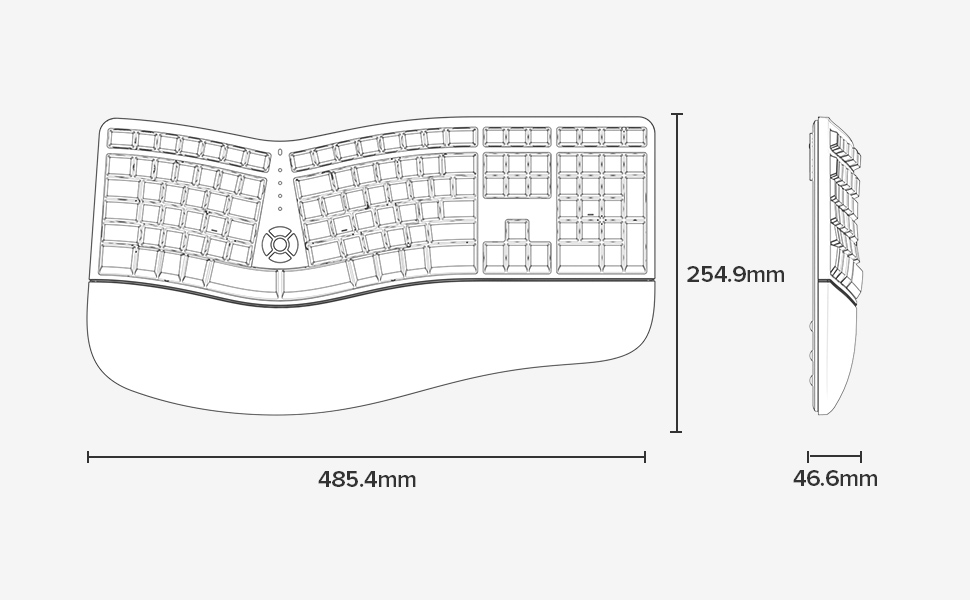
- Dimensions (L x W x H): 48.5 cm x 25.5 cm x 4.7 cm (19.1 x 10.0 x 1.85 inches)
- Water Resistance: Not water resistant
- Box Contents: Keyboard, 2.4G USB Receiver, USB Cable


Warranty Information
Specific warranty details for the DELUX GM905 Ergonomic Wireless Keyboard are not provided in the available product data. Please refer to the product packaging or the manufacturer's official website for warranty terms and conditions.
Support
For further assistance, technical support, or inquiries regarding your DELUX GM905 keyboard, please visit the official DELUX website or contact their customer service department. Contact information is typically found on the product packaging or the manufacturer's website.
You can also visit the DELUX store on Amazon for more information: DELUX Amazon Store


