
Introduction
This manual provides essential information for the proper use and maintenance of your AUSDOM Magic-Style Keyboard Case. Please read these instructions carefully before use to ensure optimal performance and longevity of your device.
Compatibility
The AUSDOM Magic-Style Keyboard Case (Magkey12.9) is designed for the following iPad models:
- 2024 iPad Air 13-inch (M2): Models A2898, A2899, A2900
- 2022 iPad Pro 12.9-inch (6th Generation): Models A2436, A2437, A2764, A2766
- 2021 iPad Pro 12.9-inch (5th Generation): Models A2378, A2379, A2461, A2462
- 2020 iPad Pro 12.9-inch (4th Generation): Models A2069, A2229, A2232, A2233
- 2018 iPad Pro 12.9-inch (3rd Generation): Models A1876, A1895, A1983, A2014
Note: This keyboard case is not compatible with the iPad Pro 13-inch (M4) 2024.
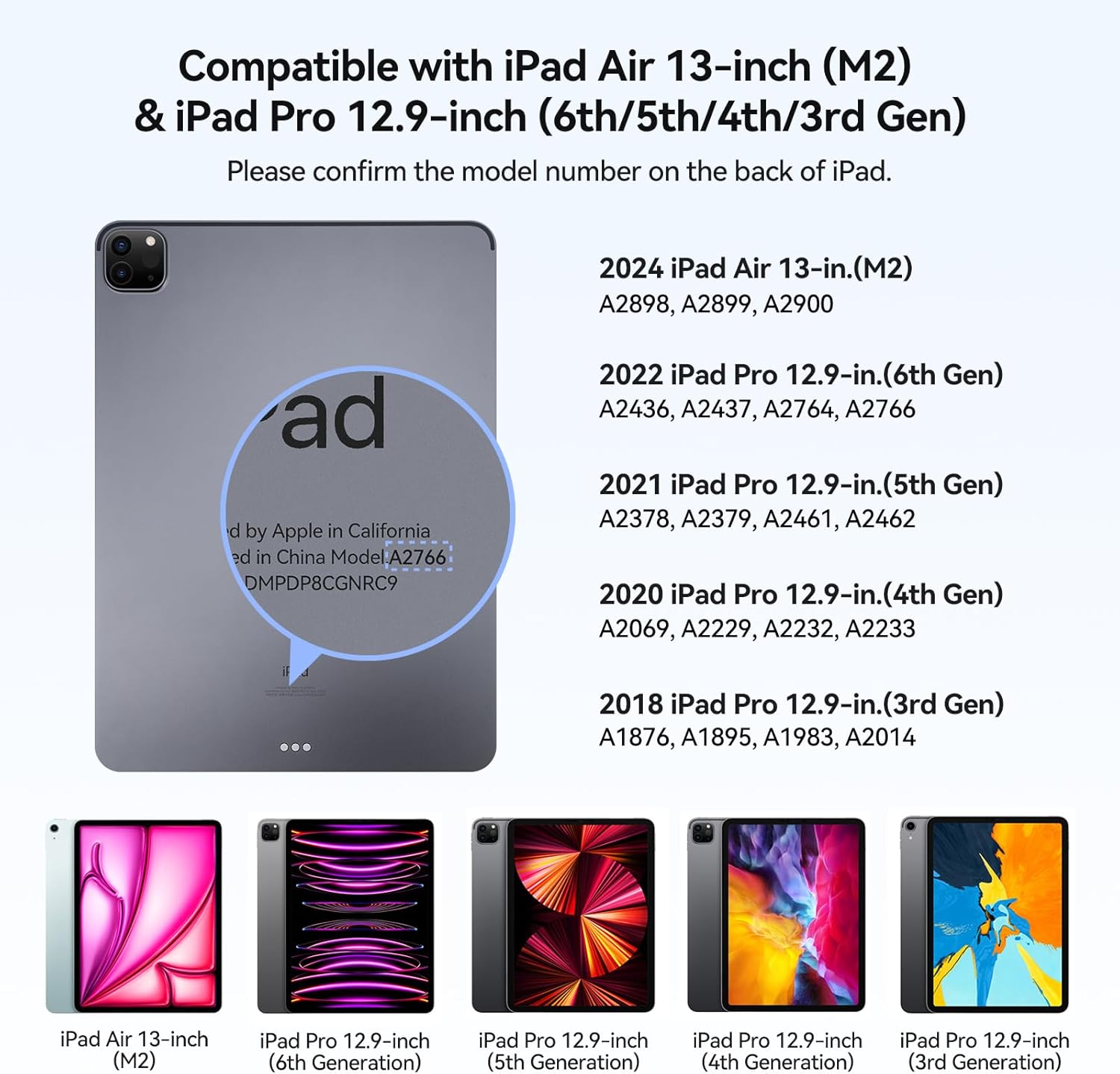
Image: Visual guide displaying compatible iPad models and their corresponding model numbers.
Package Contents
Please verify that all items are present in the package:
- AUSDOM Magkey12.9 Keyboard Case
- USB-C Charging Cable
- User Manual (this document)
Setup
1. Attaching Your iPad
- Open the keyboard case.
- Align your compatible iPad with the magnetic back panel of the case. The iPad will securely attach due to the powerful magnetism.
- Adjust the viewing angle. The magnetic floating cantilever design allows for a 130° viewing angle, transforming your iPad into a laptop-like setup.
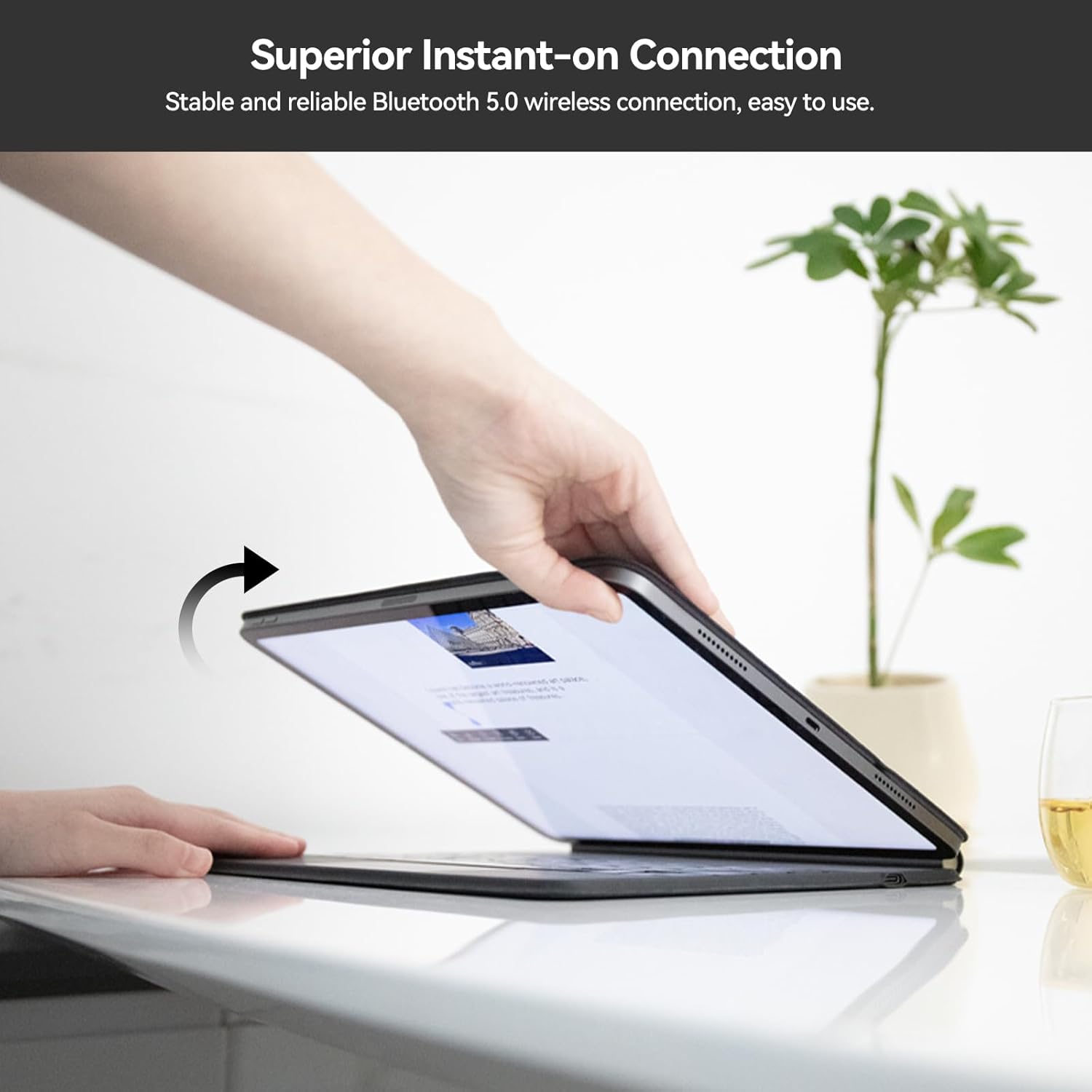
Image: A hand placing an iPad onto the magnetic back panel of the keyboard case, demonstrating the secure attachment.
2. Bluetooth Pairing
- Ensure your keyboard case is charged (refer to the Maintenance section for charging instructions).
- Open the keyboard case. The keyboard will automatically power on and enter pairing mode.
- On your iPad, go to Settings > Bluetooth.
- Turn on Bluetooth.
- Look for "AUSDOM Keyboard" or a similar name in the "Other Devices" list and tap to connect.
- Once connected, the Bluetooth indicator light on the keyboard will turn off, and your iPad will show the keyboard as "Connected."

Image: The AUSDOM Magic-Style Keyboard Case with an iPad attached, showcasing the magnetic floating design and backlit keyboard.
Operating Instructions
Keyboard Usage
The keyboard features a low-profile scissor-switch structure designed for a quiet, responsive, and comfortable typing experience. Simply begin typing after successful Bluetooth connection.

Image: A detailed view of the keyboard's scissor-switch mechanism, highlighting its low-profile design.
Multi-Touch Trackpad
The integrated multi-touch trackpad allows for precise navigation and gesture control on your iPad. To optimize trackpad sensitivity, navigate to Settings > General > Trackpad > Tap to click on your iPad.
Common gestures include:
- Tap to click: Single tap on the trackpad.
- Zoom in and out: Pinch with two fingers.
- Drag to move: Tap and hold an item, then drag.
- Swipe to open App switcher: Swipe up with three fingers.
- Swipe to open the docking station: Swipe up with one finger from the bottom edge.
- Switch between running apps: Swipe left or right with three fingers.

Image: A visual guide demonstrating various multi-touch gestures for the trackpad, including tap, zoom, drag, and app switching.
Backlit Keys
The keyboard features adjustable 3-level backlighting for comfortable typing in various lighting conditions.
- To cycle through backlight brightness levels (Off, Low, Medium, High), press the Fn + Light Bulb icon key.
Shortcut Functions
Utilize the function (Fn) key in combination with other keys for quick access to various iPad features:
- Fn + &: Turn on/off the trackpad function.
- Fn + 1*: Decrease screen brightness.
- Fn + 2*: Increase screen brightness.
- Other Fn key combinations are indicated by icons on the top row of keys (e.g., media controls, search).

Image: A diagram of the keyboard layout, showing the function (Fn) key and various shortcut keys for trackpad control and brightness adjustment.
Maintenance
Charging the Keyboard
The keyboard case is equipped with a built-in rechargeable Lithium Polymer battery. It requires external charging via the provided USB-C cable.
- Connect the USB-C end of the charging cable to the charging port on the keyboard case.
- Connect the other end of the USB-C cable to a compatible USB power adapter (not included) or a computer's USB port.
- The charging indicator light will illuminate during charging and turn off once fully charged.
Note: The iPad cannot charge the keyboard. They require separate charging.
Battery Life:
- Up to 90 days of continuous use with backlight off.
- Up to 7 days of continuous use with backlight on.

Image: A close-up of the keyboard case showing the USB-C charging port with a cable connected, alongside battery life indicators for backlight on/off.
Cleaning
To clean your keyboard case, gently wipe the surfaces with a soft, damp cloth. Avoid using harsh chemicals or abrasive materials that could damage the finish or electronic components.
Troubleshooting
- Keyboard not connecting via Bluetooth:
- Ensure the keyboard is charged.
- Turn off and on the keyboard.
- On your iPad, forget the device in Bluetooth settings and attempt to re-pair.
- Restart your iPad.
- Keys or trackpad not responding:
- Check Bluetooth connection status.
- Ensure the trackpad is not disabled (Fn + &).
- Recharge the keyboard.
- iPad not securely attaching:
- Ensure your iPad model is compatible with the case.
- Verify that no debris is obstructing the magnetic connection points.
If you encounter persistent issues not resolved by these steps, please contact customer support.
Specifications
| Feature | Detail |
|---|---|
| Model Number | Magkey12.9 |
| Product Dimensions | 11.22 x 9.02 x 0.69 inches (28.49 x 22.91 x 1.75 cm) |
| Item Weight | 1.76 pounds (0.8 kg) |
| Connectivity Technology | Bluetooth 5.0 |
| Keyboard Description | Wireless, Scissor-switch |
| Special Features | Backlit (3-level), Rechargeable, Multi-Touch Trackpad, Magnetic Floating Cantilever Design, Auto Wake/Sleep |
| Battery Type | Lithium Polymer (included) |
| Keyboard Backlighting Color | Single Color |
| Manufacturer | AUSDOM |

Image: Visual representation of the keyboard case's profile (0.25 inches), weight (1.76 pounds), and 130-degree adjustable viewing angle.
Warranty and Support
AUSDOM products are designed for quality and reliability. This product comes with a lifetime commitment to quality and customer satisfaction.
Customer Support
For technical assistance, troubleshooting, or warranty inquiries, please contact AUSDOM customer support. Our support team is available 24/7 to assist you.
Please refer to the official AUSDOM website or your purchase documentation for the most current contact information.
