
1. Introduction
Thank you for choosing the Wildgame Innovations Terra Extreme 14 Megapixel IR Trail Camera. This manual provides comprehensive instructions to help you set up, operate, and maintain your trail camera for optimal performance. Designed for outdoor surveillance, this camera captures high-quality images and videos, making it ideal for wildlife monitoring and security applications.
Please read this manual thoroughly before using the camera to ensure proper operation and to maximize its lifespan.
2. Package Contents
Verify that all items listed below are included in your package:
- Wildgame Innovations Terra Extreme 14 Megapixel IR Trail Camera (Mossy Oak)
- 32GB Ultra SDHC UHS-I Memory Card (100MB/s)
- All-In-One High-Speed Card Reader
- Adjustable Mounting Strap (6-feet)

Image 2.1: The complete bundle including the trail camera, SD card, and card reader.
3. Setup
3.1. Battery Installation
The Terra Extreme camera requires 8 AA batteries for operation. For best performance and extended battery life, use high-quality alkaline or lithium batteries.
- Locate the battery compartment on the camera.
- Open the compartment door.
- Insert 8 AA batteries, ensuring correct polarity (+/-) as indicated inside the compartment.
- Securely close the battery compartment door.
3.2. SD Card Insertion
A 32GB Ultra SDHC UHS-I Memory Card is included. This card is essential for storing captured images and videos.
- Locate the SD card slot, typically near the battery compartment or on the side of the camera.
- Insert the 32GB SD card into the slot with the label facing the correct direction until it clicks into place.
- To remove, gently push the card in until it springs out.


Image 3.1: The included 32GB SD card and All-in-One High-Speed Card Reader.
3.3. Mounting the Camera
Use the provided 6-feet adjustable strap to secure the camera to a tree or post.
- Thread the adjustable strap through the mounting slots on the back of the camera.
- Wrap the strap around the desired mounting object (e.g., tree trunk).
- Pull the strap tight to secure the camera firmly in place.
- Ensure the camera is stable and pointed towards the desired monitoring area.
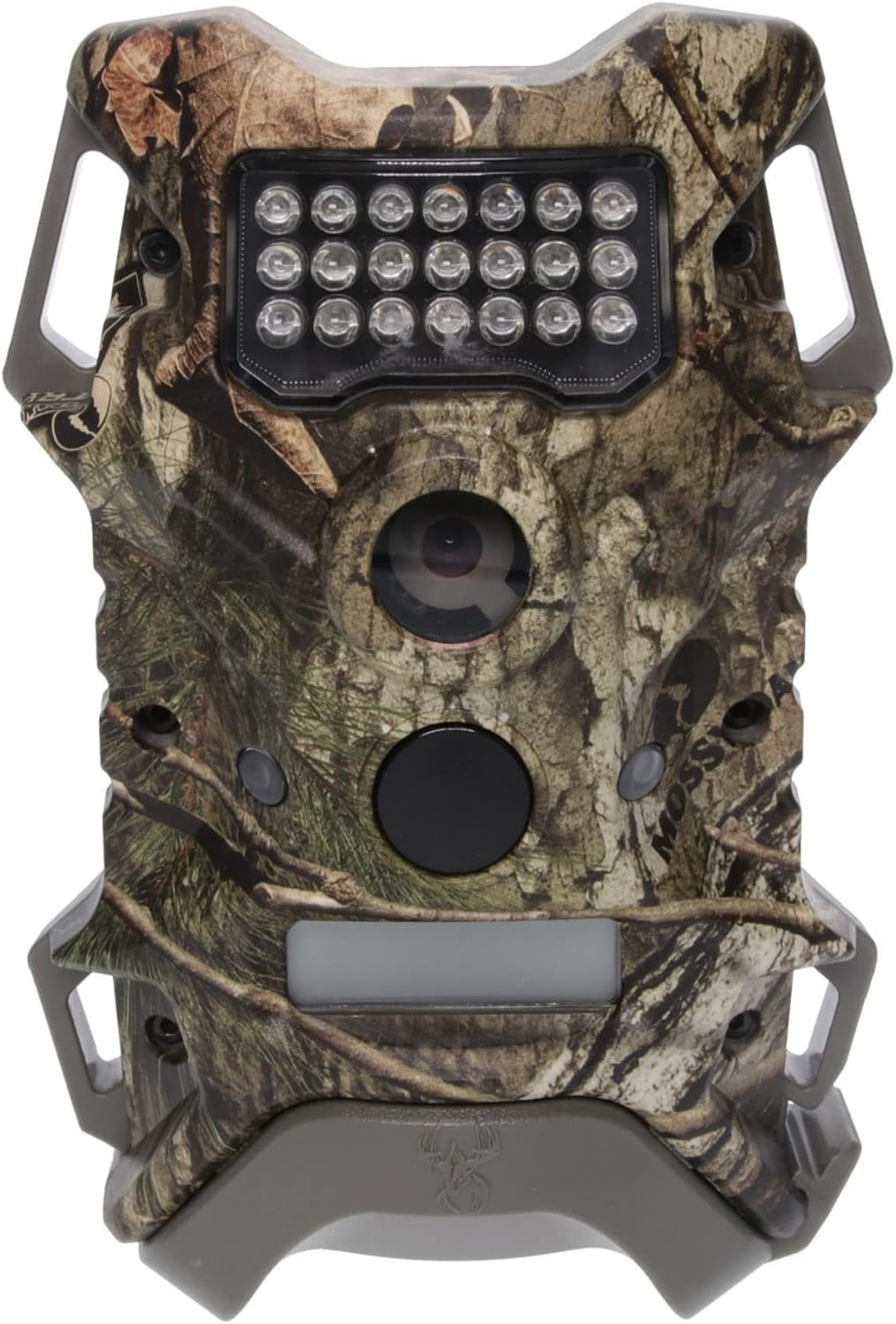
Image 3.2: Front view of the camera, showing the lens and IR LEDs.
4. Operating the Camera
4.1. Powering On/Off
To power on the camera, locate the power switch, usually inside the camera housing. Switch it to the 'ON' position. To power off, switch it to 'OFF'.
4.2. Capturing Images and Videos
The Terra Extreme camera is equipped with a 14-megapixel sensor for still images and records HD 720p videos. It utilizes a Passive Infrared (PIR) Sensor with 21 high-intensity IR LEDs for night vision, illuminating up to 60 feet.
- Once powered on, the camera will typically enter a setup or ready mode.
- Use the internal controls (buttons and display screen) to navigate through settings.
- Select your desired mode: Photo for still images, Video for video clips, or Photo + Video for both.
- Adjust settings such as resolution, delay, and burst mode as needed.
- Once configured, close the camera housing. The camera will then enter monitoring mode and capture based on motion detection.
The camera's battery life can extend up to 6 months or capture up to 12,000 photos, depending on usage and environmental conditions.
5. Maintenance
5.1. Cleaning
- Gently wipe the camera lens and PIR sensor window with a soft, lint-free cloth to remove dirt or smudges.
- Clean the camera housing with a damp cloth. Avoid using harsh chemicals or abrasive materials.
- Ensure all seals and gaskets are free of debris to maintain water resistance.
5.2. Battery Replacement
When the battery indicator shows low power, replace all 8 AA batteries with new ones. Do not mix old and new batteries, or different types of batteries.
5.3. SD Card Management
- Regularly check the SD card capacity. When full, transfer data to a computer and format the card using the camera's internal formatting function for optimal performance.
- Always power off the camera before inserting or removing the SD card to prevent data corruption.
5.4. Storage
When not in use for extended periods, remove batteries from the camera to prevent leakage and store the camera in a cool, dry place away from direct sunlight.
6. Troubleshooting
| Problem | Possible Cause | Solution |
|---|---|---|
| Camera not powering on | Low or dead batteries; Incorrect battery polarity; SD card issue. | Replace batteries with new ones, ensuring correct polarity. Remove and reinsert SD card, or try without SD card. |
| No images/videos captured | SD card full or corrupted; Incorrect settings; PIR sensor blocked or faulty; Camera in 'OFF' mode. | Format or replace SD card. Check camera settings (mode, delay). Ensure PIR sensor is clear. Verify camera is 'ON'. |
| Poor image/video quality | Dirty lens; Low light conditions; Incorrect resolution settings; Object too far/close. | Clean the lens. Adjust camera placement for better lighting. Check resolution settings. Ensure subject is within optimal range. |
| Short battery life | Low-quality batteries; Frequent captures; Extreme temperatures. | Use high-quality alkaline or lithium batteries. Adjust capture frequency/delay settings. Avoid extreme temperatures if possible. |
7. Specifications
- Model Name: FC-CR1_K1420
- Effective Still Resolution: 14 Megapixels
- Video Capture Resolution: 1080p, 720p
- Flash Memory Type: SDHC
- PIR Sensor: Yes
- IR LEDs: 21 high-intensity IR LEDs
- IR Illumination Range: Up to 60 feet
- Power Source: 8 AA batteries
- Estimated Battery Life: Up to 6 months or 12,000 photos
- Product Dimensions: 10.4 x 8.4 x 6.7 inches
- Item Weight: 1.5 pounds
- Color: Mossy Oak
- Connectivity Technology: Wireless
8. Warranty and Support
Wildgame Innovations products are manufactured to high-quality standards. For specific warranty details, including coverage period and terms, please refer to the warranty information provided with your product packaging or visit the official Wildgame Innovations website.
If you encounter any issues not covered in the troubleshooting section or require further assistance, please contact Wildgame Innovations customer support. Contact information can typically be found on the product packaging or the official brand website.
For the latest information and support resources, please visit the Wildgame Innovations Store on Amazon.


