
Sharper Image Video Camera Bird Feeder
Sharper Image Video Camera Bird Feeder User Manual
Model: Video Camera Bird Feeder
Introduction
This manual provides comprehensive instructions for the setup, operation, and maintenance of your Sharper Image Video Camera Bird Feeder. Please read this manual thoroughly before using the product to ensure proper functionality and longevity.
The Sharper Image Video Camera Bird Feeder is designed to enhance your bird-watching experience by capturing high-definition videos and photos of visiting birds. It features AI recognition for species identification, a built-in solar panel for sustainable power, and a weather-resistant design suitable for outdoor use.
Safety Information
It is crucial to adhere to the following safety guidelines to ensure safe operation and prevent damage to the product or harm to wildlife.
- Always follow the instructions provided with the product.
- Keep the feeder clean to prevent the spread of diseases among birds.
- Do not use food that could harm wildlife. Use appropriate bird seed.
- Secure the feeder properly to prevent access by larger animals or strong winds.
- Be mindful of local regulations regarding feeding wildlife in your area.
- Ensure the solar panel is clean and exposed to direct sunlight for optimal charging.
- Do not attempt to disassemble or repair the camera unit yourself. Refer to qualified personnel.
Package Contents
Verify that all components are present in the package:
- Sharper Image Video Camera Bird Feeder Unit
- Mounting Bracket
- Memory Card (pre-installed or included separately)
- USB Charging Cable
- User Manual (this document)
Product Overview
Familiarize yourself with the main components of the bird feeder.

Figure 1: Front view of the Sharper Image Video Camera Bird Feeder with a bird perched on the feeding tray. This image highlights the integrated camera module and the solar panel on the roof.

Figure 2: Close-up front view of the bird feeder, emphasizing the camera lens and the seed reservoir. The clear front panel allows visibility of the bird seed.

Figure 3: Side view of the feeder demonstrating the seed dispensing mechanism onto the feeding tray. The solar panel is visible on the roof.
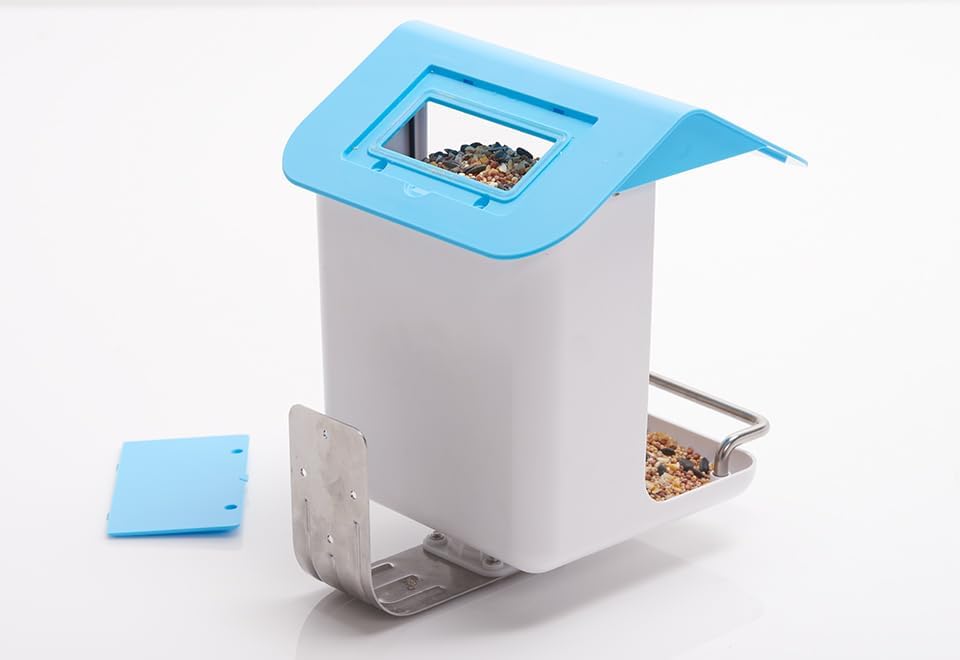
Figure 4: Top view of the feeder with the blue lid open, revealing the opening for refilling bird seed. The solar panel is integrated into the lid.

Figure 5: Rear view of the bird feeder, illustrating the detachable mounting bracket. This bracket facilitates secure attachment to a pole or wall.

Figure 6: Side view of the bird feeder with the mounting bracket securely attached, ready for installation. The solar panel is visible on the roof.
Setup
1. Initial Charging
Before first use, fully charge the feeder's internal battery using the provided USB charging cable. Connect the cable to the feeder's USB port and a standard USB power adapter (not included). The charging indicator will show status. A full charge ensures optimal performance, especially in low light conditions.
2. Installing the Memory Card
Locate the memory card slot on the camera unit. Insert the provided memory card (or a compatible microSD card) into the slot until it clicks into place. Ensure the card is inserted correctly to enable local storage of videos and photos.
3. App Installation and Pairing
Download the official Sharper Image Bird Feeder app from your smartphone's app store (compatible with iPhone and Android devices). Follow the in-app instructions to create an account and pair your bird feeder with your device. This typically involves scanning a QR code on the feeder or connecting to its Wi-Fi hotspot.

Figure 7: Example of the mobile application interface on both Android and iPhone devices, displaying a bird image and species identification details. The app allows for recording, voice commands, screenshots, and album access.
4. Mounting the Feeder
Select a suitable location for the feeder that offers a clear view for the camera and is easily accessible for refilling. Ensure the solar panel receives direct sunlight for most of the day. Use the included mounting bracket to securely attach the feeder to a wall, fence, or pole. Ensure it is stable and level.
5. Filling with Seed
Open the top lid of the feeder. Pour your preferred bird seed into the reservoir. Close the lid securely to protect the seed from weather and pests.
Operating Instructions
1. Live View and Recording
Open the Sharper Image Bird Feeder app on your smartphone. Select your feeder from the device list to access the live view. The app will display real-time footage from the camera. Use the on-screen controls to manually record videos or capture photos.
2. AI Bird Recognition
The feeder utilizes AI to identify over 10,000 bird species. When a bird is detected, the system will attempt to identify it and provide information within the app. Recorded events will often include the identified species.
3. Playback and Management
Access the "Album" or "History" section within the app to view recorded videos and photos. You can download, share, or delete media files from this section. Ensure you regularly manage your storage to prevent the memory card from becoming full.
4. Settings and Notifications
Adjust camera settings, motion detection sensitivity, and notification preferences through the app's settings menu. You can customize alerts for bird arrivals or low battery warnings.
Maintenance
1. Cleaning the Feeder
Regular cleaning is essential to prevent the spread of diseases among birds and maintain hygiene. Disassemble the feeder components as needed and wash with warm, soapy water. Rinse thoroughly and allow to dry completely before reassembling and refilling.
2. Cleaning the Solar Panel
Periodically wipe the solar panel with a soft, damp cloth to remove dust, dirt, or bird droppings. A clean solar panel ensures efficient charging of the internal battery.
3. Checking Seed Levels
Monitor the seed level regularly and refill as necessary to ensure a continuous food source for birds.
4. Battery Care
While the solar panel provides continuous charging, it is recommended to periodically check the battery level via the app. If the feeder is in a shaded area or during prolonged cloudy periods, supplemental USB charging may be required to maintain optimal battery health.
Troubleshooting
- Feeder is not powering on or holding a charge:
- Ensure the solar panel is clean and receiving direct sunlight.
- Connect the feeder to a USB power source for an extended period (several hours) to fully charge the internal battery.
- Verify the USB charging cable is not damaged and is properly connected.
- If the battery life is significantly reduced after several months, it may indicate a need for service or replacement of the internal battery. Contact customer support for assistance.
- Camera is not recording or saving files:
- Check if the memory card is properly inserted into the slot.
- Ensure the memory card is not full. Delete old files or replace the card if necessary.
- Format the memory card through the app settings if issues persist (this will erase all data).
- Verify that motion detection settings are configured correctly in the app.
- If using cloud storage, ensure your subscription is active and the feeder is connected to Wi-Fi.
- Cannot connect to the app or Wi-Fi:
- Ensure your smartphone's Wi-Fi is enabled and you are within range of the feeder's Wi-Fi signal during initial setup.
- Restart both your smartphone and the bird feeder.
- Reset the feeder to factory settings (refer to the app or product documentation for specific instructions).
- Verify your home Wi-Fi network is stable and has internet access.
- AI recognition is inaccurate or not working:
- Ensure the camera lens is clean and free from obstructions.
- Verify that the feeder is placed in an area with good lighting.
- Ensure the app is updated to the latest version.
Specifications
| Feature | Detail |
|---|---|
| Brand | Sharper Image |
| Model | Video Camera Bird Feeder |
| Recommended Uses | Seed |
| Material | Polyvinyl Chloride (PVC) |
| Special Features | Inbuilt Camera, Artificial Intelligence facial recognition, Voice Command Compatibility |
| Mounting Type | Wall Mount |
| Power Source | Solar Powered or USB Powered |
| Included Components | Memory Card, Mounting Bracket |
| Color | Neutral |
| UPC | 810022142707 |
| Video Resolution | 1080p HD |
| Photo Resolution | 2MP |
| Weather Resistance | IP65 Waterproof Design |
| App Compatibility | iPhone and Android devices |
Warranty and Support
For warranty information and technical support, please refer to the contact details provided with your product packaging or visit the official Sharper Image website. Keep your purchase receipt as proof of purchase for warranty claims.
For further assistance, you may contact Sharper Image customer service. Details are typically available on their official website or within the product packaging.
Related documentsVideo Camera Bird Feeder


Ask a question about this manual
Ask about setup, troubleshooting, compatibility, parts, safety, or missing instructions. Manuals+ will review the question and use this page’s manual context to help answer it.