
typecase KB201T-100
User Manual: typecase Touch iPad Keyboard Case
Model: KB201T-100
Introduction
Thank you for choosing the typecase Touch iPad Keyboard Case. This manual provides detailed instructions for setting up, operating, maintaining, and troubleshooting your new keyboard case. Designed for iPad 10th Generation (10.9", 2022) and iPad A16 (11th Gen, 2025), this case features a 360° rotatable design, 11-color backlit keyboard, and a multi-touch trackpad to enhance your productivity and user experience.
Compatibility
This keyboard case is specifically designed for the following iPad models:
- iPad 10th Generation (10.9-inch, 2022): Models A2696, A2757, A2777
- iPad A16 (11th Generation, 2025): Models A3354, A3355, A3356
To verify your iPad model, please check the back of your iPad or navigate to Settings > General > About > Model Number on your device.

Figure 1: Compatible iPad Models. Ensure your iPad model matches those listed for proper fit and function.
Package Contents
Upon opening the package, please ensure all the following items are included:
- typecase Touch iPad Keyboard Case
- USB Charging Cable
- User Manual
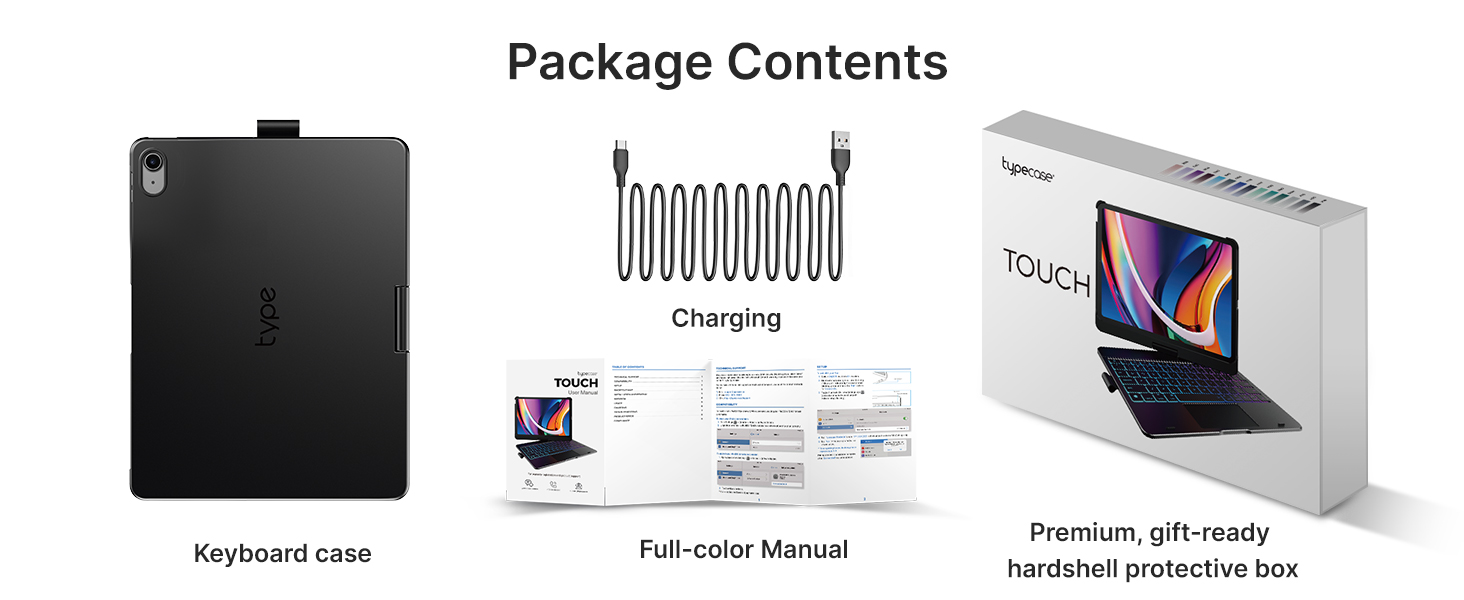
Figure 2: Package Contents. Verify all items are present before proceeding with setup.
Setup and Connection
1. Charging the Keyboard Case
Before first use, fully charge the keyboard case. Connect the provided USB charging cable to the charging port on the keyboard and a USB power adapter (not included). The charging indicator light will show charging status and turn off when fully charged.
2. Inserting Your iPad
Gently align your iPad with the case and press it firmly into place until it is securely seated. Ensure all ports and buttons are accessible and not obstructed by the case.
3. Bluetooth Pairing
- Turn on the keyboard by sliding the power switch to the ON position. The Bluetooth indicator light will begin to flash.
- On your iPad, go to Settings > Bluetooth.
- Ensure Bluetooth is turned On.
- Locate "typecase Keyboard" (or similar name) in the "Other Devices" list and tap on it to connect.
- Once connected, the Bluetooth indicator light on the keyboard will stop flashing and remain solid, or turn off, indicating a successful connection.
The keyboard will automatically attempt to reconnect to the last paired device when powered on.
Key Features
Backlit Keyboard
The keyboard features laser-etched keys with an adjustable 11-color RGB LED backlight, allowing for comfortable typing in various lighting conditions. A dedicated row of iPadOS shortcut keys provides quick access to common functions.
- Adjusting Backlight Color: Press the Lightbulb key (often Fn + Lightbulb icon) to cycle through colors.
- Adjusting Backlight Brightness: Press the Brightness Up/Down keys (often Fn + Up/Down arrow keys) to adjust intensity.

Figure 3: Backlit Keyboard. Features 11-color RGB backlighting and iPadOS shortcut keys.

Figure 4: 11-Color Backlight. Customize your typing experience with a range of vibrant colors.
Multi-Touch Trackpad
The integrated multi-touch trackpad allows for precise navigation and gesture controls, similar to a laptop. This enhances productivity for tasks such as document editing, web browsing, and presentation building.
- Single Finger Tap: Left-click.
- Two Finger Scroll: Scroll up or down.
- Pinch to Zoom: Zoom in or out on content.
- Three Finger Swipe Up: Go to Home Screen.
- Three Finger Swipe Left/Right: Switch between open apps.

Figure 5: Multi-Touch Trackpad. Supports various gestures for efficient iPad navigation.
Design and Protection
The case features a premium hard-shell design that protects all sides of your iPad. The auto sleep/wake function conserves battery life by automatically turning the iPad on/off when the case is opened/closed. An integrated holder keeps your Apple Pencil secure and easily accessible.

Figure 6: Smart Protection. Lightweight, thin profile, and key protection in tablet mode.
Usage Modes
The patented 360° rotatable hinge allows for 7 versatile use modes, adapting to various tasks and environments:
- Laptop Mode: Traditional laptop setup for typing and trackpad use.
- Stand Mode: Ideal for watching videos or presentations.
- Tent Mode: Perfect for small spaces or viewing content hands-free.
- Tablet Mode: Fold the keyboard back for a pure tablet experience. Keys are automatically disabled in this mode.
- Corner Mode: A stable viewing angle for drawing or note-taking.
- Share Mode: Easily share your screen with others.
- Protect Mode: Fully close the case to protect your iPad during transport.

Figure 7: 7 Unique Modes. Versatile configurations for every need.

Figure 8: Patented 360° Hinge. Enables seamless transitions between modes.
Maintenance
Proper care and maintenance will extend the lifespan of your typecase keyboard case:
- Cleaning: Use a soft, damp cloth to wipe the exterior of the case. For the keyboard, use a soft, lint-free cloth. Avoid harsh chemicals or abrasive materials.
- Storage: When not in use for extended periods, ensure the keyboard is turned off to conserve battery. Store in a cool, dry place away from direct sunlight.
- Battery Care: To maintain battery health, avoid fully discharging the battery frequently. Charge it regularly, even if not in constant use.
Specifications
| Model Number | KB201T-100 |
| Product Dimensions | 10.98 x 8.58 x 1.5 inches |
| Item Weight | 1.43 pounds |
| Connectivity Technology | Bluetooth |
| Battery Type | 1 Lithium Polymer battery (included) |
| Keyboard Backlighting | 11-Color RGB LED |
| Number of Keys | 78 |
| Special Features | 360° Rotatable, Backlit, Ergonomic, Lightweight, Multi-Touch Trackpad, Auto Sleep/Wake, Apple Pencil Holder |
Troubleshooting
| Problem | Solution |
|---|---|
| Keyboard not connecting via Bluetooth. |
|
| Keys are not responding. |
|
| Trackpad is not working or is erratic. |
|
| Backlight is not working. |
|
Warranty and Support
typecase is committed to providing high-quality products and excellent customer service.
- 1-Year Replacement Service: Your product is covered by a 1-year replacement service from the date of purchase for manufacturing defects.
- 30-Day Refund: You are eligible for a full refund within 30 days of purchase if you are not satisfied with the product.
- Customer Support: For any problems, questions, or feedback, please contact our customer support team for quick assistance. Refer to the contact information provided on the product packaging or the official typecase website.

Figure 9: Reliable After-Sales Service. Your satisfaction is our priority.
Related documentsKB201T-100


Ask a question about this manual
Ask about setup, troubleshooting, compatibility, parts, safety, or missing instructions. Manuals+ will review the question and use this page’s manual context to help answer it.