
1. Product Overview
The FiiO FW5 are True Wireless Stereo (TWS) Bluetooth 5.2 earphones designed for high-resolution audio playback. They feature a hybrid driver configuration and support advanced audio codecs for stable and high-quality wireless transmission.

Image: FiiO FW5 TWS Earbuds with charging case, highlighting features such as High performance DAC AK4332, High-end QCC5141 Bluetooth 5.2 chip, 1 Dynamic 2 BA drivers, 10mm large dynamic drive, and IPX4 water resistance.
Key Features:
- Hi-Fi Sound Quality: Integrated AKM VELVET SOUND DAC (AK4332) for high-fidelity audio.
- Advanced Bluetooth: Qualcomm QCC5141 chip with Bluetooth 5.2, supporting LHDC and aptX Adaptive codecs for stable connection.
- Hybrid Driver Design: Features 1 dynamic driver and 2 Knowles balanced armature (BA) drivers for detailed sound reproduction.
- Physical Controls: Equipped with four physical buttons for direct control.
- Water Resistance: IPX4 splash resistance.
- Extended Battery Life: Up to 7 hours of playback per charge, with an additional 14 hours provided by the charging case, totaling over 21 hours.
2. Package Contents
Before use, please verify that all items are present in the package:
- FiiO FW5 TWS Earbuds (Left and Right)
- Charging Case
- Eartips (Multiple sizes and types, including balanced and HS18)
- USB Charging Cable (Type-C)
- Quick Start Guide (Refer to this manual for detailed instructions)
3. Setup and Initial Use
3.1 Charging the Earbuds and Case
Upon first use, fully charge the earbuds and the charging case. Place the earbuds into the charging case and connect the USB-C cable to the charging port on the case, then connect the other end to a USB power source.
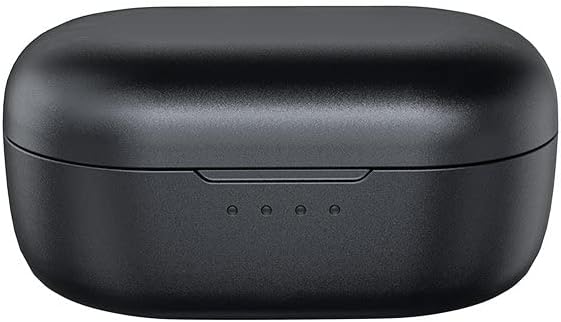
Image: The FiiO FW5 charging case, showing the closed lid and three LED indicator lights on the front, which display the charging status.
The LED indicators on the charging case will show the charging status. Once fully charged, the indicators will remain steady or turn off, depending on the model.
3.2 Selecting Eartips
The FiiO FW5 comes with various eartip sizes and types. Experiment with different sizes to find the best fit for your ears. A proper seal is crucial for optimal sound quality and comfort. Different eartip types (e.g., 'balanced' or 'HS18') may offer subtle differences in sound presentation and fit. Choose the pair that provides the most secure fit and best audio experience.
3.3 Pairing with a Bluetooth Device
- Power On: Open the charging case. The earbuds will automatically power on and enter pairing mode. The indicator lights on the earbuds will flash, typically red and blue, to indicate pairing mode.
- Activate Bluetooth: On your smartphone, tablet, or other Bluetooth device, enable Bluetooth.
- Select Device: In the list of available Bluetooth devices, select "FiiO FW5".
- Confirm Connection: Once connected, the earbud indicator lights will typically stop flashing or flash slowly. You will hear an audible confirmation.
If pairing fails, place the earbuds back into the case, close the lid, wait a few seconds, then reopen to re-enter pairing mode.

Image: FiiO FW5 earbuds and their open charging case positioned next to a laptop, illustrating a typical usage scenario for pairing and connectivity.
3.4 FiiO Control App Installation
For advanced customization and firmware updates, download the official FiiO Control app from your device's app store (iOS App Store or Google Play Store). This app allows for EQ adjustments, volume gain control, and other settings.
4. Operating Instructions
4.1 Power On/Off
- Power On: Open the charging case, or press and hold the physical button on each earbud for approximately 2 seconds.
- Power Off: Place the earbuds back into the charging case and close the lid, or press and hold the physical button on each earbud for approximately 5 seconds.
4.2 Music Playback and Call Control
The FiiO FW5 features four physical buttons on each earbud for tactile control. Specific functions may be customized via the FiiO Control app.

Image: A close-up view of a single FiiO FW5 earbud, clearly showing the placement of its four physical control buttons for tactile operation.
Default Button Functions (may vary or be customizable):
- Single Press: Play/Pause music, Answer/End call.
- Double Press (Left/Right): Previous Track / Next Track.
- Triple Press (Left/Right): Volume Down / Volume Up.
- Long Press: Reject call, Activate voice assistant.
4.3 Volume Control
Volume can be adjusted using the physical buttons on the earbuds or through your connected device. The FiiO Control app also offers customizable volume gain settings to match personal preferences and optimize audio performance.

Image: A screenshot of the FiiO Control app interface on a smartphone, displaying various audio settings including channel balance, lowpass filter, headphone volume, and volume of tones, demonstrating independent volume control options.
4.4 Using the FiiO Control App
The FiiO Control app provides access to advanced features:
- Equalizer (EQ): Adjust audio frequencies to tailor the sound to your preference.
- Volume Gain: Fine-tune the overall output volume level.
- Firmware Updates: Keep your earbuds updated with the latest software for improved performance and features.
- Button Customization: Reassign functions to the physical buttons.
5. Maintenance and Care
5.1 Cleaning
- Regularly clean the eartips with a soft, dry cloth.
- Gently wipe the earbuds and charging case with a slightly damp cloth. Avoid using harsh chemicals or abrasive materials.
- Ensure charging contacts on both earbuds and case are clean and free of debris to maintain proper charging.
5.2 Water Resistance
The FiiO FW5 earbuds are rated IPX4 for splash resistance. This means they are protected against splashing water from any direction. They are suitable for use during exercise or in light rain, but should not be submerged in water or exposed to strong jets of water.
5.3 Storage
When not in use, store the earbuds in their charging case to protect them and ensure they remain charged. Store the case in a cool, dry place away from direct sunlight and extreme temperatures.
6. Troubleshooting
6.1 Earbuds Not Pairing or Connecting
- Re-seat Earbuds: Place both earbuds back into the charging case, close the lid, wait 5 seconds, then open the lid again to force them to re-enter pairing mode.
- Device Bluetooth: Ensure Bluetooth is enabled on your device and that the FW5 is selected.
- Forget Device: On your device, 'forget' or 'unpair' the FiiO FW5, then attempt to pair again from scratch.
- Reset Earbuds: Refer to the FiiO Control app or FiiO's official support for specific hard reset instructions if standard pairing fails repeatedly.
6.2 Low Volume Output
- Check Device Volume: Ensure the volume on your connected device is turned up.
- Check Earbud Volume: Adjust volume using the physical buttons on the earbuds.
- FiiO Control App: Open the FiiO Control app and check the 'Headphone Volume' and 'Volume of tones' settings. Adjust the volume gain if necessary.
- Eartip Seal: Ensure a proper seal with the eartips. A poor seal can significantly reduce perceived volume and bass response.
6.3 Intermittent Connection or Audio Dropouts
- Proximity: Keep your connected device close to the earbuds (within 10 meters) and avoid obstacles that may interfere with the Bluetooth signal.
- Interference: Move away from other wireless devices or strong electromagnetic fields.
- Firmware Update: Check the FiiO Control app for any available firmware updates, as these often address connectivity issues.
- Codec Issues: If using LHDC or aptX Adaptive, try switching to a different codec (if your device allows) to see if stability improves.
6.4 Battery Drains Quickly in Case
- Charging Contacts: Ensure the earbuds are properly seated in the charging case and that the charging contacts are clean. Corrosion or debris can prevent proper charging or cause parasitic drain.
- Case Lid: Ensure the charging case lid is fully closed when storing the earbuds.
- Firmware: Check for firmware updates via the FiiO Control app, as battery management improvements are often included in updates.
6.5 FiiO Control App Not Working/Freezing
- App Update: Ensure you have the latest version of the FiiO Control app installed.
- Restart App: Close the app completely and reopen it.
- Restart Device: Restart your smartphone or tablet.
- Reinstall App: Uninstall and then reinstall the FiiO Control app.
7. Specifications
| Feature | Specification |
|---|---|
| Model Name | FW5 |
| Connectivity Technology | Wireless (Bluetooth 5.2) |
| Bluetooth Codecs Supported | LHDC, aptX Adaptive |
| DAC Chip | AK4332 |
| Bluetooth Chip | Qualcomm QCC5141 |
| Audio Driver Type | 1 Dynamic Driver, 2 Knowles Balanced Armature Drivers |
| Dynamic Driver Size | 10mm |
| Frequency Range | 20Hz-20kHz |
| Impedance | 32 Ohm |
| Earbud Battery Life | 7 Hours |
| Carrying Case Battery Life (Additional) | 14 Hours (Total 21+ Hours) |
| Water Resistance Level | IPX4 (Splash Resistant) |
| Control Method | Physical Buttons |
| Product Dimensions | 1.97 x 1.57 x 1.18 inches |
| Item Weight | 10.9 ounces |
| Color | Black |

Image: A detailed view of the AK4332 DAC chip on a circuit board, emphasizing its role in delivering high-fidelity sound with a Signal-to-Noise Ratio (SNR) of ≥106dB.

Image: A close-up of the Qualcomm QCC5141 Bluetooth 5.2 chip on a circuit board, highlighting its contribution to better connection stability and Snapdragon Sound technology.

Image: An internal diagram illustrating the Knowles Balanced Armature Driver within the earbud, contributing to in-ear studio HiFi sound with textured bass, good dynamics, and soundstage.

Image: A detailed diagram of the oversized 10mm dynamic driver with N50 magnets, responsible for producing powerful and thumping sound.

Image: FiiO FW5 earbuds displayed with the Snapdragon Sound logo, indicating support for LHDC and aptX Adaptive audio codecs for high-quality wireless audio.
8. Warranty and Support
FiiO products typically come with a limited warranty. For specific warranty terms and conditions, please refer to the warranty card included with your product or visit the official FiiO website. Keep your proof of purchase for warranty claims.
Customer Support:
For technical assistance, troubleshooting, or warranty inquiries, please contact FiiO customer support through their official website or the FiiO Control app. Ensure you have your product model (FW5) and purchase details ready.


