
Wogree S60
Wogree 16-inch Small Soundbar User Manual
Model: S60
Introduction
Thank you for choosing the Wogree 16-inch Small Soundbar. This compact and versatile sound system is designed to significantly enhance your audio experience, whether for your television, computer, or mobile devices. With multiple connectivity options and optimized sound modes, it delivers clear and powerful audio in small to medium-sized spaces. Please read this manual carefully before using the product to ensure proper operation and to maximize its performance.
Package Contents
Before proceeding with the setup, please verify that all items listed below are included in your package:
- 1 x Wogree 16-inch Soundbar
- 1 x 3.5mm to 3.5mm Audio Cable
- 1 x Power Adapter
- 1 x Remote Control
- 1 x Optical Cable
- 1 x User Manual (this document)
- 1 x Quick Start Guide
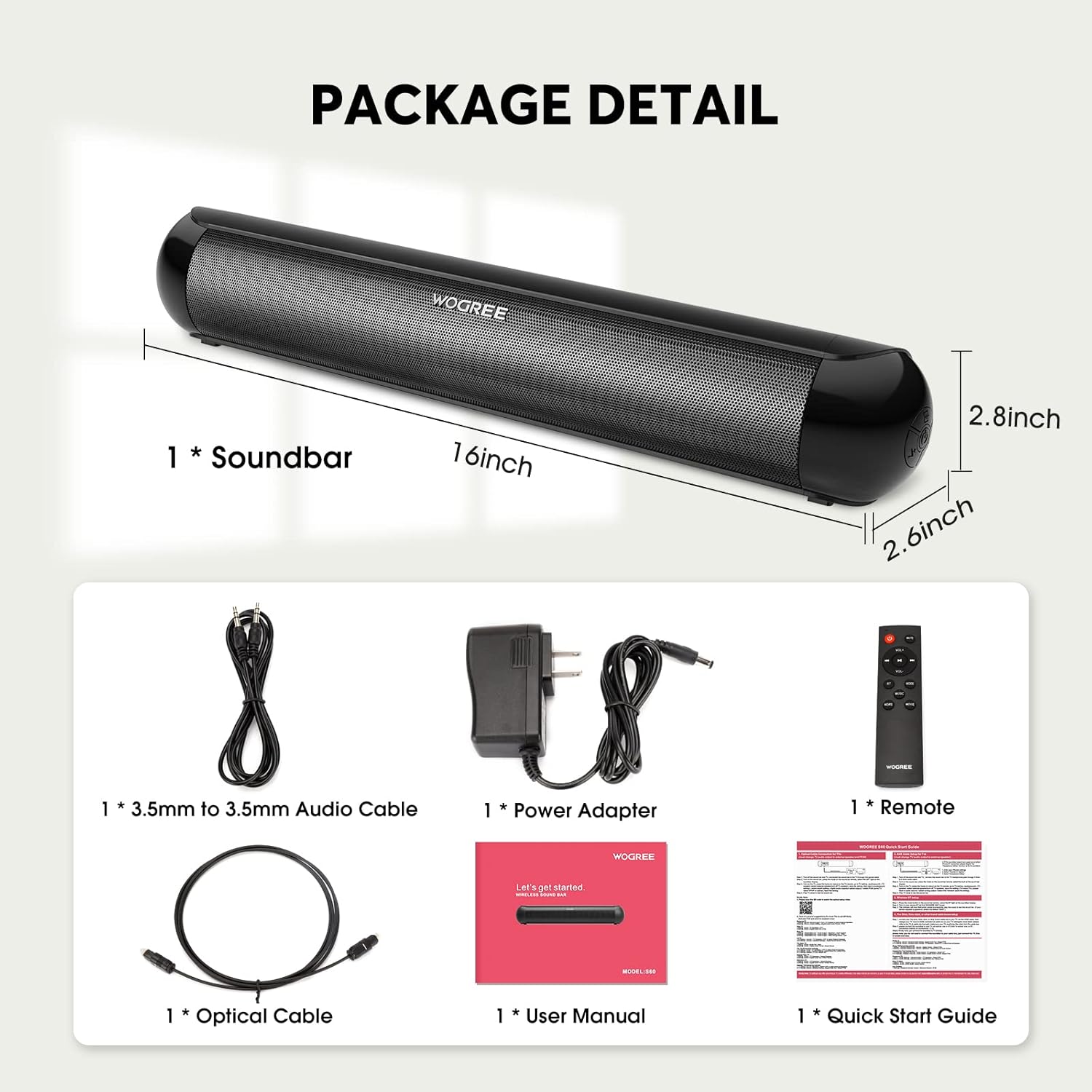
Figure 1: Contents of the Wogree Soundbar package.
Product Overview
The Wogree S60 Soundbar is engineered for superior audio performance in a compact design. Its 16-inch length makes it ideal for placement in front of smaller TVs or monitors without obstructing the screen or IR receiver.
Powerful Audio Output
Equipped with two full-range drivers, the soundbar delivers a powerful and clear audio experience, significantly improving upon standard TV speakers.

Figure 2: Internal view highlighting the soundbar's full-range speakers.
Versatile Connectivity
The soundbar offers multiple input options to connect to a wide range of devices:
- Bluetooth 5.0: For wireless connection to smartphones, tablets, and other Bluetooth-enabled devices.
- Optical: For high-quality digital audio connection to TVs and other optical output devices.
- AUX (3.5mm): For analog audio connection to devices with a headphone jack.
- USB: For playing audio files directly from a USB drive.
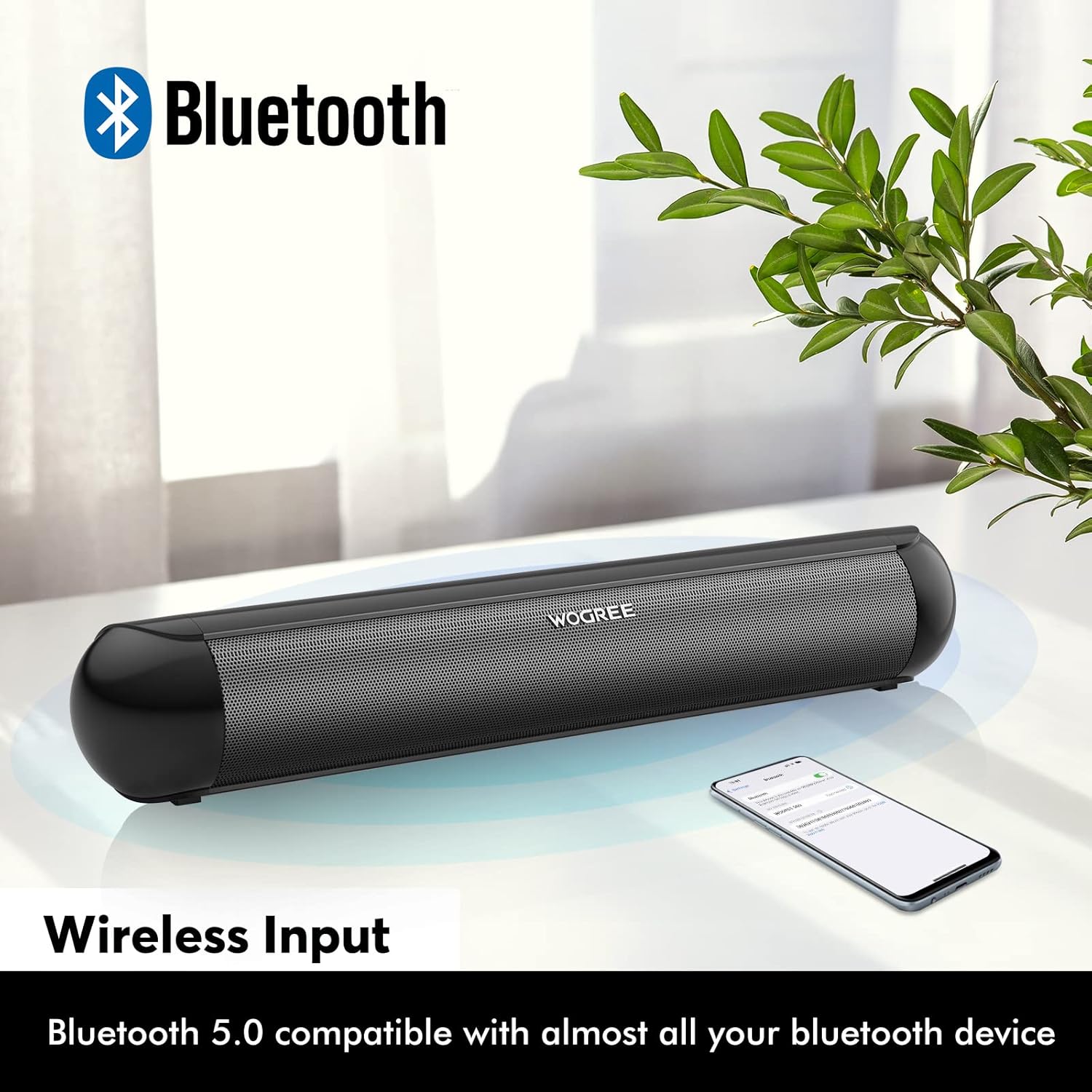
Figure 3: Wireless Bluetooth connectivity.

Figure 4: Wired input ports (DC, Optical, AUX, USB).
Optimized Sound Modes
The soundbar features three equalizer modes to tailor the audio output to your content:
- Music Mode: Produces powerful bass for an immersive musical experience.
- Movie Mode: Provides surround sound effects for a cinematic feel.
- News Mode: Enhances vocal clarity, making dialogue easier to understand.
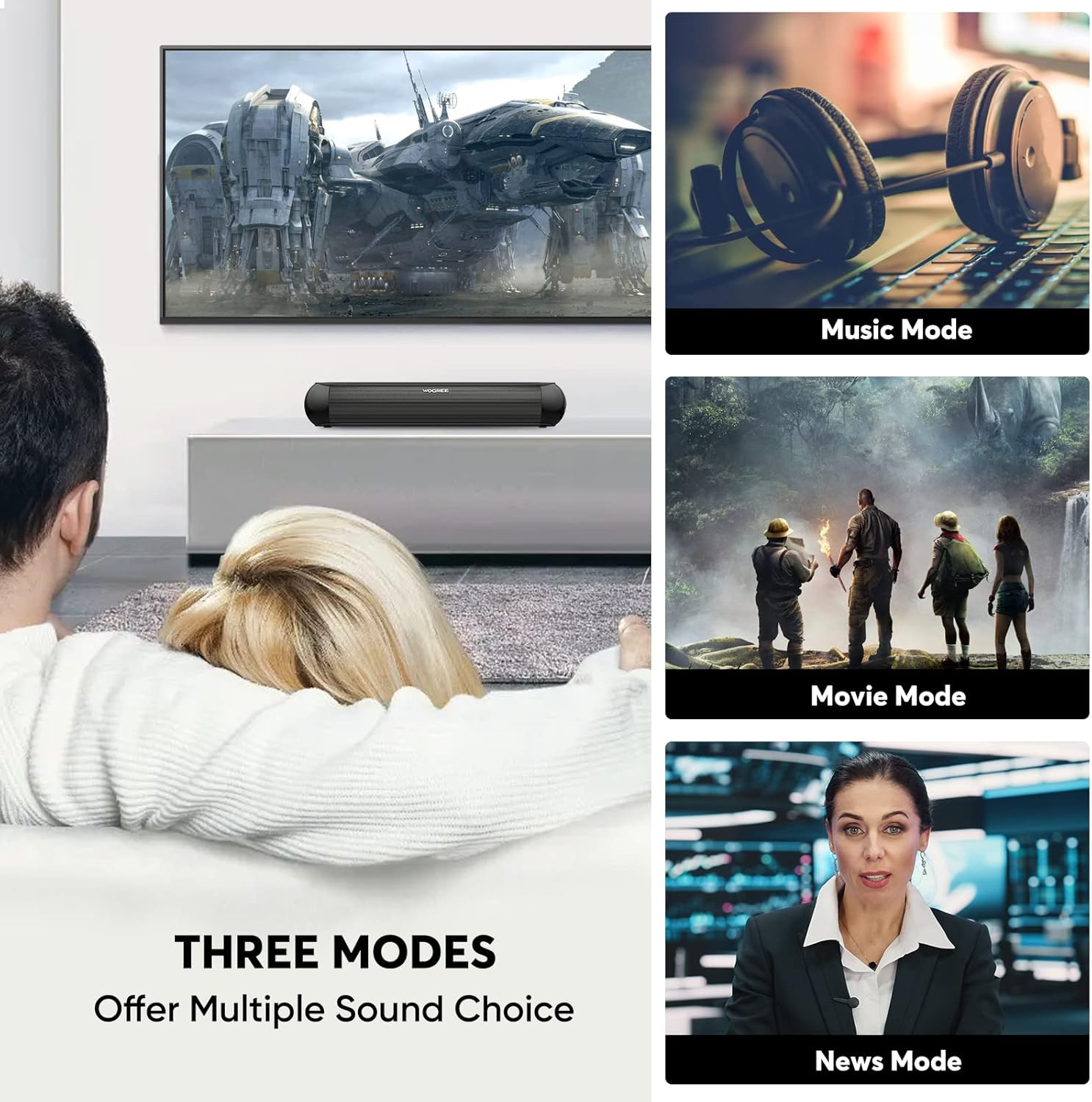
Figure 5: Soundbar's three equalizer modes.
Compact Design for Small Spaces
Its small footprint makes it perfect for bedrooms, living rooms, kitchens, and other areas where space is limited.

Figure 6: Soundbar placement in various small spaces.
Setup
Follow these steps to set up your Wogree Soundbar:
- Placement: Place the soundbar on a stable, flat surface in front of your TV or monitor. Ensure it does not block the TV's IR receiver.
- Power Connection: Connect the power adapter to the DC input port on the back of the soundbar and then plug the adapter into a wall outlet. The LED display will light up.
- Audio Connection: Choose one of the following methods to connect your audio source:
- Optical Connection (Recommended for TV): Connect one end of the optical cable to the OPTICAL port on the soundbar and the other end to the Optical Digital Audio Out port on your TV. Select 'Optical' input on the soundbar using the remote or buttons.
- AUX Connection: Connect one end of the 3.5mm audio cable to the AUX port on the soundbar and the other end to the headphone jack or AUX output on your device (e.g., TV, phone, computer). Select 'AUX' input.
- USB Connection: Insert a USB flash drive containing audio files into the USB port on the soundbar. The soundbar will automatically switch to USB mode and begin playback.
- Bluetooth Connection: See the 'Operating Instructions - Bluetooth Pairing' section for detailed steps.
Operating Instructions
Power On/Off
Press the Power button on the remote control or the soundbar to turn the unit on or off.
Input Selection
Press the 'Input' or 'Mode' button on the remote control or the soundbar to cycle through the available input modes: Bluetooth (BT), Optical (OPT), AUX, and USB. The selected mode will be displayed on the LED screen.
Bluetooth Pairing
- Turn on the soundbar and switch to Bluetooth mode (BT). The 'BT' indicator on the LED display will flash, indicating it's in pairing mode.
- Enable Bluetooth on your device (smartphone, tablet, computer).
- Search for 'S60' in the list of available Bluetooth devices and select it to pair.
- Once successfully paired, the 'BT' indicator will stop flashing and remain solid. You can now play audio from your device through the soundbar.
Volume Control
Use the Volume Up (+) and Volume Down (-) buttons on the remote control or the soundbar to adjust the volume level.
Sound Mode Selection
Press the 'EQ' button on the remote control to cycle through the three sound modes: Music, Movie, and News. The selected mode will be indicated on the LED display.
Remote Control Functions
The included remote control allows for convenient operation of the soundbar. Ensure the remote is pointed towards the soundbar's front panel. If the remote is unresponsive, press any button once to 'wake up' the device, then press again for the desired function.
Maintenance
To ensure the longevity and optimal performance of your Wogree Soundbar, follow these maintenance guidelines:
- Cleaning: Use a soft, dry cloth to wipe the surface of the soundbar. Do not use liquid cleaners or abrasive materials, as they may damage the finish.
- Storage: When not in use for extended periods, store the soundbar in a cool, dry place away from direct sunlight and extreme temperatures.
- Ventilation: Ensure proper ventilation around the soundbar to prevent overheating. Do not block any ventilation openings.
- Handling: Handle the soundbar with care. Avoid dropping it or subjecting it to strong impacts.
Troubleshooting
If you encounter any issues with your Wogree Soundbar, please refer to the following common problems and solutions:
| Problem | Possible Cause | Solution |
|---|---|---|
| No sound from the soundbar. |
|
|
| Bluetooth pairing fails. |
|
|
| Remote control is not working. |
|
|
| Sound is distorted or has static. |
|
|
If the problem persists after trying these solutions, please contact customer support for further assistance.
Specifications
| Feature | Detail |
|---|---|
| Model Name | S60 |
| Brand | Wogree |
| Dimensions (L x W x H) | 39.88 x 6.35 x 6.86 cm (approx. 15.7 x 2.5 x 2.7 inches) |
| Weight | 998 grams (approx. 2.2 lbs) |
| Max Speaker Output Power | 20 Watts |
| Connectivity Technology | Bluetooth 5.0, Optical, AUX (3.5mm), USB |
| Audio Output Mode | Surround |
| Mounting Type | Tabletop |
| Speaker Type | Surround Sound |
| Special Feature | Amplifier |
| Compatible Devices | TVs, Tablets, Projectors, Personal Computers, Phones |
| First Available Date | December 23, 2022 |
Note: The 'Subwoofer Diameter: 16 inch' specification refers to the overall length of the soundbar, not a separate subwoofer component.
Warranty and Support
Wogree is committed to providing high-quality products and excellent customer service. Your Wogree Soundbar comes with the following:
- 1-Year Warranty: Covers manufacturing defects and malfunctions under normal use.
- 45-Day Money-Back Guarantee: If you are not satisfied with your purchase, you may return it within 45 days for a full refund.
- Lifetime Technical Support: Our dedicated support team is available to assist you with any technical questions or issues you may encounter throughout the product's lifespan.
For warranty claims, technical assistance, or any other inquiries, please contact our customer support team through the retailer's platform or the official Wogree website.
Related documentsS60


Ask a question about this manual
Ask about setup, troubleshooting, compatibility, parts, safety, or missing instructions. Manuals+ will review the question and use this page’s manual context to help answer it.