
1. Introduction
The HUNSN RJ05f is a compact, fanless micro firewall appliance designed for network security and routing applications. This device is a barebone system, meaning it requires the installation of system memory (RAM), a storage disk (SSD/HDD), and an operating system to become fully functional. It features an Intel Celeron N5105 processor and six Intel 2.5GbE I226-V network ports, making it suitable for various network environments.
This manual provides essential information for setting up, operating, and maintaining your HUNSN RJ05f appliance. Please read it thoroughly before proceeding with installation and use.
2. Package Contents
Upon unpacking, please verify that all the following items are included:
- HUNSN RJ05f Firewall Appliance
- Power Adapter (12V/5A)
- Power Cord
- Warranty Card
3. Product Overview
The HUNSN RJ05f is designed for robust and reliable performance in network security applications. Key features include:
- Processor: Intel Celeron N5105 Quad-Core (up to 2.90 GHz) with AES-NI support.
- Network Interfaces: 6x Intel 2.5GbE I226-V LAN ports.
- Video Outputs: DisplayPort (DP) and HDMI.
- USB Ports: 2x USB 3.0 and 2x USB 2.0.
- Expansion: Mini-PCIe slot for WiFi/4G modules with a SIM slot.
- Cooling: Fanless design for silent operation (0.00 dB) and enhanced reliability.
- Chassis: Durable aluminum construction.
Front Panel Layout
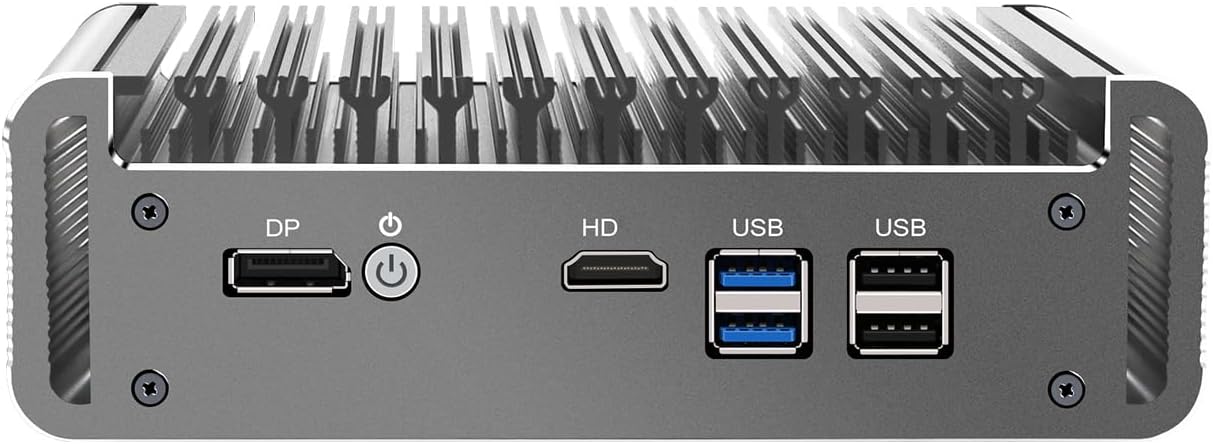
Image 3.1: Front panel of the HUNSN RJ05f. From left to right: DisplayPort (DP), Power ON/OFF button, HDMI port, two USB 3.0 ports (blue), and two USB 2.0 ports (black).
Rear Panel Layout
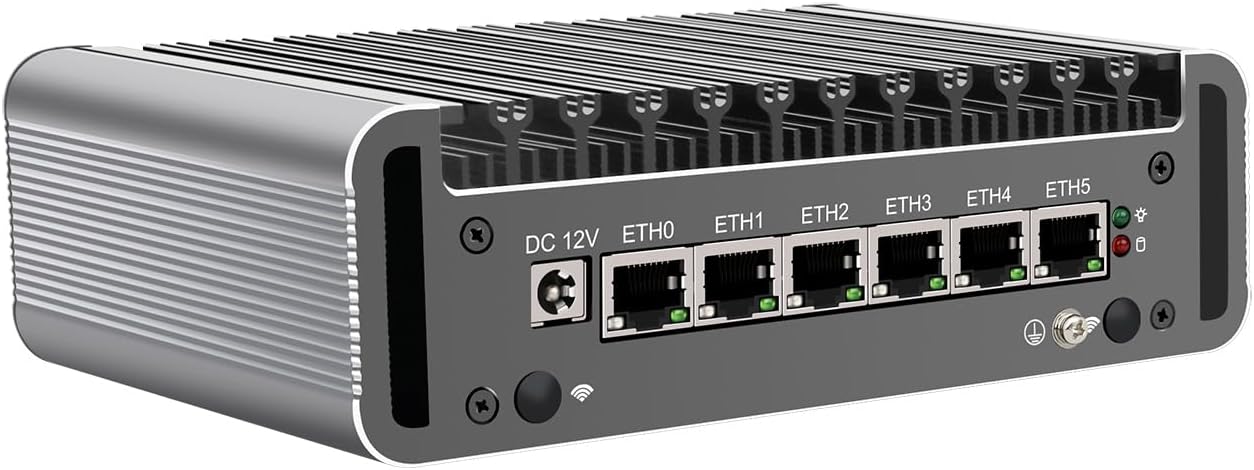
Image 3.2: Rear panel of the HUNSN RJ05f. From left to right: DC 12V power input, six 2.5GbE Ethernet ports (ETH0 to ETH5), and a SIM card slot.
4. Setup Instructions
The HUNSN RJ05f is a barebone system. Before initial use, you must install RAM, a storage device, and an operating system.
4.1. Installing Memory (RAM)
- Unscrew the bottom panel of the appliance to access the internal components.
- Locate the two SODIMM DDR4 slots.
- Align the notch on the DDR4 SODIMM module with the notch in the slot.
- Insert the module at a 45-degree angle and push down until the clips on both sides snap into place.
- Ensure both modules (if using two) are securely seated. The system supports up to 32GB (2 x 16GB) of DDR4 2933MHz SODIMM RAM.
4.2. Installing Storage
The appliance supports one M.2 2280 NVMe SSD and one 2.5-inch SATA SSD/HDD.
M.2 NVMe SSD Installation:
- Locate the M.2 2280 slot on the motherboard.
- Insert the M.2 SSD into the slot at an angle.
- Gently push down the SSD and secure it with the provided screw.
2.5-inch SATA SSD/HDD Installation:
- Locate the 2.5-inch drive bay and SATA data/power connectors.
- Mount the 2.5-inch drive into the bay using screws.
- Connect the SATA data and power cables to the drive and motherboard.
4.3. Connecting Peripherals
- Display: Connect a monitor to the DP or HDMI port.
- USB Devices: Connect a keyboard and mouse to the USB 2.0 or USB 3.0 ports.
- Network: Connect your network cables to the 2.5GbE LAN ports (ETH0-ETH5) as required by your network configuration.
- Power: Connect the power adapter to the DC_IN port on the rear panel, then plug the power cord into an electrical outlet.
4.4. Operating System Installation
The HUNSN RJ05f supports various operating systems, including FreeBSD kernel-based router systems (version 5.10.x and above), Linux distributions, and Windows OS. It supports UEFI boot only.
- Prepare a bootable USB drive with your chosen operating system.
- Insert the bootable USB drive into a USB port on the appliance.
- Power on the device. You may need to press a specific key (e.g., DEL, F2, F10, F12) during startup to enter the BIOS/UEFI settings or boot menu to select your USB drive as the boot device.
- Follow the on-screen instructions to install the operating system.
5. Operating Instructions
5.1. Power On/Off
- To Power On: Press the power button on the front panel.
- To Power Off: Perform a graceful shutdown through your operating system. Alternatively, press and hold the power button for 5 seconds for a forced shutdown (not recommended for regular use).
5.2. Advanced Features
- Hardware Auto-Power-On: The device supports automatic power-on after a power outage. This feature is enabled by default.
- Wake-on-LAN (WoL): The appliance supports Wake-on-LAN, allowing you to remotely power on the device over the network. This feature may need to be enabled in the BIOS/UEFI settings.
- System Power Management: Utilize your operating system's power management features for optimal energy efficiency.
- Temperature Management: The fanless design ensures silent operation and efficient heat dissipation. Monitor system temperatures through your operating system if necessary.
6. Maintenance
The HUNSN RJ05f is designed for low maintenance due to its fanless construction.
- Cleaning: Periodically wipe the exterior of the appliance with a soft, dry cloth to remove dust. Avoid using liquid cleaners directly on the device.
- Ventilation: Ensure the appliance is placed in a location with adequate airflow to prevent heat buildup, despite its fanless design. Do not block the ventilation fins.
- Environmental Conditions: Operate the device within the specified temperature and humidity ranges to ensure longevity and stable performance.
7. Troubleshooting
If you encounter issues with your HUNSN RJ05f, consider the following troubleshooting steps:
- No Power:
- Ensure the power adapter is securely connected to both the appliance and a working electrical outlet.
- Verify the power cord is properly connected to the adapter.
- Test the outlet with another device.
- No Display Output:
- Check that the monitor is properly connected to either the DP or HDMI port and is powered on.
- Ensure the monitor input source is correctly selected.
- Verify that RAM and storage are correctly installed, as a barebone system will not boot without them.
- Operating System Not Booting:
- Confirm that the RAM and storage devices are correctly installed and detected in the BIOS/UEFI.
- Ensure your operating system installation media is bootable and correctly selected in the boot menu.
- Verify that the OS image is compatible with UEFI boot.
- Check for any error messages during boot.
- Network Connectivity Issues:
- Ensure network cables are securely connected to the LAN ports.
- Verify network driver installation within your operating system.
- Check your firewall/router software configuration for proper network interface setup.
- System Instability/Freezes:
- Ensure RAM modules are properly seated.
- Check for overheating (though unlikely with fanless design, ensure proper ventilation).
- Verify OS and driver integrity.
For further assistance, please refer to the manufacturer's support resources or contact customer service.
8. Specifications
| Model Number | HUNSN RJ05f |
| Chassis | Aluminum |
| CPU | Intel Celeron N5105 (4M Cache, up to 2.90 GHz) |
| AES-NI Support | Yes |
| Memory | 2 x SODIMM DDR4 2933MHz, Max. 32GB |
| Storage | 1 x M.2 2280 NVMe, 1 x 2.5-inch SATA SSD/HDD |
| Network Card | 6 x Intel 2.5GbE I226-V |
| I/O Interface | DP, Power ON/OFF, HDMI, 2 x USB3.0, 2 x USB2.0, DC_IN, 6 x LAN |
| Expansion | Mini-PCIe slot for WiFi/4G, with SIM slot |
| Power | DC100-240V AC/50-60Hz, 12V/5A |
| Operating Temperature | 0°C ~ 70°C (32°F ~ 140°F) |
| Storage Temperature | -20°C ~ 80°C (-68°F ~ 176°F) |
| Relative Humidity | 10% ~ 90% (non-condensing) |
| TDP | 10W |
| Cooling System | Fanless |
| Dimensions | 155 x 126 x 53 mm |
| Weight | 1.5 kg |
| System Compatibility | FreeBSD kernel-based router systems (5.10.x+), Linux distributions, Windows OS (UEFI support only) |
| Firewall Compatibility | pfSense Plus, OPNsense, and other popular open-source solutions |
9. Warranty and Support
The HUNSN RJ05f comes with a standard warranty as detailed on the included warranty card. Please retain your proof of purchase for warranty claims.
For technical support, product inquiries, or warranty service, please contact HUNSN customer support through their official website or the contact information provided with your purchase.
