
ASUS ASUS - ROG Zephyrus G14 (AMD Ryzen 9 6900HS)
ASUS ROG Zephyrus G14 User Manual
Model: AMD Ryzen 9 6900HS
Introduction
This manual provides essential information for setting up, operating, maintaining, and troubleshooting your ASUS ROG Zephyrus G14 gaming laptop. Designed for high performance, this laptop features an AMD Ryzen 9 6900HS processor and AMD Radeon RX 6800S graphics, offering a powerful computing experience for gaming and productivity.
Setup
Unboxing and Initial Connection
Carefully remove your ASUS ROG Zephyrus G14 laptop and its accessories from the packaging. Ensure all components are present, including the power adapter and the bundled HDMI cable.

Figure 1: ASUS ROG Zephyrus G14 laptop with included HDMI cables, illustrating the product's primary components.
Powering On
- Connect the power adapter to the laptop's power input port and then to a power outlet.
- Open the laptop lid.
- Press the power button, typically located on the top right of the keyboard deck, to turn on the laptop.
Initial Windows 11 Setup
Upon first boot, you will be guided through the Windows 11 Home setup process. Follow the on-screen instructions to configure your region, language, network settings, and user account.
Operating Your Laptop
Key Features Overview
- Processor: AMD Ryzen 9 6900HS 8-Core, 16-Thread Processor for demanding tasks and gaming.
- Graphics: AMD Radeon RX 6800S with 8GB GDDR6, enhanced by AMD SmartShift and Smart Access Memory technologies.
- Display: 14-inch WQXGA (2560 x 1600) 120Hz IPS-Level display with 500-nits brightness and 100% DCI-P3 color gamut. Features ROG Nebula Display standard for superior visual quality.
- Memory: 16GB of fast DDR5 4800MHz RAM for efficient multitasking.
- Storage: 1TB PCIe 4.0 NVMe SSD for rapid data access and ample storage.

Figure 2: Angled view of the ASUS ROG Zephyrus G14 laptop, showcasing its slim profile and display.
Connectivity
The laptop offers robust connectivity options:
- 2x USB 3.2 Gen 2 Type-C ports
- 2x USB 3.2 Gen 2 Type-A ports
- 1x HDMI 2.0b port
- Headphone/microphone combo jack
- Wireless/Wired connectivity: WiFi 6E for low latency and stable network connections.

Figure 3: Left side view of the laptop, highlighting the power input, HDMI, USB-C, and audio ports.
Keyboard and Touchpad
The laptop features a single-zone RGB keyboard backlight, allowing for comfortable use in various lighting conditions. The integrated touchpad provides precise cursor control.

Figure 4: Top-down view of the laptop's keyboard and touchpad, showing the layout and RGB backlighting.
Advanced Features
- MUX Switch: Allows direct GPU mode for competitive gaming, reducing latency and boosting performance.
- AMD SmartShift Max: Dynamically shifts power between CPU and GPU to optimize performance for gaming and content creation.
- AMD Smart Access Memory: Enables AMD Ryzen processors to fully utilize Radeon graphics card memory for enhanced performance.
- ROG Intelligent Cooling: Provides intelligent and dynamic cooling modes, automatically adjusting based on task demands.
Maintenance
Cleaning Your Laptop
To maintain optimal performance and appearance, regularly clean your laptop:
- Use a soft, lint-free cloth to wipe the screen and chassis. Avoid harsh chemicals.
- Use compressed air to clear dust from the keyboard and ventilation grilles.

Figure 5: Rear view of the laptop, illustrating the ventilation grilles crucial for heat dissipation.
Software and Driver Updates
Regularly update your operating system, drivers, and BIOS to ensure system stability and performance. Visit the official ASUS support website for the latest updates specific to your model.
Cooling System Care
Ensure proper airflow around the laptop, especially during intensive tasks. Avoid placing the laptop on soft surfaces that may block the vents. Maintaining a clean cooling system helps prevent performance degradation due to heat.
Troubleshooting
This section addresses common issues you might encounter with your ASUS ROG Zephyrus G14 laptop.
Common Issues and Solutions
- System Freezing or Slowdown:
- Ensure all drivers and the BIOS are up to date.
- Check for background applications consuming excessive resources via Task Manager.
- Verify sufficient free space on the SSD.
- No Sound Output:
- Check volume levels and ensure speakers are not muted.
- Verify audio drivers are correctly installed and updated.
- Test with external headphones to isolate the issue.
- Overheating:
- Ensure ventilation grilles are clear of obstructions.
- Use the laptop on a hard, flat surface to allow proper airflow.
- Adjust cooling profiles in the ROG Armoury Crate software.
- Connectivity Problems (Wi-Fi/USB):
- Restart the laptop and your network router.
- Update wireless and USB controller drivers.
- Test USB devices in different ports.
If issues persist, consider performing a system restore or contacting ASUS support for further assistance.
Specifications
| Feature | Detail |
|---|---|
| Brand | ASUS |
| Model Name | ASUS - ROG Zephyrus |
| Processor | AMD Ryzen 9 6900HS (3.3 GHz, Max Turbo 4.9 GHz) |
| RAM | 16 GB DDR5 4800MHz |
| Hard Drive | 1 TB PCIe 4.0 NVMe SSD |
| Graphics Coprocessor | AMD Radeon RX 6800S with 8 GB GDDR6 |
| Screen Size | 14 Inches WQXGA (2560 x 1600) 120Hz |
| Operating System | Windows 11 Home |
| Wireless Type | 802.11ax (WiFi 6E) |
| Ports | 2x USB 3.2 Type-C, 2x USB 3.2 Type-A, 1x HDMI 2.0b, Headphone/Mic Combo |
| Item Weight | 3.64 pounds |
| Product Dimensions | 12.28 x 0.73 x 8.94 inches |
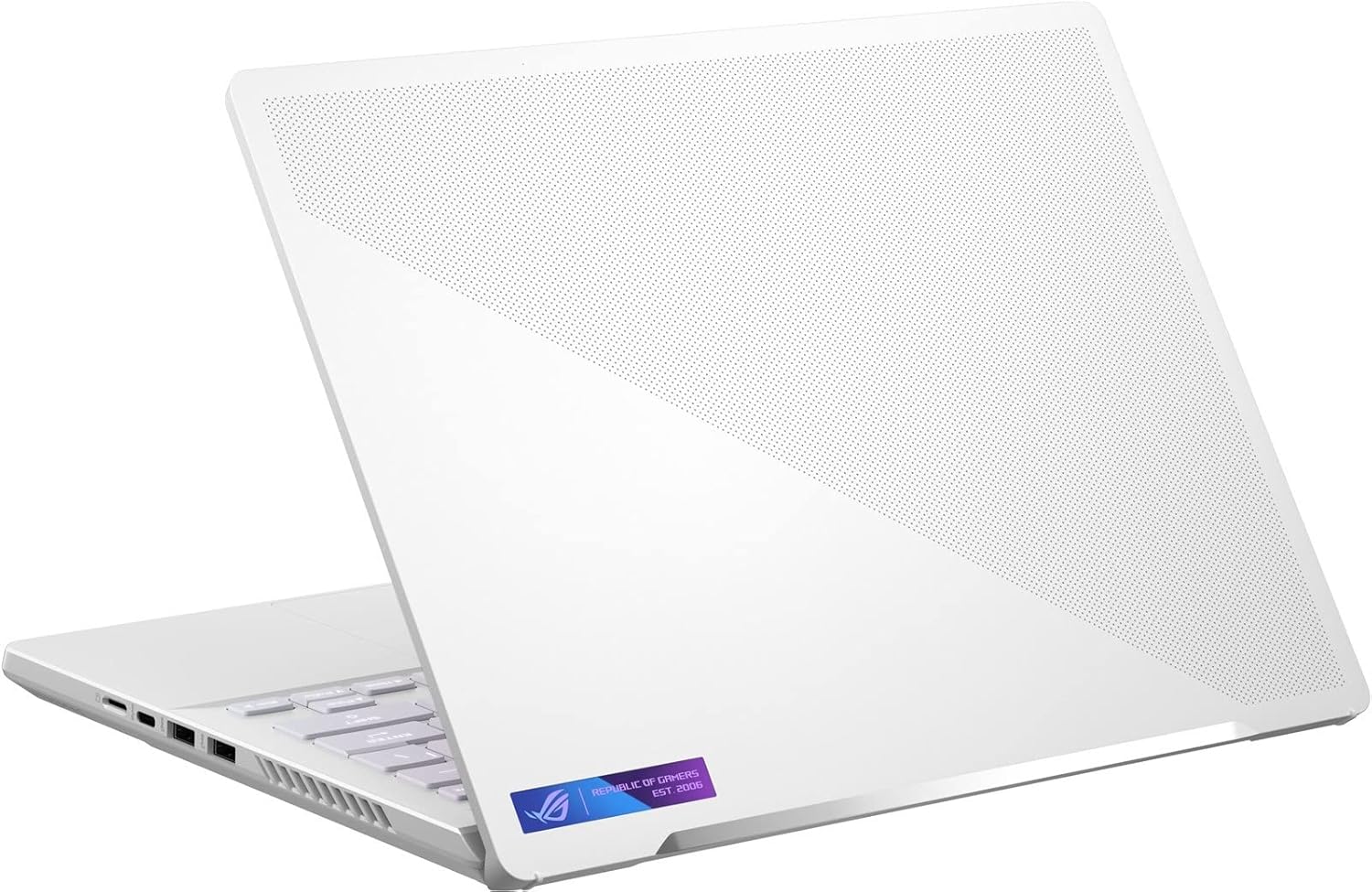
Figure 6: Right side view of the laptop, displaying its USB ports and ventilation.
Warranty and Support
Warranty Information
Your ASUS ROG Zephyrus G14 laptop comes with a standard manufacturer's warranty. Additionally, a 1-year standard warranty is provided on upgraded RAM/SSD components if applicable. Please refer to the warranty card included with your product for full terms and conditions.
Customer Support
For technical assistance, driver downloads, or service inquiries, please visit the official ASUS support website. You can find detailed support resources and contact information at www.asus.com/support.
Related documentsASUS - ROG Zephyrus G14 (AMD Ryzen 9 6900HS)


Ask a question about this manual
Ask about setup, troubleshooting, compatibility, parts, safety, or missing instructions. Manuals+ will review the question and use this page’s manual context to help answer it.