
1. Product Overview
The Phanteks Eclipse G500A DRGB is a high-performance mid-tower chassis designed to accommodate modern PC components with excellent airflow and integrated D-RGB lighting. It features an Ultra-fine Performance Mesh on both the front and top panels, ensuring optimal cooling and dust filtration.

Figure 1: Phanteks Eclipse G500A DRGB Mid Tower Case, Matte White.
Key Features:
- High Airflow Design: Ultra-fine Performance Mesh on front and top panels for superior cooling and dust filtration.
- Integrated D-RGB Lighting: Built-in D-RGB lighting on the front and side, controllable via manual buttons or motherboard synchronization.
- Pre-installed Fans: Includes three high-performance M25-140 D-RGB fans.
- Extensive Cooling Support: Supports up to 420mm radiators in the front and 360mm in the top.
- Spacious Interior: Accommodates full-length GPUs and offers vertical GPU mounting options (with optional bracket).
- Flexible Storage: Multiple HDD and SSD locations, including dedicated SSD brackets and stackable HDD bays.
- Modern Front I/O: Features 10Gbps USB-C, 2x USB 3.0, Microphone/Headphone Combo, Power button, and D-RGB controls.
2. Setup and Installation
This section provides general guidelines for installing components into your Phanteks Eclipse G500A DRGB chassis. Always refer to your component manuals for specific installation instructions.
2.1 Preparing the Chassis
Before installing components, ensure the chassis is placed on a stable, flat surface. Remove the side panels by gently pulling them open (they are hinged) to access the interior.
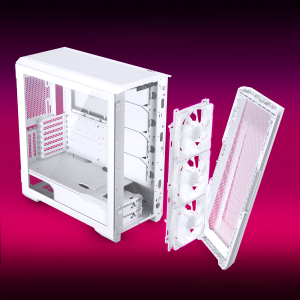
Figure 2: The removable front panel allows for easy installation of fans and radiators.
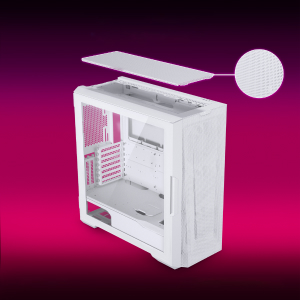
Figure 3: The removable top mesh panel facilitates fan and radiator installation.
2.2 Motherboard Installation
The G500A supports ATX, micro-ATX, mini-ITX, and E-ATX motherboards (up to 280mm wide). Install the necessary standoffs for your motherboard form factor, then secure the motherboard with screws.
2.3 Power Supply Unit (PSU) Installation
Install the PSU at the bottom rear of the chassis. The G500A supports PSUs up to 250mm in length (195mm if all 4 bottom HDD positions are used).
2.4 Storage Device Installation
The case offers extensive storage options:
- 2.5" SSDs: Up to 9 dedicated 2.5" drive bays are included.
- 3.5" HDDs: Two stackable 3.5" HDD bays are included, expandable up to a total of 10 HDD bays.

Figure 4: Multiple storage options for 2.5" and 3.5" drives.
2.5 Graphics Card (GPU) Installation
The G500A supports graphics cards up to 435mm in length. For vertical GPU mounting, an optional bracket (PH-VGPUKT4.0_03) or riser cable is required.
2.6 Cooling System Installation
The chassis supports various fan and radiator configurations:
- Fan Support:
- Front: 3x 120mm or 3x 140mm (3x 140mm pre-installed)
- Top: 3x 120mm or 3x 140mm
- Rear: 1x 120mm or 1x 140mm
- Liquid Cooling Radiator Support:
- Front: Up to 360mm (120mm radiator) or 420mm (140mm radiator)
- Top: Up to 360mm (120mm radiator) or 280mm (140mm radiator)
- Rear: 120mm
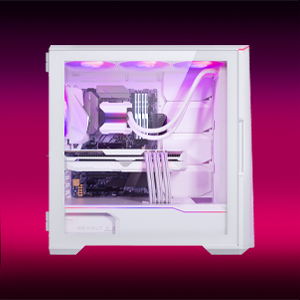
Figure 5: High-end cooling compatibility with various fan and radiator sizes.
2.7 Cable Management
The G500A provides ample space and Velcro ties for efficient cable management, ensuring a clean interior and optimal airflow. Cover doors help to conceal cables on the backside of the motherboard tray.
2.8 Installation Videos
Video 1: Detailed PC Build Guide in the Phanteks Eclipse G500A (13:33).
Video 2: Another comprehensive PC assembly guide featuring the Phanteks Eclipse G500A (14:01).
3. Operating Instructions
3.1 Front I/O Panel
The front I/O panel provides convenient access to essential ports and controls:
- Power Button: To power on/off your system.
- USB 3.0 Ports (x2): For connecting USB 3.0 devices.
- USB-C Gen2 Port (x1): For high-speed USB-C connectivity.
- Microphone/Headphone Combo Jack: For audio input and output.
- D-RGB Mode Button: Cycles through pre-programmed D-RGB lighting effects.
- D-RGB Color Button: Changes the color of the D-RGB lighting.

Figure 6: Front I/O panel with USB-C, USB 3.0, audio, and D-RGB controls.
3.2 D-RGB Lighting Control
The integrated D-RGB lighting can be controlled in two ways:
- Manual Control: Use the D-RGB Mode and Color buttons on the front I/O panel to cycle through effects and colors without software.
- Motherboard Synchronization: Connect the D-RGB controller to a compatible motherboard's D-RGB header to enable software control and synchronization with other D-RGB components.

Figure 7: Integrated D-RGB lighting with included M25-140 D-RGB fans.
4. Maintenance
Regular maintenance helps ensure optimal performance and longevity of your PC components.
- Dust Filtration: The Ultra-fine Performance Mesh on the front and top panels acts as a dust filter. Periodically remove these panels and clean the mesh to maintain optimal airflow.
- Interior Cleaning: Use compressed air to remove dust from inside the chassis, especially from fans, heatsinks, and other components. Ensure the system is powered off and unplugged before cleaning.
- Exterior Cleaning: Wipe the exterior surfaces with a soft, damp cloth. Avoid abrasive cleaners or solvents.
5. Troubleshooting
This section addresses common issues you might encounter with your PC case.
5.1 Power Issues
- System not powering on:
- Ensure all power cables (24-pin ATX, 8-pin CPU, GPU power) are securely connected to the motherboard and components.
- Verify the PSU switch is in the 'ON' position.
- Check that the front panel power switch cable is correctly connected to the motherboard's F_PANEL header.
5.2 D-RGB Lighting Issues
- D-RGB not lighting up or incorrect colors:
- Ensure the D-RGB cables from the fans and LED strips are correctly connected to the integrated D-RGB controller.
- If using motherboard synchronization, ensure the D-RGB controller is connected to the motherboard's D-RGB header and that the motherboard's lighting software is configured correctly.
- Verify the D-RGB controller is receiving power (e.g., via SATA power connector).
- Try cycling through modes and colors using the front I/O buttons to rule out software issues.
5.3 Fan Noise or Malfunction
- Excessive fan noise:
- Check for dust buildup on fan blades and clean if necessary.
- Ensure fans are securely mounted and not vibrating against the chassis.
- Verify fan speeds are controlled appropriately by the motherboard or fan controller.
- Fan not spinning:
- Check fan power connections to the motherboard or fan hub.
- Ensure fan headers are enabled in the BIOS/UEFI settings.
6. Specifications
Detailed technical specifications for the Phanteks Eclipse G500A DRGB Mid Tower Case.
| Feature | Specification |
|---|---|
| Model Name | Eclipse G500A DRGB, White |
| Item Model Number | PH-EC500GA_DMW01A |
| Form Factor | Mid Tower |
| Dimensions (LxWxH) | 19.69 x 9.45 x 20.28 inches (500 x 240 x 515 mm) |
| Item Weight | 23.2 pounds |
| Material | Steel Chassis, Tempered Glass |
| Motherboard Support | ATX, micro-ATX, mini-ITX, E-ATX (up to 280mm wide) |
| Expansion Slots | 7 |
| Vertical GPU Support | Yes (with optional bracket PH-VGPUKT4.0_03 or riser cable) |
| Internal 3.5" Drive Bays | 10 (2x included, expandable) |
| Internal 2.5" Drive Bays | 9 (9x included) |
| Front I/O | 2x USB 3.0, USB-C Gen2, Microphone/Headphone Combo, Power Button, D-RGB Mode, D-RGB Color |
| Pre-installed Fans | 3x M25-140 D-RGB (Front) |
| Max GPU Length | 435 mm / 17.2 in |
| Max CPU Cooler Height | 185 mm |
| Max PSU Length | 195mm (if all 4 bottom HDD positions used) / 250mm (if 2 bottom HDD used) |
| Cooling Method | Fan, Water |
7. Warranty and Support
Phanteks products are manufactured with high-quality standards. For warranty information and technical support, please refer to the official Phanteks website or contact their customer service.
Contact Information:
- Website: www.phanteks.com
- Phanteks Taiwan Inc.: 11F., No. 150, Jian 1st Rd., Zhonghe Dist. New Taipei City 235
- Importer EU (Axpertec Int B.V.): Sydneystraat 33, 3047 BP Rotterdam, The Netherlands
- Importer US (Axpertec Inc.): 20465 E Walnut Dr. N, City of Industry, California 91789, United States

Figure 8: Phanteks company and importer details, along with compliance markings (CE, UKCA, RoHS).


