
1. Introduction
This manual provides essential information for the safe and efficient use of your Lenovo Tab M10 FHD (3rd Gen) tablet. Please read this guide thoroughly before operating your device to ensure proper functionality and to prevent damage.
2. Safety Information
- Battery Safety: Do not attempt to replace the internal battery. Use only Lenovo-approved chargers and cables. Avoid exposing the device to extreme temperatures.
- Water Resistance: This device is not waterproof. Avoid contact with liquids.
- Cleaning: Disconnect the device from power before cleaning. Use a soft, dry cloth. Do not use liquid cleaners or aerosols.
- Disposal: Dispose of the device and its battery according to local environmental regulations. Do not dispose of in household waste.
3. Product Overview
The Lenovo Tab M10 FHD (3rd Gen) is a 10.1-inch Android tablet designed for entertainment and everyday use. Below is an illustration of the device and its key components.
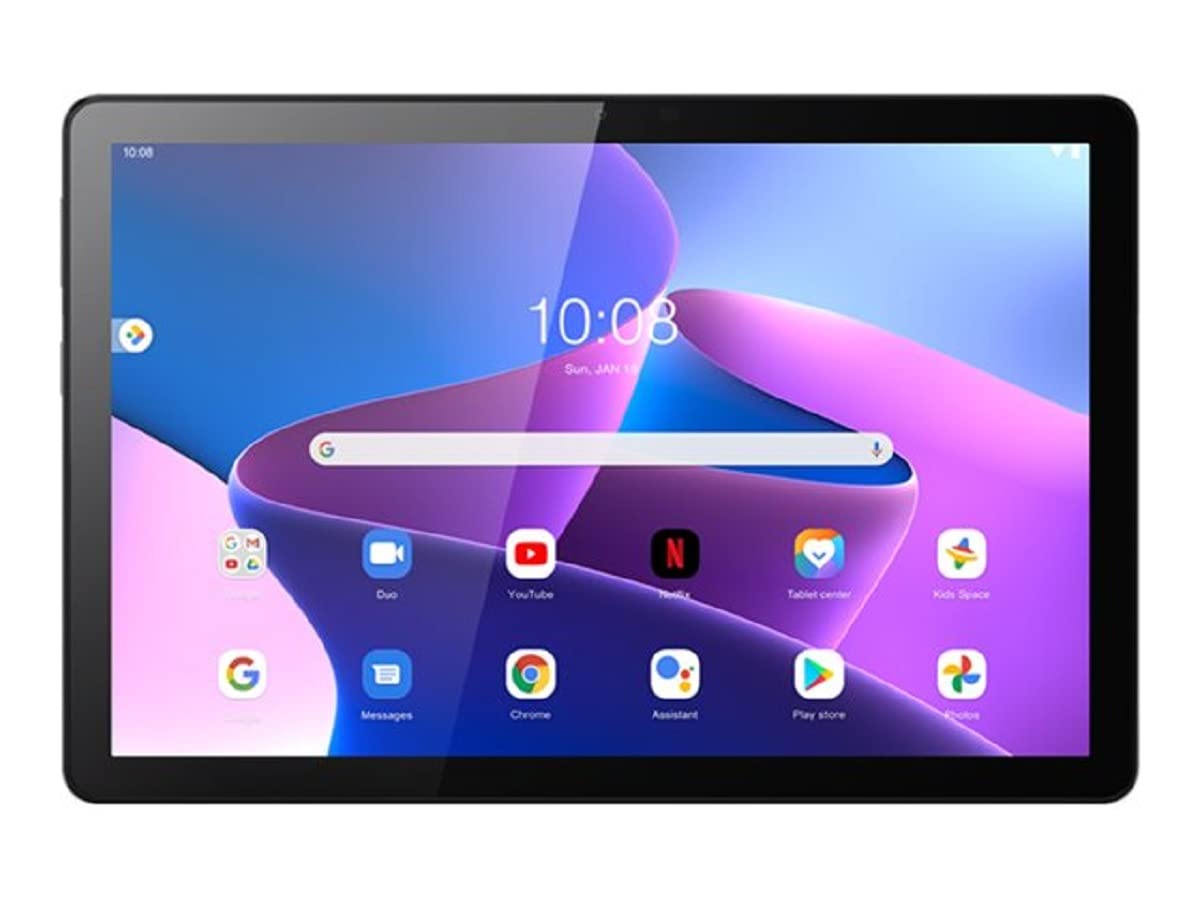
Figure 3.1: Front view of the Lenovo Tab M10 FHD (3rd Gen) tablet. This image displays the 10.1-inch display, front-facing camera, and the overall sleek design of the device.
Device Components:
- Display: 10.1-inch WUXGA (1920 x 1200) IPS touchscreen.
- Front Camera: 5 MP for video calls and selfies.
- Rear Camera: 8 MP for photos and videos.
- Power Button: Located on the side, used to turn the device on/off or wake/sleep.
- Volume Buttons: Adjust audio levels.
- USB-C Port: For charging and data transfer. Supports USB OTG.
- MicroSD Card Slot: For expandable storage.
- Speakers: Integrated stereo speakers.
4. Setup
4.1 Charging the Battery
- Connect the USB-C cable to the tablet's USB-C port.
- Connect the other end of the cable to the power adapter.
- Plug the power adapter into a wall outlet.
- Allow the tablet to charge until the battery indicator shows a full charge.
4.2 Powering On/Off
- To Power On: Press and hold the Power button until the Lenovo logo appears.
- To Power Off: Press and hold the Power button until the power options appear on the screen, then tap "Power off".
- To Sleep/Wake: Briefly press the Power button.
4.3 Initial Setup
The first time you power on your tablet, you will be guided through the initial setup process:
- Select your preferred language.
- Connect to a Wi-Fi network.
- Sign in with your Google account or create a new one.
- Follow the on-screen prompts to complete the setup.
5. Operating the Device
5.1 Touchscreen Gestures
- Tap: Select an item or open an app.
- Touch and Hold: Access contextual menus or move items.
- Swipe: Scroll through screens or lists.
- Pinch: Zoom in or out on images and web pages.
5.2 Navigation
- Home Screen: The central hub for your apps and widgets.
- App Drawer: Swipe up from the bottom of the screen to access all installed applications.
- Notifications Panel: Swipe down from the top of the screen to view notifications and quick settings.
5.3 Connecting to Wi-Fi
- Go to Settings > Network & internet > Wi-Fi.
- Turn on Wi-Fi.
- Select your desired network from the list.
- Enter the password if prompted, then tap Connect.
5.4 Camera Usage
The tablet features a 5 MP front camera and an 8 MP rear camera.
- Open the Camera app.
- Tap the camera icon to switch between front and rear cameras.
- Tap the shutter button to take a photo or start/stop video recording.
5.5 USB On-The-Go (OTG)
The Lenovo Tab M10 FHD (3rd Gen) supports USB OTG, allowing you to connect compatible USB devices such as keyboards, mice, or USB flash drives using an appropriate adapter (sold separately).
6. Maintenance
6.1 Cleaning Your Device
- Use a soft, lint-free cloth to gently wipe the screen and body.
- For stubborn smudges, slightly dampen the cloth with water. Avoid excessive moisture.
- Do not use harsh chemicals, abrasive cleaners, or compressed air.
6.2 Software Updates
Regularly check for and install software updates to ensure optimal performance and security.
- Go to Settings > System > System update.
- Follow the on-screen instructions to download and install any available updates.
6.3 Battery Care
- Avoid fully discharging the battery frequently.
- Do not leave the device connected to the charger for extended periods after it is fully charged.
- Store the device in a cool, dry place if not used for a long time, with the battery charged to about 50%.
7. Troubleshooting
7.1 Device Will Not Turn On
- Ensure the battery is charged. Connect the charger and wait a few minutes before attempting to power on.
- Press and hold the Power button for at least 10-15 seconds to perform a forced restart.
7.2 Wi-Fi Connection Issues
- Restart your tablet and your Wi-Fi router.
- Ensure you are within range of the Wi-Fi network.
- Verify the Wi-Fi password is correct.
- Forget the network in Wi-Fi settings and reconnect.
7.3 Apps Crashing or Freezing
- Close and reopen the app.
- Clear the app's cache and data in Settings > Apps > [App Name] > Storage & cache.
- Ensure the app is updated to its latest version.
8. Specifications
| Feature | Detail |
|---|---|
| Model Name | M10 (3rd Gen) |
| Model Number | ZAAE0023SE |
| Display Size | 10.1 Inch |
| Max Display Resolution | 1920 x 1200 (FHD) |
| Operating System | Android 11 |
| Processor | Unisoc T610 (2 GHz CPU speed, Max 2.3 GHz) |
| RAM Memory | 3 GB |
| Storage Capacity | 32 GB eMMC |
| Wireless Technology | Wi-Fi (802.11g standard) |
| Connectivity Technology | USB (USB-C) |
| Rear Camera | 8 MP |
| Front Camera | 5 MP |
| Battery | 5100 mAh Lithium-ion (19 Watt-hour) |
| Dimensions | 50 x 50 x 28 cm; 460 g |
| Special Features | Supports USB OTG |
9. Warranty and Support
Your Lenovo Tab M10 FHD (3rd Gen) comes with a limited warranty. For detailed warranty terms and conditions, please refer to the warranty card included with your product or visit the official Lenovo support website.
For technical assistance, troubleshooting, or to download the latest drivers and manuals, please visit the Lenovo Support website: support.lenovo.com.


