
1. Product Overview
The SLuB Bluetooth 5.3 Ear-hook Headset F6 is designed for clear, hands-free communication and high-quality audio playback. Featuring the latest Bluetooth 5.3 technology, a comfortable ear-hook design, and long battery life, it is suitable for various activities including driving, work, and commuting.
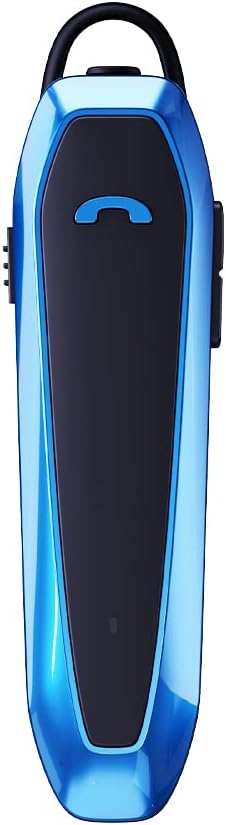
Image 1.1: SLuB Bluetooth 5.3 Ear-hook Headset F6 (Blue)
Key Features:
- Advanced Bluetooth 5.3 EDR: Ensures stable connection, minimal interruptions, and clear audio transmission up to 10 meters. Optimized for both iOS and Android devices.
- Hands-Free Communication: Integrated microphone and one-button control for managing calls and music playback effortlessly.
- Universal Fit & Comfort: 180° rotatable ear hook allows use on either ear. Lightweight design (13.2g) for extended comfortable wear.
- Extended Battery Life: Up to 33 hours of talk time and 280 hours of standby time on a single charge.
- Water-Resistant Design: Drip-proof specifications protect against sweat and splashes, suitable for various environments.
2. Package Contents
Please verify that all items are present in the package:
- SLuB Bluetooth Ear-hook Headset (F6)
- Earpieces (various sizes)
- Type-C Charging Cable
- User Manual
3. Device Layout and Controls
Familiarize yourself with the physical components and controls of your headset.

Image 3.1: Headset Components and Controls. This diagram illustrates the location of the Type-C charging port, multi-function button, power button, volume up/down buttons, indicator lamp, microphone, and silicone earpiece.
Control Functions:
| Function | Operation |
|---|---|
| Power On/Off | Push the power button up/down. |
| Automatic Power Off | Device powers off automatically if not connected for 5 minutes. |
| Answer Incoming Call | Single press the multi-function button. |
| End Call | Single press the multi-function button during a call. |
| Reject Incoming Call | Press and hold the multi-function button for 2 seconds. |
| Music Play/Pause | Single press the multi-function button during music playback. |
| Volume Up | Press the Volume Up button. |
| Volume Down | Press the Volume Down button. |
| Next Track | Press and hold the Volume Up button for 2 seconds. |
| Previous Track | Press and hold the Volume Down button for 2 seconds. |
| Activate Voice Assistant (Siri) | Press and hold the multi-function button for 2 seconds. |
| Redial Last Number | Double press the multi-function button. |
4. Setup and Pairing
4.1 Charging the Headset
Before first use, fully charge the headset. Use the provided Type-C charging cable.
- Connect the Type-C end of the charging cable to the headset's charging port.
- Connect the USB-A end to a compatible USB power source (e.g., computer, wall adapter).
- The indicator lamp will show charging status (refer to the device for specific light patterns).
- A full charge takes approximately 2.5 hours.

Image 4.1: Charging and Battery Life. The headset offers approximately 280 hours of standby time, 33 hours of talk time, and charges in about 2.5 hours.
4.2 Bluetooth Pairing
To connect your headset to a device:
- Ensure the headset is charged.
- Turn on the headset by pushing the power button. The indicator lamp will flash, indicating it is in pairing mode.
- On your smartphone or other Bluetooth-enabled device, go to the Bluetooth settings.
- Search for available devices. Select "SLuB F6" (or similar name) from the list.
- Once connected, the indicator lamp will change (e.g., solid blue or slow flash), and you may hear a confirmation tone.
- The headset supports connecting to two devices simultaneously.

Image 4.2: Dual Device Connection. The headset can maintain a connection with two devices, such as a work phone and a personal tablet, allowing seamless switching.
4.3 Wearing the Headset
The ear hook is designed for comfort and versatility:
- The ear hook can rotate 180 degrees, allowing you to wear the headset on either your left or right ear.
- Adjust the ear hook to find the most comfortable and secure fit.
- The lightweight design ensures comfort even during prolonged use.

Image 4.3: Comfortable Wearing. The ergonomic design and soft silicone earpiece ensure comfortable, long-term wear.
5. Operating Instructions
5.1 Making and Receiving Calls
Use the multi-function button for call management:
- Answer: Single press the multi-function button.
- End: Single press the multi-function button during a call.
- Reject: Press and hold the multi-function button for 2 seconds.
- Redial: Double press the multi-function button to call the last dialed number.
5.2 Music Playback
Control your music directly from the headset:
- Play/Pause: Single press the multi-function button.
- Volume Up: Press the Volume Up button.
- Volume Down: Press the Volume Down button.
- Next Track: Press and hold the Volume Up button for 2 seconds.
- Previous Track: Press and hold the Volume Down button for 2 seconds.
5.3 Voice Assistant
Activate your device's voice assistant (e.g., Siri) by pressing and holding the multi-function button for 2 seconds.
6. Maintenance
To ensure the longevity and optimal performance of your SLuB F6 Headset, follow these maintenance guidelines:
- Cleaning: Wipe the headset with a soft, dry cloth. Avoid using harsh chemicals or abrasive materials.
- Water Resistance: The headset is drip-proof and resistant to sweat and splashes. However, it is not designed for submersion in water. Avoid exposing it to heavy rain or direct water jets.
- Storage: Store the headset in a cool, dry place away from direct sunlight and extreme temperatures.
- Charging: Use only the provided Type-C charging cable. Do not attempt to charge with damaged cables or chargers.

Image 6.1: Water-Resistant Design. The sealed structure protects the headset from sweat and splashes during activities.
7. Troubleshooting
If you encounter issues with your headset, refer to the following common solutions:
| Problem | Possible Solution |
|---|---|
| Headset does not power on. | Ensure the headset is fully charged. Check the charging cable and power source. |
| Cannot pair with device. | Ensure Bluetooth is enabled on your device. Make sure the headset is in pairing mode (indicator light flashing). Move the headset closer to your device (within 10m). Turn off and on both the headset and your device. |
| No sound or poor sound quality. | Check the volume levels on both the headset and your connected device. Ensure the headset is properly paired. Try re-pairing the headset. |
| Calls are not clear (noise). | The headset features ENC noise cancellation. Ensure the microphone is not obstructed. Try moving to a quieter environment. |
| Headset disconnects frequently. | Ensure the headset is within the 10-meter Bluetooth range of your device. Avoid obstacles between the headset and your device. Check for interference from other wireless devices. |
8. Specifications
Detailed technical specifications for the SLuB F6 Headset:

Image 8.1: Product Parameters. This image displays key specifications such as model number, Bluetooth version, weight, dimensions, speaker unit size, charging port type, charging time, charging voltage, talk time, standby time, and noise cancellation type.
| Feature | Detail |
|---|---|
| Model Number | F6 |
| Wireless Technology | Bluetooth 5.3 EDR |
| Connectivity | Wireless |
| Headphone Type | Ear-hook, In-ear |
| Noise Control | Active Noise Cancellation (ENC) |
| Weight | 13.2g |
| Dimensions | 69 x 18 x 29 mm |
| Speaker Unit | φ10mm |
| Charging Port | Type-C |
| Charging Time | Approx. 2.5 hours |
| Charging Voltage | DC 5V |
| Talk Time | Up to 33 hours |
| Standby Time | Up to 280 hours |
| Compatible Devices | iPhone, Android |
| Color | Blue |
9. Warranty and Support
9.1 Customer Support
For any inquiries or issues regarding your SLuB F6 Headset, please contact our customer support team.
- Initial Defects or Incorrect Product: If you receive a product different from your order or experience initial defects, please contact us via email as soon as possible.
- How to Contact Us: Navigate to 'Account Service' → 'Order History' → 'Seller' → 'Ask a question' to reach out to us.
9.2 Warranty Information
Specific warranty details are typically provided with your purchase documentation. Please retain your proof of purchase for warranty claims.