
Product Overview
The EnGenius Fit Managed Switch EWS2910P-FIT is engineered to provide a robust and efficient networking solution for small business environments. This 8-port gigabit Power over Ethernet (PoE) Layer 2+ switch offers a 55W PoE budget, two SFP uplink ports, and versatile management options to streamline network operations.
Key Features
- Smart PoE Power Management: 8x Gigabit PoE ports with a 55W total power budget for efficiently powering IP cameras, access points, and VoIP phones with intelligent power allocation.
- High-Performance Networking: 20Gbps switching capacity with 2x SFP uplink ports, delivering reliable gigabit connectivity and fiber backbone options for growing businesses.
- Advanced Layer 2+ Management: Full-featured switching with VLAN, QoS, ACLs, and spanning tree protocols for professional network control without complexity.
- Intelligent Device Monitoring: Quick-scan device registration and remote troubleshooting capabilities for simplified network management through the EnGenius Fit platform.
- Business-Ready Reliability: Link aggregation (LACP) and redundancy features to ensure network uptime and stability for mission-critical operations.
Package Contents
- Fit Managed 8 Ports Gigabit Switch
- Power Adapter
- Quick Installation Guide
Product Visuals
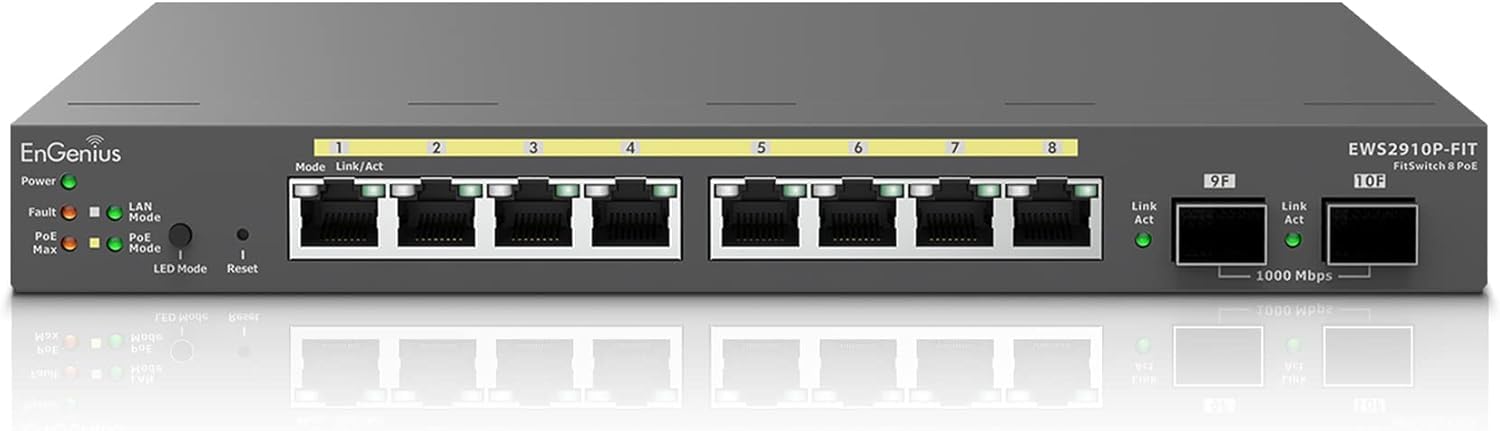
Figure 1: Front view of the EnGenius Fit EWS2910P-FIT 8-Port Gigabit PoE Managed Switch.

Figure 2: Detailed front view highlighting 8 Gigabit PoE Ports, 55W PoE Budget, and 20 Gbps Switching Capacity.

Figure 3: Diagram illustrating PoE simplification, showing how the switch powers IP cameras, IP phones, and access points.

Figure 4: Network diagram demonstrating Layer 2+ PoE switch capabilities with VLANs for different device types like IP phones, printers, cameras, and Wi-Fi devices.

Figure 5: Illustration of the Plug and Play functionality, emphasizing minimal setup by simply connecting power and network cables.

Figure 6: Easy configuration process using a mobile app and QR code for quick setup of Wi-Fi, parental controls, and guest networks.

Figure 7: Rear view of the EnGenius Fit EWS2910P-FIT switch, showing the DC power input and power switch.
Setup Guide
Follow these steps for initial setup of your EnGenius Fit EWS2910P-FIT switch:
- Unpack the Device: Carefully remove the switch and all accessories from the packaging.
- Connect Power: Connect the provided power adapter to the DC-IN port on the rear of the switch and plug it into a power outlet. Turn on the power switch.
- Network Connection: Connect your network router or modem to one of the SFP uplink ports using an appropriate SFP module and fiber cable, or to a standard Gigabit Ethernet port.
- Connect Devices: Connect your PoE-powered devices (e.g., IP cameras, access points, VoIP phones) to the Gigabit PoE ports (1-8) using Ethernet cables. The switch will automatically provide power and data.
- Initial Configuration (Optional - via App): Download the EnGenius FitXpress app from your mobile app store. Use the app to scan the QR code on the device for quick registration and initial network setup. This allows for easy onboarding and management.
- Initial Configuration (Optional - via Web/Controller): For more advanced management, connect a computer to any non-PoE Ethernet port on the switch. Access the switch's web interface via its default IP address (refer to the Quick Installation Guide) or integrate it with an EnGenius FitController for on-premises management.
Operating Instructions
The EnGenius Fit EWS2910P-FIT switch offers flexible management options to suit your business needs:
- Cloud Management (FitXpress): Utilize the FitXpress mobile app or web interface for remote monitoring, configuration, and troubleshooting of your network devices from anywhere. This is ideal for small businesses without dedicated IT staff or for managing multiple locations centrally.
- On-Premises Management (FitController): For businesses requiring greater control over devices and data privacy, the FitController offers on-premises network management with enterprise-level features. This provides full autonomy and enhanced data security.
- PoE Power Management: Configure PoE settings per port, including power scheduling, to optimize energy consumption and device availability.
- VLAN Configuration: Create and manage Virtual Local Area Networks (VLANs) to segment your network, improve security, and optimize traffic flow for different user groups or device types.
- Quality of Service (QoS): Prioritize critical network traffic, such as VoIP or video streaming, to ensure smooth performance and a high-quality user experience.
- Security Features: Implement robust security features like Access Control Lists (ACLs), DHCP Snooping, and 802.1X RADIUS authentication to protect your network from unauthorized access and threats.
Maintenance
To ensure optimal performance and longevity of your EnGenius Fit EWS2910P-FIT switch, consider the following maintenance practices:
- Regular Cleaning: Keep the device free from dust and debris. Use a soft, dry cloth for cleaning. Ensure ventilation openings are clear to prevent overheating.
- Firmware Updates: Periodically check for and apply the latest firmware updates through the FitXpress platform or FitController. Firmware updates often include performance enhancements, bug fixes, and security improvements.
- Cable Management: Ensure all Ethernet and power cables are securely connected and properly routed to prevent accidental disconnections or damage.
- Environmental Conditions: Operate the switch within its specified environmental conditions (temperature, humidity) to prevent hardware failure.
- Backup Configuration: Regularly back up your switch configuration settings, especially before applying major changes or firmware updates.
Troubleshooting
If you encounter issues with your EnGenius Fit EWS2910P-FIT switch, try the following troubleshooting steps:
- No Power: Verify the power adapter is securely connected to both the switch and a working power outlet. Check the power switch on the rear of the device.
- No Network Connectivity: Check the Ethernet cable connections to and from the switch. Ensure the uplink port is correctly connected to your router/modem. Verify LED indicators for link status.
- PoE Device Not Powering On: Ensure the PoE device is compatible with 802.3af/at standards. Check the PoE budget utilization on the management interface to ensure sufficient power is available. Try connecting the device to a different PoE port.
- Slow Network Speed: Check for network congestion using the management interface. Verify cable quality and ensure devices are operating at their expected speeds. Consider optimizing VLANs or QoS settings.
- Accessing Management Interface: Ensure your computer is on the same network segment as the switch. Verify the switch's IP address and your computer's network settings.
- Factory Reset: If issues persist, perform a factory reset (refer to the Quick Installation Guide for instructions). This will revert all settings to default.
- Contact Support: If you cannot resolve the issue, contact EnGenius Technical Support for further assistance.
Technical Specifications
| Feature | Specification |
|---|---|
| Brand | EnGenius |
| Model Number | EWS2910P-FIT |
| Number of Ports | 8 Gigabit PoE ports, 2 SFP Uplink ports |
| PoE Budget | 55 Watts |
| Data Transfer Rate | 20000 Megabits Per Second (20 Gbps switching capacity) |
| Switch Type | Layer 2+ Managed Switch |
| Interface | PoE, SFP |
| Color | Black |
| Case Material Type | Plastic |
| Item Weight | 2.3 Pounds |
| UPC | 655216011007 |
Warranty and Support
The EnGenius Fit EWS2910P-FIT switch comes with a 1-Year Limited Warranty. For detailed warranty information, technical support, or to explore other EnGenius products, please visit the EnGenius Store.
Helpful Videos
Introducing EnGenius Fit Solution, Multi-management Methods
Description: This video introduces the EnGenius Fit solution and its various multi-management methods, showcasing how the system can be efficiently managed.
EnGenius Fit Solution Features Highlight
Description: A highlight reel of the key features and benefits of the EnGenius Fit solution, providing a quick overview of its capabilities.
Cloud Managed PoE Switches | EnGenius Fit
Description: This video focuses on the cloud management aspects of EnGenius Fit PoE switches, demonstrating how they can be managed remotely via the cloud.
FIT Express APP
Description: A detailed walkthrough of the FIT Express mobile application, showing how to use it for device setup, monitoring, and network management.


