
Introduction
This manual provides essential information for the setup, operation, and maintenance of your ONN 42-Inch Class Full HD 1080p LED Smart TV. This television offers a crystal-clear 1080p resolution, a 60Hz refresh rate for smooth motion, and integrated smart TV capabilities with access to popular streaming services. It is also compatible with Alexa and Google Assistant for convenient voice control. Please read this manual thoroughly before using your television to ensure proper functionality and safety.
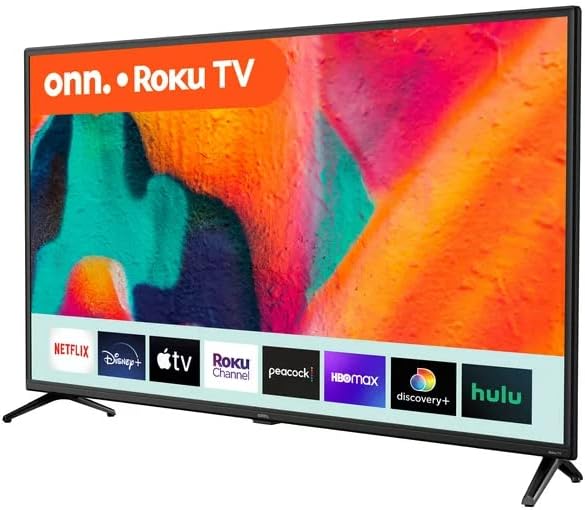
Figure 1: Front view of the ONN 42-Inch Roku TV, showcasing its smart interface with streaming applications like Netflix, Disney+, and Hulu.
Setup
1. Unpacking
Carefully remove the TV and all accessories from the packaging. Retain the packaging for future transport or service needs.
2. Stand Installation
Place the TV screen-down on a soft, clean surface. Align the TV stands with the screw holes on the bottom of the TV. Secure the stands using the provided screws. Ensure the stands are firmly attached before placing the TV upright.
3. Wall Mounting (Optional)
If you choose to wall mount your TV, ensure you use a VESA-compatible wall mount kit (sold separately) that supports the TV's weight and size. Follow the instructions provided with your wall mount kit. The TV's back panel includes mounting points.

Figure 2: Rear view of the ONN 42-Inch TV, illustrating the placement of input ports and VESA mounting points for wall installation.
4. Connecting Devices
Connect your external devices (e.g., cable box, gaming console, Blu-ray player) to the TV's HDMI or AV input ports. Connect the power cord to the TV and then to a power outlet.
5. Initial Power On and Network Setup
Press the power button on the remote control or the TV. Follow the on-screen instructions to complete the initial setup, including language selection, time zone, and connecting to your Wi-Fi network. This step is crucial for accessing smart TV features and streaming services.
Operating
1. Remote Control Functions
The included remote control allows you to navigate the TV's interface, adjust settings, and access streaming apps. It features dedicated buttons for popular services like Netflix, Disney+, Hulu, and Vudu, along with standard navigation, volume, and power controls.
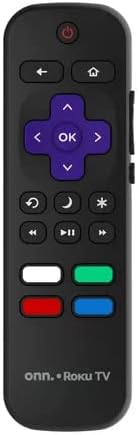
Figure 3: The ONN Roku TV remote control, highlighting its intuitive layout and quick-access buttons for streaming platforms.
2. Navigating the Smart TV Interface (Roku TV)
Your ONN TV uses the Roku TV operating system. Use the directional pad on your remote to browse the home screen, which displays your installed streaming channels and input options. Select a channel or input by pressing the 'OK' button.
3. Using Voice Assistants
The TV is compatible with Alexa and Google Assistant. Once connected to your smart home ecosystem, you can use voice commands to power on/off the TV, change channels, adjust volume, and launch apps. Refer to your voice assistant's specific instructions for pairing.
4. Input Selection
To switch between connected devices (e.g., HDMI 1, AV), navigate to the 'Inputs' section on the Roku TV home screen and select the desired source.
5. Picture and Sound Settings
Access the 'Settings' menu from the home screen to customize picture modes (e.g., Standard, Movie, Vivid), adjust brightness, contrast, and color, and configure sound settings like audio mode and volume levels.
Maintenance
1. Cleaning the Screen
Gently wipe the screen with a soft, dry, lint-free cloth. For stubborn marks, lightly dampen the cloth with water or a screen-specific cleaning solution (never spray directly onto the screen). Avoid using harsh chemicals or abrasive materials.
2. General Care
Keep the TV in a well-ventilated area, away from direct sunlight, heat sources, and excessive moisture. Do not block ventilation openings. Unplug the TV during lightning storms or when unused for extended periods.
Troubleshooting
- No Power: Ensure the power cord is securely plugged into both the TV and a working electrical outlet. Try a different outlet.
- No Picture/Sound: Verify that the correct input source is selected. Check all cable connections (HDMI, AV) to ensure they are secure. Restart connected devices.
- Remote Not Working: Replace the batteries in the remote control. Ensure there are no obstructions between the remote and the TV's IR sensor.
- Network Connectivity Issues: Check your Wi-Fi router and internet connection. Restart both the TV and your router. Re-enter your Wi-Fi password in the TV's network settings.
- Smart Features Not Responding: Ensure the TV is connected to the internet. Try restarting the TV. If issues persist, a factory reset may be necessary (refer to the Settings menu for this option).
Specifications
| Feature | Detail |
|---|---|
| Brand | Onn |
| Model Number | 100068372 |
| Screen Size | 42 Inches |
| Display Technology | LED |
| Resolution | 1080p Full HD |
| Refresh Rate | 60 Hz |
| Aspect Ratio | 16:9 |
| Special Feature | Flat, Smart TV (Roku TV) |
| Connectivity Technology | Wi-Fi |
| Supported Internet Services | Netflix, YouTube, Disney+, Hulu, Vudu, and more via Roku Channel Store |
| Compatibility | Alexa & Google Assistant |
| Product Dimensions | 8.7 x 37.4 x 23.5 inches |
| Item Weight | 13.2 pounds |
| Included Components | TV, Stand, Remote Control |

Figure 4: Energy Guide label for the ONN 42-Inch TV, indicating its estimated yearly energy cost and consumption.
Warranty and Support
Your ONN TV is covered by a manufacturer's warranty. Please refer to the warranty card included with your product for specific terms and conditions, including the duration of coverage and how to make a claim. For technical support, troubleshooting assistance, or to inquire about service, please visit the official ONN support website or contact their customer service hotline. Contact information can typically be found on the manufacturer's website or in the product packaging.


