
SV3C SD10POE-5MP
SV3C 5MP PTZ Outdoor Camera Instruction Manual
Model: SD10POE-5MP
Brand: SV3C
1. Introduction
This manual provides detailed instructions for the installation, operation, and maintenance of your SV3C 5MP PTZ Outdoor Camera (Model SD10POE-5MP). Please read this manual thoroughly before using the product to ensure proper functionality and safety. This camera is designed for both indoor and outdoor surveillance, offering advanced features such as 5MP Super HD resolution, 5X optical zoom, auto-tracking, color night vision, two-way audio, and Power over Ethernet (PoE) connectivity.
2. What's in the Box
- 1x SV3C 5MP PTZ Outdoor Camera
- 1x Power Adapter (for non-PoE setups)
- 1x Screws Bag (for mounting)
- 1x Installation Plate
- 1x User Manual (Quick Start Guide)

Video: Unboxing the SV3C 5MP PTZ Outdoor Camera. This video demonstrates the contents of the product packaging, including the camera unit, power adapter, mounting hardware, and documentation.
3. Product Overview
The SV3C 5MP PTZ Outdoor Camera features a robust design with multiple components for comprehensive surveillance.

Image: Detailed view of the camera's components, including the DC 12V power input, Ethernet port, Reset button, Microphone, HD Lens, 10 PCS IR LED Lights/Spotlights, Light Sensor, Speaker, and SD Card Slot.
- HD Lens: Captures 5-megapixel video.
- IR LED Lights/Spotlights: Provides illumination for night vision modes.
- Light Sensor: Detects ambient light levels to automatically switch between day and night modes.
- Microphone & Speaker: Enables two-way audio communication.
- Ethernet Port: For Power over Ethernet (PoE) and data connection.
- DC 12V Input: Alternative power input if PoE is not used.
- Reset Button: Used to restore factory default settings.
- SD Card Slot: Supports local storage of video recordings (up to 128GB).
4. Setup Instructions
Follow these steps to set up your SV3C 5MP PTZ Outdoor Camera.
4.1. Power and Network Connection
- Power over Ethernet (PoE): Connect the camera to a PoE switch or NVR using a single Ethernet cable. This cable will provide both power and data. Ensure your PoE switch has 30-watt ports (PoE+) for optimal performance, especially when IR LEDs are active and the PTZ motor is in use.
- Power Adapter: If PoE is not available, use the included 12V power adapter to power the camera. Connect the Ethernet cable for data transmission.
- Waterproof Connector: Utilize the provided waterproof connector for the Ethernet cable connection, especially for outdoor installations, to prevent water ingress. Note that some Ethernet cables with large anti-snag boots may require modification to fit properly.

Image: Illustration of the two primary connection methods for the camera: Power over Ethernet (PoE) for simplified wiring, and a traditional power adapter combined with an Ethernet cable.
4.2. Initial Configuration
- Mobile App (Camhipro): Download and install the Camhipro app on your Android or iOS device. The Quick Start Guide provides instructions for adding the camera by scanning the QR code.
- PC Web Browser: To access advanced settings, find the camera's IP address using your router's settings or a network scanning tool. Enter the IP address into a web browser (e.g., Chrome, Edge). The default username and password are typically 'admin' for both. If these do not work, press and hold the reset button for about 10 seconds to restore factory defaults. Be patient, as changes may take a minute to apply.
- ONVIF Compatibility: The camera supports ONVIF protocol, allowing integration with various platforms like ONVIF NVRs, Blue Iris, and ISPY.
Video: This video demonstrates the wired connection setup for the SV3C PTZ camera, highlighting the physical connection of the Ethernet cable.
4.3. Micro SD Card Installation
The camera supports a micro SD card up to 128GB for local storage. To install, remove the cover/access plate at the bottom of the camera. Use a flashlight to locate the slot at the bottom edge of the circuit board. Insert the SD card with the metal contacts facing the circuit board. Use the supplied tweezers if necessary. Exercise caution to avoid losing the small rubber gasket or screws.
5. Operating Instructions
Maximize the functionality of your SV3C camera with these operating features.
5.1. Pan, Tilt, and Zoom (PTZ) Control
The camera offers extensive PTZ capabilities, allowing for a nearly 360-degree pan, 120-degree tilt, and 5X optical zoom. This enables detailed monitoring of large areas.

Image: The SV3C PTZ camera demonstrating its pan, tilt, and 5X optical zoom capabilities, covering a wide area with high-definition clarity.
Video: This video illustrates the PTZ (Pan-Tilt-Zoom) functionality of the camera, showing how it can be remotely controlled to adjust its viewing angle and zoom level.
5.2. Auto Tracking and PTZ Presets
The camera can automatically track human movement, adjusting its focus to follow subjects. You can also set PTZ presets to quickly move the camera to predefined locations.

Image: The camera's auto-tracking feature is shown, highlighting its ability to follow human motion. The image also indicates the use of PTZ presets for quick camera positioning.
Video: This video showcases the auto-tracking feature of the SV3C PTZ camera, demonstrating its ability to follow moving subjects automatically.
5.3. Night Vision Modes
The camera offers three night vision modes for clear video in various low-light conditions:
- Infrared Mode: Switches to infrared for clear black and white vision in complete darkness.
- Spotlight Color Night Vision: Activates 10 spotlights to provide full-color vision at night.
- Smart Night Vision: Automatically activates spotlights upon detecting motion, offering color vision when needed.

Image: Comparison of the camera's three night vision modes: standard infrared (black and white), full-color with spotlights, and smart mode that activates spotlights upon motion detection.
5.4. Smart Motion Detection
Receive quick notifications on the Camhipro app when motion is detected. The camera can differentiate between people and vehicles, and you can customize human motion detection settings to reduce false alerts.

Image: The camera's smart motion detection feature is shown, with a yellow box highlighting a detected person, indicating its ability to identify and track human movement.
Video: This video demonstrates the camera's person tracking capabilities, showing how it can identify and follow individuals within its field of view.
5.5. Two-Way Audio
The built-in microphone and speaker allow for clear two-way audio communication, enabling you to hear sounds and speak to visitors via the app.

Image: A user is shown interacting with the camera via a smartphone, demonstrating the two-way audio function to communicate with someone at the camera's location.
Video: This video highlights the two-way audio feature of the PTZ camera, allowing for real-time communication through the device.
5.6. Video Storage
The camera supports 24/7 video recording to an SD card or NVR without subscription fees. Playback and download are easily accessible.

Image: Visual representation of the camera's flexible video storage options, including SD card, local PC, Network Video Recorder (NVR), and FTP server.
5.7. H.265 Video Compression
Utilizes H.265 video compression to efficiently store video, reducing storage space and bandwidth usage compared to older H.264 standards.
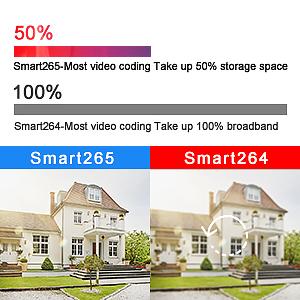
Image: A visual comparison illustrating the efficiency of H.265 video compression, showing it uses significantly less storage space and bandwidth than H.264.
6. Maintenance
Proper maintenance ensures the longevity and optimal performance of your camera.
- Cleaning: Regularly clean the camera lens and housing with a soft, damp cloth. Avoid abrasive cleaners or solvents.
- Firmware Updates: Check the SV3C website for the latest firmware updates to ensure your camera has the most current features and security patches.
- Environmental Protection: The camera has an IP66 waterproof rating, making it suitable for outdoor use in various weather conditions. However, avoid direct high-pressure water jets.

Image: The SV3C PTZ camera is shown installed outdoors during a rainstorm, emphasizing its IP66 waterproof, dustproof, and lightning protection features.
Video: This video highlights the durability and robust construction of the SV3C camera, suitable for various outdoor conditions.
7. Troubleshooting
If you encounter issues with your camera, refer to the following common solutions:
- Camera Reboots Continuously (PoE): This may occur if your PoE switch does not supply sufficient power (e.g., 15W Type 1 PoE). Ensure you are using a PoE+ (30W Type 2) switch, especially when IR LEDs are on and the PTZ motor is active.
- Cannot Access Camera (Default Credentials): If the default 'admin' username and password do not work, press and hold the reset button on the camera's cable for approximately 10 seconds to restore factory defaults. Allow about a minute for the camera to restart before attempting to log in again.
- Difficulty Inserting Micro SD Card: The micro SD card slot is located under a cover/access plate at the bottom of the camera. It can be challenging to access. Use a flashlight to guide insertion and the supplied tweezers if needed.
- Waterproof Connector Issues: If your Ethernet cable has a large rubber boot, it might not fit the waterproof connector. You may need to trim the boot for a secure, watertight seal.
- Settings Not Applying Immediately: Some configuration changes, especially via web browser, may take several seconds or even a minute to take effect. Be patient after clicking 'Apply'.
- Humanoid Tracking Not Moving Camera: If humanoid detection works but the camera does not track when the subject moves out of view, ensure that the motion detection alarm is turned OFF in the Camhipro app settings (Settings > Alarm Management and Notification > Motion Detection Alarm = OFF) before attempting to set PTZ preset positions.
- Poorly Translated Settings: Some settings in the PC interface may have unclear or poorly translated names. Refer to the SV3C website for additional documentation or contact support for clarification.
8. Specifications
| Feature | Specification |
|---|---|
| Model Name | SD10POE-5MP |
| Video Capture Resolution | 5MP |
| Effective Video Resolution | 5 MP |
| Optical Zoom | 5x |
| Field Of View | 360 Degrees (Pan) |
| Pan/Tilt Range | Pan 355°, Tilt 120° |
| Night Vision | 200FT, Super HD10 Spotlights Color Night Vision |
| Connectivity Technology | Ethernet |
| Connectivity Protocol | Ethernet, ONVIF, RTSP |
| Power Source | Corded Electric (12V) / Power over Ethernet (PoE) |
| Wattage | 6 watts |
| Water Resistance Level | Waterproof (IP66) |
| Material | Aluminum (All Metal Housing) |
| Storage | Micro SD Card (up to 128GB), NVR, FTP |
| Special Features | Auto Tracking, PTZ Preset Positions, Two-Way Audio, Motion Detection |
9. Warranty and Support
For warranty information, technical support, or further assistance, please refer to the official SV3C website or contact SV3C customer service directly. Keep your purchase receipt and product model number handy for faster service.
Related documentsSD10POE-5MP


Ask a question about this manual
Ask about setup, troubleshooting, compatibility, parts, safety, or missing instructions. Manuals+ will review the question and use this page’s manual context to help answer it.