
Introduction
This manual provides detailed instructions for the setup, operation, and maintenance of your Earto iPad 10th Generation Keyboard Case with Touchpad. Please read this manual thoroughly to ensure proper use and to maximize the functionality of your device.
The Earto keyboard case is designed to enhance your iPad experience by providing a physical keyboard and a precision touchpad, transforming your tablet into a versatile productivity tool.
Compatibility
This keyboard case is specifically designed for the following iPad models:
- iPad 10th Generation 10.9 inch (2022)
- Model Numbers: A2696, A2757, A2777
To verify your iPad model number, check the back of your iPad under the Apple logo.
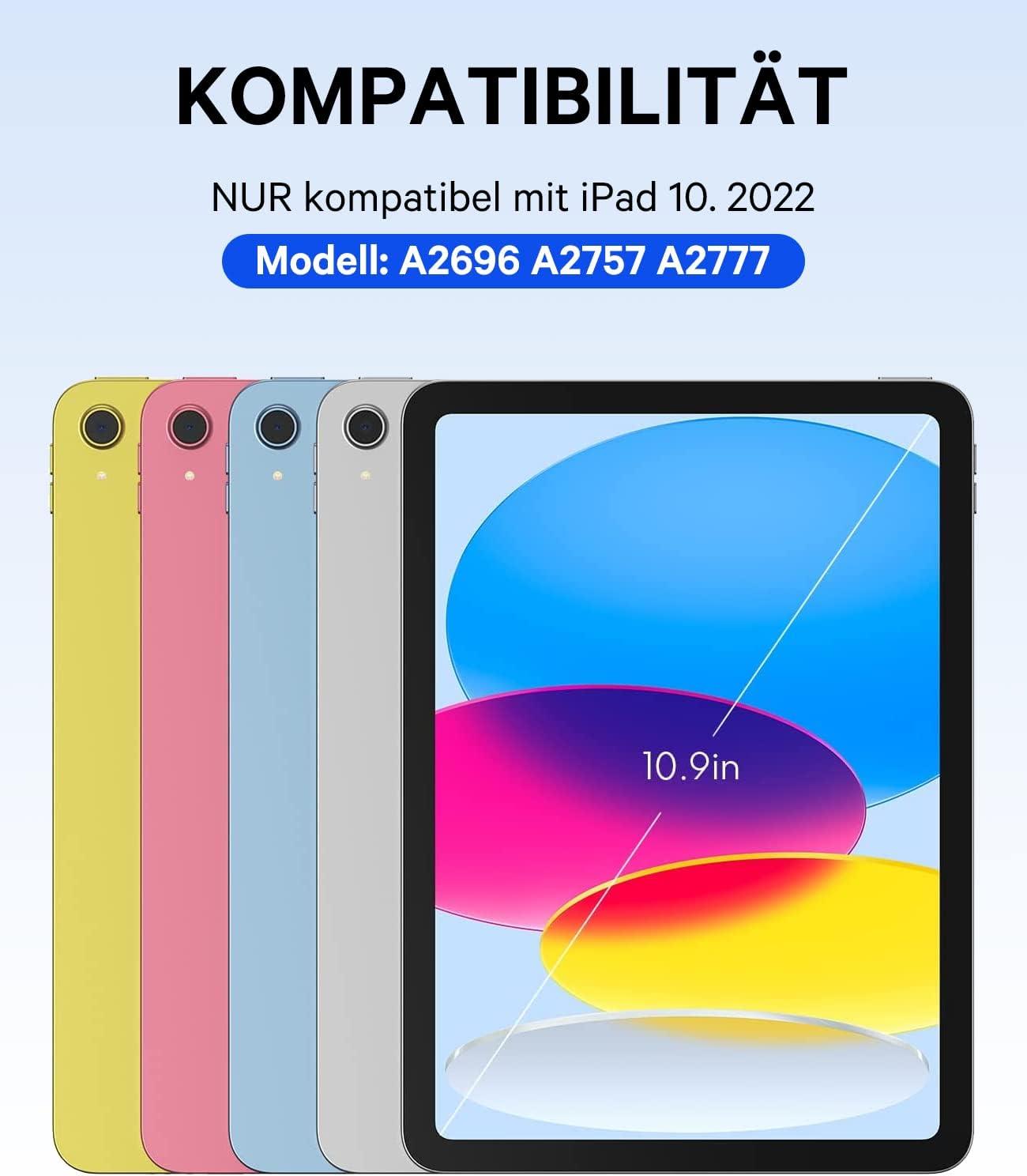
Figure 1: Visual guide for iPad 10th Generation compatibility, highlighting model numbers A2696, A2757, A2777.
Setup
1. Attaching the iPad to the Case
- Align your iPad 10th Generation with the case.
- Gently press the iPad into the protective frame of the case until it is securely seated.
- Ensure all ports, buttons, and cameras are accessible through the precise cut-outs.

Figure 2: The Earto keyboard case with an iPad installed, ready for use.
2. Charging the Keyboard
The keyboard features a Type-C charging interface. Before initial use, fully charge the keyboard.
- Connect the provided Type-C charging cable to the keyboard's charging port.
- Connect the other end of the cable to a USB power adapter (not included).
- A full charge typically takes 2-3 hours. The keyboard can operate continuously for up to 70 hours on a full charge under normal use.
3. Pairing the Keyboard via Bluetooth
The keyboard supports two Bluetooth channels, allowing you to connect to and switch between two devices.
- Turn on the keyboard by sliding the power switch.
- Press and hold the Fn + Q keys simultaneously to activate Bluetooth Channel 1 (BT1) pairing mode. The Bluetooth indicator light will flash.
- On your iPad, go to Settings > Bluetooth and turn Bluetooth on.
- Select "Bluetooth Keyboard" (or similar name) from the list of available devices.
- Once paired, the Bluetooth indicator light will stop flashing.
- To pair a second device, repeat steps 2-5, but press Fn + W for Bluetooth Channel 2 (BT2).
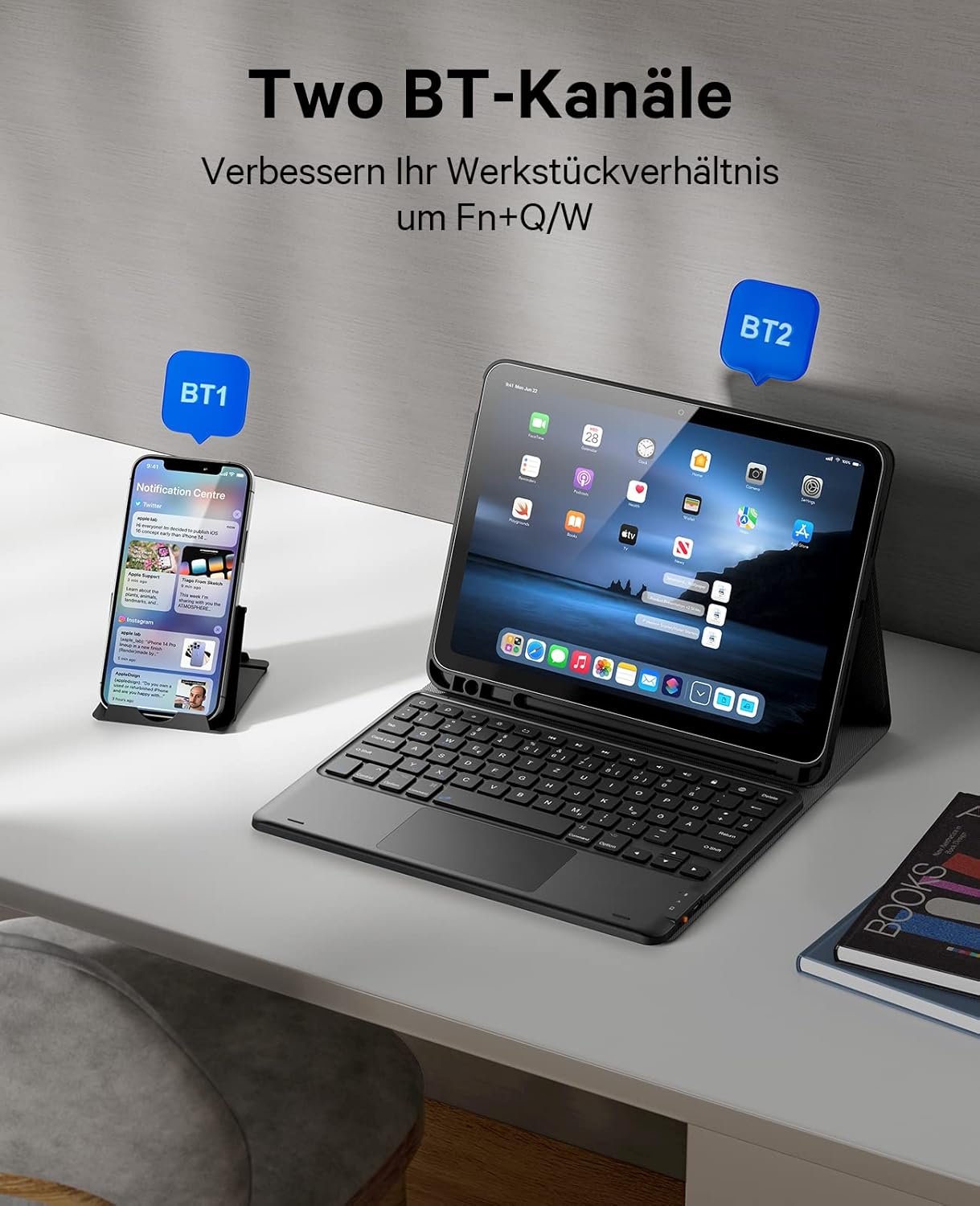
Figure 3: Connecting the keyboard to multiple devices using BT1 and BT2 channels.
Operating Instructions
1. Using the Touchpad
The integrated precision touchpad allows for quick and accurate interaction with your iPad, supporting multi-gesture operations similar to a laptop.
- Single Finger Tap: Left-click.
- Two Finger Tap: Right-click (context menu).
- Two Finger Scroll: Scroll up/down or left/right.
- Swipe Gestures: Support for various iPadOS gestures (e.g., swipe left/right to switch apps, swipe up to return to home screen).
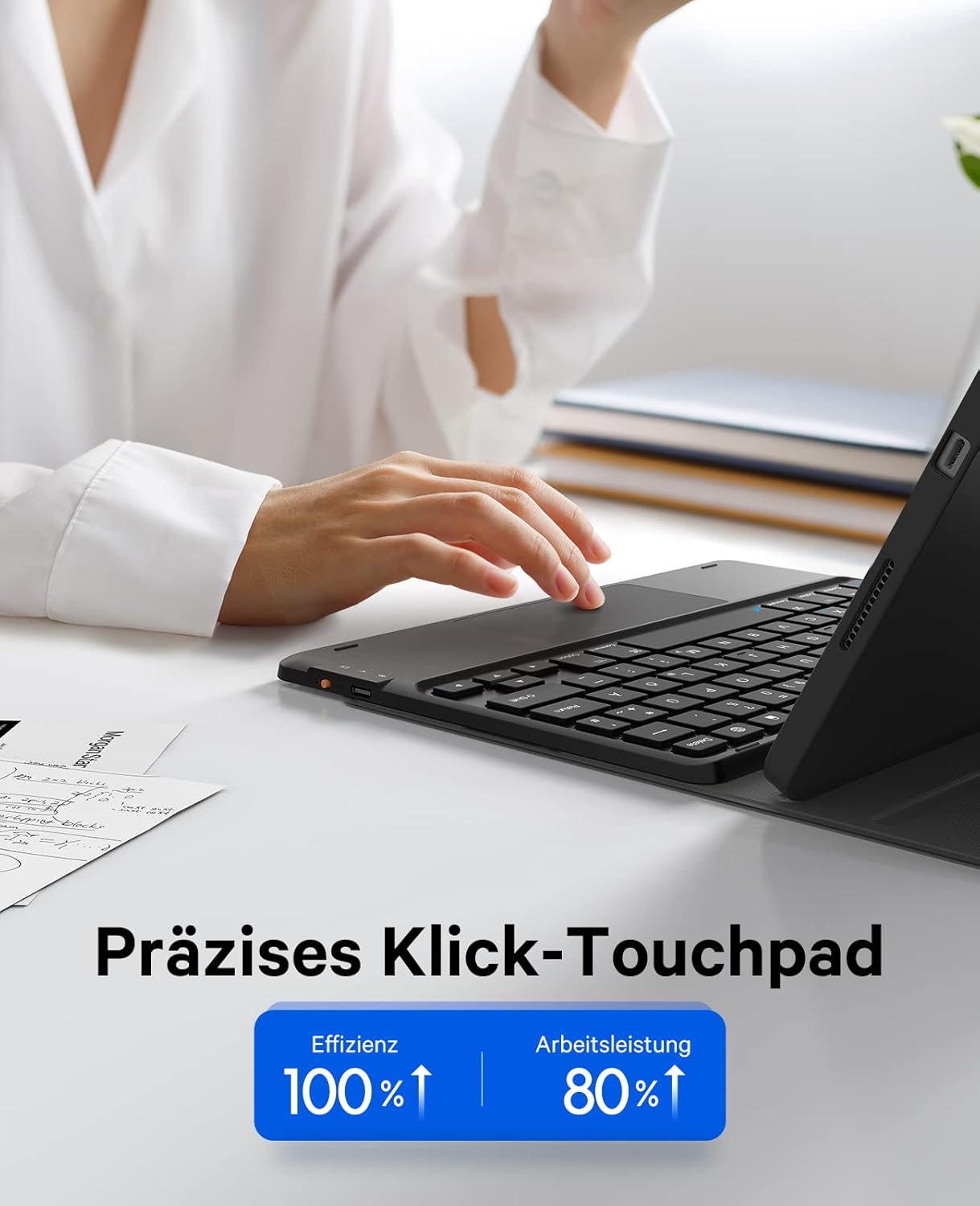
Figure 4: Demonstrating the precision touchpad for efficient navigation.
2. Enabling/Disabling the Touchpad
To conserve battery or prevent accidental input, you can enable or disable the touchpad function.
- Press the Fn + Spacebar keys simultaneously to toggle the touchpad function on or off.

Figure 5: Activating or deactivating the touchpad using the Fn + Spacebar shortcut.
3. Typing Experience and Multimedia Keys
The keyboard features a QWERTZ layout with a scissor-foot button design and larger keycaps for a comfortable and efficient typing experience. A full set of multimedia keys allows for easy control of various iPad functions.
- Use the dedicated multimedia keys for functions such as volume control, media playback, screen brightness, and more.
4. Detachable Magnetic Keyboard
The keyboard is magnetically attached to the case, allowing for flexible use. You can detach the keyboard for standalone use or to use the case without the keyboard.
- To detach, gently pull the keyboard away from the magnetic surface of the case.
- To reattach, align the keyboard with the magnetic area in the case, and it will snap into place.
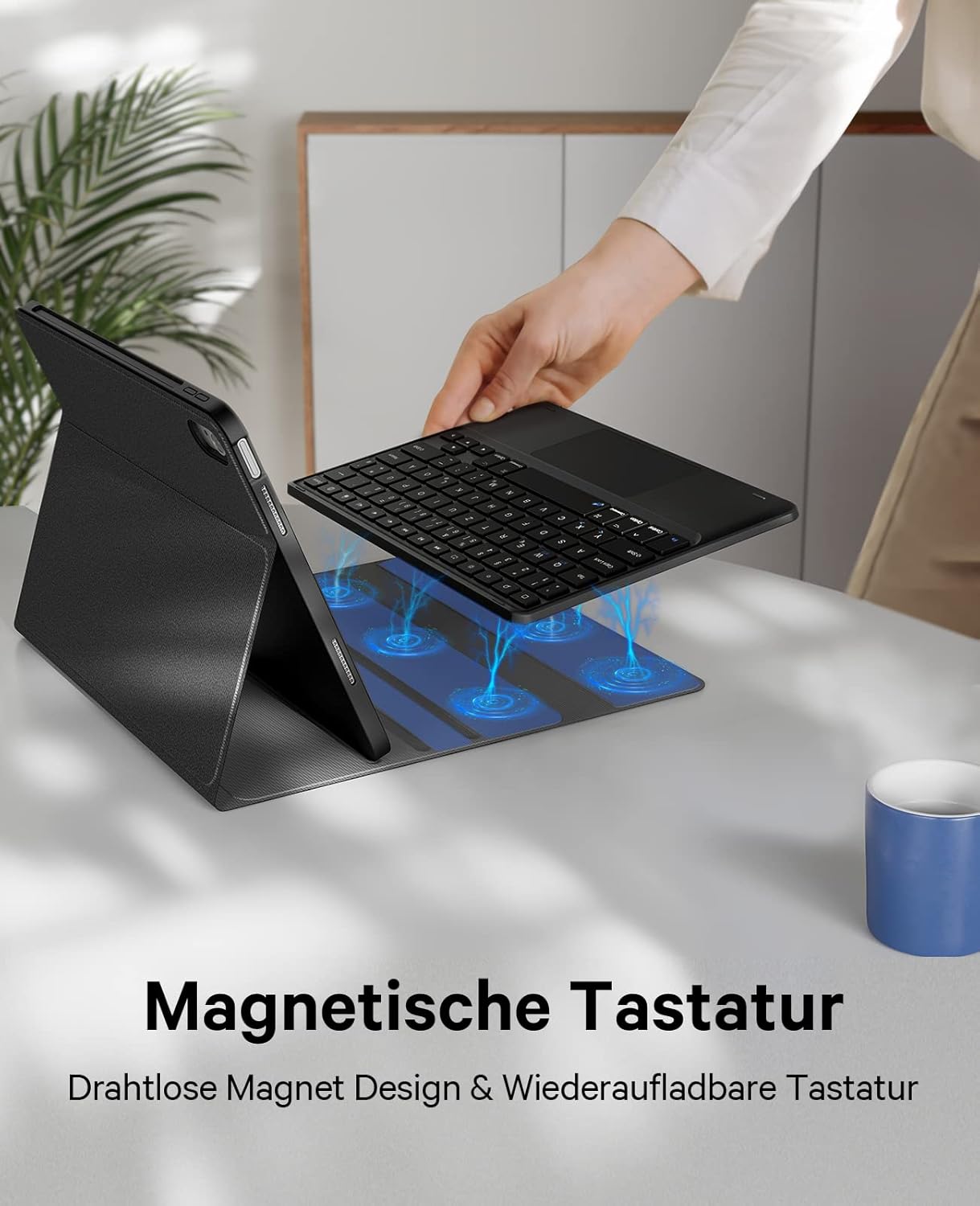
Figure 6: The magnetic attachment mechanism of the keyboard to the case.
5. Adjustable Viewing Angles
The case features three built-in card slots that allow you to adjust the viewing angle of your iPad for optimal comfort during typing, viewing, or drawing.
- The available angles are approximately 110°, 120°, and 130°.
- Simply place the edge of your iPad into one of the grooves to set the desired angle.

Figure 7: Adjusting the iPad to different viewing angles for various tasks.
6. Apple Pencil Holder
The case includes a built-in holder for your Apple Pencil, along with slots for the cap and adapter, ensuring your Apple Pencil is always secure and accessible.
Maintenance
- Cleaning the Case: Wipe the PU leather surface with a soft, damp cloth. Avoid harsh chemicals or abrasive cleaners.
- Cleaning the Keyboard: Use a soft, dry cloth to clean the keys. For dust or debris between keys, use compressed air.
- Storage: When not in use for extended periods, store the keyboard case in a cool, dry place. Ensure the keyboard is turned off to preserve battery life.
- Battery Care: To maintain battery health, avoid fully discharging the keyboard frequently. Charge it regularly.
Troubleshooting
| Problem | Possible Cause | Solution |
|---|---|---|
| Keyboard not connecting via Bluetooth |
|
|
| Touchpad not responding |
|
|
| Keys not responding |
|
|
Specifications
| Feature | Detail |
|---|---|
| Brand | Earto |
| Model Numbers | A2696, A2757, A2777 |
| Compatible Devices | iPad 10th Generation 10.9 inch (2022) |
| Connectivity Technology | Bluetooth (2 channels) |
| Keyboard Layout | QWERTZ |
| Special Features | Ergonomic, Rechargeable, Integrated Touchpad, Detachable Magnetic Keyboard, Apple Pencil Holder, Adjustable Viewing Angles (110°, 120°, 130°) |
| Battery Type | 1 Lithium Ion battery (included) |
| Charging Interface | Type-C |
| Charging Time | 2-3 hours |
| Continuous Working Time | Up to 70 hours |
| Product Dimensions | 25.5 x 21 x 2.5 cm |
| Item Weight | 830 g |
| Material | Acrylonitrile Butadiene Styrene (ABS), PU leather |
| Color | Black |
Warranty and Support
No specific warranty information is provided in the product details. For warranty claims or technical support, please contact Earto customer service through the retailer where the product was purchased or refer to the official Earto website for contact information.


