
1. Introduction
1.1 Product Overview
The ZKTeco MB2000 is an advanced access control and attendance recording device designed for efficient management of personnel entry and exit. It features fingerprint recognition technology for secure and reliable identification. This manual provides detailed instructions for the installation, operation, and maintenance of your MB2000 device.
1.2 Key Features
- Fingerprint Recognition: High-accuracy biometric identification for access and attendance.
- IPX7 International Protection Rating: Provides protection against water immersion up to 1 meter for 30 minutes.
- Lightweight Design: Facilitates easy installation and portability.
- Wireless Connectivity: Enables flexible data transfer and device management.
1.3 Package Contents
Verify that all items are present in the package:
- ZKTeco MB2000 Fingerprint Device
- Mounting Stand
- User Card (for initial setup or specific functions)
- Power Adapter (not explicitly listed but implied for operation)
- User Manual (this document)
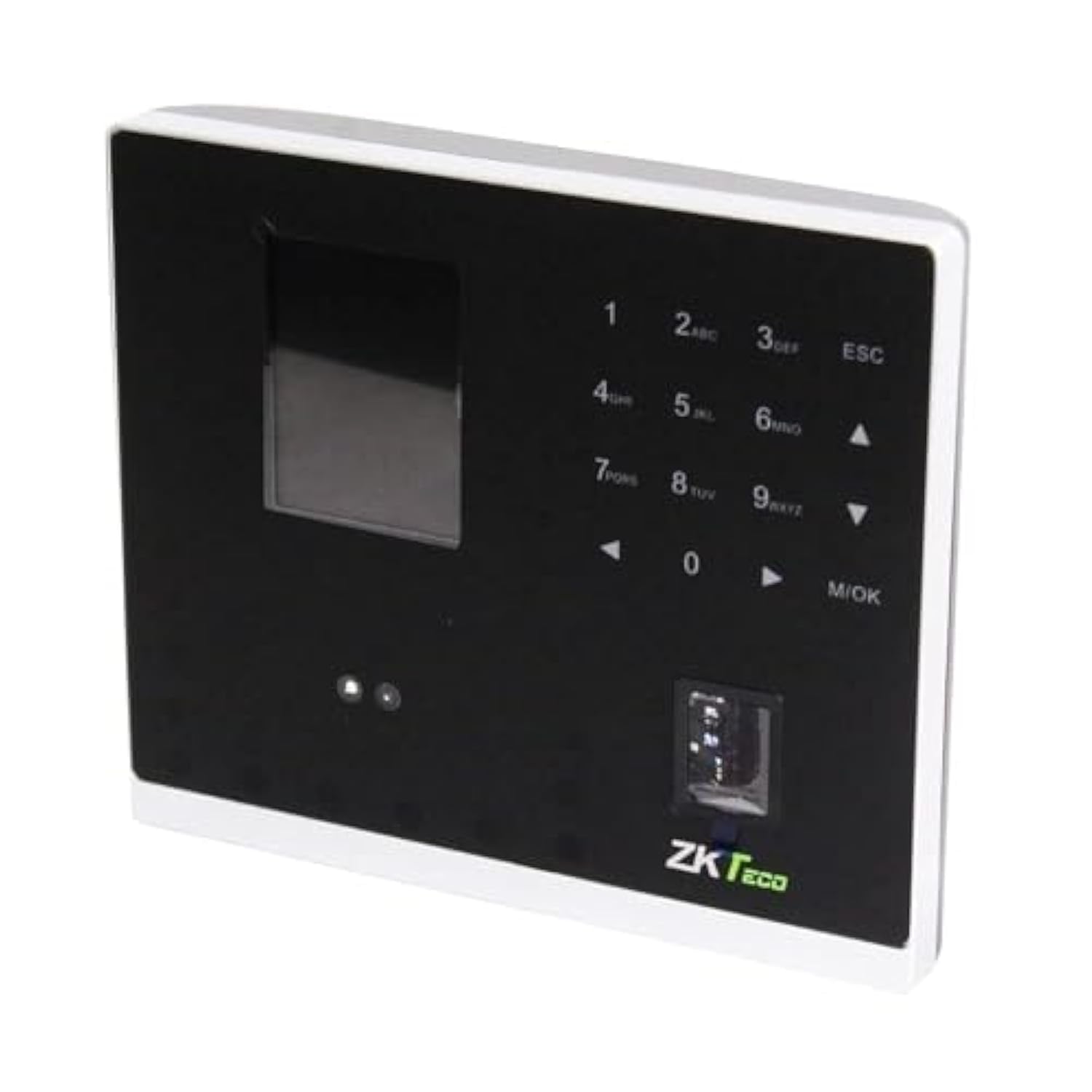
Figure 1.1: ZKTeco MB2000 Access Control and Attendance Recording Device. This image shows the front view of the compact device, highlighting its fingerprint sensor and display screen.
2. Safety Information
Please read and understand all safety instructions before operating the device to prevent injury or damage.
- Power Supply: Use only the specified power adapter provided with the device. Using an incorrect power supply may damage the device and void the warranty.
- Environment: Do not expose the device to extreme temperatures, direct sunlight, or corrosive substances. While rated IPX7, prolonged submersion or exposure to high-pressure water jets is not recommended.
- Handling: Avoid dropping or subjecting the device to strong impacts. Do not attempt to disassemble or repair the device yourself. Contact qualified service personnel for assistance.
- Cleaning: Use a soft, dry cloth for cleaning. Do not use liquid or aerosol cleaners.
3. Setup Guide
3.1 Unpacking and Inspection
Carefully remove the device and all accessories from the packaging. Inspect for any signs of damage. If any components are missing or damaged, contact your supplier immediately.
3.2 Mounting the Device
The MB2000 can be mounted using the provided stand. Choose a stable, flat surface for placement. Ensure the device is positioned at a comfortable height for users to access the fingerprint sensor.
- Attach the stand securely to the back of the MB2000 device.
- Place the device with the stand on your desired surface.
- Ensure the device is stable and will not easily tip over.
3.3 Power Connection
Connect the power adapter to the device's power input port and then plug it into a standard electrical outlet. The device will power on automatically.
3.4 Initial Configuration
Upon first power-on, the device may prompt you to set up an administrator. Follow the on-screen instructions to register the first administrator fingerprint or card. This administrator will have privileges to manage users and device settings.
4. Operating Instructions
4.1 User Registration
To register a new user:
- Access the device menu using the administrator's fingerprint or card.
- Navigate to the 'User Management' section.
- Select 'Add User'.
- Enter the user's ID and name (if applicable).
- Register the user's fingerprint by placing their finger on the sensor multiple times as prompted.
- Alternatively, register a user card by presenting it to the device's card reader.
- Save the user information.
4.2 Access Control
For access control, registered users can gain entry by:
- Fingerprint Verification: Place a registered finger on the sensor. The device will verify the fingerprint and grant access if authorized.
- Card Presentation: Present a registered user card to the device's card reader. The device will verify the card and grant access if authorized.
4.3 Attendance Recording
The device automatically records attendance when a user successfully verifies their identity for access. The timestamp of the verification is logged as an attendance record.
4.4 Data Management
Attendance logs and user data can be managed through the device's interface or by connecting to a compatible software (if available). Refer to the device's on-screen menu for options to download data via USB or network connection.
5. Maintenance
5.1 Cleaning
Regular cleaning helps maintain optimal performance:
- Fingerprint Sensor: Gently wipe the sensor surface with a soft, lint-free cloth. Do not use abrasive materials or harsh chemicals.
- Device Surface: Clean the device's exterior with a slightly damp cloth, then dry immediately with a soft, dry cloth.
5.2 Software Updates
Check the manufacturer's website periodically for software or firmware updates. Updates can improve performance, add features, or fix bugs. Follow the provided instructions carefully when performing updates.
5.3 Data Backup
Regularly back up attendance logs and user data to prevent loss. This can typically be done via USB export or through connected management software.
6. Troubleshooting
This section addresses common issues you might encounter with the MB2000 device.
| Problem | Possible Cause | Solution |
|---|---|---|
| Device does not power on. | No power, faulty adapter, or power outlet issue. | Check power connection. Ensure the adapter is correctly plugged in. Test the power outlet with another device. |
| Fingerprint not recognized. | Fingerprint not registered, dirty sensor, or incorrect placement. | Ensure the fingerprint is registered. Clean the sensor. Place the finger flat and centered on the sensor. Try re-registering the fingerprint. |
| Card not recognized. | Card not registered or incorrect card type. | Verify the card is registered. Ensure it is a compatible card type. |
| Data transfer issues. | Incorrect settings, cable issues, or software incompatibility. | Check network settings or USB cable connection. Ensure the management software is compatible and correctly configured. |
7. Technical Specifications
| Specification | Detail |
|---|---|
| Model Number | MB2000 |
| Brand | ZKTeco |
| Shipping Dimensions | 31 x 25.5 x 12.5 cm |
| Item Weight | 1.5 kg |
| Special Features | Lightweight |
| Connectivity | Wireless |
| Color | Black |
| Included Components | Fingerprint device, stand, card |
| International Protection Rating | IPX7 (Waterproof) |
| Number of Channels | 1 |
| First Available Date | November 6, 2022 |
8. Warranty and Support
For warranty information, please refer to the warranty card included with your product or the purchase documentation. For technical support or service inquiries, please contact your local ZKTeco distributor or visit the official ZKTeco website for contact details.


