
Introduction
This manual provides detailed instructions for the setup, operation, maintenance, and troubleshooting of your MageGee Star98 Wired Mechanical Gaming Keyboard. This keyboard features a 98-key layout, Red mechanical switches, and customizable backlighting, designed for an enhanced typing and gaming experience.
What's in the Box
- MageGee Star98 Mechanical Keyboard
- USB Cable
- Additional Red Keycaps (quantity may vary)
Setup Instructions
- Connect the Keyboard: Plug the provided USB cable into the USB port on the keyboard and then into an available USB port on your computer.
- Driver Installation: The keyboard is plug-and-play and does not require additional driver installation for basic functionality. Your operating system (Windows, Mac, Linux, Android) will automatically recognize the device.
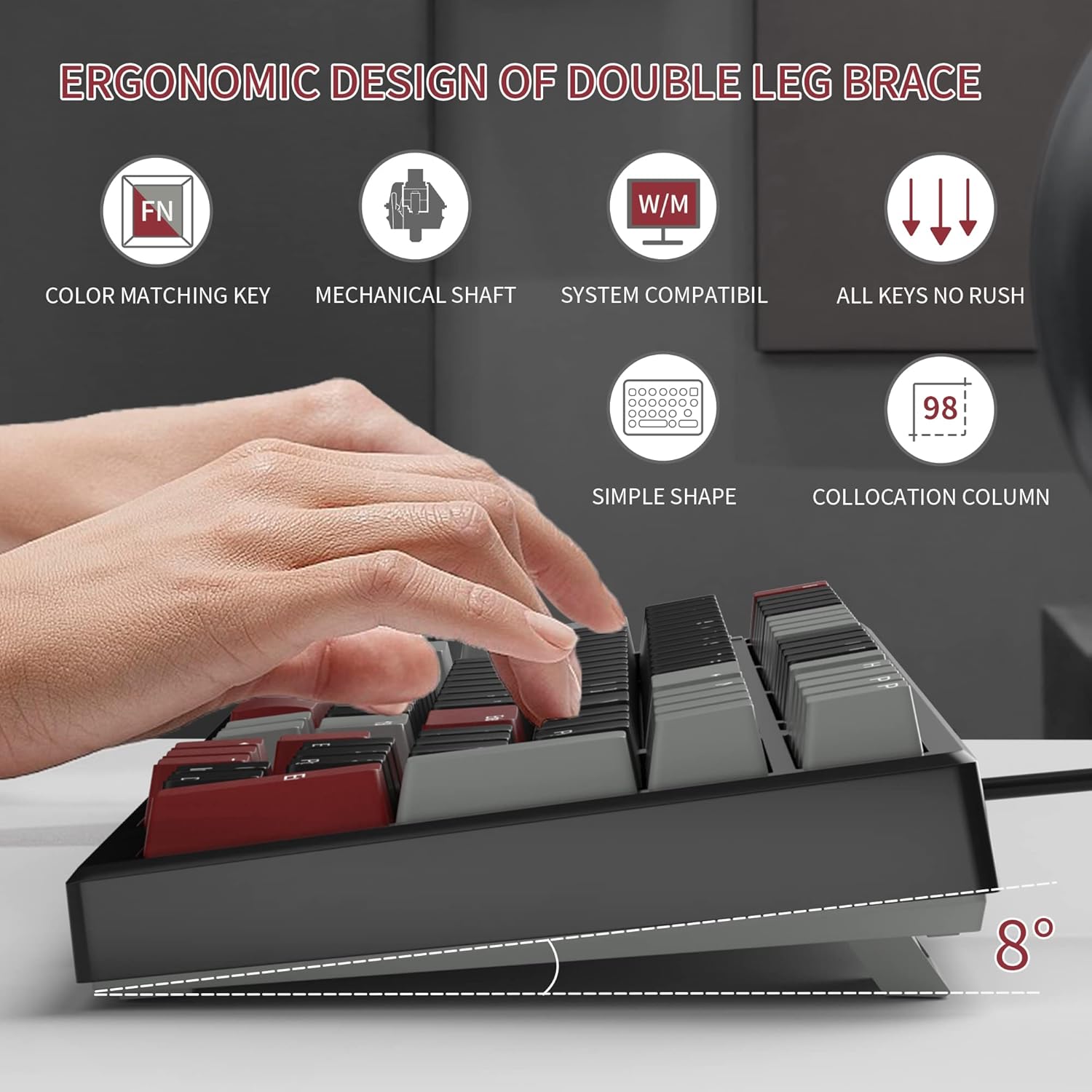
- Adjust Tilt Legs: For ergonomic comfort, you can extend the adjustable tilt legs located on the underside of the keyboard.
Operating Instructions
Key Features
- 98-Key Layout: This compact layout retains most standard keyboard functionality while saving desk space.
- Red Mechanical Switches: Provides a fast response with tactile feedback for typing and gaming.
- Anti-Ghosting: All 98 keys support anti-ghosting for simultaneous key presses.
- Hot-Swappable Design: Compatible with most 3-pin and 5-pin mechanical switches, allowing for customization.
- Backlighting: Features solid sea blue backlighting with multiple operational modes.
- WIN Key Lock: Function to prevent accidental presses of the Windows key during gaming.
Backlight Modes
The keyboard's backlight has multiple operational modes. Refer to the keyboard's function key combinations (usually Fn + specific keys) for cycling through modes or turning the backlight off. Specific key combinations are typically printed on the keycaps or detailed in a quick start guide.
Hot-Swappable Switches
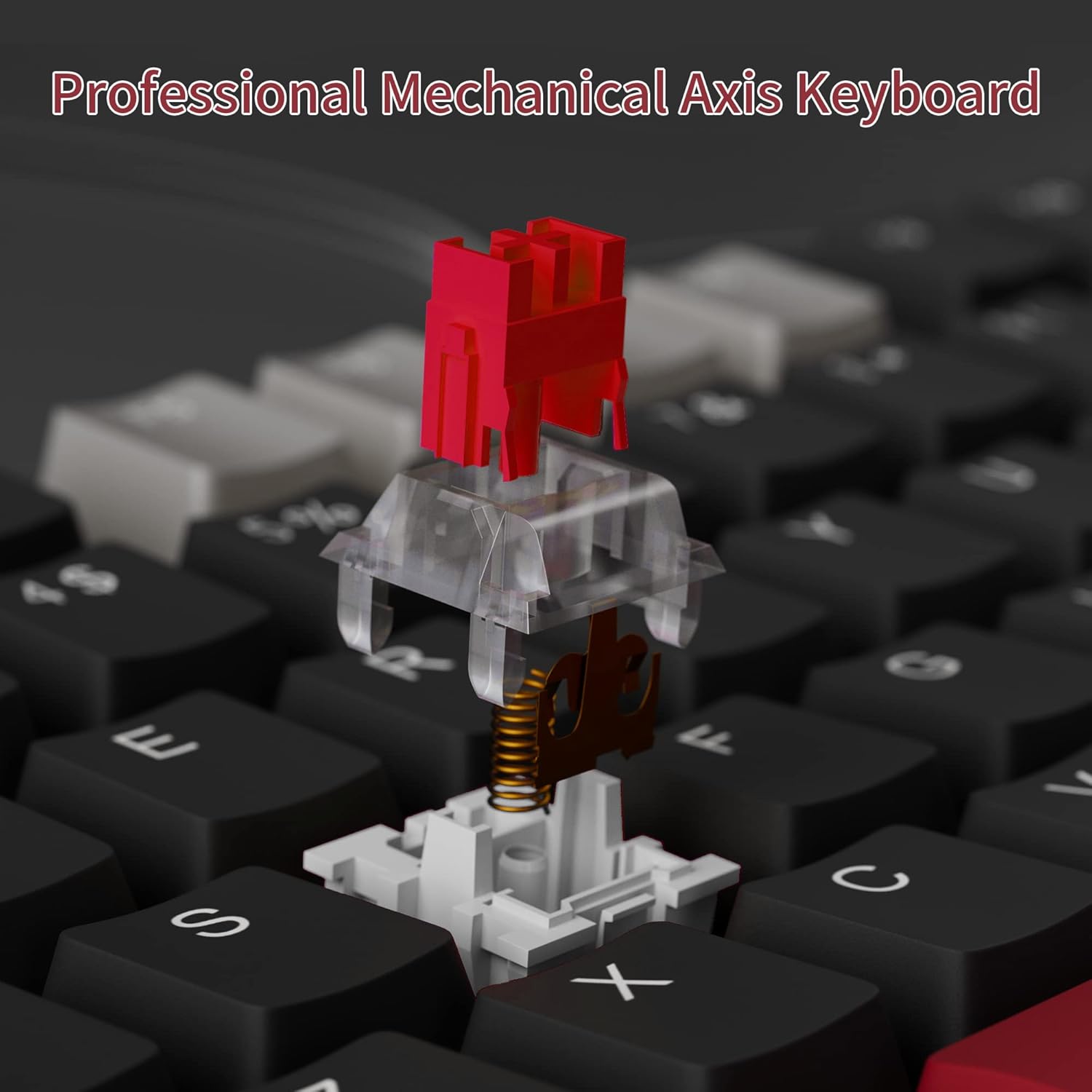
The MageGee Star98 keyboard features a hot-swappable design, allowing users to change mechanical switches without soldering. This feature supports most 3-pin and 5-pin switches available on the market.
- Remove Keycap: Use a keycap puller to gently remove the desired keycap.
- Remove Switch: Use a switch puller to carefully extract the mechanical switch from its socket.
- Insert New Switch: Align the pins of the new switch with the holes on the PCB and press firmly until it clicks into place. Ensure pins are not bent.
- Replace Keycap: Place the keycap back onto the new switch stem.


Maintenance
- Cleaning Keycaps: Use a soft, damp cloth to wipe down keycaps. For deeper cleaning, keycaps can be removed using a keycap puller and washed with mild soap and water, then thoroughly dried before reattaching.
- Cleaning Under Keycaps: Use compressed air to remove dust and debris from between the switches and under the keycaps.
- Cable Care: Avoid sharp bends or excessive pulling on the USB cable to prevent damage.
Troubleshooting
- Keyboard not responding:
- Ensure the USB cable is securely connected to both the keyboard and the computer.
- Try plugging the keyboard into a different USB port on your computer.
- Test the keyboard on another computer to rule out system-specific issues.
- Keys not registering or double-typing:
- Remove the keycap and switch for the affected key. Inspect for any debris or bent pins on the switch.
- If the switch is damaged, replace it with a new one (utilizing the hot-swappable feature).
- Ensure the switch is fully seated in its socket.
- Backlight not working or incorrect mode:
- Refer to the keyboard's function key combinations to cycle through backlight modes or turn it on/off.
- Ensure the keyboard is receiving sufficient power from the USB port.
Specifications
| Feature | Detail |
|---|---|
| Brand | MageGee |
| Model | Star98 |
| Connectivity Technology | Wired (USB) |
| Keyboard Description | Mechanical |
| Switch Type | Red Switches |
| Key Count | 98 Keys |
| Backlighting | Solid Sea Blue (Single Color) |
| Compatibility | Win2000, Win XP, Win ME, Vista, Win7, Win8, Win10, Android, Linux, Mac |
| Material | Acrylonitrile Butadiene Styrene (ABS) |
| Item Weight | 2.16 pounds |
| Package Dimensions | 16.14 x 6.97 x 1.77 inches |
Warranty and Support
For warranty information and customer support, please refer to the official MageGee website or contact their customer service directly. Details are typically provided with the product packaging or on the manufacturer's website.


