
Introduction
Thank you for choosing the ciciglow 10-inch Android 11 Tablet. This manual provides essential information for setting up, operating, maintaining, and troubleshooting your device. Please read this manual thoroughly before using your tablet to ensure optimal performance and longevity.
What's in the Box
Upon unpacking, please verify that all items listed below are present and in good condition:
- 1 x ciciglow 10-inch Tablet
- 1 x Data Cable
- 1 x Power Adapter
- 1 x OTG Cable
- 1 x Wired Headset
- 1 x Ejection Pin
- 1 x User Manual
Product Overview
The ciciglow 10-inch tablet is designed for a versatile user experience, featuring a robust set of hardware and software capabilities.
Key Features:
- 10-inch IPS HD Display: Features full-screen eye protection and a dual anti-blue light design to reduce eye strain.
- Powerful 10-Core Processor: Equipped with an MT6711 10-core 2.5GHz CPU, 6GB RAM, and 128GB ROM for smooth performance in gaming and multimedia.
- Long-lasting 8800mAh Battery: Provides extended usage for work, study, entertainment, and creative tasks.
- Android 11 Operating System: Offers faster internet access, stable video streaming, and smoother application launches.
- Dual SIM/Memory Card Slot: Supports dual SIM dual standby (2 SIM cards or 1 SIM card and 1 memory card simultaneously).
- Dual Cameras: Features an 8MP front camera and a 20MP rear camera for high-definition photography and video calls.
- Connectivity: Supports 2.4G/5G dual-band Wi-Fi, Bluetooth 5.0, and 4G cellular networks (GSM850/900/1800/1900, WCDMA: 850/2100, LTE: BAND1/3/5/28AB/40/41F).
- GPS and GLONASS Support: For accurate navigation.

Figure 1: The 10-inch IPS HD display with eye protection features.

Figure 2: The tablet's 8800mAh battery ensures extended usage.

Figure 3: Front (8MP) and Rear (20MP) cameras for capturing moments.

Figure 4: The tablet runs on the Android 11 operating system.
Setup
1. Initial Charging
Before first use, fully charge the tablet using the provided power adapter and USB-C cable. Connect the USB-C cable to the tablet's Type-C port and the adapter to a power outlet. The charging indicator will show the charging status.
2. Powering On/Off
- To Power On: Press and hold the Power button until the ciciglow logo appears on the screen.
- To Power Off: Press and hold the Power button until a power-off menu appears. Select "Power off" and confirm.
- To Restart: From the power-off menu, select "Restart".
3. Inserting SIM/Memory Card
Locate the SIM/memory card tray on the side of the tablet. Use the provided ejection pin to open the tray. Carefully place your SIM card(s) and/or memory card into the designated slots, ensuring correct orientation. Gently push the tray back into the tablet until it clicks into place.
Note: The tablet supports two SIM cards or one SIM card and one memory card simultaneously.
4. Initial Setup Wizard
Upon first power-on, the tablet will guide you through an initial setup process. Follow the on-screen instructions to select your language, connect to Wi-Fi, set up your Google account, and configure other basic settings.
Operating Instructions
1. Navigation Basics
- Touch: Tap an icon or option to select it.
- Swipe: Drag your finger across the screen to scroll or navigate between screens.
- Pinch-to-Zoom: Use two fingers to zoom in or out on images and web pages.
- Home Screen: Tap the Home button (usually a circle or square icon) to return to the main screen.
- Back: Tap the Back button (usually a triangle or arrow icon) to return to the previous screen.
- Recent Apps: Tap the Recent Apps button (usually a square or three vertical lines icon) to view and switch between recently used applications.
2. Wi-Fi Connection
- Go to Settings > Network & internet > Wi-Fi.
- Toggle Wi-Fi On.
- Select your desired Wi-Fi network from the list.
- Enter the password if prompted and tap Connect.
3. Bluetooth Pairing
- Go to Settings > Connected devices > Bluetooth.
- Toggle Bluetooth On.
- Ensure the device you want to pair with is in pairing mode.
- Select the device from the "Available devices" list and follow any on-screen prompts to complete pairing.

Figure 5: The tablet supports 5G network connectivity and Bluetooth 5.0 for file transfer.
4. Using Cameras
Open the Camera app from your home screen or app drawer. You can switch between the front and rear cameras, select different modes (photo, video), and adjust settings as needed. Tap the shutter button to take a photo or start/stop video recording.
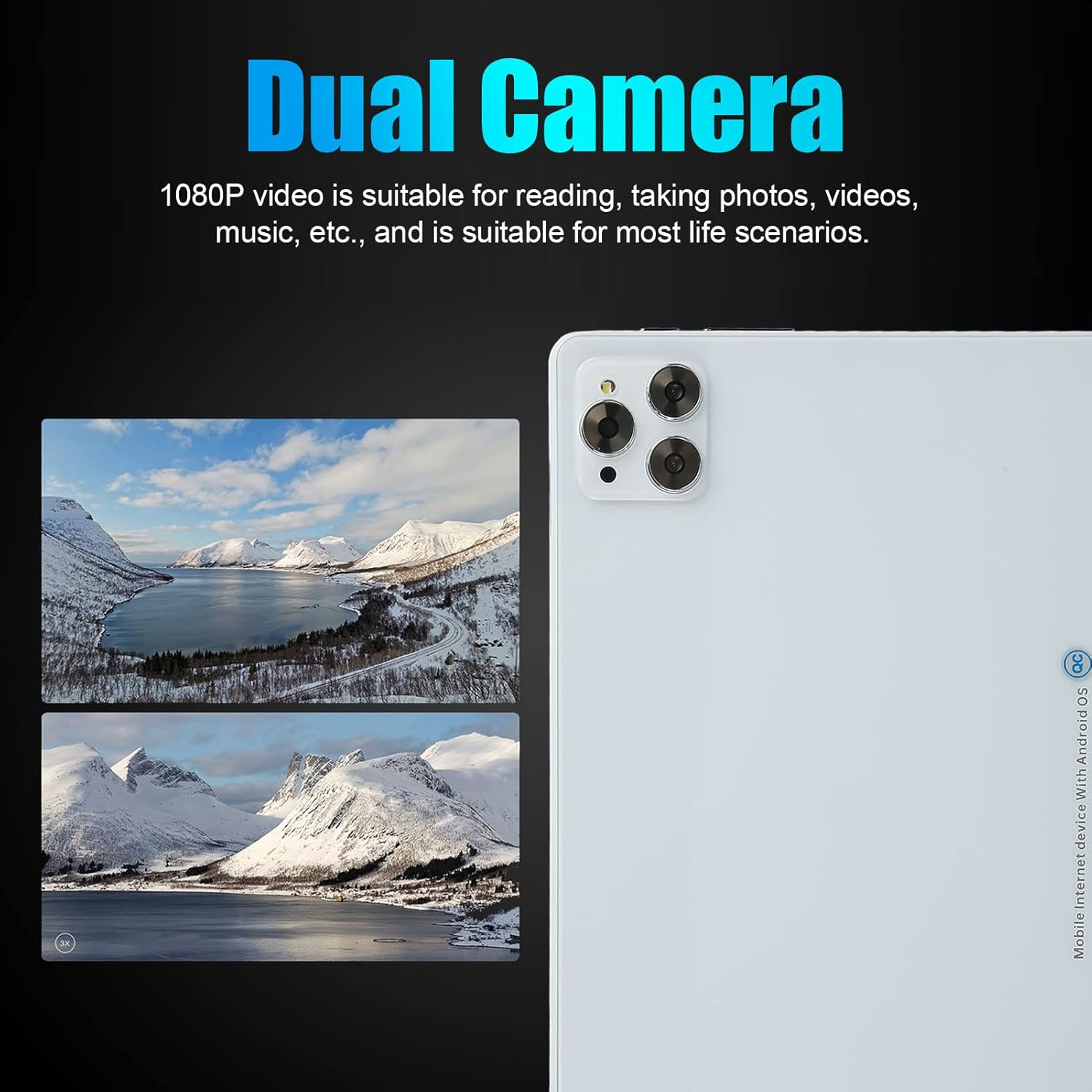
Figure 6: The dual cameras are suitable for various scenarios including reading, taking photos, and videos.
5. GPS Navigation
The tablet supports GPS and GLONASS for accurate location services. Use pre-installed map applications or download your preferred navigation app from the Google Play Store. Ensure location services are enabled in Settings > Location.

Figure 7: GPS navigation capabilities for indoor and outdoor use.
Maintenance
- Cleaning: Use a soft, lint-free cloth to clean the screen and body of the tablet. Avoid using harsh chemicals or abrasive materials.
- Battery Care: To prolong battery life, avoid fully discharging the battery frequently. Charge the tablet regularly and avoid exposing it to extreme temperatures.
- Software Updates: Regularly check for and install system updates to ensure your tablet has the latest features and security patches. Go to Settings > System > System update.
- Storage Management: Periodically clear unnecessary files and uninstall unused apps to free up storage space and improve performance.
- Protection: Consider using a protective case and screen protector to guard against drops and scratches.
Troubleshooting
| Problem | Possible Solution |
|---|---|
| Tablet does not power on. | Ensure the battery is charged. Connect the tablet to the charger for at least 30 minutes, then try powering on again. |
| Wi-Fi connection issues. | Check if Wi-Fi is enabled in settings. Restart your router and the tablet. Ensure you are entering the correct Wi-Fi password. |
| Apps are crashing or freezing. | Close background apps. Clear the cache of the problematic app (Settings > Apps > [App Name] > Storage & cache > Clear cache). Restart the tablet. If the issue persists, consider uninstalling and reinstalling the app. |
| Slow performance. | Close unused apps. Clear cache and temporary files. Check for system updates. Consider performing a factory reset as a last resort (back up your data first). |
| SIM card not detected. | Ensure the SIM card is correctly inserted into the tray. Restart the tablet. Check if the SIM card is active with your carrier. |
Specifications
| Feature | Detail |
|---|---|
| Model Number | cicigloww9ge87rhsp2304-11 |
| Operating System | Android 11 |
| Processor | MT6711, 10 Cores, 2.5 GHz |
| RAM | 6 GB |
| Internal Storage (ROM) | 128 GB |
| Expandable Storage | Supports up to 128 GB memory card |
| Display | 10-inch IPS, 1200 x 1920 HD Resolution |
| Bluetooth | BT5.0 |
| I/O Ports | 1 x 3.5mm Headphone Jack, 1 x Type-C Port |
| Speakers | Dual Speakers |
| Microphone | Supported |
| Wi-Fi | Dual-band 2.4G/5G (802.11b, 802.11n) |
| Network Standard | GSM850/900/1800/1900, WCDMA: 850/2100, LTE: BAND1/3/5/28AB/40/41F (Dual SIM Dual Standby) |
| Gravity Sensor | Yes |
| GPS/GLONASS | Supported |
| Cameras | Front: 8 MP, Rear: 20 MP |
| Video Formats | AVI, MP4, FLV, 3GP, MKV, WMV, etc. |
| Audio Formats | MP3, WMA, OGG, AAC, WAV, FLAC, etc. |
| Image Formats | JPG / BMP / PNG / GIF |
| Battery | 8800 mAh Lithium Battery |
| Dimensions (Package) | 29 x 20 x 6 cm |
| Weight (Package) | 800 grams |
| Country of Origin | China |
Warranty and Support
Your ciciglow tablet comes with a standard manufacturer's warranty. Please refer to the warranty card included in your package for specific terms and conditions. For technical support, troubleshooting assistance, or warranty claims, please contact the retailer or ciciglow customer service through their official channels. Keep your purchase receipt as proof of purchase.
For further assistance, please visit the official ciciglow website or contact their support team.