
1. Introduction
This manual provides essential information for the safe and effective use of your ASHATA F30 3D Holographic Advertising Projector. Please read it thoroughly before operating the device and retain it for future reference.
The ASHATA F30 is a cutting-edge holographic display device designed to create vivid, floating 3D images and videos. It features 256 high-density LED beads, a 256x1024 resolution, and supports content management via memory card, WiFi, and a dedicated mobile application. Its portable design allows for versatile installation in various commercial and personal settings.
2. Safety Information
WARNING: To reduce the risk of electric shock, fire, or injury, observe the following safety precautions:
- Always ensure the device is powered off and unplugged before cleaning or performing any maintenance.
- Do not touch the rotating blades while the device is operating. Keep hands, hair, and loose clothing away from the fan.
- Install the device in a stable location, away from direct sunlight, heat sources, and moisture.
- Ensure proper ventilation around the device to prevent overheating.
- Use only the provided power adapter. Using an incompatible adapter may damage the device or cause a fire.
- Keep the device out of reach of children and pets.
- Do not attempt to disassemble or repair the device yourself. Contact qualified service personnel for assistance.
- Avoid prolonged direct viewing of the rotating LEDs, as it may cause eye strain.
3. Package Contents
Please check the package carefully to ensure all items are present and in good condition:
- 1 x Holographic Advertising Projector
- 1 x Base
- 2 x Bracket Bars
- 1 x Power Adapter
- 1 x Memory Card (16GB)
- 2 x Screws
- 2 x Screw Sleeves
- 1 x Instruction Manual (this document)

Image: The ASHATA F30 Holographic Projector shown with its power adapter, two screws, and two screw sleeves, illustrating the typical package contents.
4. Setup
The ASHATA F30 Holographic Projector is designed for versatile installation. It can be placed on a desk using its base or mounted on a wall using the provided bracket bars and screws.
4.1 Desktop Setup
- Attach the projector unit to the provided base. Ensure it is securely fastened.
- Place the assembled unit on a flat, stable surface.
4.2 Wall Mount Setup
- Identify a suitable wall location, ensuring there is enough space for the projector's diameter (approx. 30cm/11.8 inches) and clear viewing.
- Use the bracket bars as a template to mark the drilling points on the wall.
- Drill holes and insert the screw sleeves.
- Securely attach the bracket bars to the wall using the provided screws.
- Attach the projector unit to the bracket bars. Ensure it is firmly mounted.

Image: The ASHATA F30 Holographic Projector displayed on its stand, demonstrating its compact size and portability for various installation environments.
4.3 Power Connection
- Connect the power adapter to the projector's power input port.
- Plug the power adapter into a standard 100-240V AC, 50/60Hz electrical outlet.
- The device will power on automatically and the fan will begin to rotate.
5. Operating Instructions
The ASHATA F30 supports multiple methods for content management and display.
5.1 Content Preparation
The projector supports image formats (JPG, JPEG, GIF) and video formats (MP4, AVI, RMVB). Ensure your content is optimized for a 256x1024 resolution for best display quality.
5.2 Using the Memory Card
- Transfer your desired images and videos to the provided 16GB memory card using a computer.
- With the projector powered off, insert the memory card into the designated slot on the projector.
- Power on the projector. The content on the memory card will automatically begin to play.
5.3 Mobile Phone App Connection (WiFi)
The ASHATA F30 can be controlled and content can be uploaded via a dedicated mobile application (available for iOS and Android).
- Download and install the ASHATA F30 app from your device's app store.
- Power on the holographic projector.
- On your mobile phone, go to Settings > Wi-Fi.
- Locate and connect to the projector's Wi-Fi network (the network name will typically start with 'F30' or similar).
- Your phone may prompt you if you wish to use this network without internet access. Select 'Use network' or 'Keep Wi-Fi connection'.
- Open the ASHATA F30 app. You should now be able to manage content, adjust settings, and upload new media to the projector.
5.4 Bluetooth Audio Connection
The projector supports Bluetooth connectivity for audio output, allowing you to pair it with external Bluetooth speakers for synchronized sound.
- Ensure your Bluetooth speaker is in pairing mode.
- Within the ASHATA F30 mobile app, navigate to the Bluetooth settings.
- Scan for available Bluetooth devices and select your speaker to pair.

Image: A vibrant 3D holographic display of oranges, demonstrating the visual capabilities of the ASHATA F30 projector.
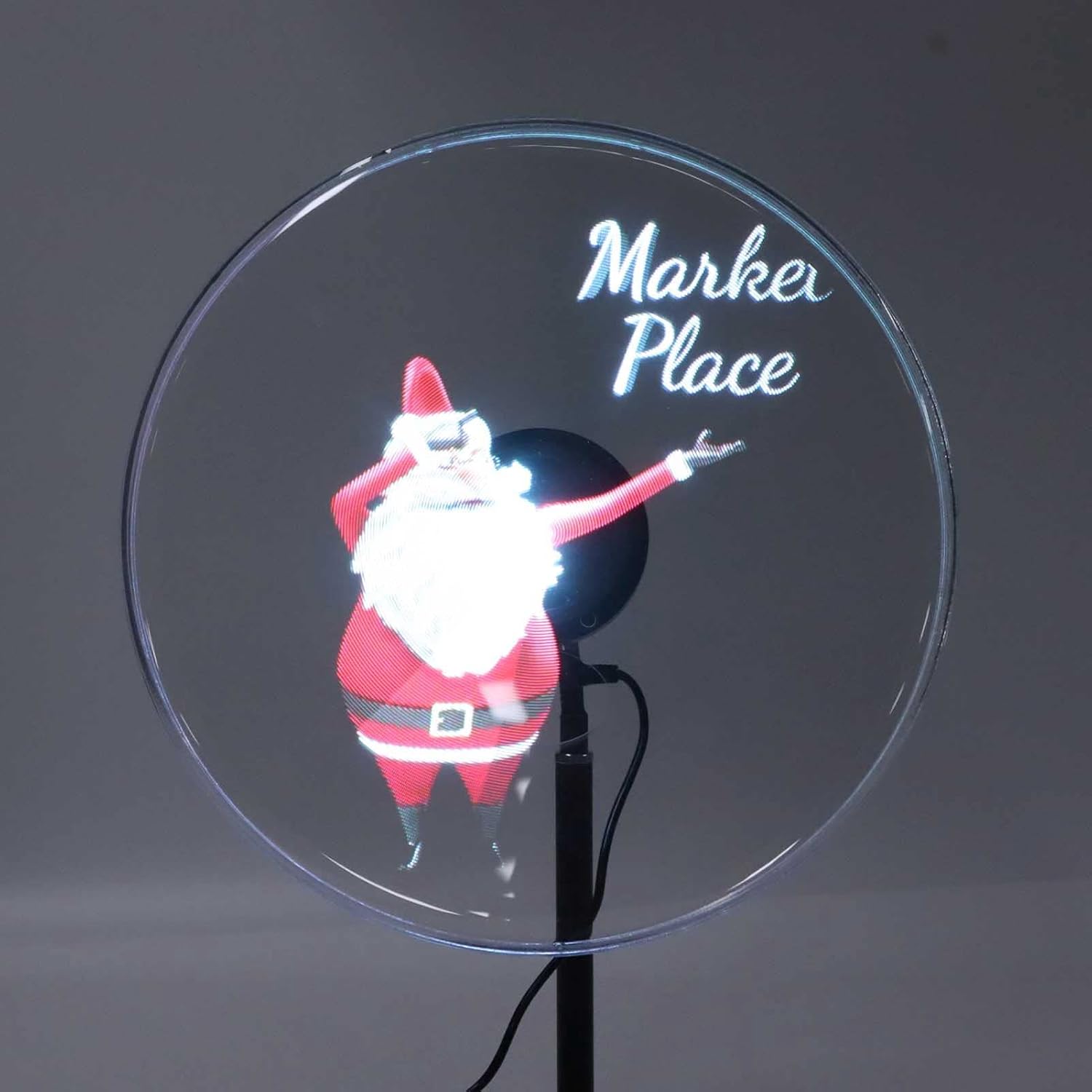
Image: A festive 3D holographic display of Santa Claus with text, showcasing the projector's ability to render complex images and text.
6. Maintenance
Regular maintenance ensures the longevity and optimal performance of your holographic projector.
- Cleaning: Gently wipe the projector's surface and blades with a soft, dry cloth. Do not use abrasive cleaners or solvents. Ensure the device is unplugged before cleaning.
- Storage: When not in use for extended periods, store the projector in a cool, dry place, away from dust and direct sunlight.
- Ventilation: Ensure the ventilation openings are clear of obstructions to prevent overheating.
7. Troubleshooting
If you encounter issues with your ASHATA F30 projector, refer to the following common problems and solutions:
| Problem | Possible Cause | Solution |
|---|---|---|
| Projector does not power on. | No power, faulty adapter, loose connection. | Check power outlet, ensure adapter is securely connected, try a different outlet. |
| No image displayed. | Memory card not inserted, incorrect file format, app not connected. | Ensure memory card is inserted correctly, verify content format, connect via app and upload content. |
| Image is blurry or distorted. | Low resolution content, environmental factors. | Use higher resolution content (256x1024 recommended). Ensure ambient lighting is not excessively bright. |
| Cannot connect to Wi-Fi. | Incorrect Wi-Fi password, device too far from phone, Wi-Fi interference. | Ensure correct password. Move phone closer to the projector. Try reconnecting. |
| Fan is noisy. | Normal operation, obstruction. | A certain level of fan noise is normal due to high rotation speed. Check for any obstructions. |
If the problem persists after trying these solutions, please contact ASHATA customer support for further assistance.
8. Specifications
Detailed technical specifications for the ASHATA F30 Holographic Advertising Projector:

Image: A side profile of the ASHATA F30 Holographic Projector, clearly showing its circular display area and indicating a diameter of approximately 30cm.
| Feature | Detail |
|---|---|
| Model | F30 |
| Material | ABS, Aluminum Alloy, PC |
| Color | Transparent and Black |
| Power Input | 100-240V AC 50/60Hz |
| Power Output | 12V-1.5A |
| Display Diameter | Approx. 30cm / 11.8 inches |
| Resolution | 256x1024 |
| Number of LED Beads | 256 |
| Rotation Speed | 1200rpm/min |
| Memory Size | 16GB (Built-in memory card) |
| Viewing Angle | 176 degrees |
| Content Exchange Mode | Memory card, WiFi, APP |
| Bluetooth Connection | Supported |
| Supported Formats | JPG, JPEG, GIF, MP4, AVI, RMVB |
| Lifespan | 30,000 hours |
| Software Support System | iOS, Android |
| Applicable Scope | Shopping malls, supermarkets, stores, offices, workshops, home use. |
| Product Dimensions | 35.29 x 35.2 x 7.6 cm |
| Product Weight | 1.39 kg |
9. Customer Support
For any questions, technical assistance, or warranty inquiries, please contact ASHATA customer support through your retailer or the official ASHATA website.