
Introduction
This manual provides detailed instructions for the installation, operation, and maintenance of your AINAVIGO PND-P7 7-inch Touch Screen Car Stereo. This device enhances your driving experience with features such as Apple CarPlay, Android Auto, Bluetooth connectivity, backup camera support, GPS navigation, and mirror link functionality.
What's in the Box
Please verify that all components are present in your package:
- AINAVIGO PND-P7 Main Unit
- AHD Backup Camera
- 12V Cigarette Lighter Power Cable
- Audio Output Cable (AUX)
- Suction Mount
- Adhesive Mount
- User Manual
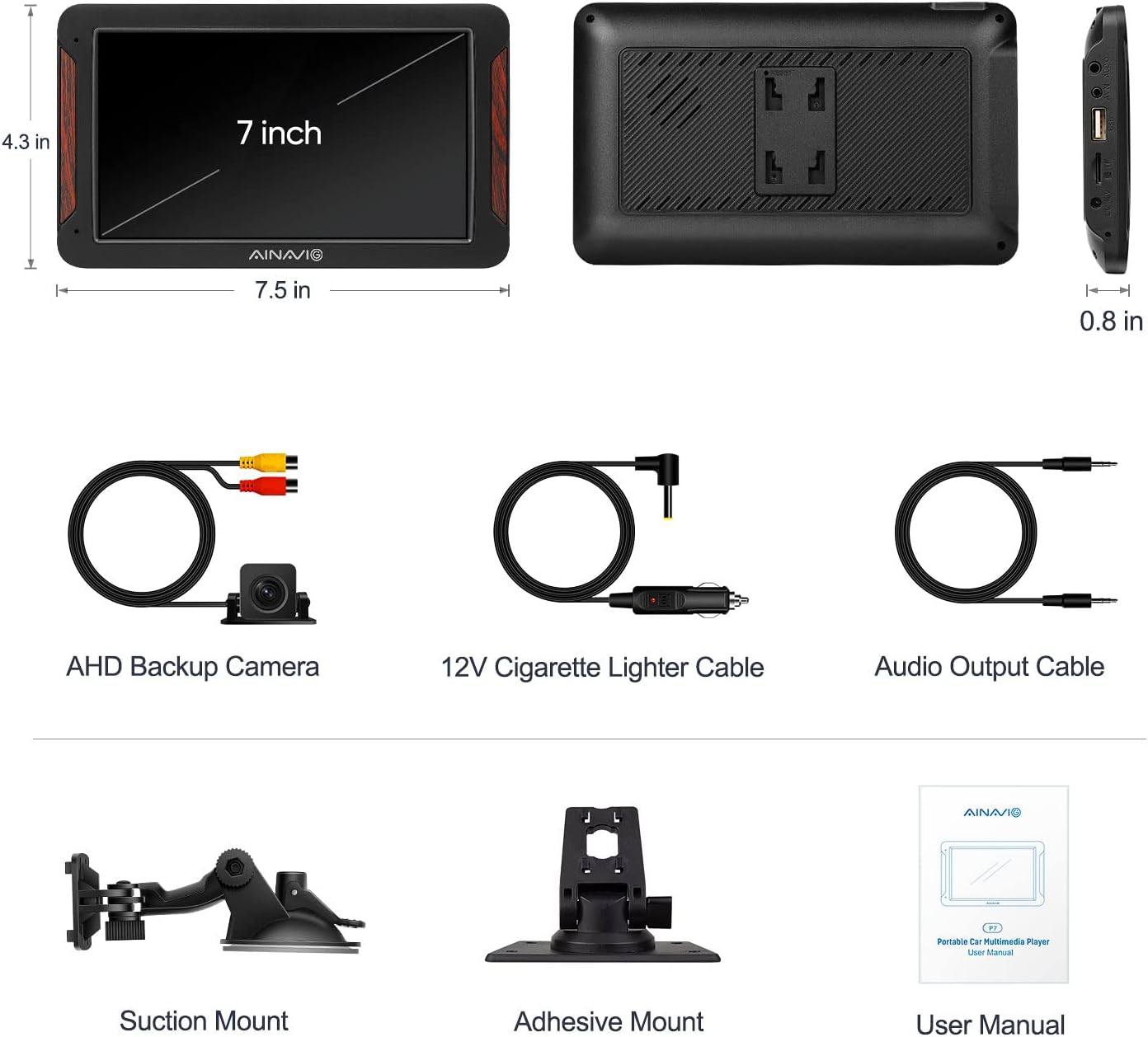
This image displays all items included in the product package: the PND-P7 main unit, AHD backup camera, 12V cigarette lighter cable, audio output cable, suction mount, adhesive mount, and user manual.
Setup
1. Mounting the Unit
The PND-P7 unit can be mounted using either the provided suction mount for windshield attachment or the adhesive mount for dashboard placement. Ensure the mounting surface is clean and dry before application.
This video illustrates the process of mounting the AINAVIGO PND-P7 unit to the car dashboard and connecting it to the car's power supply via the cigarette lighter.
2. Power Connection
Connect the 12V cigarette lighter power cable to the corresponding port on the PND-P7 unit and then plug it into your car's cigarette lighter socket. The unit will power on automatically.
3. Backup Camera Connection (Optional)
To utilize the backup camera feature, connect the backup camera's video output (yellow RCA connector) to the AVIN port on the PND-P7 unit. The red wire from the camera extension cable should be connected to your car's reverse light (12V+ possible) to enable automatic display when reversing. The black wire is not needed for this connection.
This video provides a step-by-step guide on how to connect the included backup camera to the AINAVIGO PND-P7. It shows connecting the camera to the AVIN port and wiring the red cable to the car's reverse light for automatic activation.
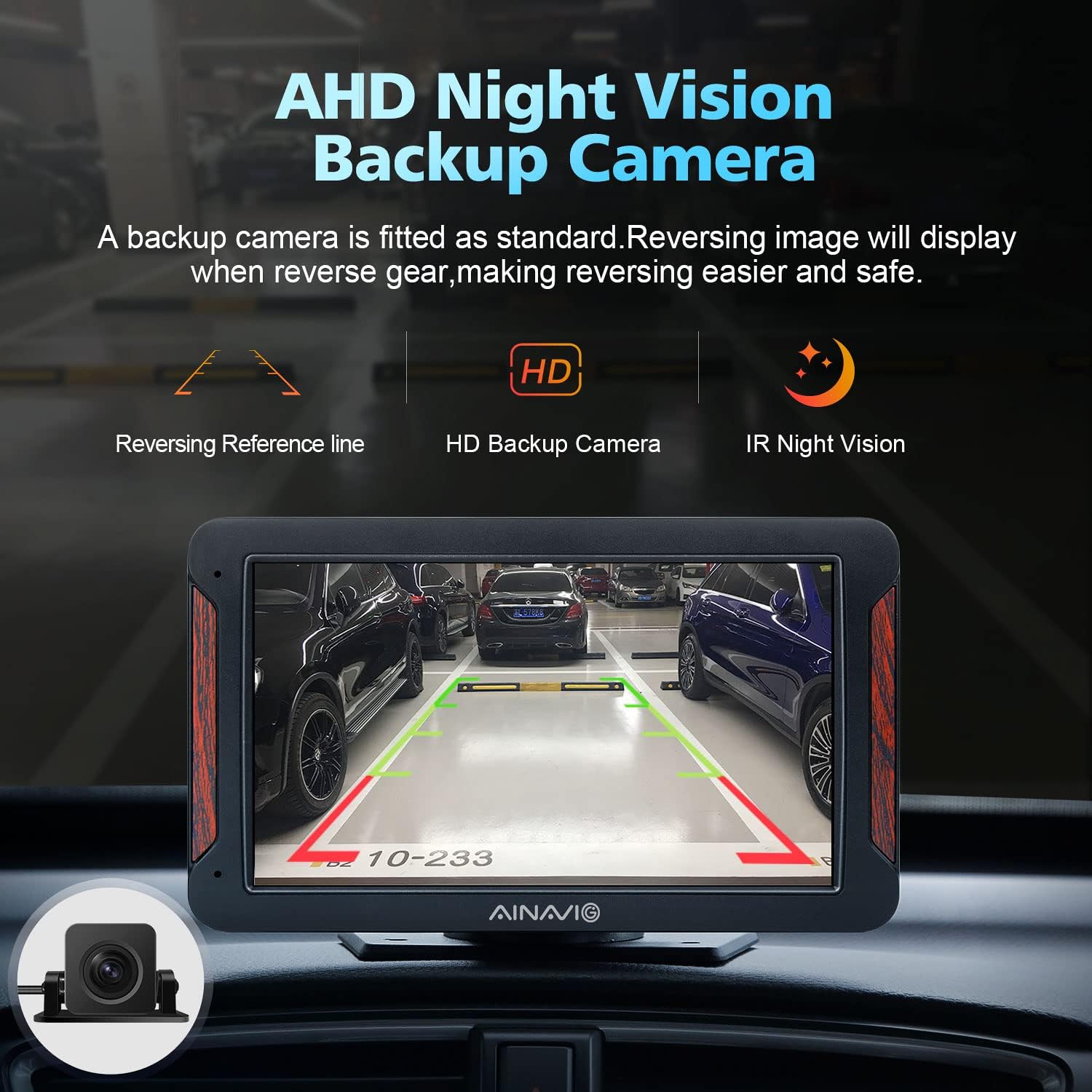
This image demonstrates the AHD Night Vision Backup Camera in operation, providing a clear rear view with reversing reference lines for easier and safer parking.
Operating Instructions
1. Main Interface
Upon powering on, the device will display the main interface with various function icons. You can adjust brightness and volume directly from the top bar.
2. Apple CarPlay & Android Auto
The PND-P7 supports both wired and wireless Apple CarPlay and Android Auto. To connect:
- Wired Connection: Connect your iPhone or Android phone to the device via a high-quality data cable.
- Wireless Connection: Search for the device's Bluetooth name (e.g., "CarBt_XXXX") on your phone and confirm the authorization request. For Android Auto wireless, your phone must be Android 11 or above and support 5GHz WiFi.
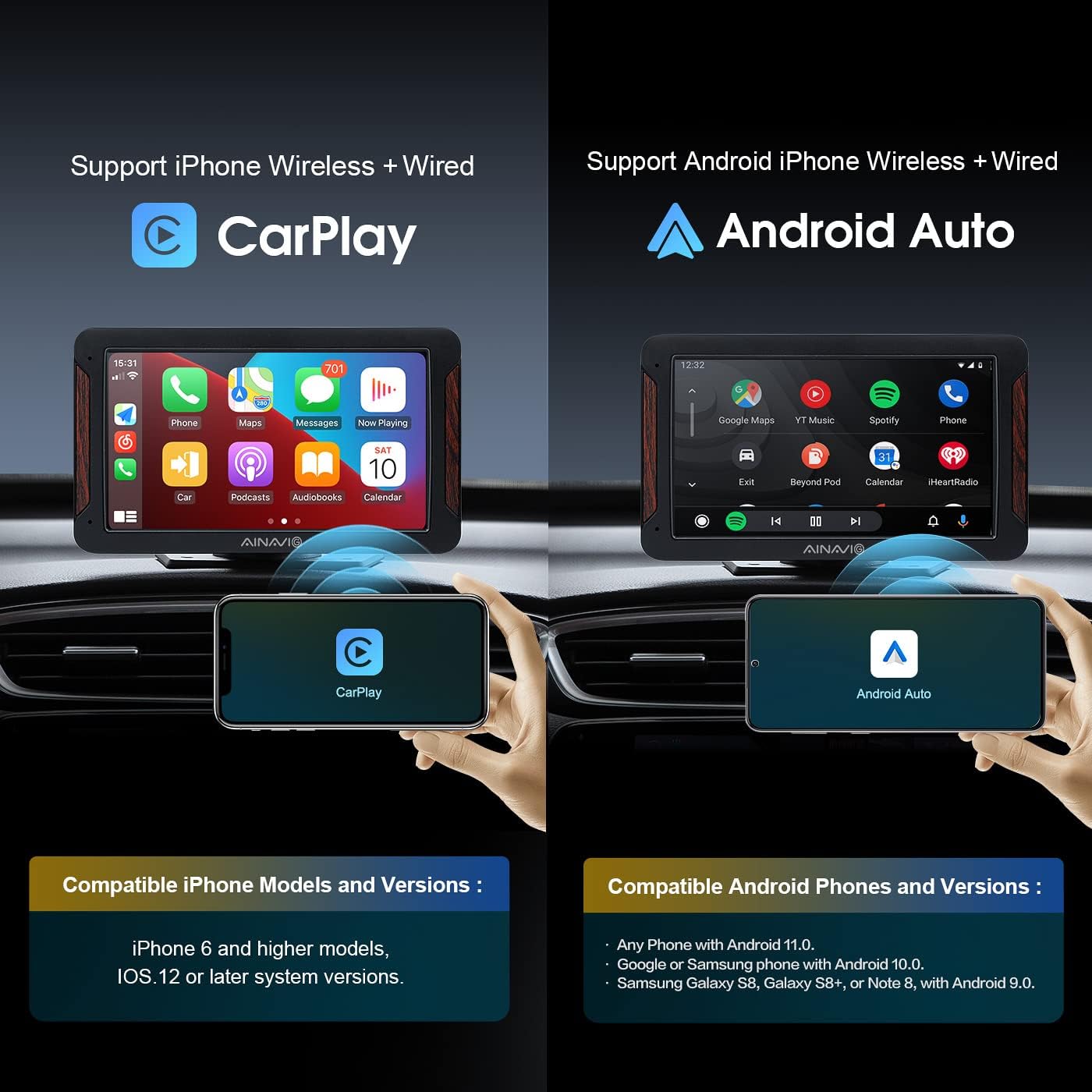
This image highlights the device's compatibility with both Apple CarPlay and Android Auto, detailing the required iPhone (6 and higher, iOS 12+) and Android (11 or above, 5GHz WiFi) phone models and versions for wireless connection.
This video illustrates the seamless wireless connection and operation of Apple CarPlay and Android Auto on the PND-P7, demonstrating features like navigation, music, and calls directly from the touch screen.
3. Voice Control (Siri & Google Assistant)
The PND-P7 supports voice commands through Siri (for CarPlay) and Google Assistant (for Android Auto). Activate by pressing the voice command button on the screen or your phone. This allows for hands-free operation of navigation, calls, and music.

This image demonstrates the integrated Siri and Google Assistant voice control, allowing users to safely manage navigation, calls, and music playback using voice commands while driving.
4. Bluetooth Connection
Connect your phone via Bluetooth for hands-free calling and audio streaming. Access the Bluetooth settings on the device to pair with your phone. You can sync contacts and view call logs.
5. Multiple Audio Playback Options
The PND-P7 offers several ways to output audio:
- FM Transmission: Transmit audio wirelessly to your car's speakers by setting the device and your car radio to the same FM channel.
- Built-in Speakers: Use the integrated speakers for direct audio output.
- AUX Audio Port: Connect wired headphones or an external audio system using the provided AUX cable.
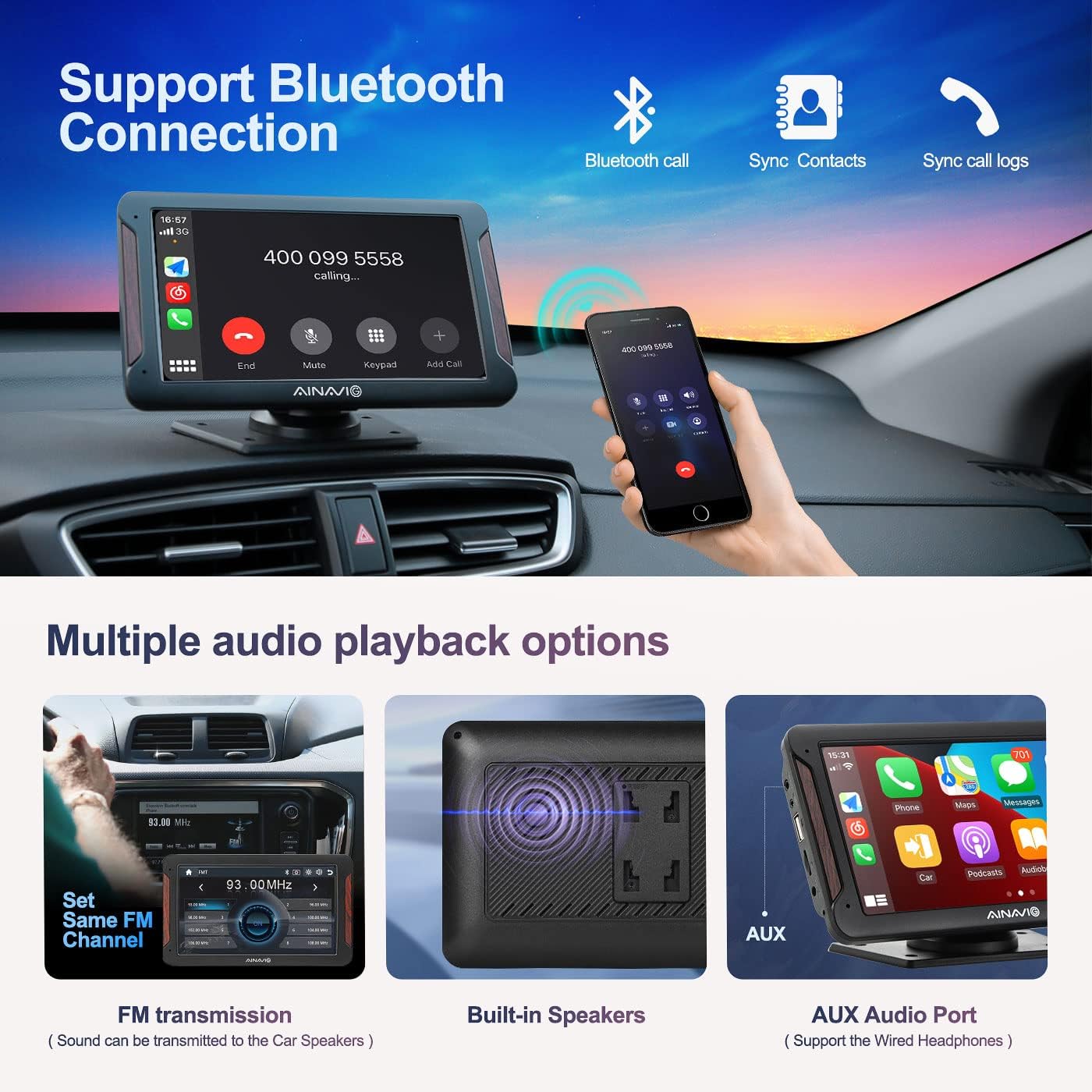
This image explains the Bluetooth connectivity for hands-free calls and contact synchronization. It also shows various audio output methods: FM transmission to car speakers, built-in speakers, and an AUX audio port for wired headphones.
6. Mirror Link
The Mirror Link function allows you to display your smartphone screen directly on the PND-P7 unit. Follow the on-screen instructions for your specific phone model to establish the connection.
7. USB/Card Playback
Insert a USB device or a micro SD card into the designated ports to play video or music files directly on the PND-P7 unit.
Maintenance
- Cleaning: Use a soft, dry cloth to clean the screen and exterior of the unit. Avoid abrasive cleaners or solvents.
- Temperature: Do not expose the device to extreme temperatures. Prolonged exposure to direct sunlight or very cold conditions can affect performance and lifespan.
- Storage: If storing the device for an extended period, disconnect it from power and store it in a cool, dry place.
Troubleshooting
- Unit does not power on: Ensure the 12V cigarette lighter cable is securely connected to both the unit and the car's power socket. Check the car's fuse for the cigarette lighter.
- "No Signal" on backup camera: Verify that the backup camera is correctly connected to the AVIN port and that the red power wire is properly connected to the reverse light (12V+).
- CarPlay/Android Auto not connecting: For wired connections, ensure you are using a high-quality data cable. For wireless, check your phone's Bluetooth and Wi-Fi settings, and confirm the authorization request. Ensure your phone meets the minimum OS requirements (iOS 12+ for Apple, Android 11+ for Android Auto wireless).
- No audio output: Check the volume settings on both the PND-P7 unit and your car's audio system. If using FM transmission, ensure the device and car radio are on the same, clear FM channel. If using AUX, ensure the cable is fully inserted and the car's audio input is set to AUX.
- Touch screen unresponsive: Try restarting the device by disconnecting and reconnecting the power. If the issue persists, contact customer support.
Specifications
- Product Dimensions: 7.48 x 0.39 x 4.33 inches
- Item Weight: 2.2 pounds
- Item Model Number: PND-P7
- Brand: AINAVIGO
- Connectivity Technology: USB, 3.5mm Jack, Wi-Fi
- Controller Type: Touch Screen
- Special Features: Android Auto, Apple CarPlay, Backup Camera, GPS Navigation, Mirror Link
- Compatible Devices: Car
- Connector Type: 3.5mm Jack, USB
- Audio Output Mode: Stereo, Surround
- Surround Sound Channel Configuration: 5.1
- Video Encoding: H.264, H.265/HEVC, MPEG-4
- Color: Black
Warranty and Support
For warranty information or technical support, please refer to the contact details provided in your product packaging or visit the official AINAVIGO website. Keep your purchase receipt for warranty claims.