
1. Introduction and Overview
This manual provides detailed instructions for the installation, operation, and maintenance of your KUNFINE Android Radio Car Navigation System. This multimedia head unit is designed as a replacement for Toyota Venza models from 2011 to 2021, offering advanced features such as CarPlay, Android Auto, GPS navigation, Bluetooth connectivity, and WiFi capabilities. Please read this manual thoroughly before installation and use to ensure proper functionality and safety.
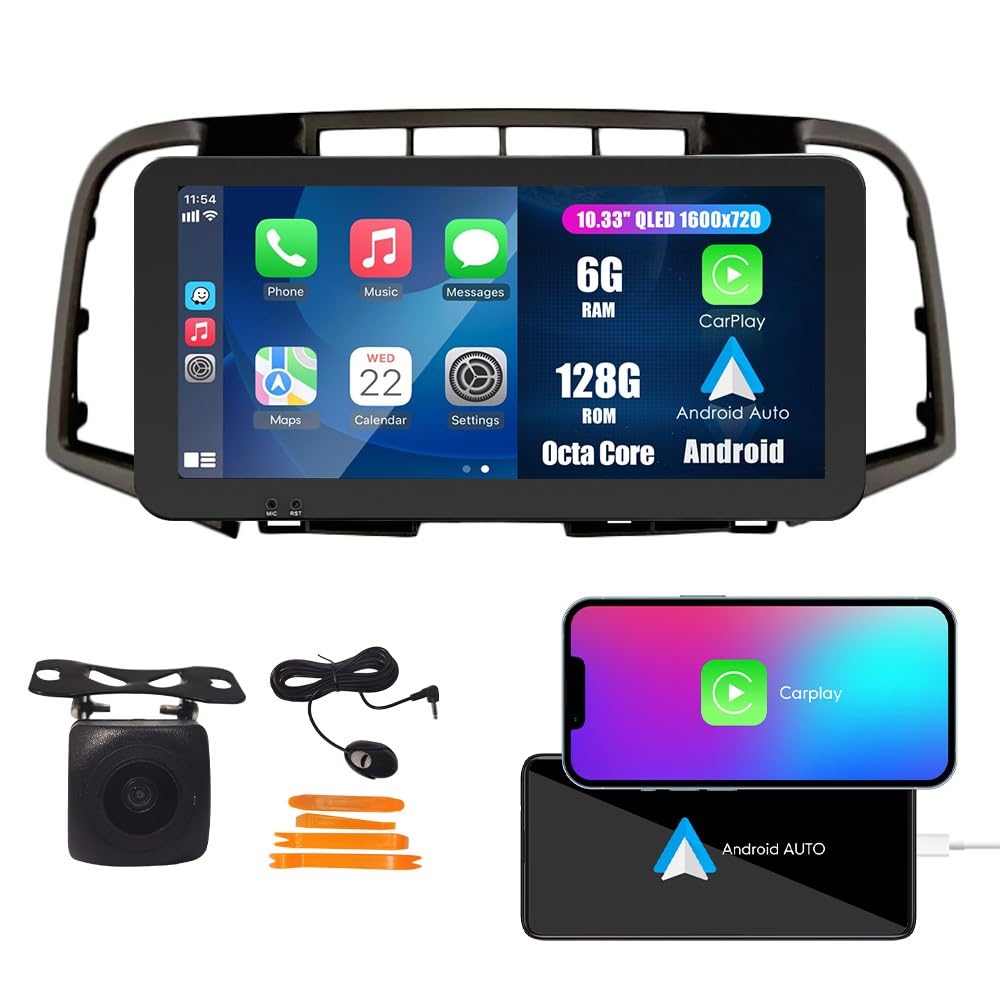
Image 1.1: KUNFINE Android Radio Car Navigation System main unit.
2. Setup and Installation
2.1 Package Contents
Before beginning installation, verify that all components are present in the package:
- 1x Car Android Head Unit with Mask
- 1x GPS Antenna
- 1x Power Cable
- 2x USB Port Cables
- 1x RCA Expand Cable
- 1x RCA Connector for Reverse Camera
- 1x Install Kit
- 1x External Microphone
- 1x AHD 720 Reverse Camera

Image 2.1: Illustration of all included components in the package.
2.2 Compatibility and Wiring
The system is designed for plug-and-play installation with the original car wiring. However, specific considerations apply:
- The default wire harness is compatible with vehicles that do not have an original JBL OEM amplifier.
- If your vehicle is equipped with an original JBL OEM amplifier, an additional Canbus Decoder is required. Please contact the seller with a picture of your original unit's rear connections to obtain the correct Canbus Decoder.

Image 2.2: Visual guide for identifying compatibility with JBL OEM amplifier systems. The left image shows a compatible setup without a JBL amplifier (green check), while the right image shows a setup with a JBL amplifier requiring a Canbus Decoder (red cross).
2.3 Installation Process
The installation process is designed to be straightforward. If you possess basic DIY skills for removing original car equipment, you can perform the installation yourself. Ensure the vehicle's power is disconnected before starting. Connect the provided cables to their corresponding ports on the head unit and the vehicle's wiring harness. Secure the head unit in the dashboard opening.

Image 2.3: Comparison of the car dashboard before and after the installation of the KUNFINE Android Radio.
3. Operating Instructions
3.1 CarPlay & Android Auto
Seamlessly integrate your iOS or Android device. Connect your smartphone via USB to access navigation, music, calls, and messages directly on the head unit's display. Use voice commands for a safer driving experience.

Image 3.1: Display showing the CarPlay and Android Auto interfaces, demonstrating smartphone integration.
3.2 GPS Navigation
The system features satellite GPS for real-time navigation. With a WiFi connection, you can access online maps and traffic information. Pre-installed maps for North America are included.

Image 3.2: Screenshot of the GPS navigation interface displaying a map and route information.
3.3 WiFi Connectivity
Connect to a WiFi network to browse the internet, stream videos, download applications, and receive online navigation updates.

Image 3.3: The head unit screen displaying various applications accessible via WiFi.
3.4 Bluetooth Function (BT)
Utilize the built-in Bluetooth for wireless music streaming, hands-free calling, and navigation audio. Pair your smartphone with the head unit through the Bluetooth settings menu.

Image 3.4: Screen showing Bluetooth call interface and music playback via Bluetooth.
3.5 Steering Wheel Control
The system supports your car's original steering wheel controls, allowing you to manage audio, calls, and other functions without taking your hands off the wheel. Configuration may be required in the system settings.

Image 3.5: Interface for configuring steering wheel controls, showing various assignable functions.
3.6 FM/AM/RDS Radio
Access FM and AM radio stations. The RDS (Radio Data System) feature displays station information where available. Long-press to save your favorite radio stations.

Image 3.6: The radio interface displaying frequency and station information.
3.7 Car Reverser Camera
The system supports a car reverser camera input. When reversing your vehicle, the display automatically switches to the rear view, providing enhanced safety and visibility.

Image 3.7: Screen displaying the view from the rear camera with parking guidelines.
4. Maintenance
To ensure the longevity and optimal performance of your KUNFINE Android Radio, follow these maintenance guidelines:
- Cleaning the Screen: Use a soft, lint-free cloth to gently wipe the touchscreen. Avoid abrasive cleaners or solvents that could damage the display.
- Software Updates: Periodically check for available software updates through the system settings or the manufacturer's website. Keeping the software updated ensures access to the latest features and performance improvements.
- Environmental Conditions: Avoid exposing the unit to extreme temperatures, direct sunlight for prolonged periods, or excessive moisture.
- Cable Connections: Ensure all cables are securely connected. Loose connections can lead to intermittent functionality.
5. Troubleshooting
If you encounter issues with your KUNFINE Android Radio, refer to the following troubleshooting steps:
| Problem | Possible Cause | Solution |
|---|---|---|
| Unit does not power on | Loose power cable connection, blown fuse, vehicle power issue. | Check power cable connections. Inspect vehicle fuses. Consult a professional if vehicle power is suspected. |
| No sound output | Volume too low, incorrect audio source selected, speaker wiring issue. | Increase volume. Verify correct audio source. Check speaker wiring connections. |
| GPS signal lost or inaccurate | GPS antenna obstruction, poor satellite reception, outdated map data. | Ensure GPS antenna has a clear view of the sky. Move to an open area. Update map data if available. |
| CarPlay/Android Auto not connecting | Faulty USB cable, phone software issue, incorrect settings. | Try a different USB cable. Restart your phone and the head unit. Check phone and head unit settings for CarPlay/Android Auto. |
| Steering wheel controls not working | Incorrect wiring, controls not configured in settings. | Verify wiring connections. Access the system settings to configure steering wheel controls. |
If the problem persists after attempting these solutions, please contact KUNFINE customer support for further assistance.
6. Specifications
Detailed technical specifications for the KUNFINE Android Radio Car Navigation System:
- Brand: KUNFINE
- Vehicle Service Type: Car
- Screen Size: 10.33 Inches
- Special Features: Bluetooth, Touchscreen, GPS, WiFi, DSP, RDS
- Connectivity Technology: USB, Bluetooth, Wi-Fi
- Map Type: North America
- Audio Output Mode: Stereo
- Mounting Type: Dashboard Mount
- Resolution: 1920 x 1080
- Operating System: Android
- Memory Storage Capacity: 128 GB
- Touch Screen Type: Capacitive
- Display Type: LCD
- Human-Interface Input: Touchscreen
- Compatible Devices: Smartphone
- Control Method: Touch
- Supported Satellite Navigation System: GPS
- Manufacturer: KUNFINE
7. Warranty and Support
7.1 Warranty Information
This KUNFINE Android Radio Car Navigation System comes with a 1-Year Warranty from the date of purchase. The warranty covers manufacturing defects and malfunctions under normal use. It does not cover damage caused by improper installation, misuse, accidents, or unauthorized modifications.
7.2 Customer Support
For technical assistance, troubleshooting, warranty claims, or any other inquiries, please contact KUNFINE customer support. Refer to your purchase documentation or the seller's contact information for the most up-to-date support channels.
When contacting support, please have your product model number (10.33" Octa Core 6G+128G) and purchase details readily available to expedite the service process.


