
Introduction
This manual provides comprehensive instructions for the ENDORFY Omnis Pudding Onyx White Red mechanical keyboard (Model EY5A036). This full-size keyboard features Kailh Red mechanical switches, durable PBT Pudding keycaps, and customizable ARGB backlighting. It is designed for various applications, including gaming, creative work, and general office use, offering a responsive and comfortable typing experience. Key features include a reinforced chassis, a detachable magnetic wrist rest, and a metal volume wheel for convenient audio control.
Package Contents
- ENDORFY Omnis Pudding Onyx White Red Mechanical Keyboard
- Detachable USB-A Cable
- Magnetic Wrist Rest
- User Manual (this document)
Setup
1. Connecting the Keyboard
Connect the detachable USB-A cable to the USB-C port on the keyboard and then to an available USB-A port on your computer. The keyboard is plug-and-play and should be recognized automatically by your operating system.
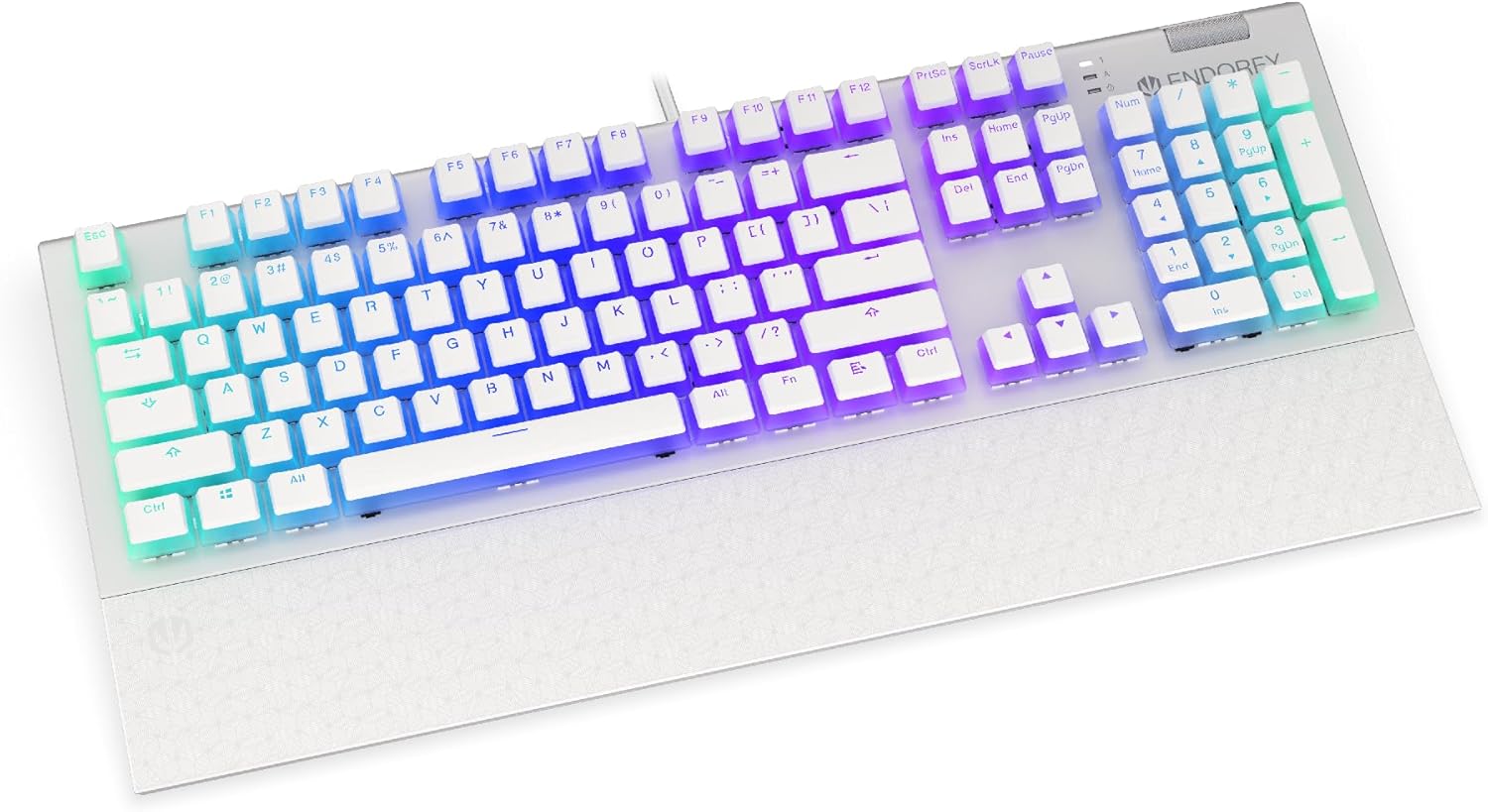
Image: Front view of the ENDORFY Omnis Pudding Onyx White Red mechanical keyboard, showcasing its full layout and connected cable.
2. Attaching the Wrist Rest
Align the magnetic wrist rest with the front edge of the keyboard. The magnets will automatically secure it in place, providing ergonomic support during use.

Image: Angled view of the ENDORFY Omnis Pudding Onyx White Red mechanical keyboard with the magnetic wrist rest attached, highlighting the seamless integration.
3. Software Installation (Optional)
For advanced customization of lighting effects, key assignments, and macros, download the official ENDORFY software from the manufacturer's website. Follow the on-screen instructions for installation.
Operating Instructions
Basic Keyboard Functions
The keyboard features a standard full-size layout with a dedicated numpad, function keys (F1-F12), and navigation keys. All keys operate as standard input devices for your computer.
Volume Wheel Operation
The metal volume wheel located on the top right of the keyboard allows for quick audio adjustments:
- Rotate Up: Increase volume.
- Rotate Down: Decrease volume.
- Press Down: Mute/Unmute audio.
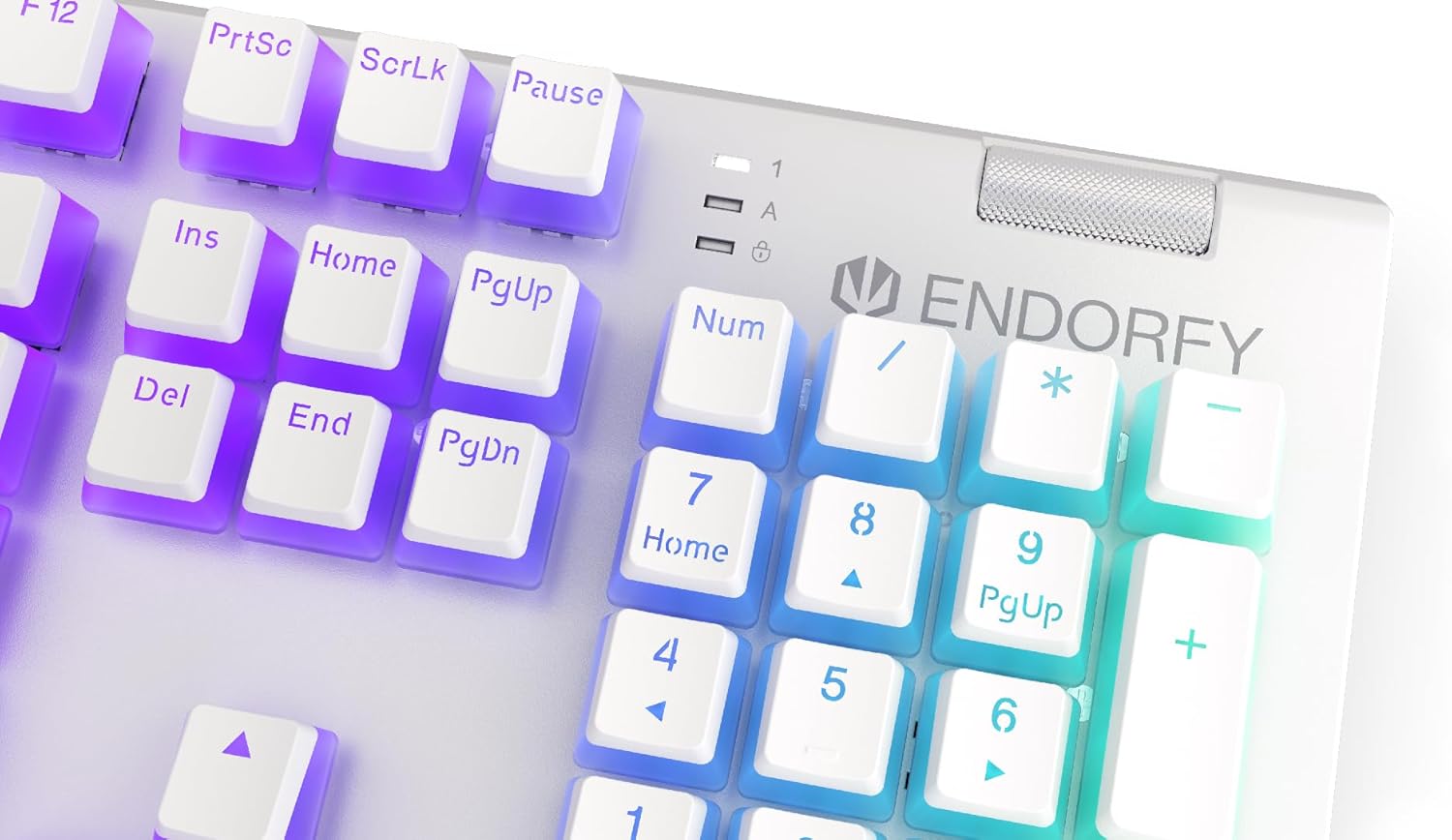
Image: Close-up view of the keyboard's numpad and the prominent metal volume wheel, indicating its position for easy access.
RGB Backlighting Control
The keyboard features customizable ARGB backlighting. Lighting effects and brightness can be adjusted using the dedicated ENDORFY software. Some basic lighting modes and brightness levels may also be accessible via keyboard shortcuts (e.g., Fn + arrow keys or specific function keys), though advanced customization is recommended through the software.

Image: The ENDORFY Omnis Pudding Onyx White Red mechanical keyboard illuminated with vibrant RGB backlighting, showcasing the Pudding keycaps.
N-Key Rollover (NKRO)
The keyboard supports N-Key Rollover, which means every key press is registered independently, regardless of how many other keys are being pressed simultaneously. This feature is particularly beneficial for fast typists and gamers, preventing ghosting or missed inputs.
Software Functionality
The ENDORFY software allows users to:
- Customize ARGB lighting effects and colors.
- Remap individual keys.
- Create and assign macros for complex command sequences.
- Manage multiple profiles for different applications or games.
Maintenance
Cleaning the Keyboard
To maintain optimal performance and appearance:
- Disconnect the keyboard from your computer before cleaning.
- Use a soft, lint-free cloth slightly dampened with water or a mild cleaning solution to wipe down the keycaps and chassis.
- For dust and debris between keycaps, use compressed air.
- Avoid using harsh chemicals or abrasive materials.
Keycap Removal and Replacement
The PBT Pudding keycaps can be removed for thorough cleaning or replacement. Use a keycap puller (not included) to gently lift keycaps straight up. When replacing, align the keycap with the switch stem and press down firmly until it clicks into place.

Image: Close-up view of the Kailh Red mechanical switches, visible when keycaps are removed, illustrating the switch mechanism.
Troubleshooting
- Keyboard Not Responding:
Ensure the USB cable is securely connected to both the keyboard and the computer. Try connecting the keyboard to a different USB port or a different computer to rule out port or system issues. Restart your computer. - Backlighting Not Working or Incorrect:
Check the brightness settings via the ENDORFY software or any onboard shortcuts. Ensure the software is up to date. If specific keys have incorrect lighting, reset the lighting profile in the software. - Keys Not Registering:
Clean under the affected keycaps to remove any debris that might be obstructing the switch. If the issue persists, it may indicate a hardware fault; refer to the Warranty and Support section. - Wrist Rest Not Attaching Securely:
Ensure there is no debris between the keyboard and the wrist rest that might interfere with the magnetic connection.
Specifications
| Feature | Detail |
|---|---|
| Brand | ENDORFY |
| Model Number | EY5A036 |
| Color | White |
| Key Switches | Kailh Red Mechanical |
| Keycaps | PBT Pudding |
| Layout | Full-size (US Layout) |
| Backlighting | ARGB (Configurable RGB) |
| Connectivity | USB-A (Detachable Cable) |
| Wrist Rest | Magnetic, Detachable |
| Volume Control | Metal Volume Wheel |
| N-Key Rollover | Yes |
| Compatible Operating Systems | Linux, Mac OS X 10.12 Sierra, Windows 7, Windows 8, Windows 10 |
| Recommended Use | Gaming, Multimedia |
| Material | Polybutylene Terephthalate (PBT) |
Warranty and Support
ENDORFY products are covered by a manufacturer's warranty. For detailed warranty terms, technical support, or service inquiries, please refer to the official ENDORFY website or contact your local retailer. Keep your proof of purchase for warranty claims.