
Introduction
This manual provides instructions for the VJIANGER 4K Digital Camera, Model W02. This camera is designed for photography and video recording, featuring 4K resolution, a 48-megapixel sensor, Wi-Fi connectivity, and a 180-degree flip screen. Please read this manual thoroughly before using the camera to ensure proper operation and to maximize its capabilities.
Package Contents
Verify that all items are present in your package:
- VJIANGER 4K Digital Camera (W02)
- Wide Angle Lens
- Macro Lens
- 2 x NP-40 Lithium-ion Batteries
- Dual Battery Charger
- USB Cable
- 32GB TF Card (pre-installed or separate)
- User Manual (this document)

Image: VJIANGER 4K Digital Camera W02 with its complete set of accessories.
Setup
1. Charging the Battery
The camera uses NP-40 lithium-ion batteries. Before first use, fully charge both batteries using the provided dual charger and USB cable. A full charge typically takes 2-3 hours.
- Insert the batteries into the dual charger.
- Connect the USB cable to the charger and a power source (e.g., USB wall adapter, computer USB port).
- The indicator light on the charger will show charging status.
2. Inserting the TF Card
A 32GB TF (Micro SD) card is included. The camera supports TF cards up to 256GB (Class 10 recommended).
- Locate the TF card slot on the camera.
- Insert the TF card with the metal contacts facing down until it clicks into place.
- Important: Format the memory card through the camera's menu the first time you use it to ensure compatibility and optimal performance.
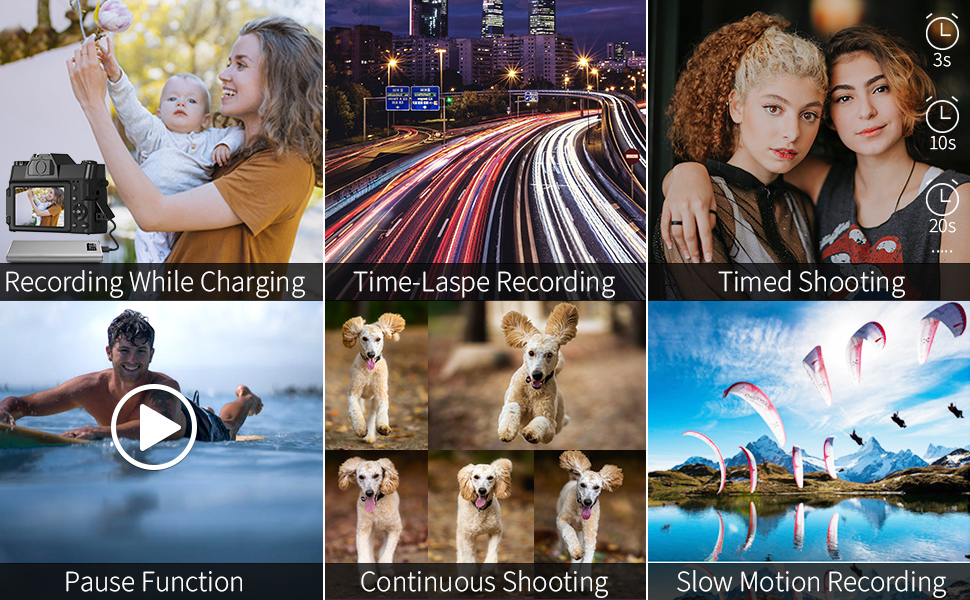
Image: Illustration of battery and TF card insertion points, and included charging accessories.
3. Attaching Lenses
The camera comes with a wide-angle lens and a macro lens. These can be screwed onto the front of the camera's fixed lens.
- Align the threads of the accessory lens with the threads on the camera's main lens.
- Gently rotate clockwise until securely attached.
Operating Instructions
Powering On/Off
Press and hold the power button to turn the camera on or off.
Mode Selection
Rotate the mode dial located on the top-left of the camera to select between different functions:
- Photo Mode: For taking still images.
- Interval Photography: For time-lapse photos.
- Recording Mode: For shooting videos.
- Slow Motion Recording: For slow-motion video capture.
- Time-Lapse Recording: For time-lapse videos.
- Playback Mode: For reviewing photos and videos.
Photography
In Photo Mode, press the shutter button to capture a 48-megapixel image.
- Digital Zoom: Use the zoom controls (usually 'W' and 'T' buttons) to apply up to 16X digital zoom. Note that digital zoom may reduce image quality.
- Timed Shooting: Set a timer for delayed photo capture.
- Continuous Shooting: Capture a series of photos rapidly.

Image: Demonstrates 48MP shooting and 16X digital zoom capability.
Video Recording
In Recording Mode, press the shutter button to start/stop 4K video recording at 30 frames per second.
- Pause Function: During recording, press the appropriate button (refer to camera interface) to pause and resume recording without creating a new file.
- External Microphone: Connect a 3.5mm external microphone to the dedicated jack for improved audio quality.
- Hot Shoe: Attach an external flash or LED light to the hot shoe for additional lighting.

Image: Example of 4K video recording at 30fps.
Manual Focus (MF)
The camera supports manual focus. To use:
- Gently press the shutter button halfway down.
- A focusing logo frame will appear on the display.
- Adjust the focus ring on the lens until your subject is sharp.
- Fully press the shutter button to capture the image or start recording.

Image: Visual guide for using the manual focus feature.
Wi-Fi Connectivity
Connect your camera to a smartphone via Wi-Fi for remote control and instant file transfer.
- Download the "XDV PRO" app on your smartphone (available for iOS and Android).
- On the camera, enable the Wi-Fi function through the menu.
- On your smartphone, connect to the camera's Wi-Fi network (SSID: 4K_WIFI, Password: 12345678).
- Open the "XDV PRO" app to control the camera or transfer photos/videos.

Image: Steps for connecting the camera to a smartphone via Wi-Fi.
Webcam Functionality / Live Streaming
The camera can function as a webcam for video calls or live streaming.
- Connect the camera to your PC using the provided USB cable.
- On the camera, select "Camera mode" when prompted.
- Your computer should recognize the camera as a webcam.
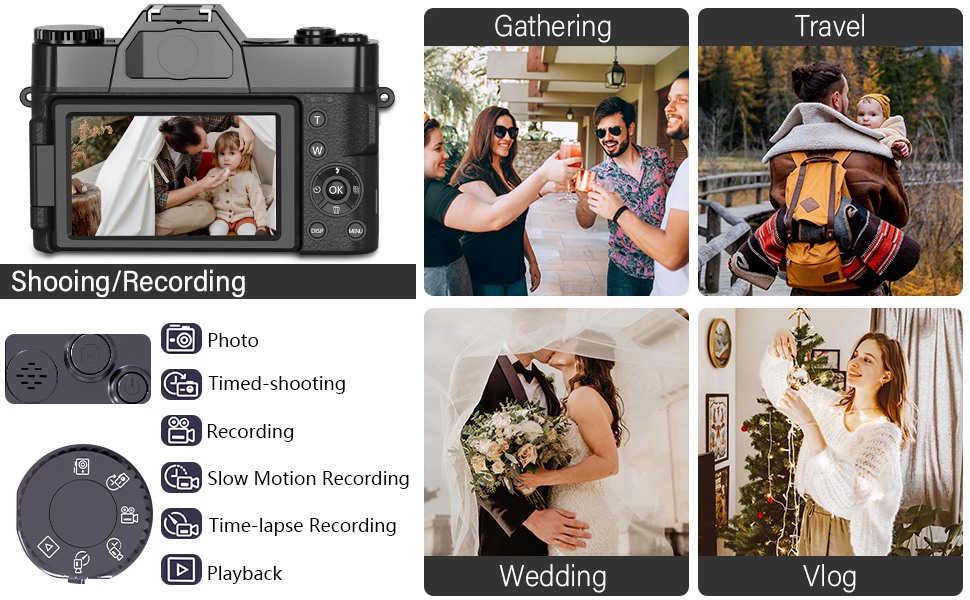
Image: Camera configured for live streaming or webcam use.
Playback and Viewing
You can review your captured content directly on the camera or on external devices.
- On Camera: Rotate the mode dial to "Playback Mode" to view photos and videos on the 180-degree flip screen.
- On PC: Connect the camera to your PC via USB cable and select "Mass Storage" mode to access files directly from the TF card.
- On TV: Connect the camera to a TV using an HDMI cable (not included) for viewing on a larger screen.

Image: Various methods for playing back recorded content.
Maintenance
- Cleaning the Lens: Use a soft, lint-free cloth specifically designed for camera lenses. Avoid harsh chemicals.
- Cleaning the Screen: Use a microfiber cloth to gently wipe the flip screen.
- Storage: When not in use, store the camera in a dry, cool place away from direct sunlight and extreme temperatures. Remove batteries if storing for extended periods.
- Water Resistance: This camera is not water-resistant. Avoid exposure to water or high humidity.
Troubleshooting
Q: Can I transfer pictures to my phone with WiFi?
A: Yes. Enable the Wi-Fi option on the camera, connect your phone to the camera's Wi-Fi network, and use the free "XDV PRO" camera app to transfer pictures directly.
Q: What type of lenses can be used with this camera?
A: This camera has fixed primary lenses and does not support interchangeable lenses. However, it supports the included 52mm 0.45X super wide-angle lens and macro lens, which attach to the front of the fixed lens.
Q: What does it mean when it shows "TF card not detected"?
A: This indicates the Transflash (Micro SD) memory card is not properly inserted or recognized. Ensure the card is fully inserted until it locks into place. If the issue persists, try reformatting the card in the camera (if it contains no important data) or using a different compatible TF card.
Q: Do I need an external microphone for this camera?
A: The camera has a built-in microphone. However, for enhanced audio quality, you can connect any external microphone with a 3.5mm plug to the camera's microphone jack.
Q: Does it include a memory card? What kind of card should I purchase?
A: Yes, a 32GB TF card is included. The camera supports a maximum of 256GB TF card (Class 10 or higher recommended).
Specifications
| Feature | Specification |
|---|---|
| Model | W02 |
| Photo Resolution | 48 Megapixels |
| Video Resolution | 4K (3840x2160) @ 30FPS |
| Digital Zoom | 16X |
| Display Screen | 3.0 inch Ultra HD 180° Flip Screen |
| Lens Type | Fixed Lens F/3.2, f=7.36mm (52mm filter size) |
| External Lenses | 52mm Wide Angle Lens, Macro Lens (included) |
| Storage | TF Card (up to 256GB, Class 10 recommended) |
| Connectivity | Wi-Fi, USB |
| Battery | NP-40 / 1500mAh Lithium-ion (2 included) |
| Battery Life | Approx. 2-3 hours |
| Dimensions (L x W x H) | 4.3 x 2.96 x 1.2 inches |
| Weight | Approx. 0.57 lbs (camera body) |
| Image Stabilization | Digital |
| Focus Type | Manual Focus (MF) |
| Audio Input | 3.5mm Microphone Jack |
| Hot Shoe | Yes, for external lighting |
Warranty and Support
For any questions, technical assistance, or warranty inquiries, please contact VJIANGER customer support through the platform where you purchased the product. Refer to your purchase documentation for specific warranty terms and contact details.
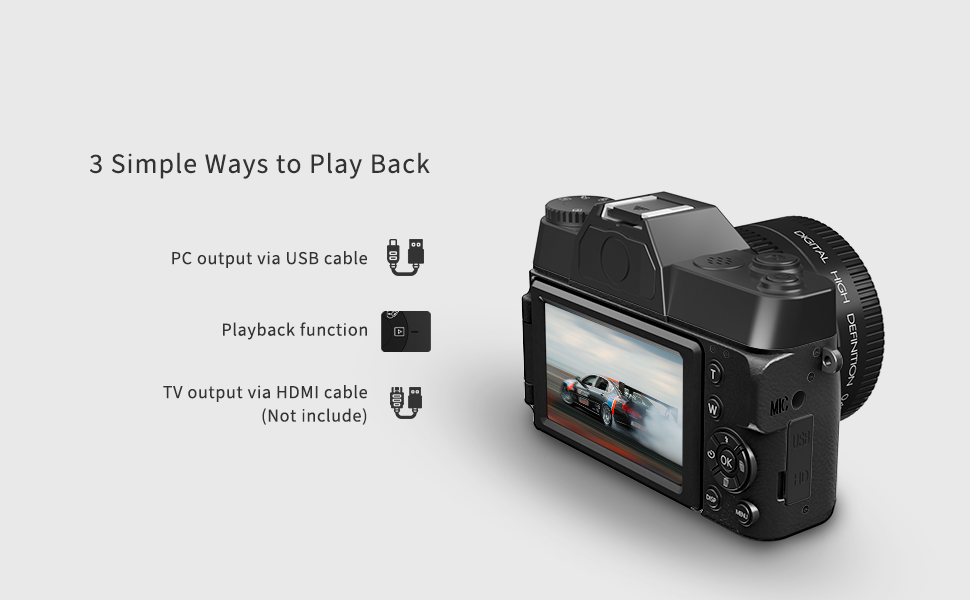
Image: VJIANGER customer support information.